In this guide, you’ll learn how to integrate MSTest-based automated tests into an Azure DevOps pipeline for a simple C# application. By enforcing tests in CI, every code change is verified and any failures block deployment before reaching production.

Converter Class Library

We start with a basic C# class library containing conversion methods:
You can verify outputs locally with a small console runner.

Conversion Methods at a Glance


Setting Up the Azure DevOps Pipeline

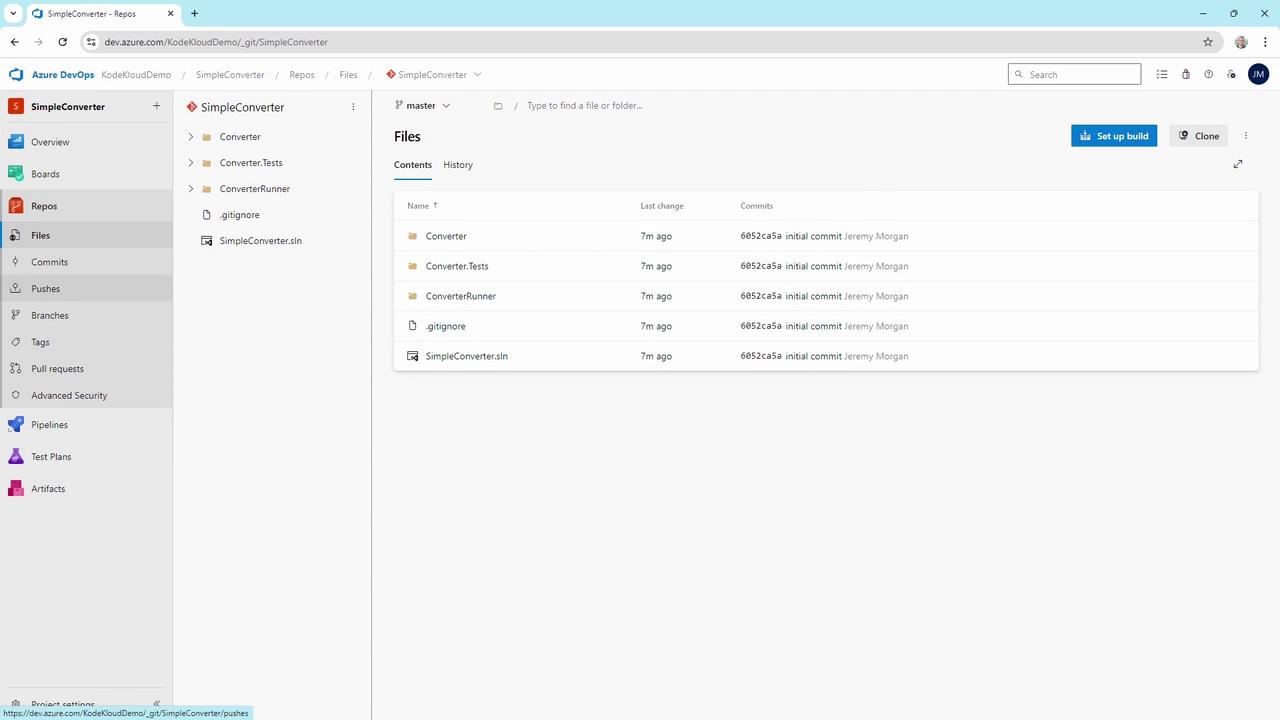
In Azure DevOps, select Azure Repos Git as the source and point to the SimpleConverter repository:
The image shows a screenshot of an Azure DevOps repository interface, displaying a list of files and folders in the "SimpleConverter" project with details about recent commits.
Choose the .NET Desktop template to match our class library:
The image shows an Azure DevOps interface for configuring a new pipeline, with options for different project types like ASP.NET, .NET Core, and Xamarin. The sidebar includes navigation links for various DevOps features such as Boards, Repos, and Pipelines.
Here’s the initial azure-pipelines.yml for CI:
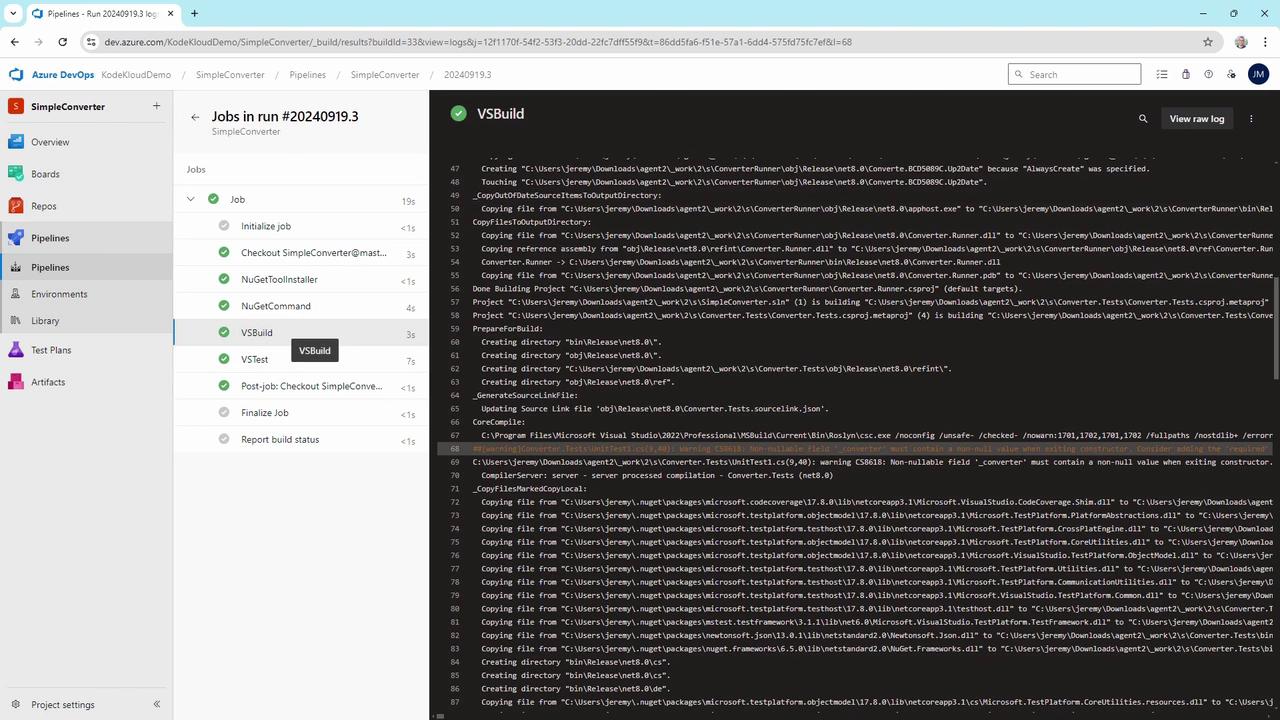
After committing, the pipeline runs successfully:
The image shows an Azure DevOps pipeline interface with a list of jobs and their statuses on the left, and detailed logs of the "VSBuild" job on the right. The pipeline appears to be running successfully with green check marks indicating completed steps.

Pipeline Task Overview


Adding MSTest Unit Tests

Create a new MSTest project that references ConverterLib. Here’s a complete test class:
Run the tests locally to confirm they pass, then commit and push. The pipeline’s VSTest task will verify them in CI.

Demonstrating a Pipeline Failure

Introduce a faulty implementation for demonstration:
A local build succeeds, but the console runner shows incorrect output:
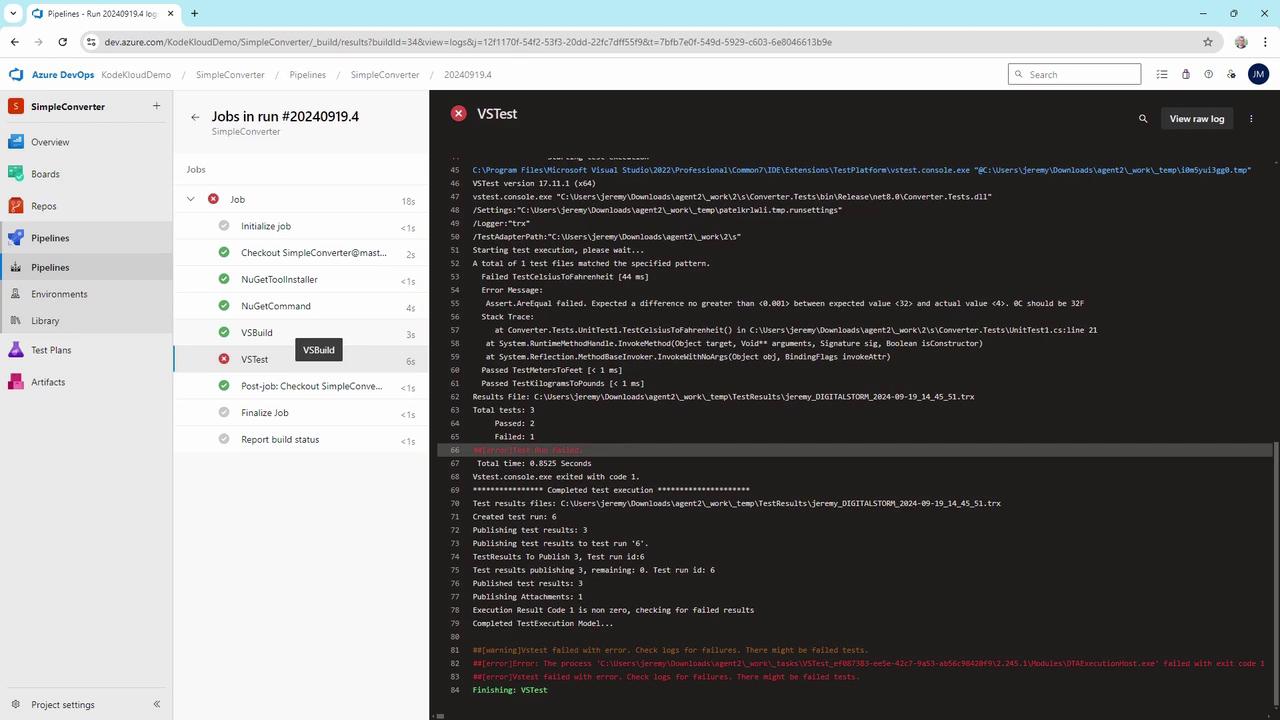
When pushed, the VSTest step fails in Azure DevOps:
The image shows an Azure DevOps pipeline interface with a list of jobs on the left and detailed logs of a failed test on the right. The test failure is highlighted in red, indicating an error in the VS Test step.
This enforcement blocks deployment until the logic error is fixed.
Never omit the VSTest task in your pipeline. Without it, logic errors slip through and can reach production.

Avoiding Accidental Omissions

A pipeline without tests might look like:
Always include the VSTest@2 task to enforce your unit tests:

Conclusion

By integrating MSTest unit tests into your Azure DevOps YAML pipeline, you establish a robust CI process that catches logic errors early. This simple setup increases confidence in code quality and ensures that only tested code is deployed.

References

Watch Video