

- Writing and reading token-specific cubbyhole data
- Proving isolation between tokens
- Populating and protecting a KV secret
- Generating and unwrapping a wrapped secret both via CLI and UI
Prerequisites
- Vault 1.10.0 Enterprise installed locally (initialized & unsealed)
- Environment variable:
VAULT_ADDR=http://127.0.0.1:8200 - Familiarity with basic Vault concepts (Vault Overview)
1. Verify Vault Status
2. Authenticate as Root
Success! You are now authenticated as the root user.
3. Create an Unprivileged Token
Create a token with only thedefault policy:
Success! You are now authenticated with limited permissions.
4. Working with Cubbyhole
Every token receives a private cubbyhole path. Only the token owner can write/read its own cubbyhole.4.1 Write to Cubbyhole
4.2 Read from Cubbyhole
4.3 Proving Token Isolation
Cubbyhole paths are isolated per token. No token can access another token’s cubbyhole.
- Switch back to root
- Attempt to read the unprivileged token’s cubbyhole
Output:
No value found at cubbyhole/training - Confirm unprivileged token can still read its own data
5. KV Secrets Engine & Access Control
Next, we’ll show how an unprivileged token is denied access to KV secrets written by root.5.1 As Root: Write a KV Secret
5.2 As Root: Read the KV Secret
5.3 Denied Access for Unprivileged Token
6. Response Wrapping
Response wrapping provides a one-time-use, time-limited wrapping token for secure secret transfer.6.1 Generate a Wrapping Token
As root, request a 60-minute wrapped response:6.2 Inspect the Wrapping Token
6.3 Unwrap as Unprivileged User
- Log in with the limited token:
- Unwrap the secret:
6.4 TTL & One-Time Use Demonstration
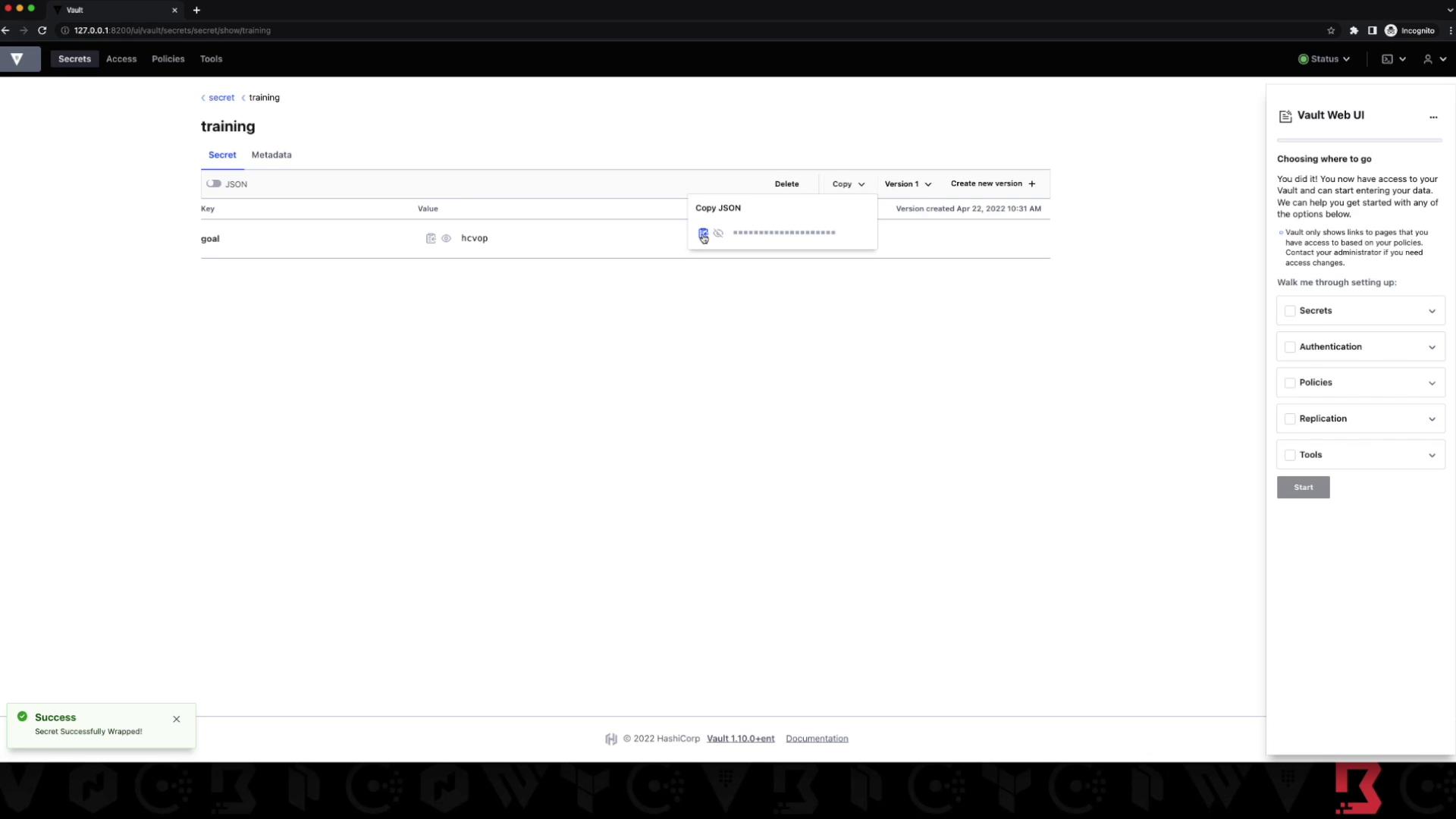
7. UI Demonstration
In the Vault UI, a privileged user can:- Navigate to Secrets → KV
- Select training and choose Wrap
- Copy the wrapping token and share via secure channels
Summary
- Stored token-specific data in Cubbyhole
- Verified strict isolation between tokens
- Secured KV secrets and demonstrated access denial
- Generated, inspected, and unwrapped response-wrapping tokens
- Showed one-time-use and TTL behaviors via CLI & UI