

Vault Server Logs
Vault emits logs at startup and continuously during operation. These logs capture:- Listener and port configurations
- Storage backend details
- Vault version and module information
- Active log level settings
If your HCL file has a syntax error (for example, a missing comma or bracket), Vault’s startup logs will identify the exact line number and issue.
Vault Log Levels
Vault supports five log levels, from least to most verbose. Choose the level that best matches your troubleshooting needs: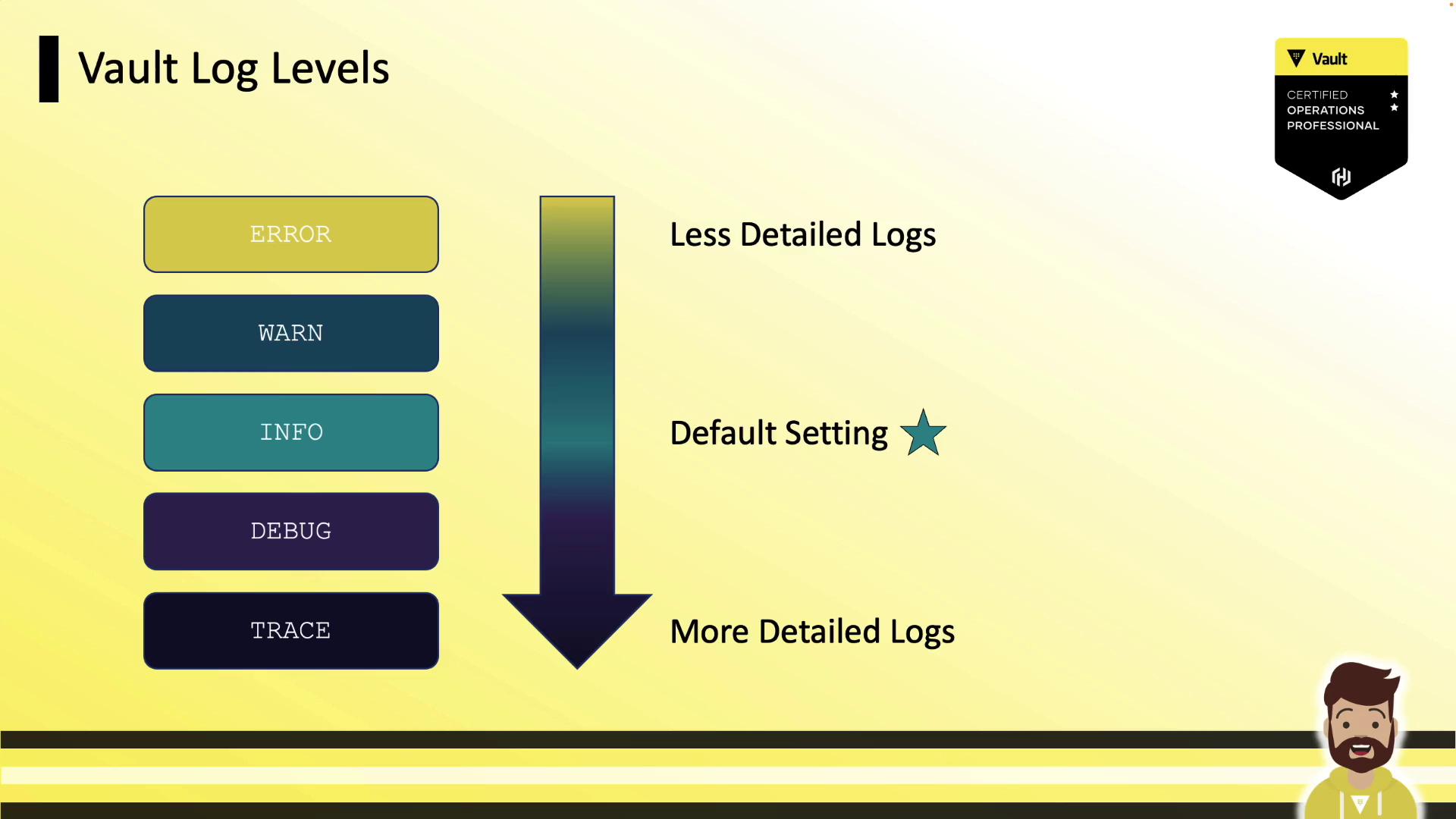
Configuring the Log Level
After updating any log settings, restart the Vault server for changes to take effect. You can set the log level via:1. CLI Flag
2. Environment Variable
3. Configuration File
Add this to your HCL:An invalid
log_level value in your HCL will prevent Vault from starting. Always verify the syntax.Viewing Vault Logs
Using systemd (journalctl)
On Linux systems with systemd, Vault logs go to journald. View them with:Shift+G to jump to the end, and Ctrl+C to exit.
Using Docker
If Vault runs inside Docker:Using Portainer
In exam or lab environments, Vault containers may be managed via Portainer. Use its UI to:- Start/stop containers
- View real-time logs
- Inspect environment settings