

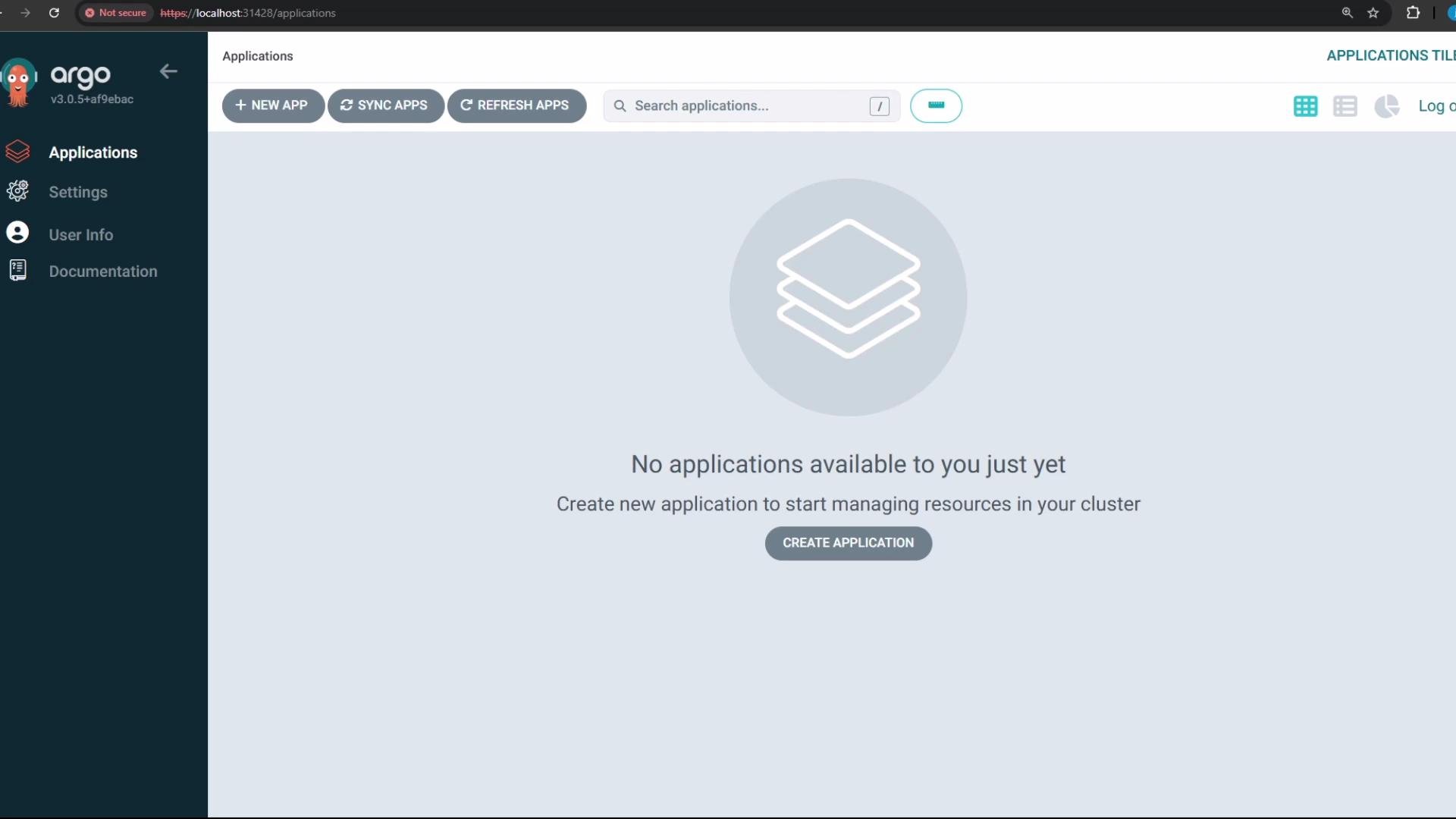
vanilla directory — it contains a Deployment and a Service that Argo CD will manage.
Creating the Argo CD Application (UI)
Use the Argo CD web UI to create the application that points to the Git repo and the vanilla path:
- Click “New App”.
- Set a name for the application (we use
highway-animation). - Choose the Argo CD project —
defaultis fine for demo purposes. Projects provide scoping and policy controls for applications. - For synchronization, choose Manual (you can switch to Automatic later).
- Enable “Create namespace” during sync so Argo CD will create the
highway-animationnamespace when you sync. - Source: provide the Git repository URL and set the path to
vanillaso Argo CD reads the Deployment and Service manifests from that subdirectory. - Destination: select the Kubernetes cluster where Argo CD should deploy. For this demo select the local cluster (Argo CD runs in-cluster) and set the target namespace to
highway-animation. - Save / Create the application.
localhost refers to the container or pod network, not your laptop/host. If your Gitea instance is running on the Docker host, Argo CD cannot use http://localhost:... to reach it. Use host.docker.internal or an address reachable from the cluster.
If the repository cannot be reached you’ll see a repository access error while creating the app:
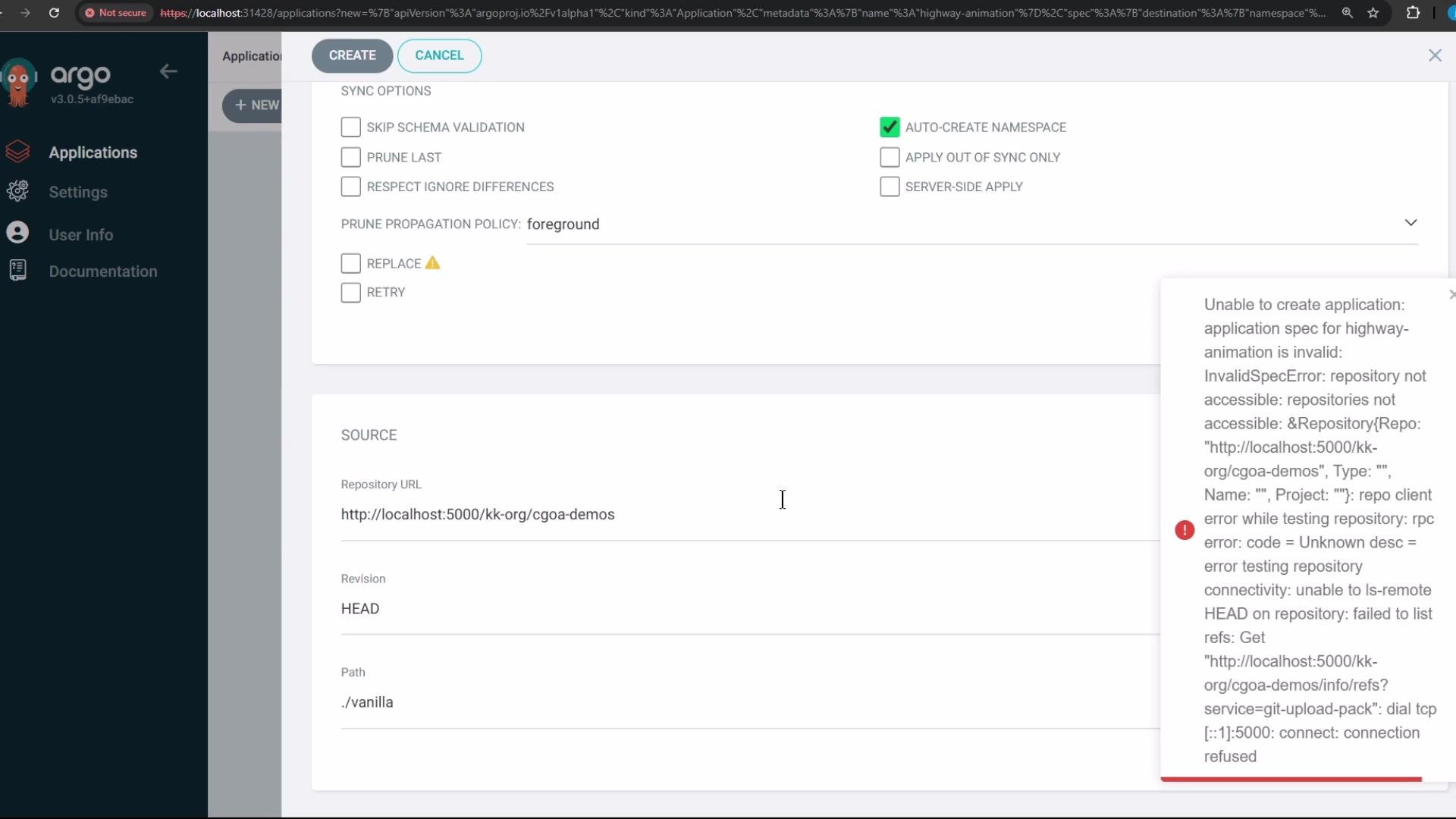
host.docker.internal) and recreating the application allows Argo CD to read the manifests. Because synchronization is set to Manual, the application will initially appear as Missing and OutOfSync until you explicitly sync it:
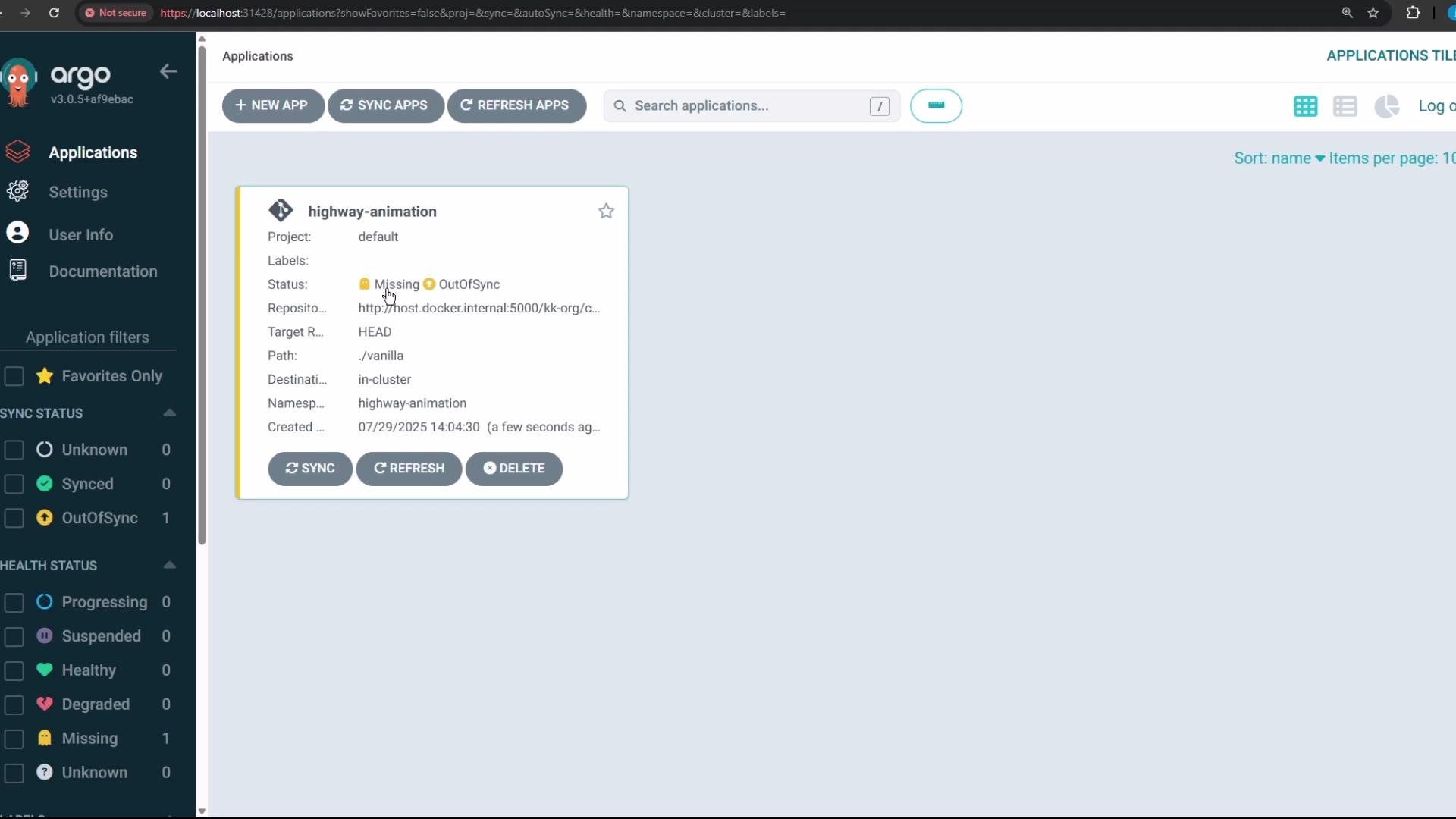
vanilla path. You should see two desired resources: a Deployment and a Service. Argo CD reads the YAML manifests from Git (desired state), but the live resources in the cluster are reported as “Resource not found” until you sync.
Here is the Deployment manifest Argo CD fetched (the desired state pulled from Gitea):
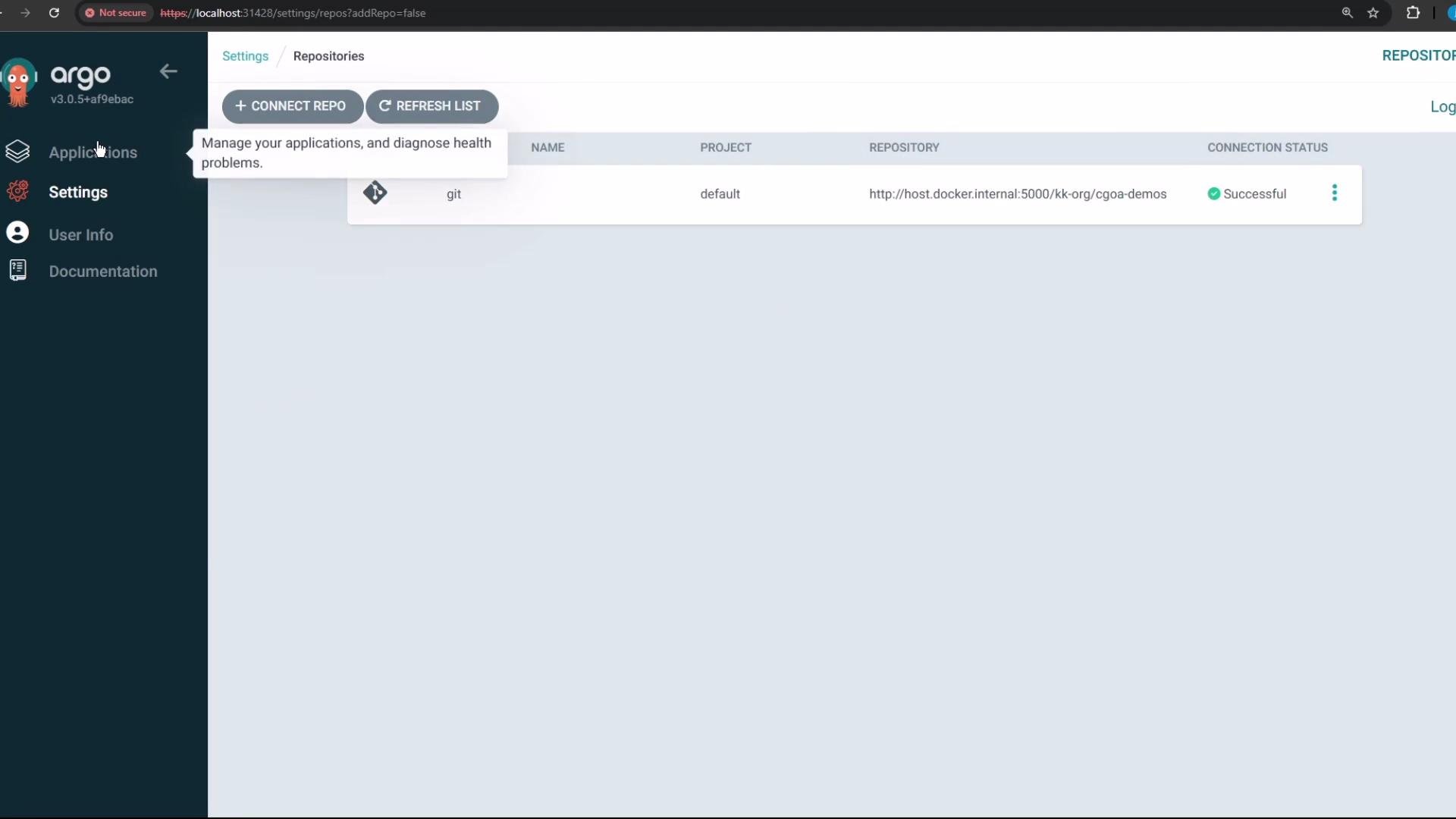
Because this repository is referenced across multiple demos, add it to Argo CD’s repository settings so it appears as a pre-populated choice when creating new applications.
- Go to Argo CD → Settings → Repositories.
- Click “Connect Repo” and enter the repository URL (choose Git and HTTP/S as appropriate).
- If the repo is public, credentials can be omitted. For private repos provide credentials or an SSH key.
- Click “Connect” to register the repository.
Next steps
- Perform a manual sync to apply the Deployment and Service to the cluster and observe Argo CD transitioning resources from Missing → Synced.
- Experiment with Automatic sync mode to see continuous reconciliation.
- Inspect the created namespace and resources with
kubectl(e.g.,kubectl get all -n highway-animation).
- Argo CD documentation: https://argo-cd.readthedocs.io/en/stable/
- Gitea: https://gitea.io
- Docker Desktop: https://www.docker.com/products/docker-desktop
- Kubernetes docs: https://kubernetes.io/docs/