Helm is the de facto package manager for Kubernetes. Helm charts combine reusable templates and environment-specific values.yaml files to generate Kubernetes manifests (Deployments, Services, RBAC, HPAs, etc.), which makes deployments consistent and repeatable across environments.
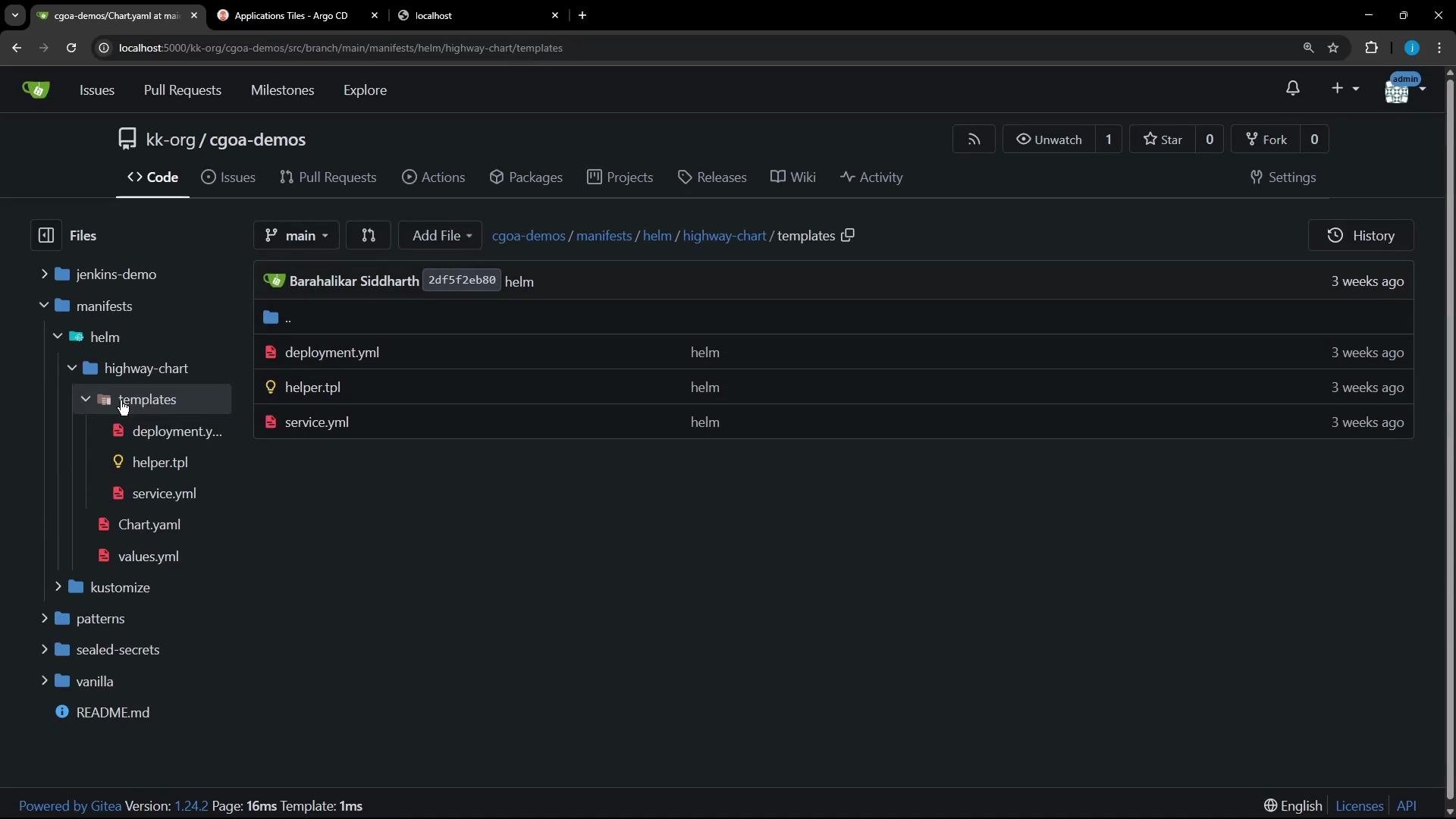
The image shows a web interface for a Git repository hosted on a local server, displaying a directory structure of a project related to Helm charts with several YAML and TPL files listed.

Helm chart anatomy (quick reference)

File / DirectoryPurposeExample
Chart.yamlChart metadata (name, version, appVersion)Chart.yaml
values.yamlDefault configuration consumed by templatesvalues.yaml
templates/Resource templates rendered with Helm functionstemplates/deployment.yaml
charts/Subcharts (dependency charts)charts/
Templates are YAML manifests with Helm template expressions that evaluate at render time. For example, a Deployment template in templates/deployment.yaml may look like:
apiVersion: apps/v1
kind: Deployment
metadata:
  name: highway-animation
  labels:
    app: highway-animation
spec:
  replicas: {{ .Values.replicaCount }}
  selector:
    matchLabels:
      app: highway-animation
  template:
    metadata:
      labels:
        app: highway-animation
    spec:
      containers:
        - name: highway-animation
          image: "{{ .Values.image.repository }}:{{ .Values.image.tag | default .Chart.AppVersion }}"
          imagePullPolicy: {{ .Values.image.pullPolicy }}
          ports:
            - containerPort: {{ .Values.containerPort }}
              protocol: TCP
          env:
            # You can render environment variables from .Values.env (list)
            # e.g., {{- toYaml .Values.env | nindent 12 }}
Note: Template expressions such as {{ .Values.replicaCount }} are shown inside code blocks to avoid MDX parsing issues. A matching values.yaml supplies defaults consumed by the template. A minimal example for this chart:
replicaCount: 1

image:
  repository: siddharth67/highway-animation
  pullPolicy: IfNotPresent
  tag: "blue"

service:
  type: NodePort
  port: 3000
  targetPort: 3000

containerPort: 3000

env:
  - name: POD_COUNT
    value: "1"

# Optional resource configuration:
# resources:
#   limits:
#     cpu: 100m
#     memory: 128Mi
#   requests:
#     cpu: 100m
#     memory: 128Mi
Using templates + values.yaml enables you to:
  • Reuse the same chart across environments (dev/staging/prod) by swapping values.
  • Maintain a single source of truth for manifests while customizing behavior with values or overrides.
  • Keep configuration in Git to satisfy GitOps principles and enable auditability.
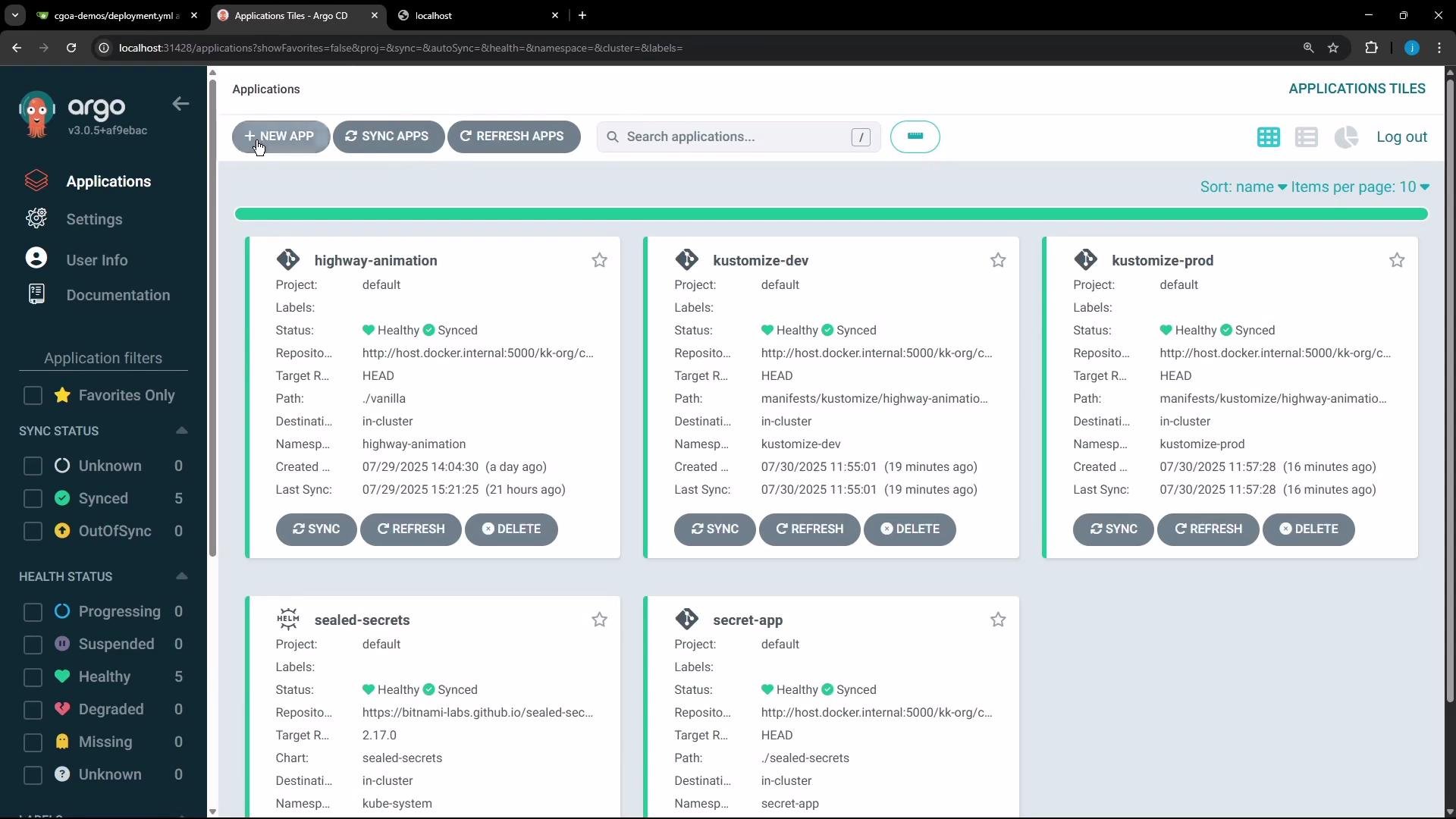
Because the chart lives in a Git repository, it aligns with GitOps best practices. Continuous delivery tools like Argo CD or Flux CD can render the chart and continuously reconcile the cluster to the desired state.
The image shows the Argo CD dashboard displaying several applications with their health status marked as "Healthy" and "Synced." Each application card includes details like project, repository, and last sync time.

Deploying a Helm chart with Argo CD

Argo CD can deploy a Helm chart directly from a Git repo. In the Argo CD UI you typically:
  1. Create a new Application.
  2. Point repoURL to your Git repository and path to the chart folder (e.g., manifests/helm/highway-chart).
  3. Choose a target cluster/namespace and optional automated sync policy.
  4. Provide values.yaml or overrides if you want to change defaults at deploy time.
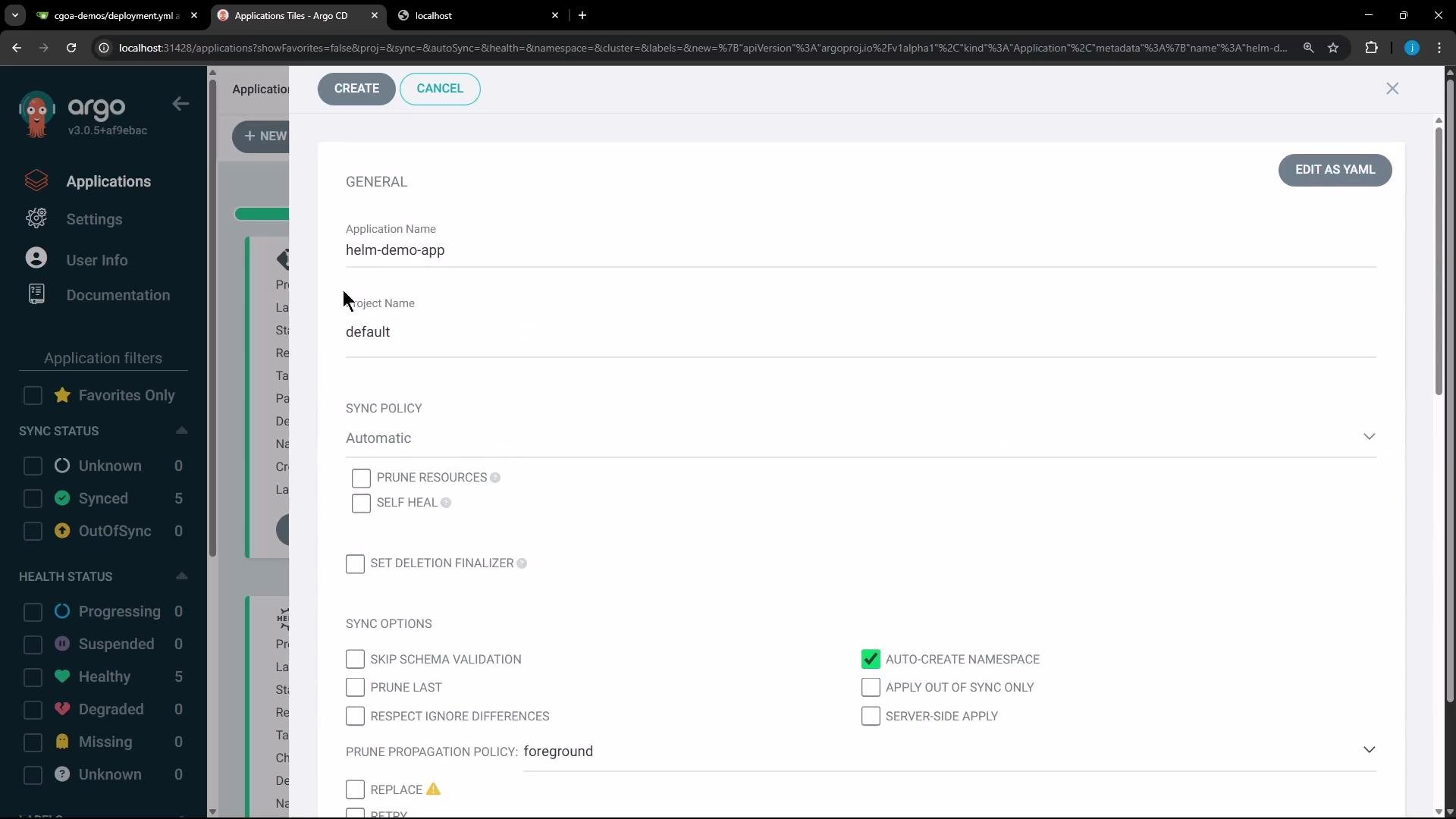
The image shows a user interface for configuring application settings in Argo CD, including options for sync policy and other settings.
Argo CD recognizes the Helm chart and prompts for values files or overrides. Point it at the chart’s values.yaml or supply a custom override file to change runtime configuration.
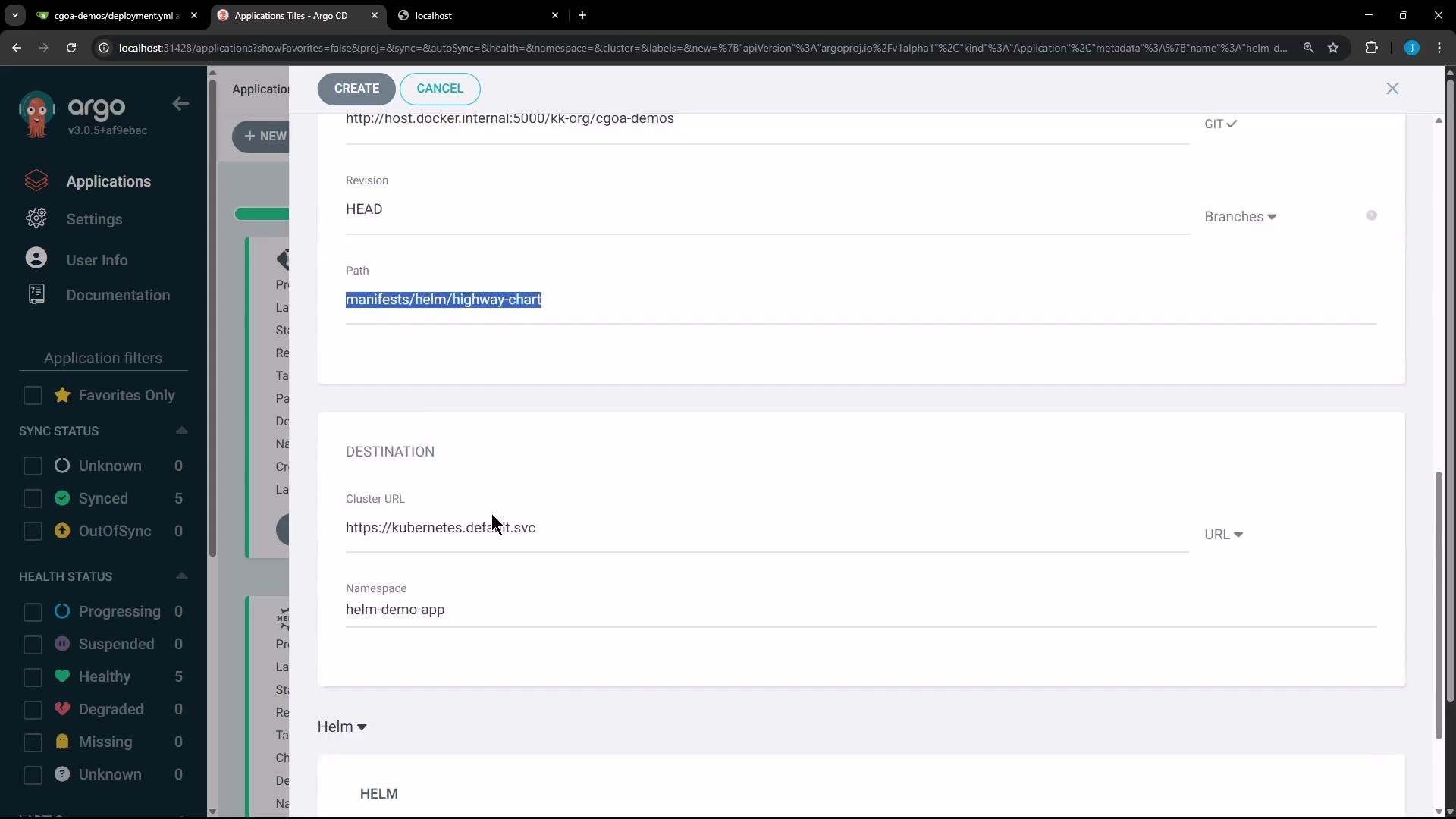
The image shows the Argo CD interface, displaying a form for creating or managing applications, with details about the Git repository and destination cluster URL.
Once created, Argo CD renders the Helm chart and creates the Kubernetes resources — e.g., Deployment, Service, and Pods configured by values.yaml. With the example above (replicaCount: 1) you will initially see a single pod.
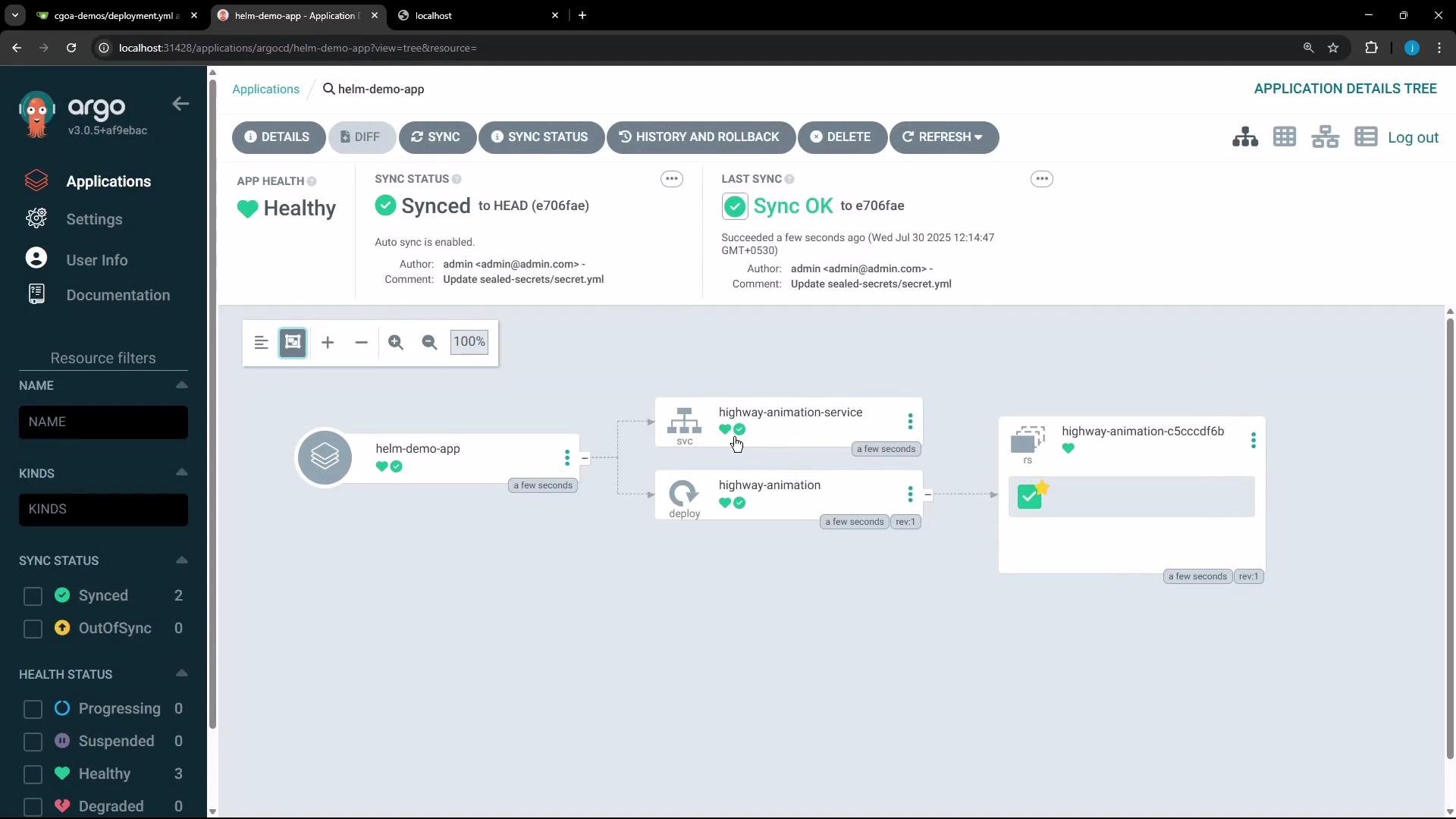
The image shows an Argo CD web interface displaying the details of a synced application, including its health and sync status, within a graphical resource tree view.

Updating configuration: Git vs UI overrides

You can change chart configuration in two common ways:
  • Edit values.yaml in the Git repository and let Argo CD pick up the change via GitOps sync, or
  • Provide overrides in the Argo CD Application (UI or Application manifest), which are useful for temporary or environment-specific changes.
Example Argo CD Application manifest that references a Helm chart and passes a values file and parameter overrides:
apiVersion: argoproj.io/v1alpha1
kind: Application
metadata:
  name: helm-demo-app
spec:
  project: default
  source:
    repoURL: http://host.docker.internal:5000/kk-org/cgoa-demos
    path: manifests/helm/highway-chart
    targetRevision: HEAD
    helm:
      valueFiles:
        - values.yaml
      parameters:
        - name: replicaCount
          value: "7"
        - name: image.tag
          value: "green"
        - name: service.type
          value: "NodePort"
  destination:
    server: https://kubernetes.default.svc
    namespace: helm-demo-app
  syncPolicy:
    automated: {}
    syncOptions:
      - CreateNamespace=true
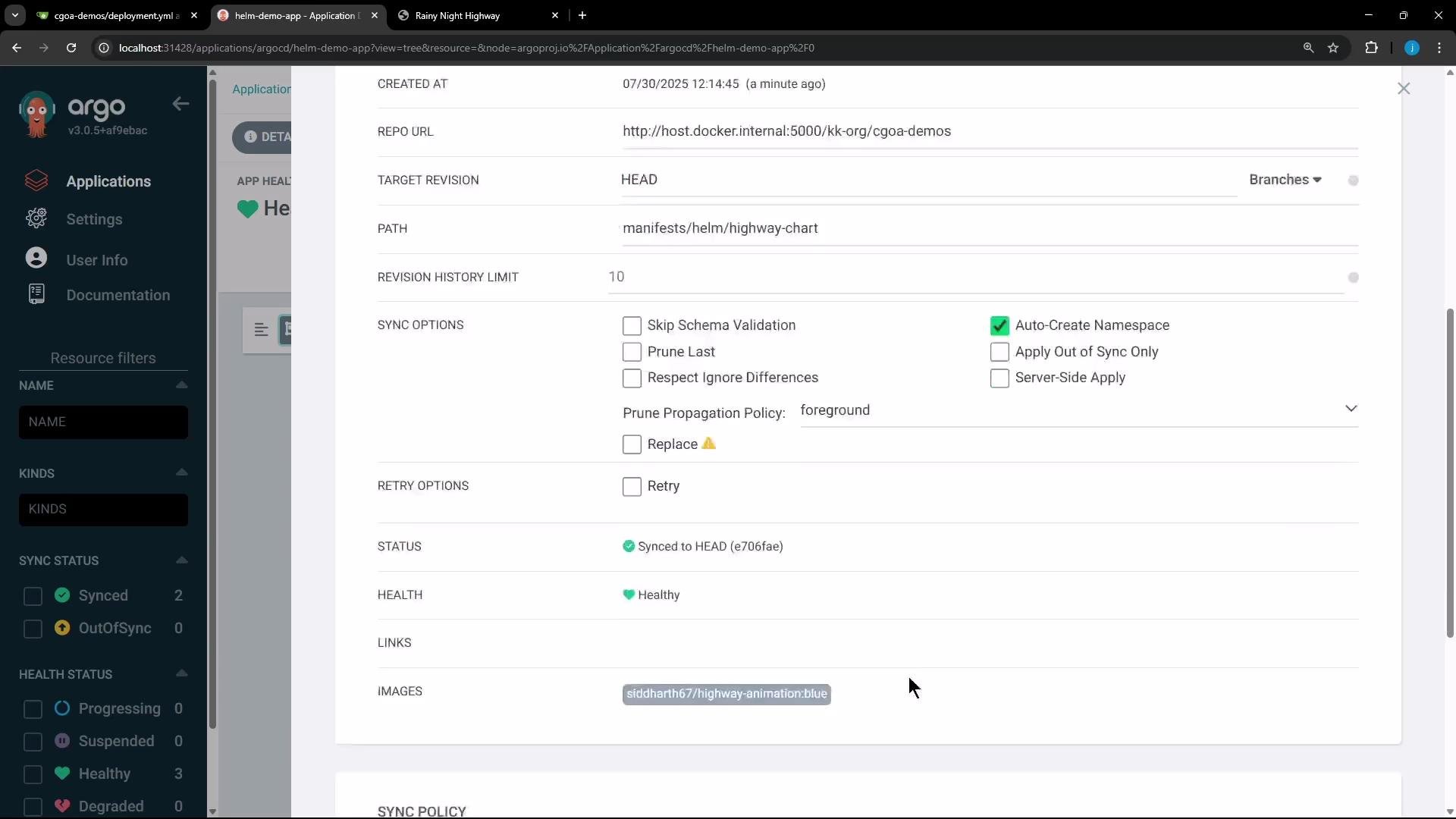
The image shows the Argo CD user interface displaying details of a Helm demo application. Options such as sync settings, retry options, and application status are visible.
You can also edit parameters from the Argo CD UI. For example, change replicaCount to 7, set image.tag to green, or update other values. After saving, Argo CD will detect a drift (OutOfSync) between the live cluster and the desired state.
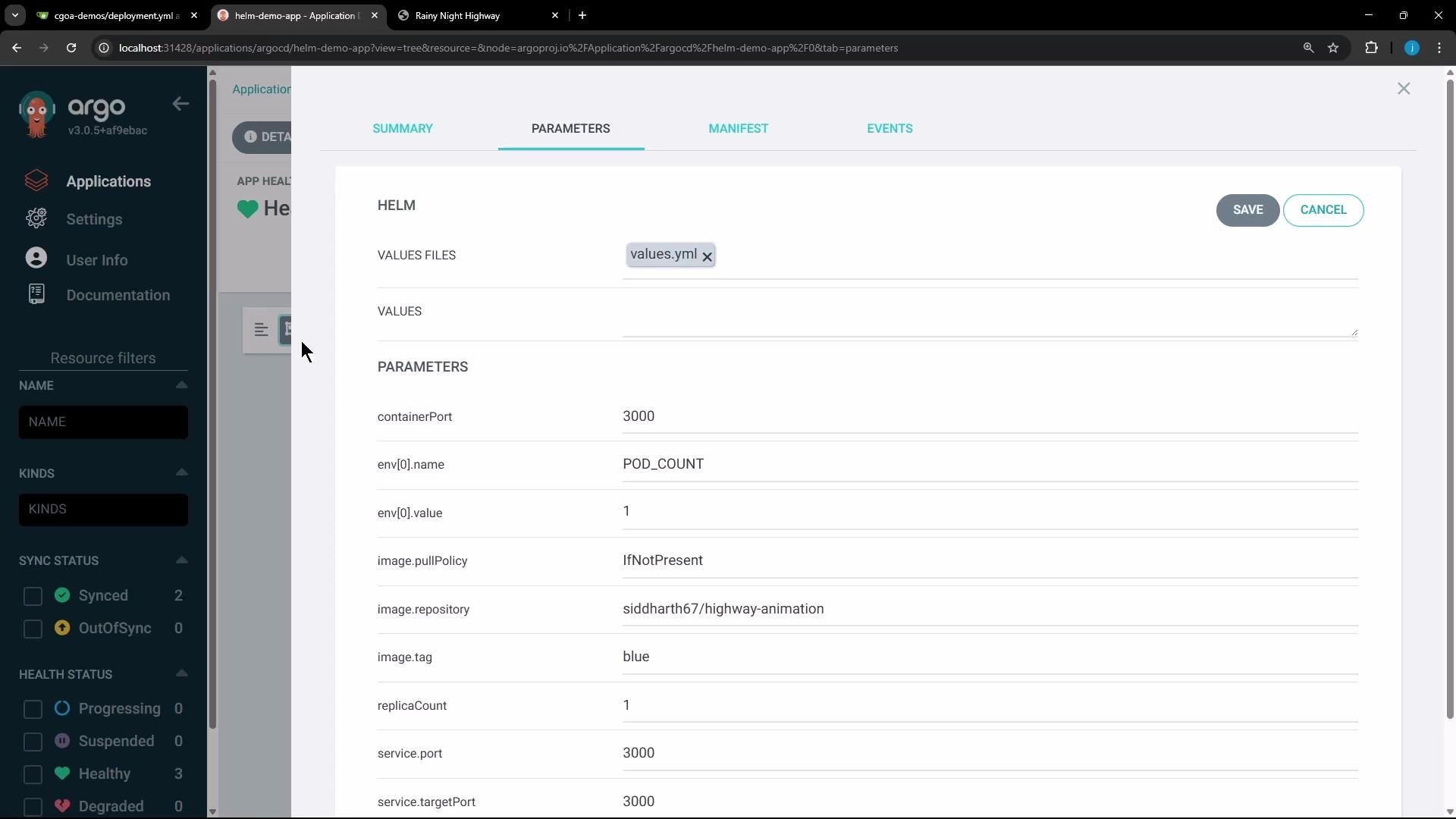
The image shows a screenshot of an Argo CD application interface with parameters set for a Helm chart, including container port, environment variables, image repository, and replica count.
Argo CD shows diffs between live manifests and desired manifests (e.g., replicas: 1 vs replicas: 7, changed image tags, or modified env vars). When you run a sync, Argo CD applies the updated manifests to the cluster.
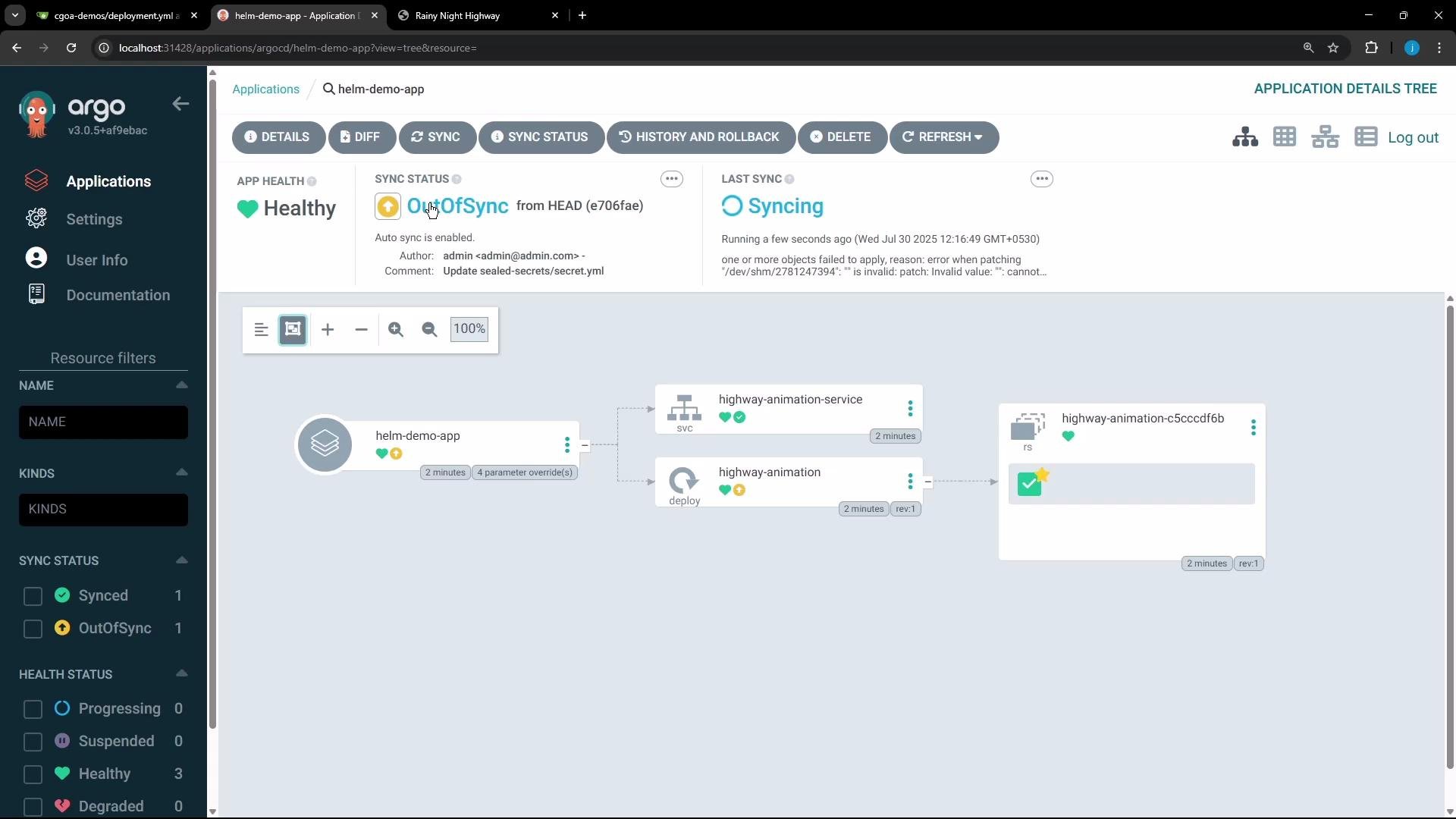
The image shows a user interface of the Argo CD application dashboard, displaying the sync status and health of a "helm-demo-app" and related services in a flowchart format. The "helm-demo-app" is marked as "OutOfSync" while its health status is "Healthy."
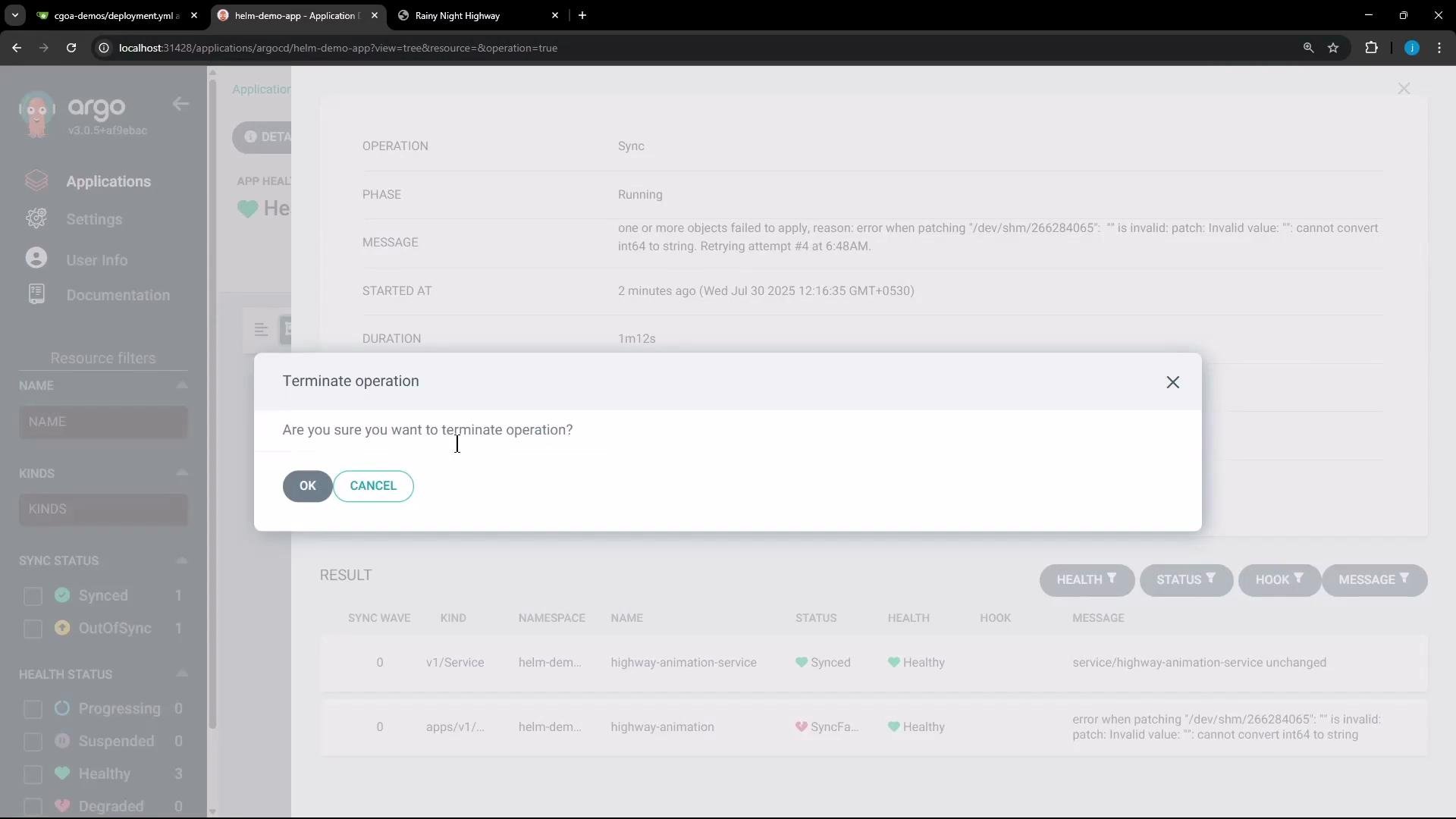
If a sync gets stuck or an operation must be interrupted, Argo CD provides controls to terminate and re-trigger operations.
The image shows a software application interface with a pop-up dialog asking if the user wants to terminate an operation. It also displays system status information related to a sync operation.
After a successful sync, the cluster reflects the updated values (for example, replicaCount: 7 results in 7 running pods). If something doesn’t render properly in the Argo CD UI (for example, quoting/format issues), check your YAML formatting in the override editor and prefer properly formatted YAML.
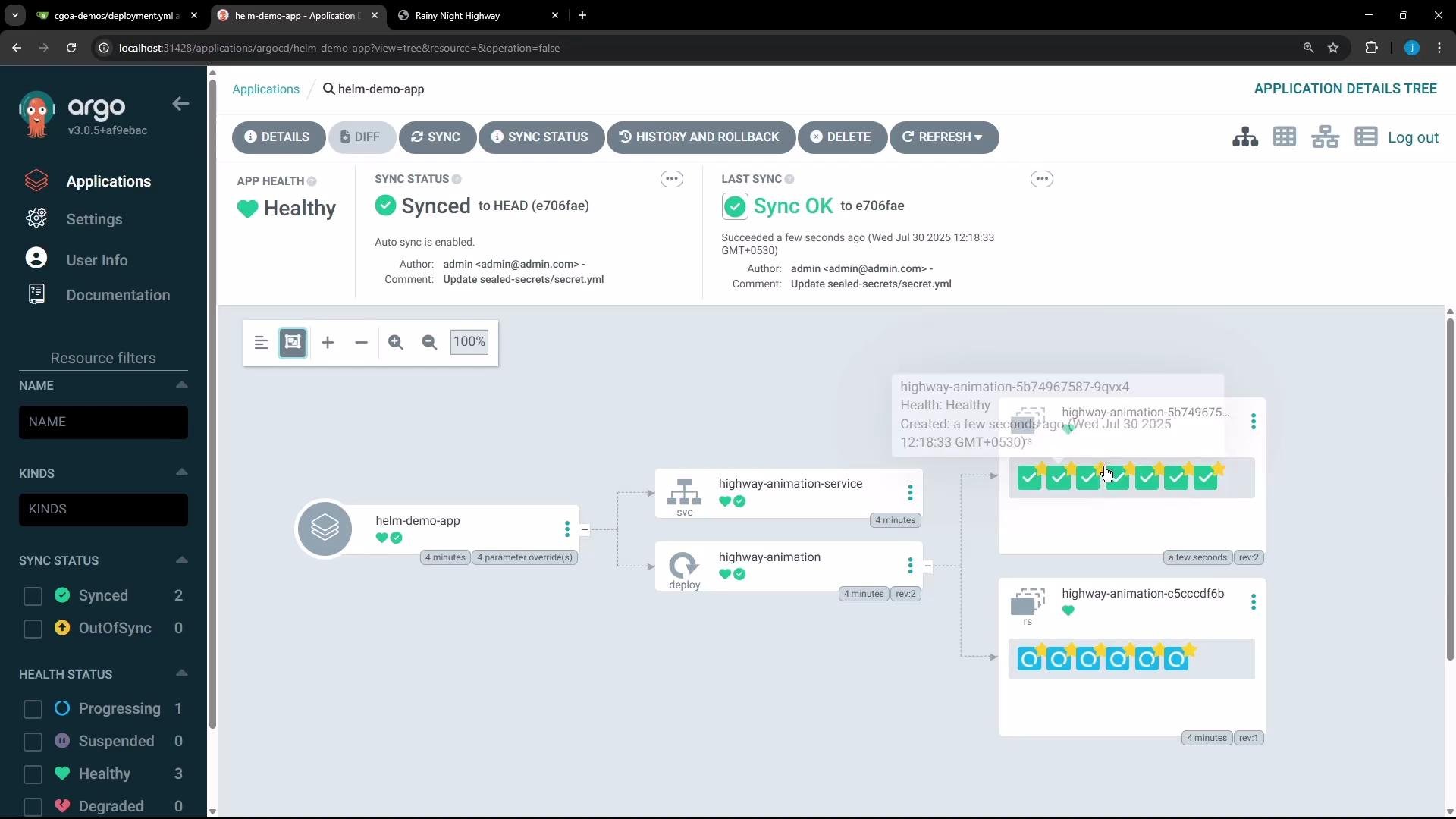
The image displays a web interface of Argo CD, detailing the "helm-demo-app" with its application health and sync status, along with a visual representation of the application's components and their health states.
A consistent values override you can paste into Argo CD’s editor:
replicaCount: 9
image:
  tag: "green"
env:
  - name: POD_COUNT
    value: "9"
With that override and a sync, the cluster will run nine pods using the updated image tag and environment variable.
Tip: Keep configuration as code in Git (edit values.yaml in your repo) so changes remain auditable and follow GitOps best practices. Use Argo CD parameters or UI overrides for temporary or environment-specific adjustments.

Summary

Helm templates + values.yaml let you templatize Kubernetes manifests for reuse and consistency. Pairing Helm with Argo CD creates a GitOps workflow: store charts and values in Git, let Argo CD render and deploy them, and update configuration through Git or controlled UI overrides to reconcile clusters to the desired state.

Watch Video