A guide to observability pipelines and Grafana dashboards covering Prometheus Loki Jaeger data sources PromQL provisioning dashboard design and SLO driven visualizations for troubleshooting
Welcome back. This lesson connects the telemetry you collect to the dashboards you use to make decisions. Observability isn’t just about collecting metrics, logs, and traces — it’s about turning that raw telemetry into actionable insights. We’ll cover the common data sources (how Prometheus, Loki, and Jaeger feed your stack) and the visualization fundamentals for building effective Grafana dashboards.Think of observability as a pipeline:
application code → metrics collection → time-series storage → Grafana dashboards.
Each stage in this pipeline has a specific role:
Application code: export metrics and add trace/log context.
Prometheus: scrapes metrics and stores samples in its TSDB.
Grafana: queries Prometheus, Loki, and Jaeger to render dashboards and correlate data.
Example metric instrumentation in a Python app (metrics.py):
# metrics.py# Metrics are exposed at /metrics endpointREQUEST_COUNT.labels(method="POST", endpoint="/checkout").inc()REQUEST_DURATION.labels(method="POST", endpoint="/checkout").observe(0.234)
Prometheus scrapes the /metrics endpoint on a configured interval (for example, every 15s). The TSDB stores series as timestamped samples:
# Data stored as time series (example)http_requests_total{method="POST", endpoint="/checkout"} 1024 @1699123456http_requests_total{method="POST", endpoint="/checkout"} 1127 @1699123471
Logs and traces complement metrics: Loki collects logs (with optional trace IDs), and Jaeger stores traces for distributed request analysis. Grafana can be provisioned to surface all three data sources automatically on startup.
Provisioning Grafana with datasources and dashboards is typically done by mounting a provisioning folder (so Grafana loads it at startup). Example docker-compose snippet:
Provision Grafana via GF_PATHS_PROVISIONING so datasources and dashboards are available at startup. Keep these provisioning files in version control for reproducible dashboards and consistent environments.
How Grafana and Prometheus interact:
Grafana panels issue PromQL queries to Prometheus.
Prometheus returns time-series samples.
Grafana renders those samples as line charts, stat panels, heatmaps, tables, etc.
Dashboards refresh on configured intervals (5s, 30s, 1m…), forming the core query-response loop of observability.
Data source roles (quick reference):
Data Source
Role
Grafana Type
Prometheus
Time-series metrics collection and TSDB
prometheus
Loki
Logs with structured context and trace IDs
loki
Jaeger
Distributed traces for request flow analysis
jaeger
When designing dashboards, follow three pragmatic laws:
Clarity over beauty: during an incident, readability matters more than aesthetics.
Context over raw data: include baselines, SLOs, and trend lines to interpret numbers.
Action over information: every chart should help make a decision (link to runbooks, show drilldowns).
The dashboard layout should be layered so an engineer can answer “Is everything okay?” in about 10 seconds:
Top row: high-level service health overview.
Middle rows: performance trends and comparisons.
Bottom rows: root-cause drilldowns and detailed logs/traces.
If the top-level status indicates an issue, drill into performance details: request rate trends, latency percentiles, error rates, and resource utilization.
Choose chart types deliberately — pick visuals that clarify trends and enable decisions.
Use this quick mapping to choose visuals:
Chart Type
Best For
Why
Time series (line)
Request rates, latency percentiles, error rates
Shows trends and spikes clearly
Stat / single-value
Uptime, SLO compliance, P95
Immediate at-a-glance status
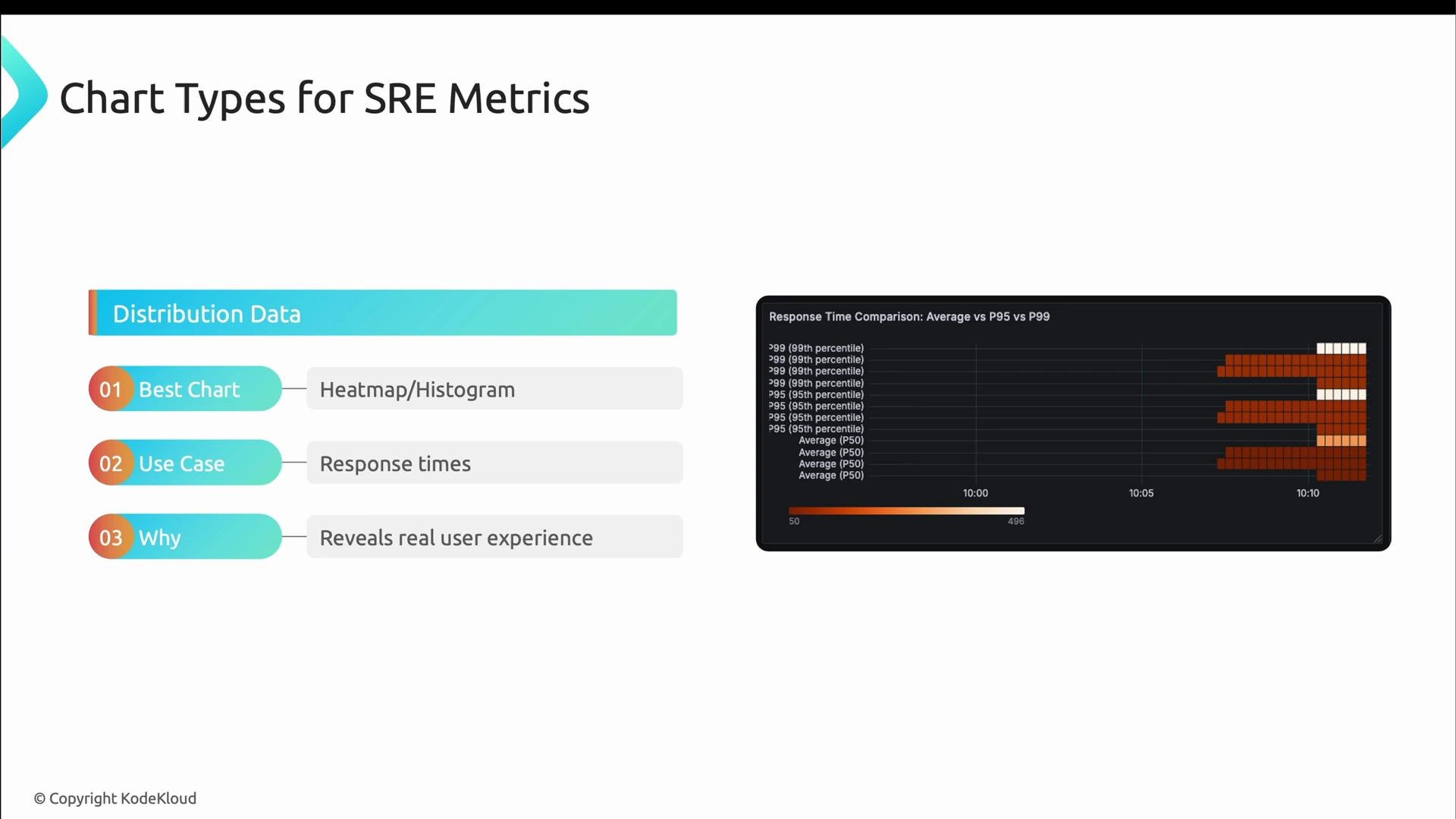
Histogram / heatmap
Response-time distributions
Reveals outliers that percentiles hide
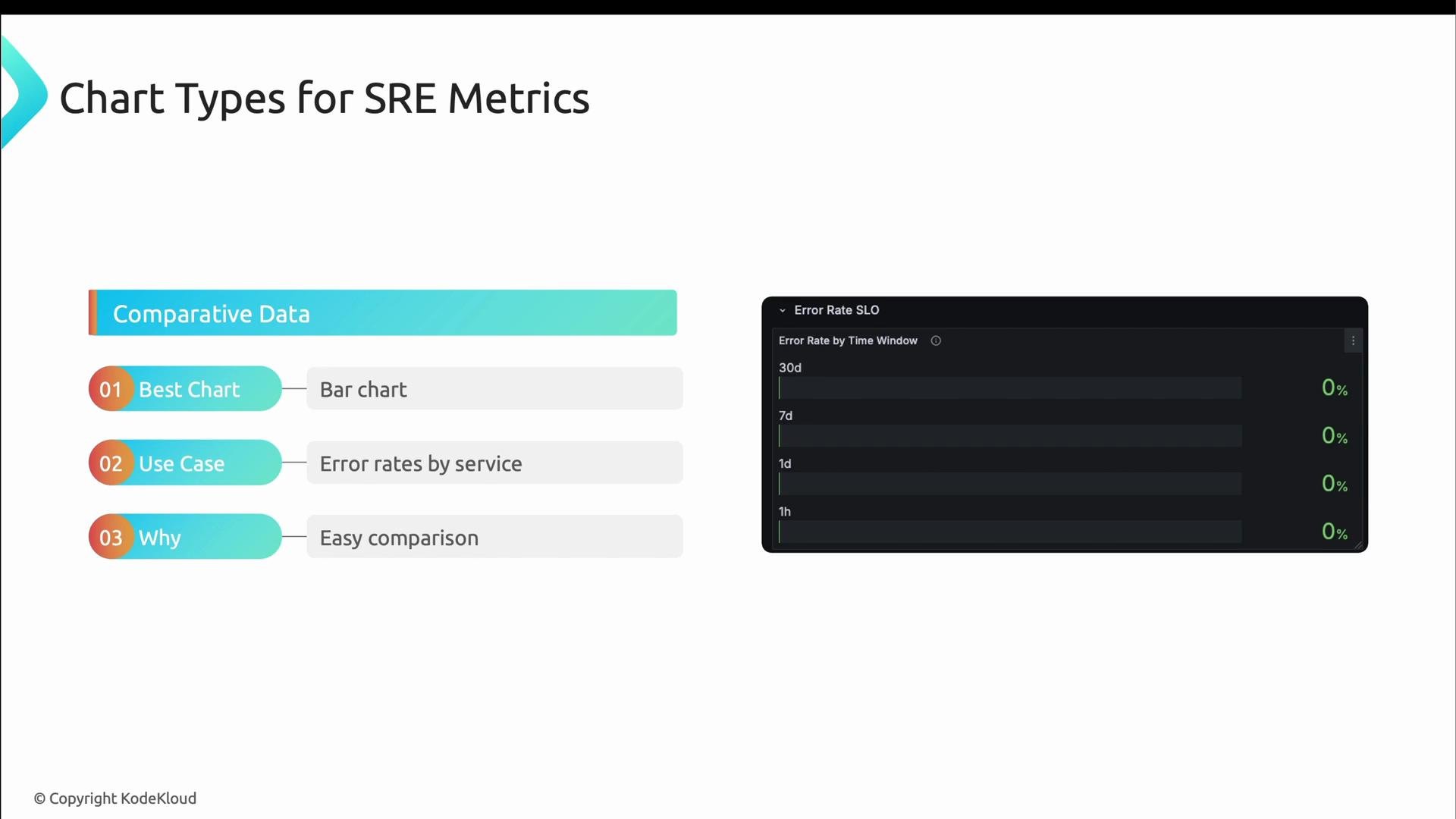
Bar chart
Comparative error rates or request volumes
Simple comparison across groups
Avoid charts that obscure trends: pie charts for time series, 3D effects, excessive color palettes, and tiny fonts make dashboards difficult to read during incidents.
Start a dashboard with a clear purpose. For the KodeKloud record store, the target is a service health overview that helps engineers quickly identify services needing attention. Critical metrics: availability, request rate, error rate, and response time (P95). Example PromQL queries for these metrics:
# Availability (up = 1 means target is reachable)up{job="kodekloud-record-store-api"}# Request rate (per second over 5m)rate(http_requests_total[5m])# Error rate (5xx responses per second)rate(http_requests_total{status_code=~"5.."}[5m])# Response time (P95) from histogram bucketshistogram_quantile( 0.95, rate(kodekloud_http_request_duration_seconds_bucket[5m]))
Layout guidance:
Top row: large status numbers and SLO indicators.
Middle rows: trends, comparisons, and resource usage.
Bottom rows: detailed breakdowns, tables, logs, and trace links.
Add SLO overlays and threshold-based coloring so panels are green/yellow/red according to SLO boundaries.
Validate dashboards under realistic load—generate synthetic traffic and errors to ensure alerts, color thresholds, and drilldowns behave as intended.To generate logs and traces for local testing:
# Generate comprehensive test data including errors and traffic./scripts/generate_logs.sh
Example output after running the test generator (trimmed):
$ ./scripts/generate_logs.shKodeKloud Records Store - Generating Test Data for Observability========================================Generating logs with trace context...{"message":"Test spans created","trace_id":"23e3b9c0012b79fe8e15de6d5babaef5","span_id":"e1cca1933c5ac72d"}Generating error logs...{"error":"Simulated error","trace_id":"eb29cf3893f8a137d5b1e47d2d482961","span_id":"5a6d3185f84fc29f"}Generating 404 error...{"detail":"Not Found"}Generating product listing logs...[{"name":"Vinyl Record","price":19.99,"id":1},{"name":"Vinyl Record","price":19.99,"id":2},{"name":"Abbey Road","price":25.99,"id":3}]
Open Grafana at http://localhost:3000 to explore provisioned dashboards. The demo dashboards include observability overviews, user-experience widgets, and an end-to-end purchase journey with links to detail dashboards.
Logs often include trace context so you can pivot from a log line into a Jaeger trace and back to metrics. Example structured log line (JSON):
# P95 response time in millisecondshistogram_quantile(0.95, rate(kodekloud_http_request_duration_seconds_bucket[5m])) * 1000
Grafana dashboards and panels are stored in the provisioning folder (datasources and dashboards). Inspect the JSON to see how queries, thresholds, units, links, and alerts are configured. Example panel field configuration (thresholds and unit):
Explore the provisioning folder, copy panels into your own dashboards, tweak units and thresholds, and validate under synthetic load to ensure panels and alerts behave as expected during incidents.
Do not store plaintext credentials in provisioning files. Use environment variables or a secrets manager (for example, GF_SECURITY_ADMIN_PASSWORD via Docker Compose) and restrict access to provisioning folders.