In this solution walkthrough, we’ll explore how to list and count namespaces, inspect pods within them, deploy resources, and leverage DNS-based service discovery both within the same namespace and across namespaces.

1. List and Count Namespaces

You can view all namespaces in your cluster using:
kubectl get namespaces
# or shorthand
kubectl get ns
CommandDescription
kubectl get namespacesList all namespaces (full form)
kubectl get nsList all namespaces (short form)
Example output:
NAME              STATUS   AGE
default           Active   6m55s
kube-system       Active   6m54s
kube-public       Active   6m54s
kube-node-lease   Active   6m54s
finance           Active   32s
marketing         Active   32s
dev               Active   32s
prod              Active   32s
manufacturing     Active   32s
research          Active   32s
There are 10 namespaces in total.
You can add -o wide or use -o jsonpath to customize the output format.

2. Count Pods in the research Namespace

To see how many pods are running in research:
kubectl get pods -n research
Example:
NAME   READY  STATUS             RESTARTS   AGE
dna-2  0/1    CrashLoopBackOff   3          76s
dna-1  0/1    CrashLoopBackOff   3          76s
There are 2 pods in this namespace.

3. Create a Pod in the finance Namespace

Deploy a Redis pod into finance:
kubectl run redis --image=redis -n finance
Verify the pod:
kubectl get pods -n finance
Example:
NAME     READY  STATUS              RESTARTS   AGE
payroll  1/1    Running             0          2m20s
redis    0/1    ContainerCreating   0          8s

4. Locate the blue Pod Across All Namespaces

To identify which namespace hosts the blue pod:
kubectl get pods --all-namespaces
# or shorthand
kubectl get pods -A
Sample output shows blue in marketing:
NAMESPACE    NAME   READY  STATUS           RESTARTS   AGE
marketing    blue   1/1    CrashLoopBackOff 4          3m3s
...

5. Service DNS Within the Same Namespace

Services in the same namespace can be reached by <service-name>:<port>. In marketing:
kubectl get svc -n marketing
Example:
NAME           TYPE       CLUSTER-IP      PORT(S)
blue-service   NodePort   10.43.82.162    8080:30082/TCP
db-service     NodePort   10.43.134.33    6379:30758/TCP
The blue app connects to db-service on:
  • Host: db-service
  • Port: 6379
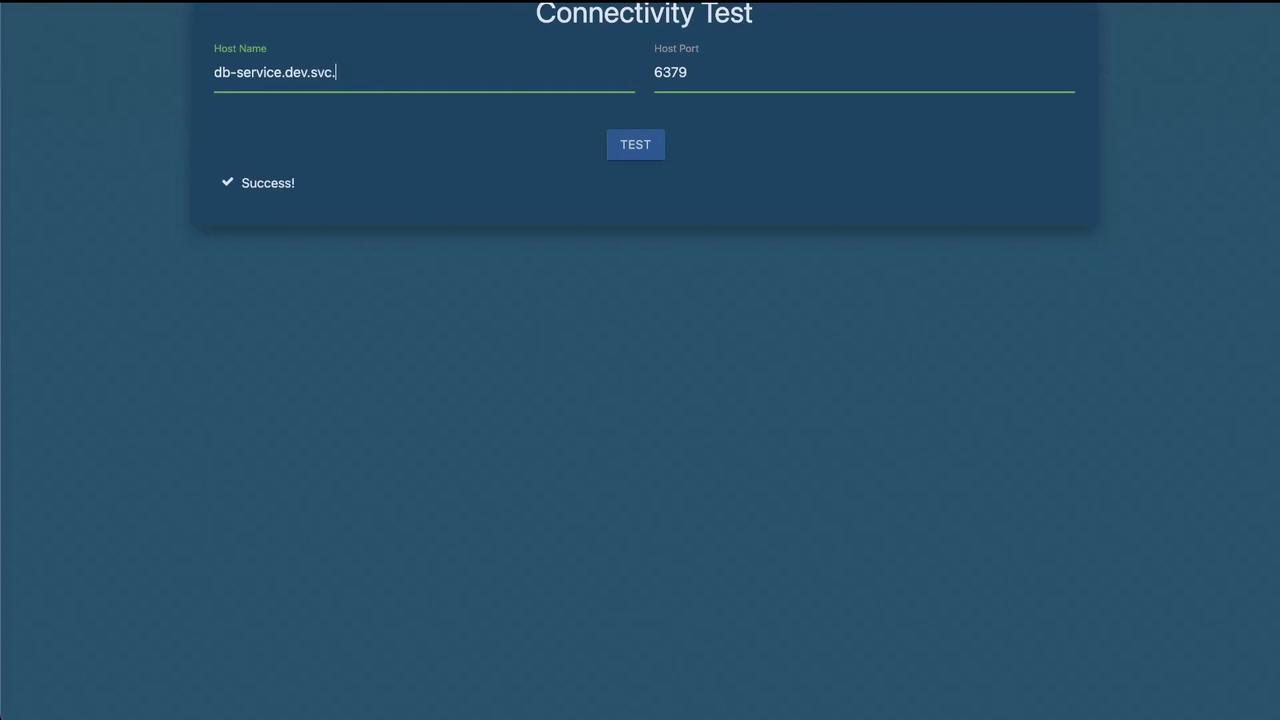
The image shows a "Connectivity Test" interface with fields for "Host Name" and "Host Port," and a "TEST" button. The result indicates "Success!" for the connection test.

6. Service DNS Across Namespaces

Accessing a service in a different namespace (e.g., dev) requires the full DNS name:
db-service.dev.svc.cluster.local:6379
Verify the service definition:
kubectl get svc -n dev
Example:
NAME        TYPE        CLUSTER-IP      PORT(S)
db-service  ClusterIP   10.43.252.9     6379/TCP
Always use the full DNS (<svc>.<namespace>.svc.cluster.local) when connecting across namespaces to avoid resolution errors.