

Prerequisites: licensing and administrative roles
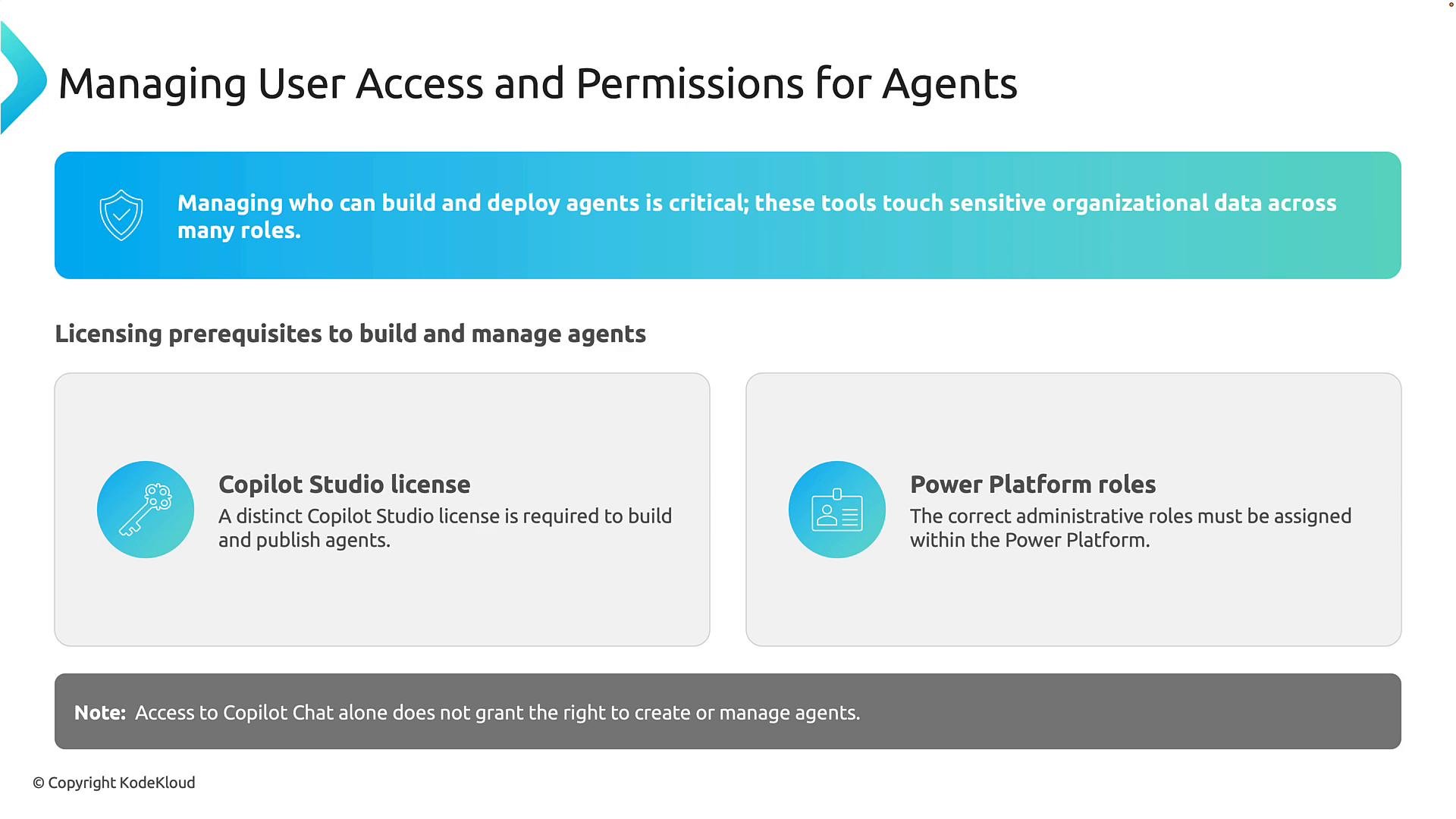
Before anyone can create or administer Copilot agents, two prerequisites must be satisfied:- Copilot Studio license: Microsoft 365 Copilot access alone does not grant the ability to create and publish custom Copilot agents. You must have Copilot Studio capabilities (trial signups are available).
- Power Platform environment role: Copilot Studio runs on Power Platform, so environment-level roles (for example,
Environment MakerorEnvironment Admin) control what users can build, edit, publish, or administer agents.
Two things are required before a user can build or administer agents: (1) a Copilot Studio license, and (2) the correct Power Platform environment role (for example, Environment Maker or Environment Admin as appropriate for your governance model).
How access is granted — a two-step administrative flow
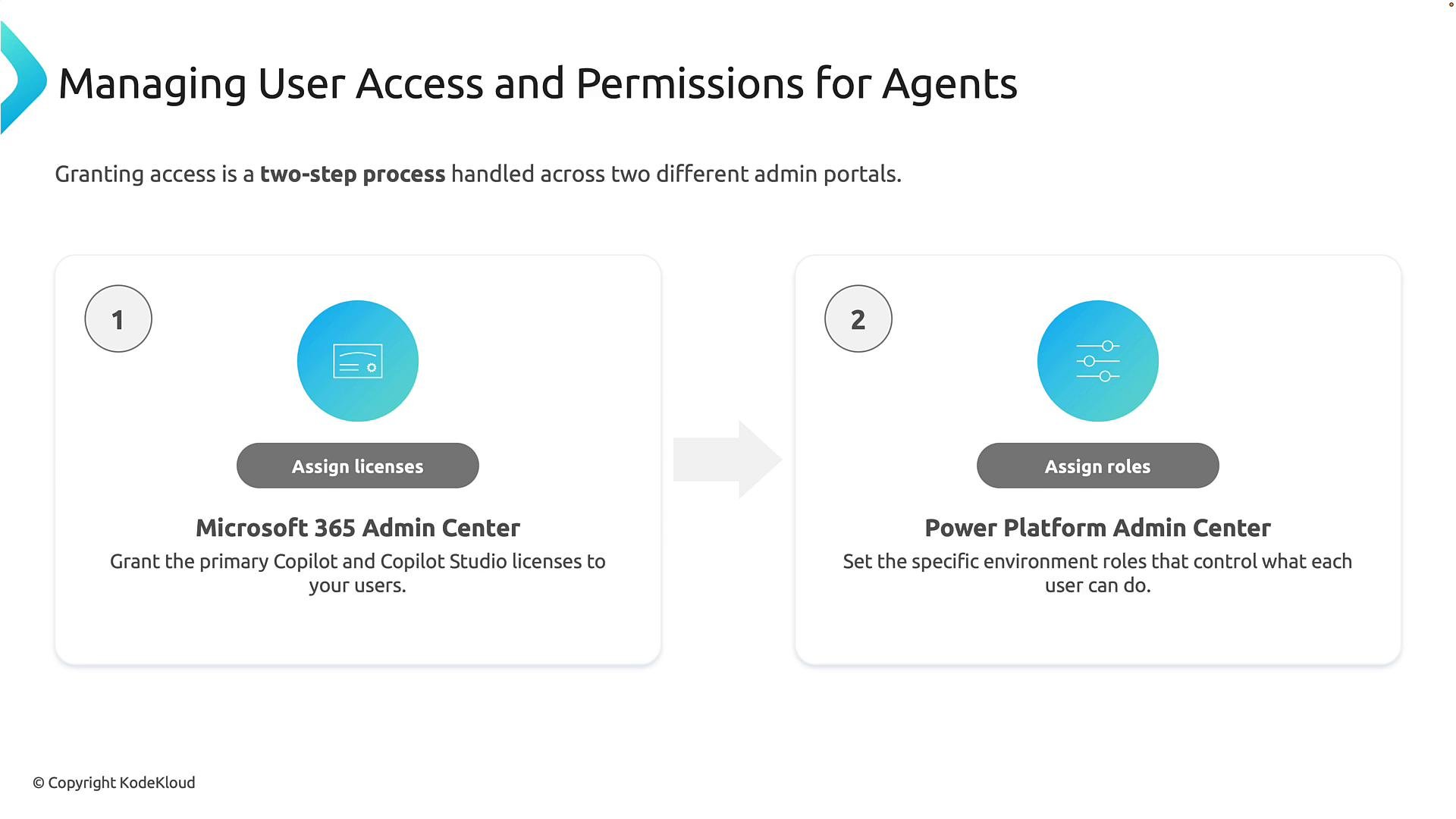
Granting access to Copilot agents spans two administrative systems:- Microsoft 365 admin center — Assign the appropriate Microsoft 365 and Copilot Studio licenses to users. Licensing grants the right to use Copilot Studio.
- Power Platform admin center — Assign environment-specific roles that define what users can do inside that environment (create, edit, publish, or just test agents).
Why Power Platform environments matter
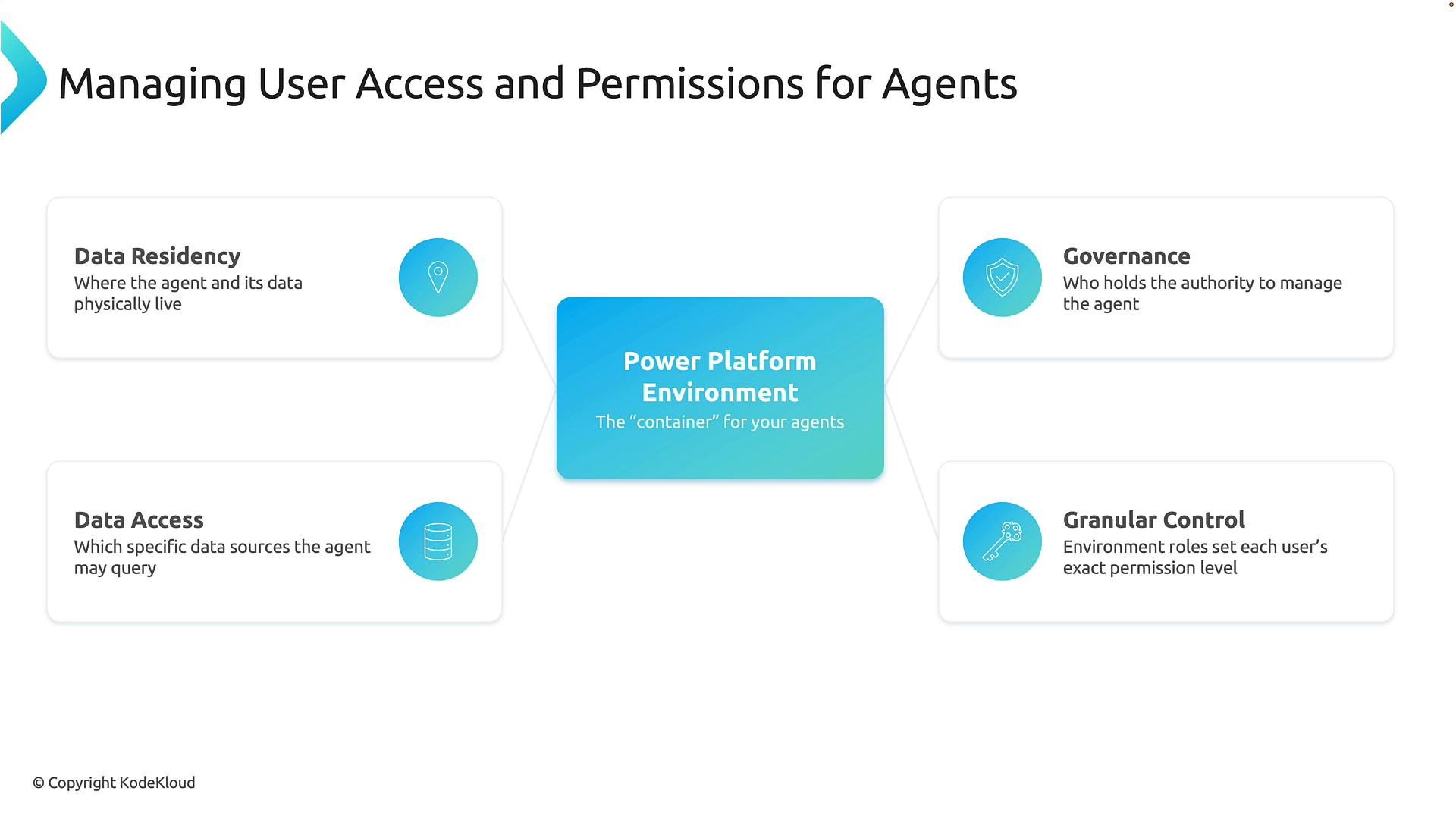
Power Platform environments function as secure workspaces or containers where applications, automations, data, and Copilot agents reside. Every agent exists inside a specific environment, and that environment controls important characteristics:- Data residency — Where the agent and its data are stored (geographic region).
- Data access — Which systems, connectors, and data sources the agent can use.
- Governance — Which administrators can create, modify, publish, or delete agents.
- Granular control — Fine-grained permissions mapped to job responsibilities.
Administrative control framework for Copilot agents
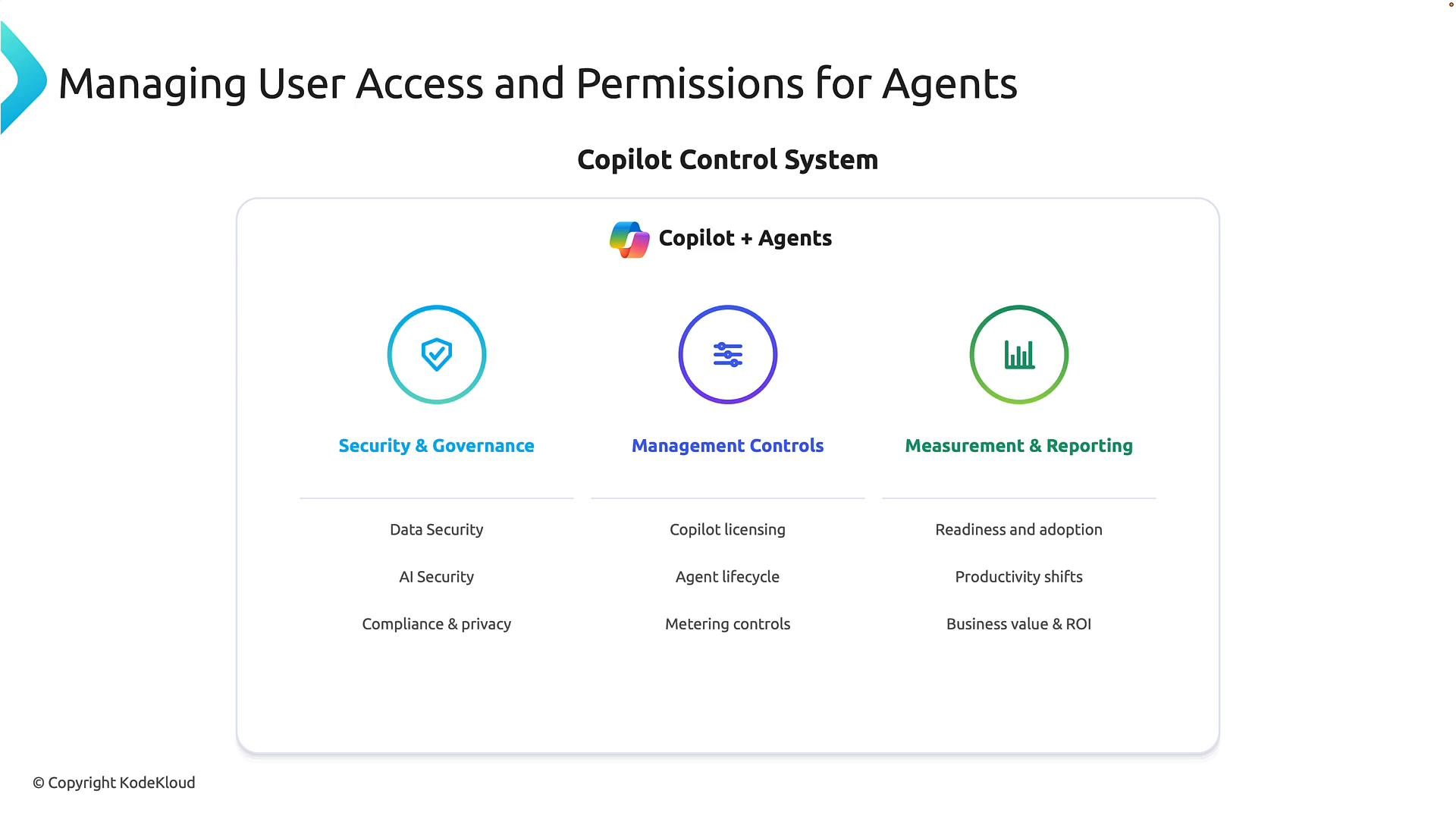
Microsoft’s control framework for Copilot and agents can be organized into three complementary pillars:- Security & Governance — Protect organizational data, apply AI security policies, and ensure compliance with privacy and regulatory requirements.
- Management Controls — Manage licensing, lifecycle of agents, environment governance, and administrative role assignments.
- Measurement & Reporting — Track adoption, usage patterns, and business outcomes to demonstrate ROI and identify areas for improvement.
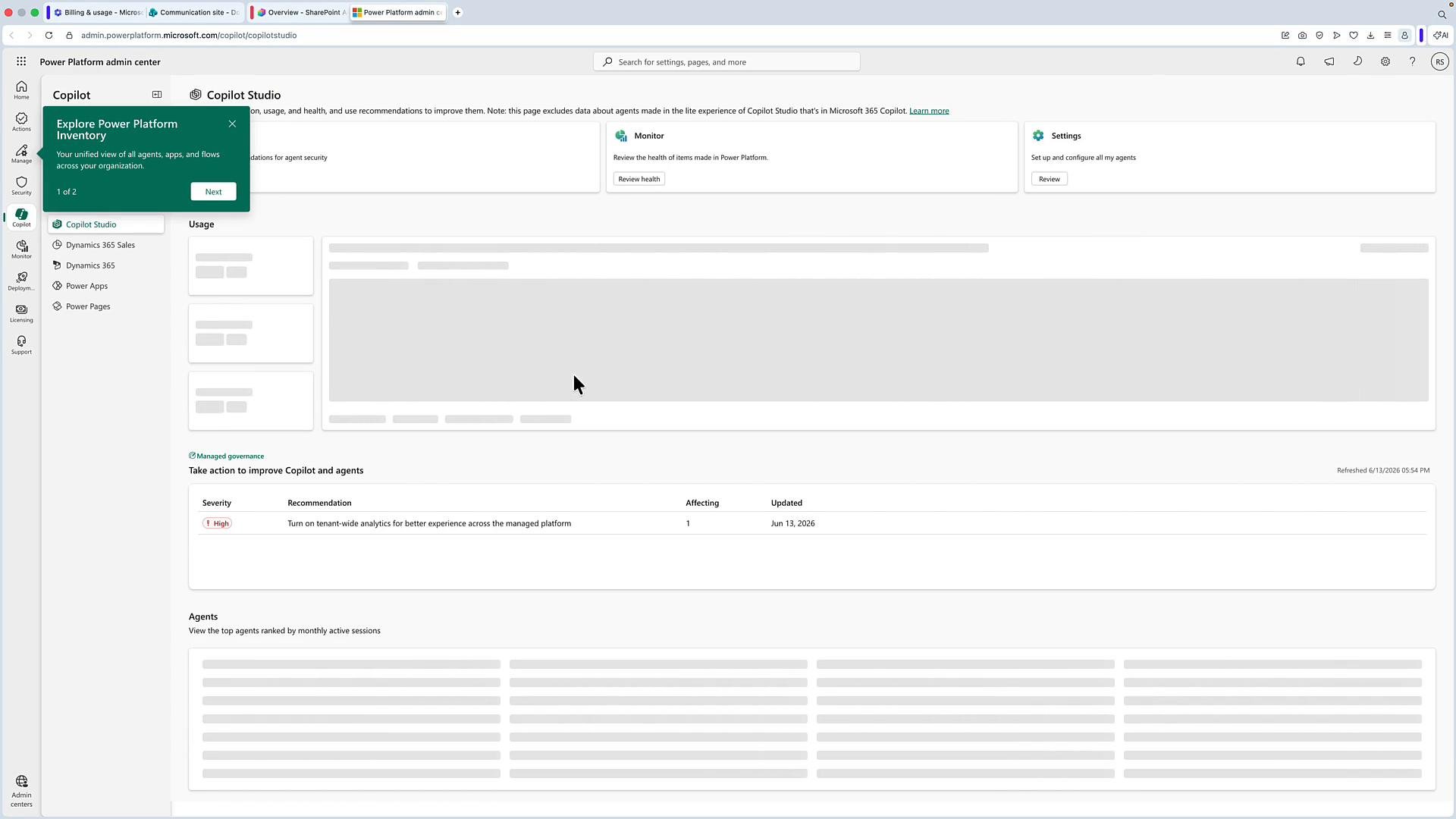
Managing Copilot Studio via the Power Platform admin center
Within Copilot Studio you’ll typically see the environment where agents are created (often thedefault environment). Clicking environment settings in Copilot Studio takes you to the Power Platform admin center — the management plane for Copilot Studio.
In the Power Platform admin center you can:
- Review billing and usage metrics.
- View active agents and message counts.
- Configure environment-level permissions and settings.
- Manage agent lifecycle and governance controls.
Grant roles carefully. Avoid assigning broad environment-level roles (like
Environment Admin) unless necessary — prefer role-based least privilege so builders, testers, and consumers have only the permissions they need.Role examples and typical responsibilities
Adjust role assignments to match your organizational governance model — for example, separate roles for builders (who create agents) and operators (who monitor and manage production agents).
Next steps and references
Focus on making the Power Platform admin center your management plane for Copilot Studio: ensure correct licensing, assign environment roles thoughtfully, and implement least-privilege access controls. After that, you can proceed to agent lifecycle, monitoring, and reporting. Links and resources:- Power Platform admin center: https://admin.powerplatform.microsoft.com/
- Microsoft 365 admin center: https://admin.microsoft.com/
- Power Platform environments overview: https://learn.microsoft.com/power-platform/admin/environments-overview