

Device management
Devices must be trusted before they access Microsoft 365 services. Device management covers how users connect from laptops, phones, tablets, and other endpoints and how organizations enforce security posture on those devices. Using Microsoft Intune with Microsoft Entra (formerly Azure AD), administrators can require device compliance before granting access. Typical compliance requirements include device encryption, current OS/security patches, and approved antivirus. Conditional Access can then grant different access levels based on device health and management state: compliant corporate devices receive full access, while unmanaged or risky devices are restricted or blocked. Protection of corporate data on personally owned devices is another key capability. Administrators can prevent business data from being copied to personal apps or cloud storage while preserving modern, mobile work scenarios.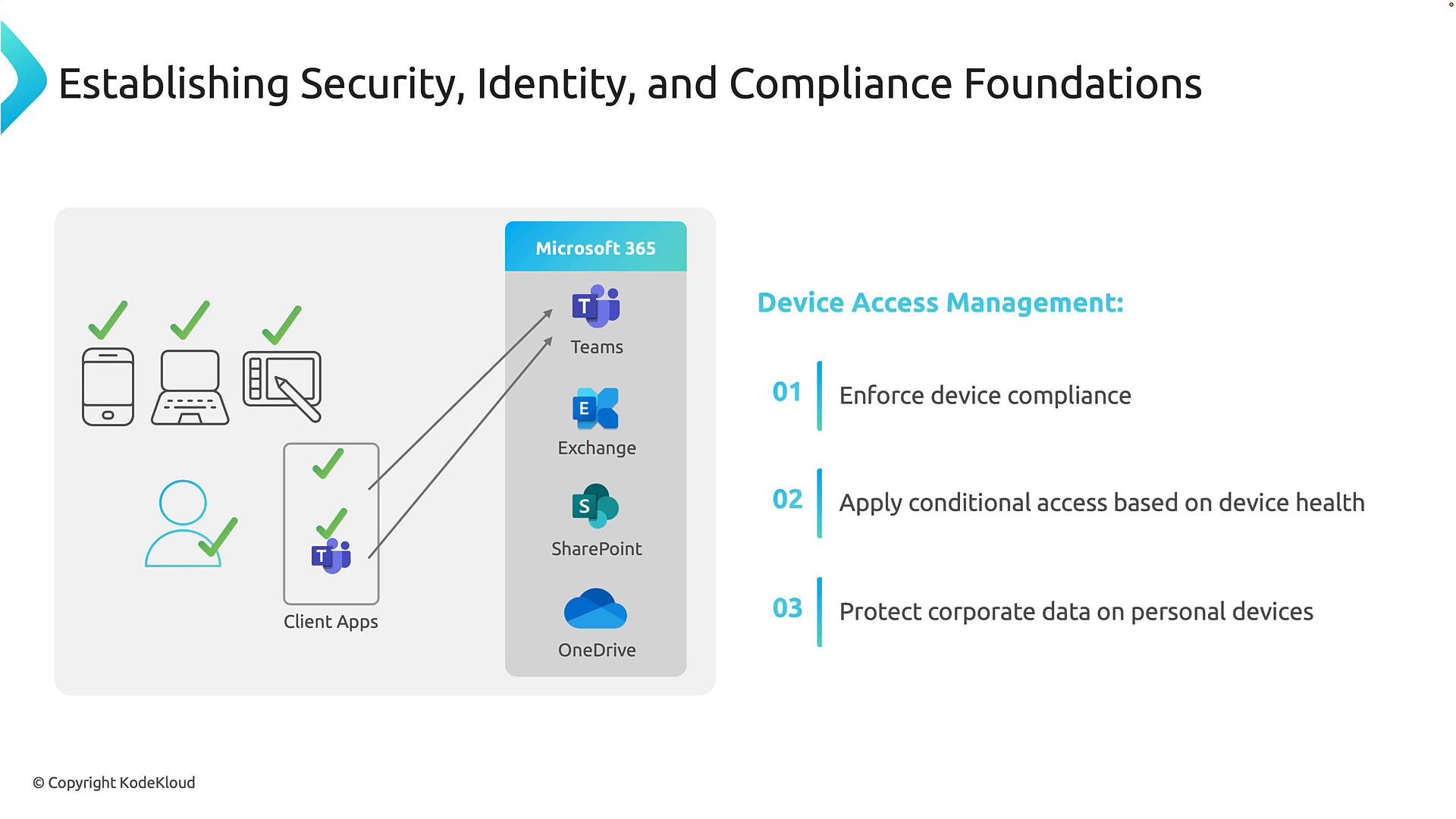
Conditional Access: signal-based decisions
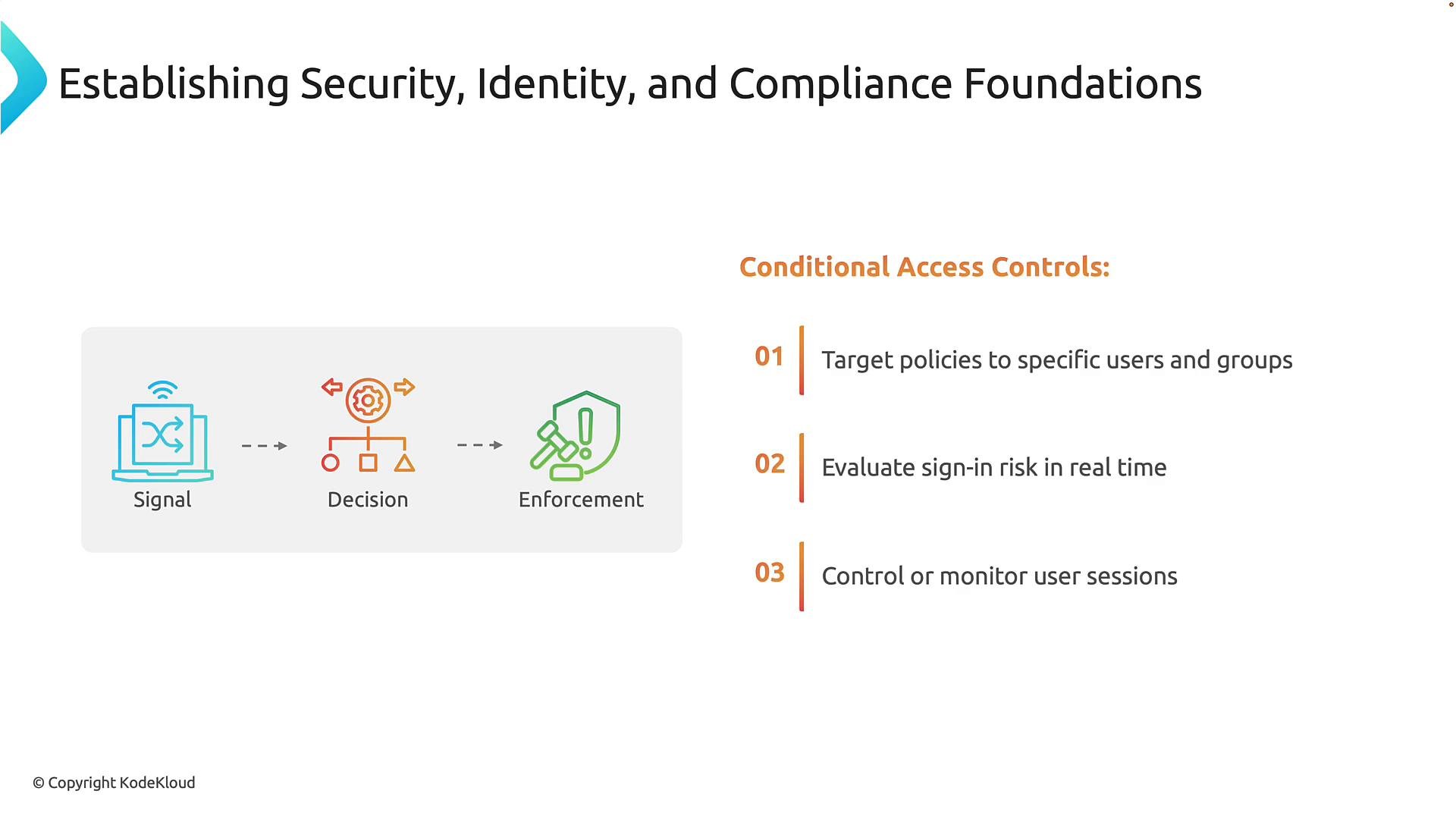
Conditional Access is Microsoft’s policy engine for making risk-based access decisions. Rather than relying solely on username and password, Conditional Access evaluates multiple real-time signals and enforces controls accordingly. Administrators target policies to users or groups and evaluate signals such as user identity, device compliance state, location, application being accessed, and sign-in risk. Actions include granting access, blocking access, requiring multi-factor authentication (MFA), or enforcing additional controls (for example, requiring a compliant device, an approved client app, or applying session restrictions). Common scenarios and examples:- Geo-fencing: make an internal app accessible only from a specific region.
- Network restrictions: allow access only from specified corporate IP ranges.
- Platform restrictions: permit Windows and macOS but block unsupported platforms.
- Device-based access: require managed or compliant devices for full access.
Data protection and governance
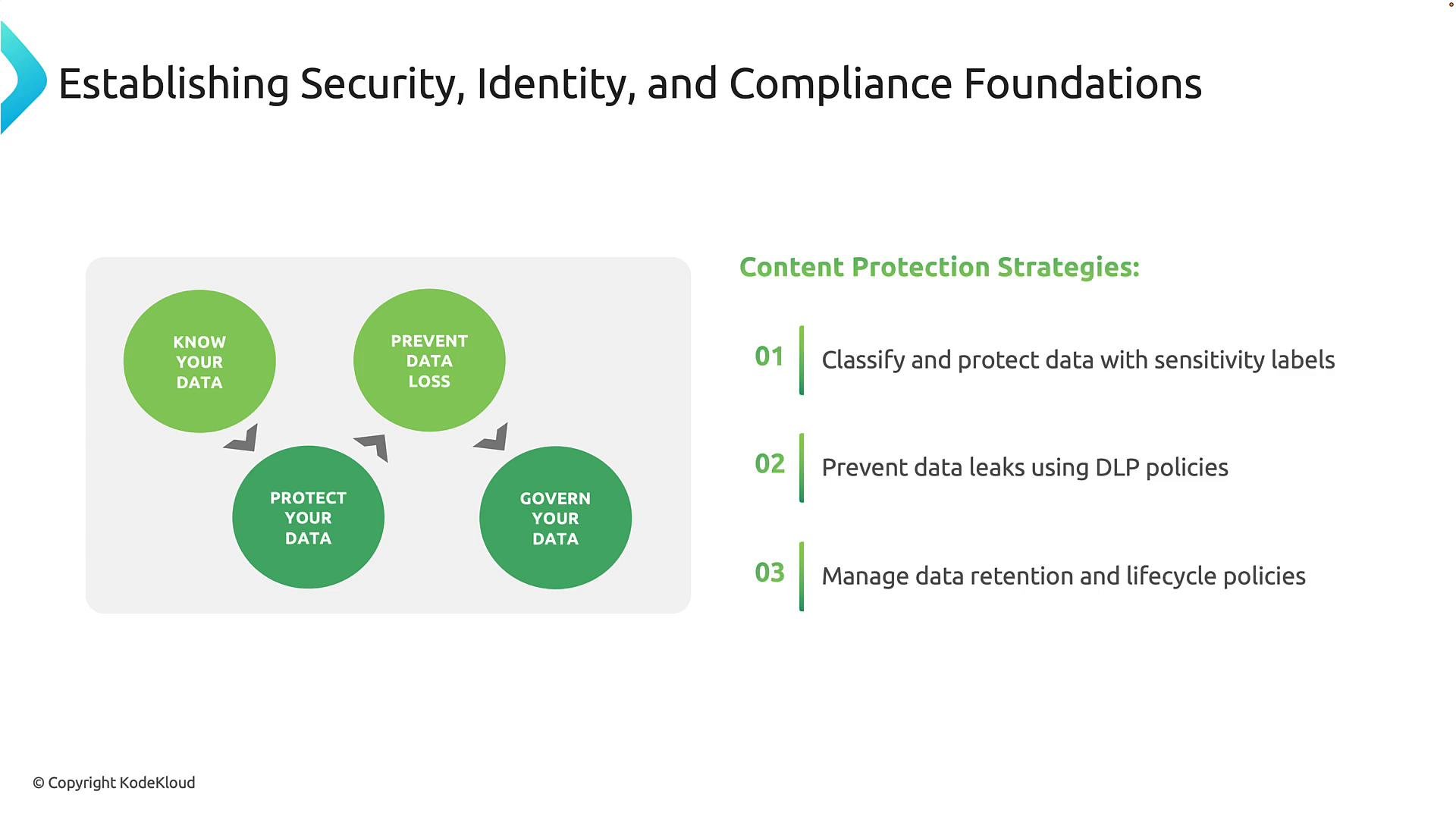
Protecting and governing information across its lifecycle is a core part of Microsoft 365 compliance. Start with discovery and classification. Sensitivity labels categorize content (for example: Public, Internal, Confidential, Highly Sensitive). Labels can trigger protections automatically—such as encryption, watermarking, or external sharing restrictions. Data Loss Prevention (DLP) policies detect and prevent accidental or intentional leaks of sensitive information (credit card numbers, financial records, personal identifiers). DLP operates across Exchange, Teams, SharePoint, and OneDrive to stop risky sharing or to warn users in real time. Retention and information lifecycle policies let organizations retain data for regulatory or business needs and then dispose of it when appropriate. Key capabilities:- Discover and classify data with sensitivity labels.
- Protect content automatically (encryption, sharing restrictions).
- Prevent leaks with DLP across collaboration surfaces.
- Apply retention and disposal policies to meet compliance requirements.
Administration portals and Zero Trust
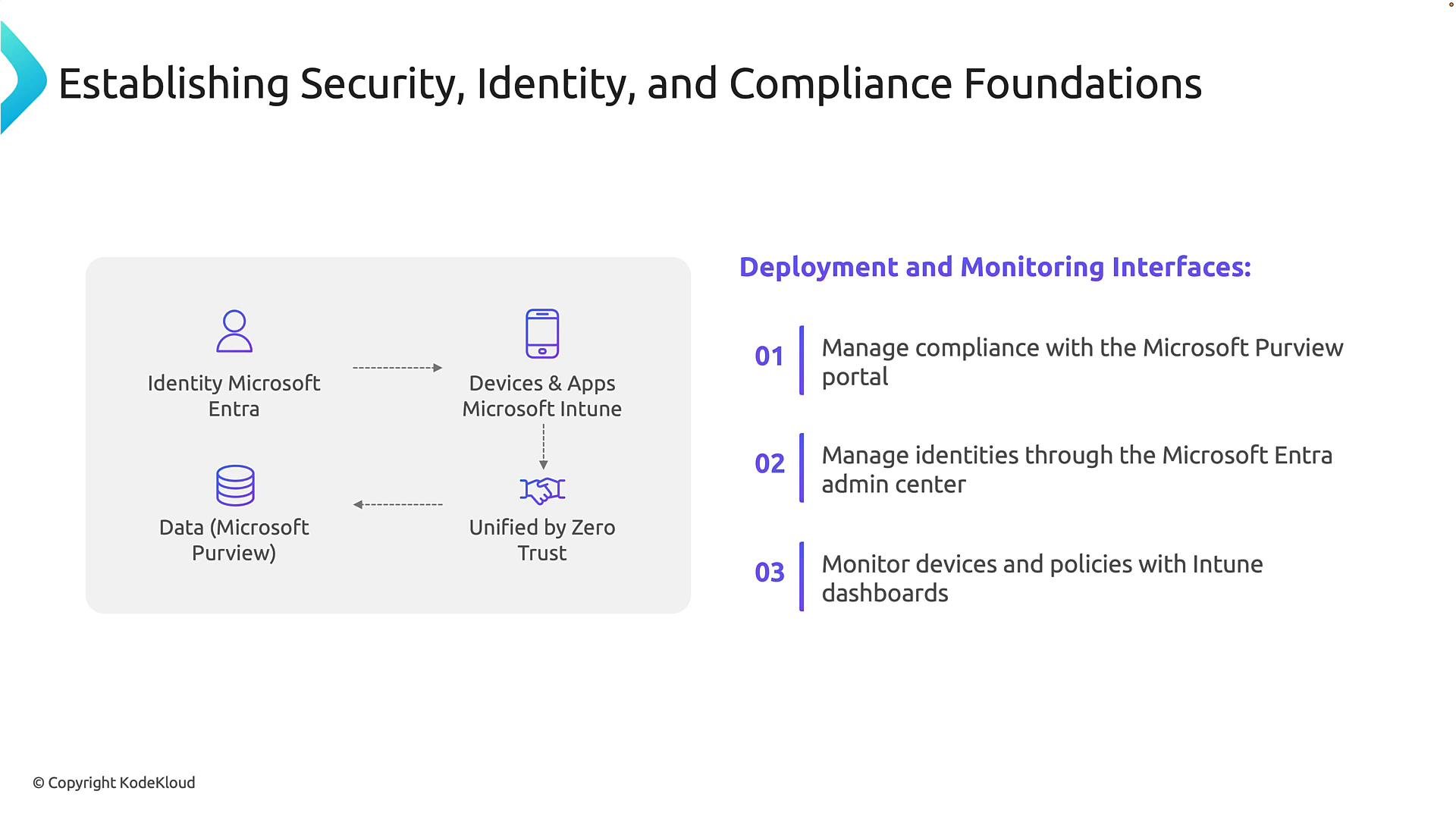
Microsoft exposes security and compliance features across several integrated admin portals that together implement the Zero Trust model—continual verification of every user, device, and request. Primary admin portals:- Microsoft Purview: compliance, data classification, DLP, retention, and compliance investigations.
- Microsoft Entra admin center: identity platform—manage users, authentication, Conditional Access, and identity security.
- Microsoft Intune: device and application lifecycle management—compliance policies, configuration, and monitoring.
These portals collaborate under a Zero Trust approach: validate identity (Entra), verify device health (Intune), and protect data (Purview) for every access request.
Best practices for deployment and ongoing management
Successful implementations require planning, testing, and continuous operations. Recommended approach:- Start with a pilot group to validate policies and collect feedback.
- Use Microsoft’s recommended templates and configurations to accelerate deployment.
- Phase rollout by workload and user group to minimize disruption.
- Monitor audit logs, sign-in activity, compliance reports, and alerts continuously.
- Periodically review and update policies to adapt to threats and business changes.
Begin with a small pilot group, validate policies, and iterate before broad deployment. Use Microsoft’s recommended templates to speed implementation while following best practices.
Avoid locking out administrators: exclude at least one emergency (break‑glass) account from restrictive Conditional Access policies and validate changes on a small scope first.