

- Detect unexpected consumption spikes and root-cause them quickly.
- Identify teams or roles that are heavy Copilot consumers.
- Decide when to convert high-consumption users from pay-as-you-go credits to permanent per-user licenses for predictable costs.
Monitor usage regularly and configure budget alerts so you can catch unexpected consumption early. When a group or individual consistently consumes many credits, consider moving them to permanent licenses to stabilize long-term costs.
Create a billing policy (step-by-step)
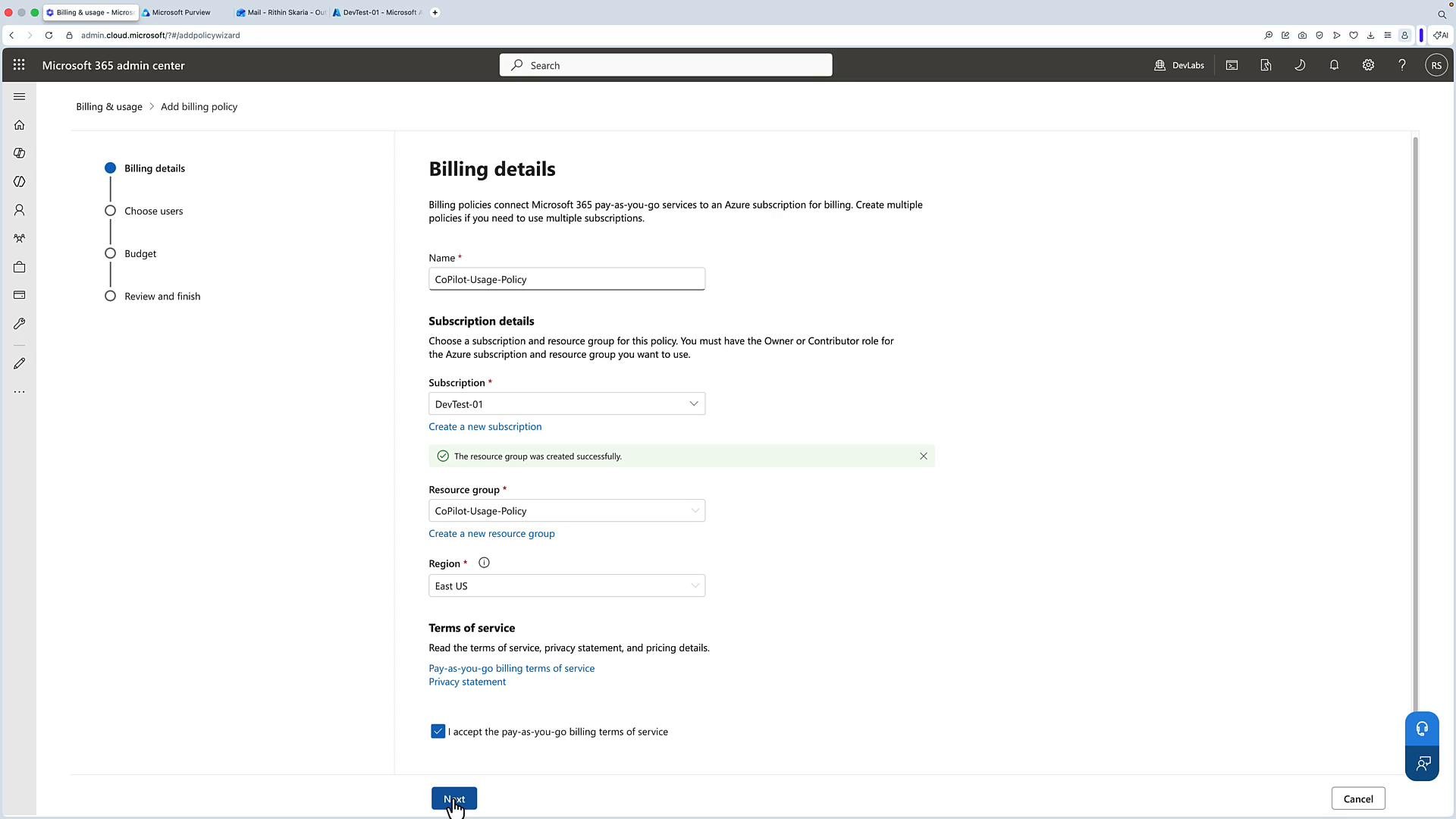
- Open the Microsoft 365 admin center and select Add a billing policy.
- Provide a descriptive name, for example
Copilot-Usage-Policy. - Choose the Azure subscription that will be charged for pay-as-you-go consumption (for example,
DevTest-01). - Select or create a resource group — costs will be associated with this group and billed to the selected subscription.
- Choose the deployment region (for example, East US, Sweden).
- Accept the pay-as-you-go terms and conditions to continue and complete the billing details.
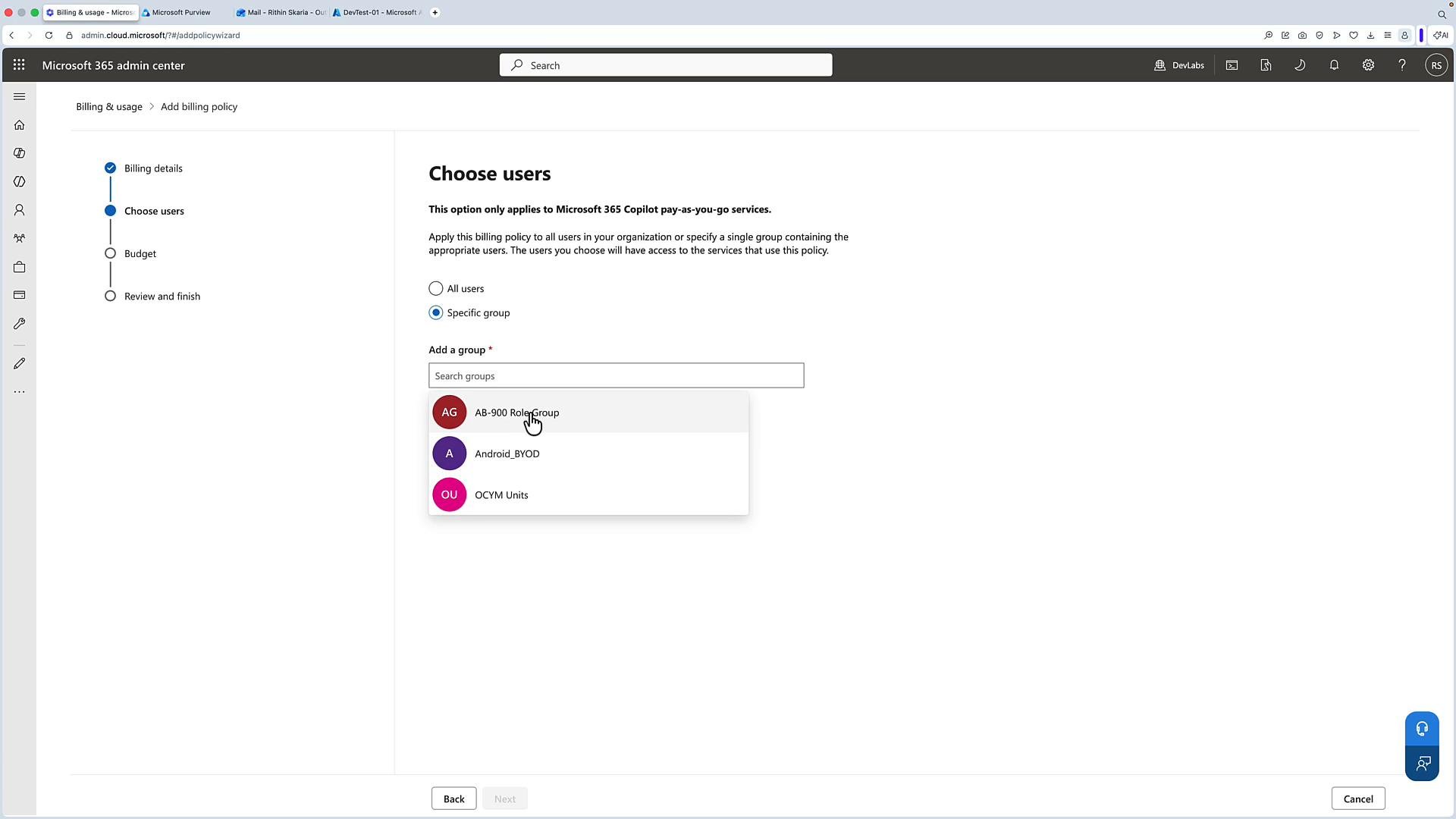
- You can apply the policy to all users, or limit it to specific groups.
- Targeting groups (teams, departments) lets you control which parts of the organization consume pay-as-you-go credits.
- Set a monthly budget amount (for example,
100credits or currency units). - Choose when the budget resets (commonly the first day of each month).
- Configure recipients for budget notifications (administrators, finance contacts) so responsible parties receive alerts as consumption approaches or exceeds the threshold.
- Complete the setup to create the policy — consumption for covered users/groups will be charged to the selected Azure subscription and resource group.
- Create usage policies to limit or define how Copilot services are consumed (for example, per-service credit allocations).
- Monitor usage from the Microsoft 365 admin center to identify high-usage users or teams (e.g., last 7-day or 30-day views).
- Assign credits per service if needed (for example, different allocations for SharePoint-based agents vs. Copilot Chat).
- Use cost management reports in the Azure portal to review billing for the current period.
- Enable Copilot Chat or other Copilot products and save the configuration so they use the billing policy you created.
- The admin center will display which billing policy is assigned and which users/groups can access the service.
Configure budget alerts and review chargeback reports regularly. Without alerts, pay-as-you-go can produce unexpected costs that are harder to recover.
Recommended actions based on usage data
- Convert frequent consumers to permanent per-user licenses for cost predictability.
- Adjust budgets and notification recipients to reduce risk of overruns.
- Re-scope billing policies to better align costs with business needs and departmental chargebacks.
- Microsoft 365 admin center: https://admin.microsoft.com
- Azure portal (Cost Management): https://portal.azure.com