

Prompt management helps teams scale consistent AI-driven workflows. Standardize useful prompts, restrict broad distribution, and track usage so Copilot outputs remain reliable and compliant.
Prompt lifecycle (overview)
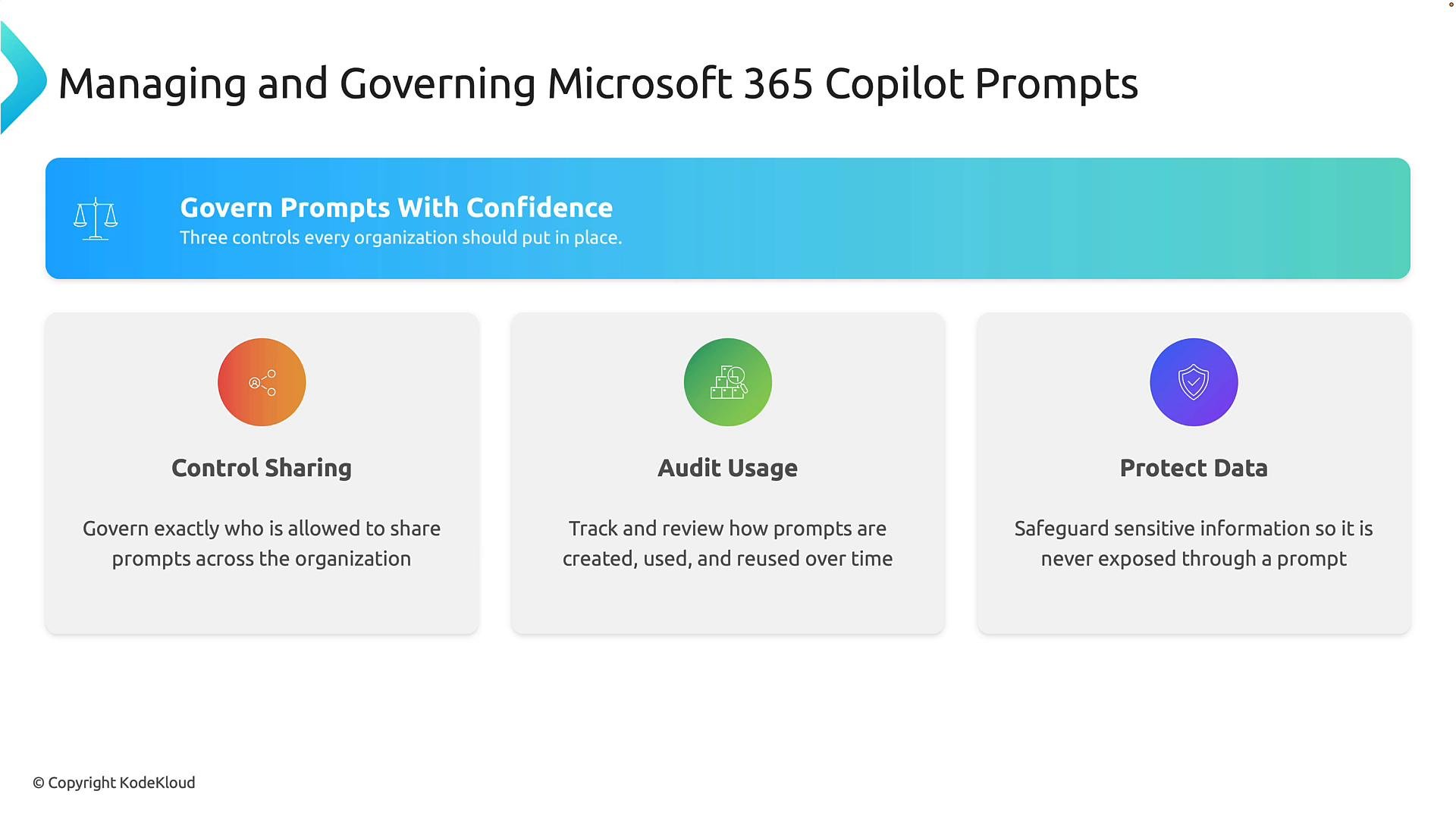
The typical lifecycle stages for Copilot prompts are:A prompt intended for a finance team could reveal confidential details if shared too broadly. Apply least-privilege sharing and review prompts regularly to prevent data exposure.
- Controlling sharing: Limit who can create, publish, or distribute prompts.
- Auditing usage: Record creation, sharing, modification, and execution of prompts.
- Protecting data: Use Microsoft 365 compliance controls to prevent leaks.
Centralized governance workflow (Admin Center)
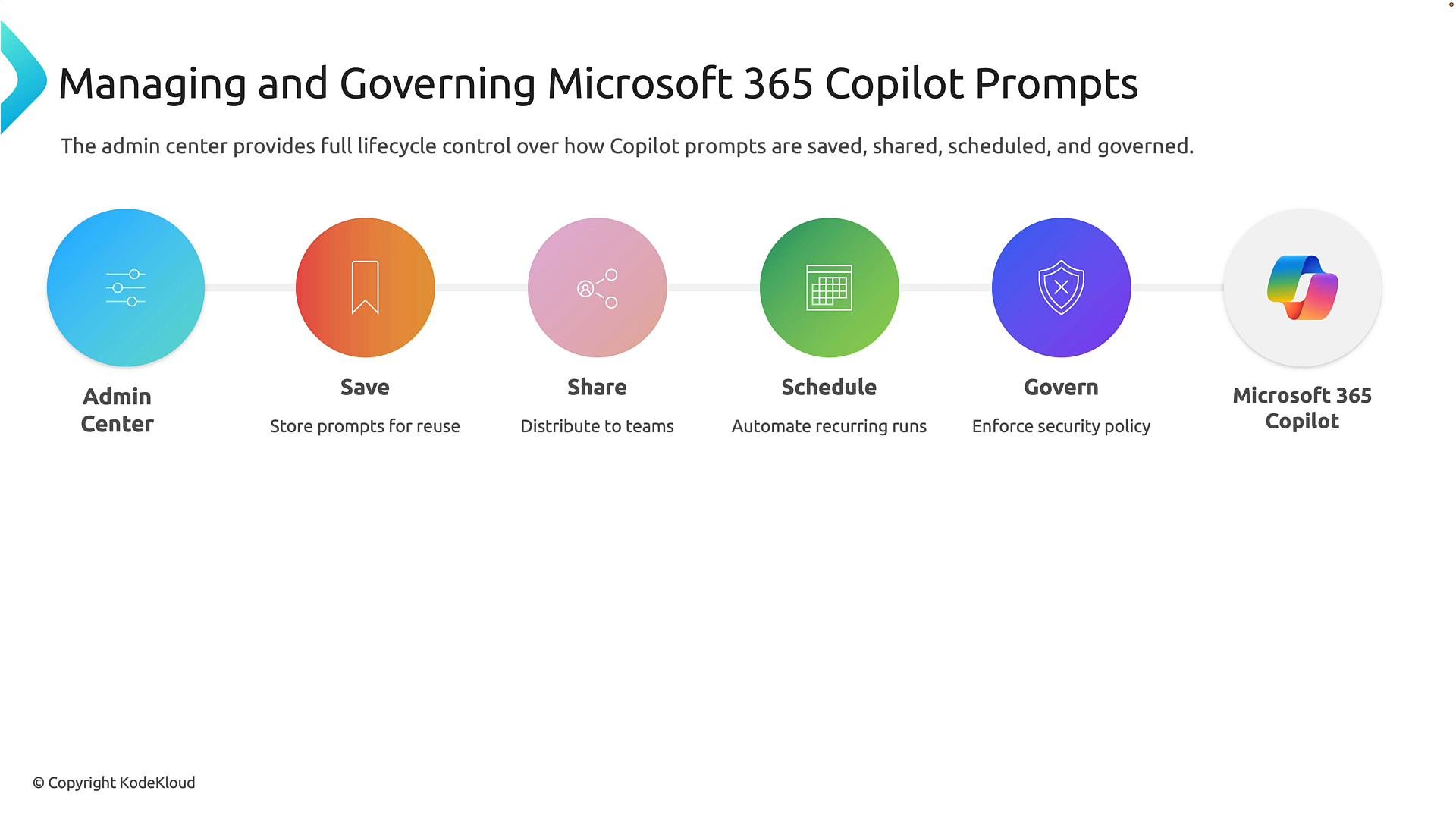
The Microsoft 365 admin center (https://admin.microsoft.com) provides centralized controls to manage prompts across the organization. From here, administrators can enforce governance at every lifecycle stage.
Admin capabilities include:
- Saving prompts to standardize workflows and enable reuse.
- Sharing prompts selectively with users or groups to distribute best practices.
- Scheduling or automating prompts directly where supported, or using
Power Automatefor recurring tasks and reports. - Applying governance policies that enforce security, compliance, and data protection.
Using Copilot prompts in the user experience (Outlook example)
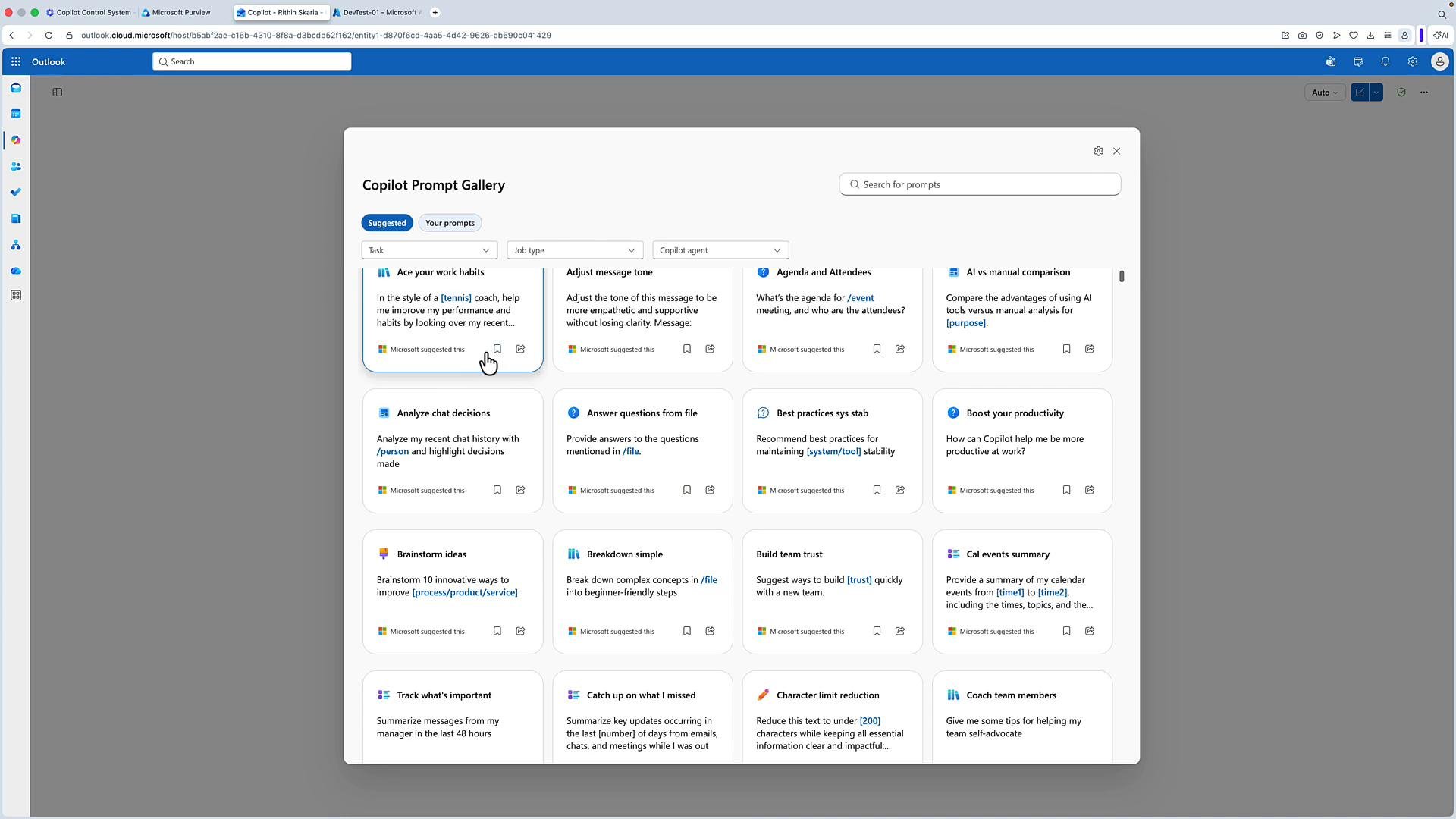
In the Copilot chat UI (for example, in Outlook), users interact with prompts via quick actions like Reword, Explain, and Proof. The ellipsis (three dots) opens the Prompt Gallery, where prompts are organized for discovery and reuse. Prompt Gallery tabs:- Suggested: Microsoft-provided prompts plus those shared across your organization.
- Your prompts: Prompts you have saved for personal reuse.
Create, save, and share a prompt — step-by-step
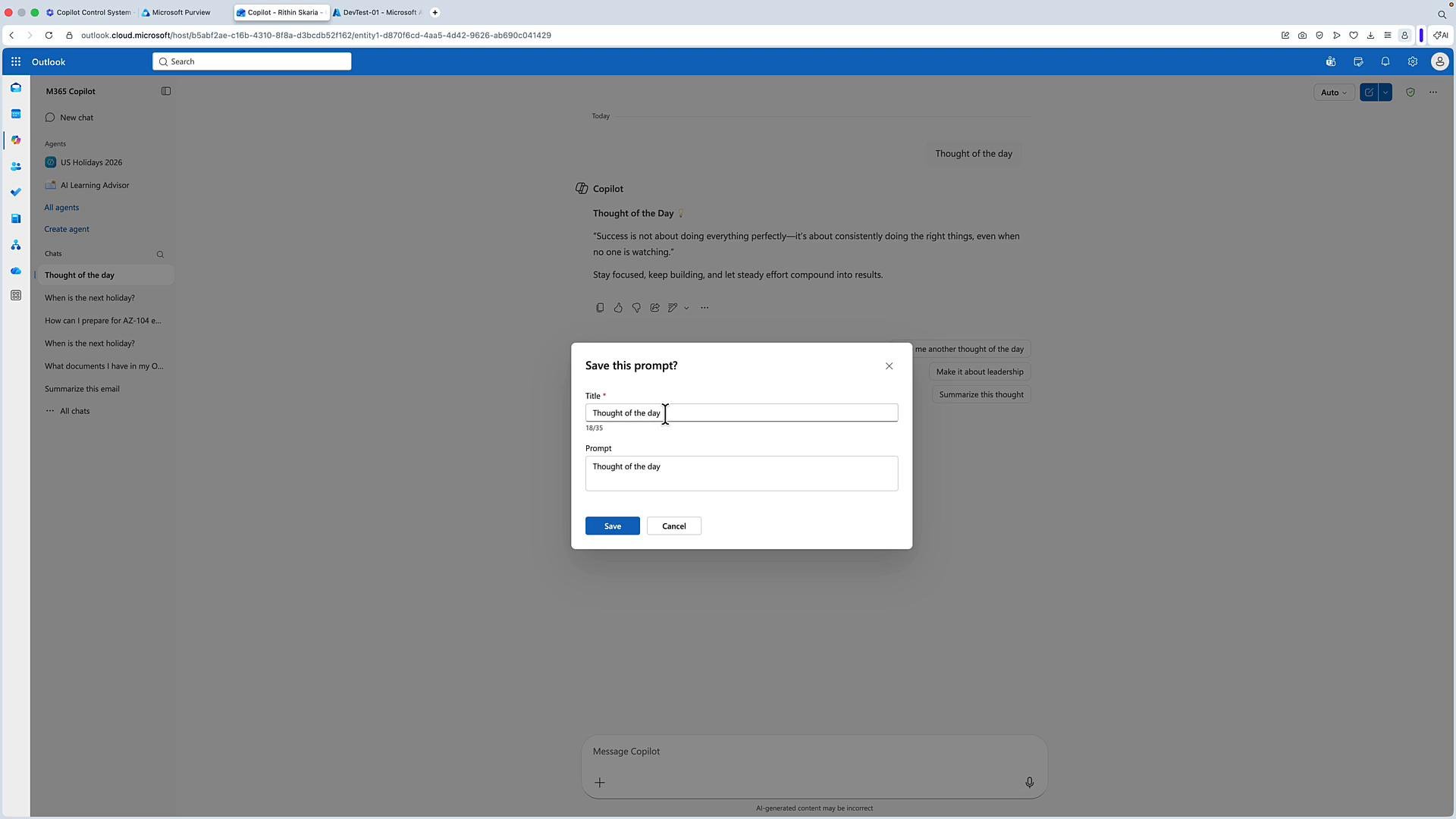
Follow these steps to author and distribute a prompt from the Copilot chat experience:- Create: In the Copilot chat, type your instruction (for example, “Thought of the day”) and press Enter to receive Copilot’s response.
- Review: If the response meets your requirements, choose Save Prompt. Edit the prompt text if needed and add a descriptive Title.
- Save: Confirm the prompt to store it. It will appear under Your prompts in the Prompt Gallery.
- Share: Use Share Prompt to copy a link or share directly with specific people or groups, respecting your organization’s sharing policies.
- Manage: Later you can edit, update, or retire the prompt from the Prompt Gallery as needed.
Best practices and governance checklist
- Use least-privilege sharing: restrict who can publish or distribute prompts across the organization.
- Apply Microsoft 365 compliance controls to prompts and outputs:
- Data Loss Prevention (DLP): https://learn.microsoft.com/microsoft-365/compliance/data-loss-prevention-policies?view=o365-worldwide
- Sensitivity labels: https://learn.microsoft.com/microsoft-365/compliance/sensitivity-labels?view=o365-worldwide
- Maintain an audit trail for prompt creation, sharing, updates, and executions.
- Periodically review and retire prompts that are outdated or pose risk.
- Integrate prompt automation with secure workflows—use
Power Automatefor scheduled runs and enforce the same governance applied to manual use.
Links and references
- Microsoft 365 admin center: https://admin.microsoft.com
- Power Automate: https://learn.microsoft.com/power-automate/
- Data Loss Prevention (DLP): https://learn.microsoft.com/microsoft-365/compliance/data-loss-prevention-policies?view=o365-worldwide
- Sensitivity labels: https://learn.microsoft.com/microsoft-365/compliance/sensitivity-labels?view=o365-worldwide