

Why group-based access matters
Managing permissions for each individual quickly becomes impractical and error-prone at scale. For example, in an organization with 50,000 employees, assigning permissions one-by-one is time-consuming and increases the chance of misconfiguration. Microsoft 365 addresses this by using two core identity objects: users and groups.- User: represents a single identity — an employee, contractor, administrator, or guest.
- Group: a container for multiple users who share the same access needs (for example, Finance or HR).
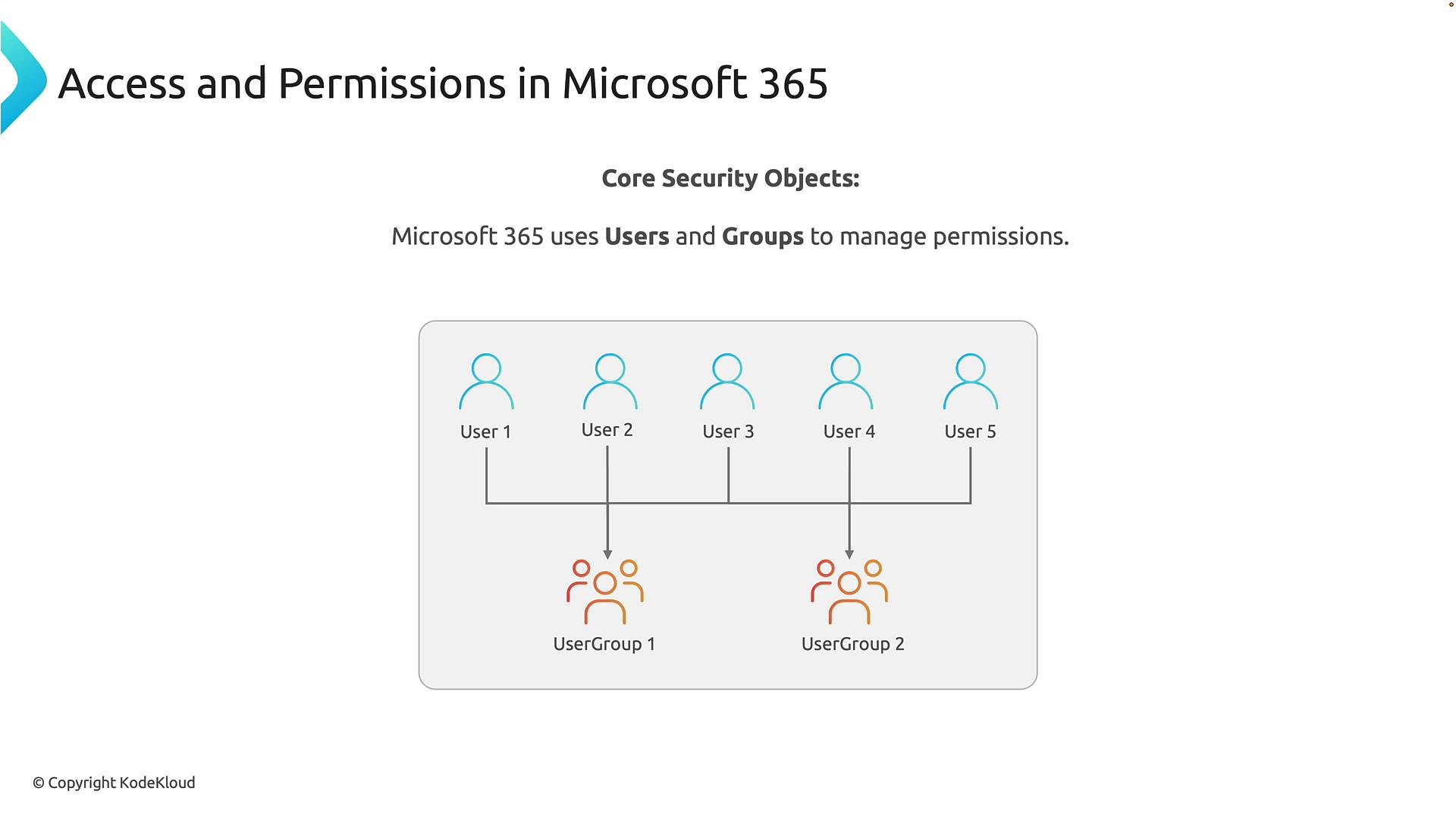
Key takeaway: Users represent individual identities; groups enable scalable permission management by assigning access collectively, which reduces errors and simplifies lifecycle operations.
Authentication versus authorization
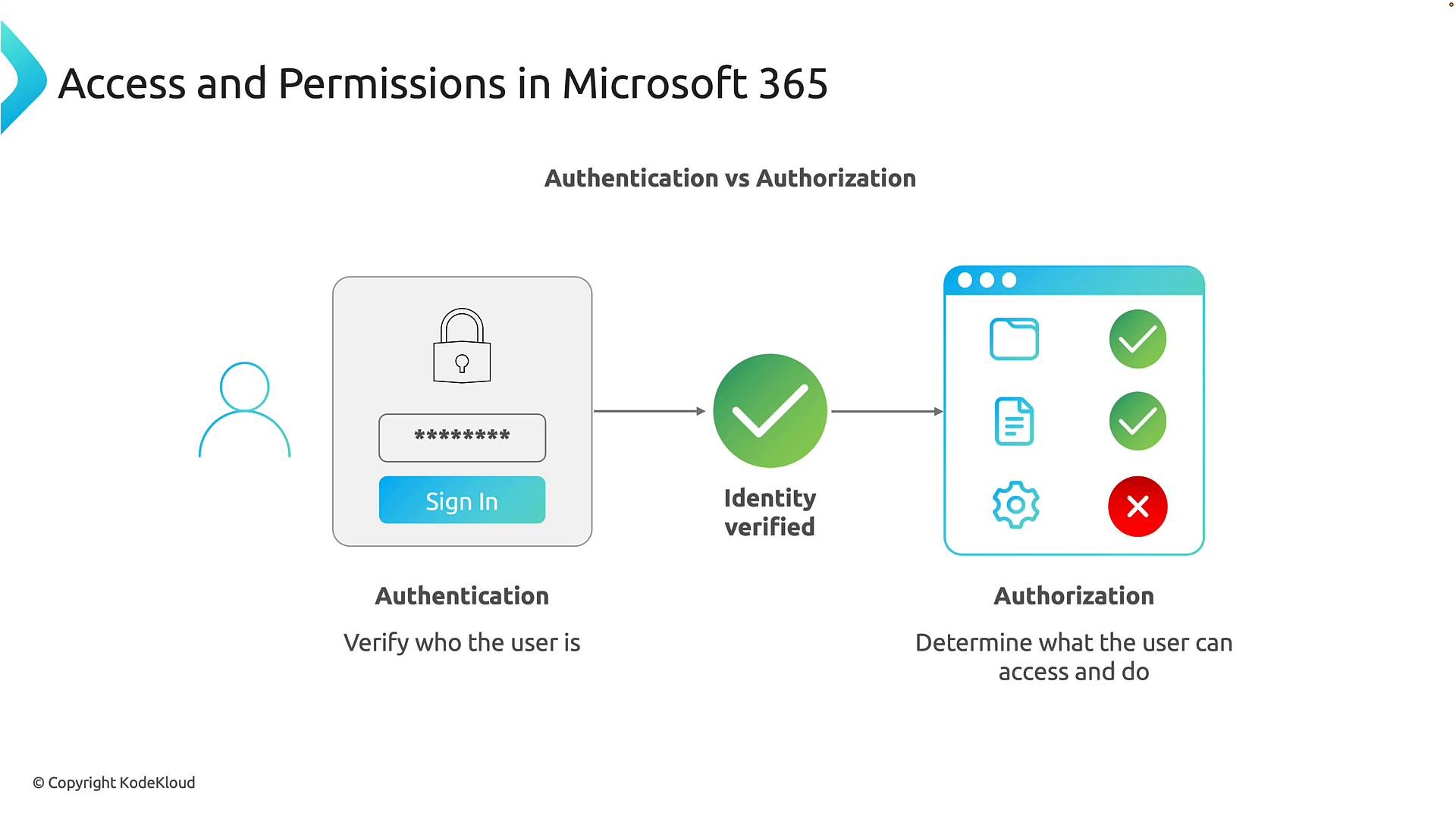
Understanding authentication and authorization is fundamental to secure access.- Authentication — answers “Who are you?” Examples: username/password, multi-factor authentication (MFA), or biometric verification. This step establishes the user’s identity.
- Authorization — answers “What are you allowed to do?” After authentication, Microsoft evaluates the user’s permissions and determines which resources are accessible.
From static permissions to dynamic authorization
Traditional access models are often static: permissions are assigned once and seldom revisited. Those models assumed users and apps were mostly inside a corporate network. Modern work is different — users access cloud apps from varied locations and devices, so access decisions need to be dynamic and context-aware. Conditional Access and dynamic policy engines evaluate multiple real-time signals (user, device compliance, location, application, and risk) to make adaptive authorization decisions:- Example: A user signs into email from a corporate laptop on the company network and gets immediate access.
- Example: The same user attempts sign-in from an unknown device in a foreign country and is prompted for additional verification or blocked.
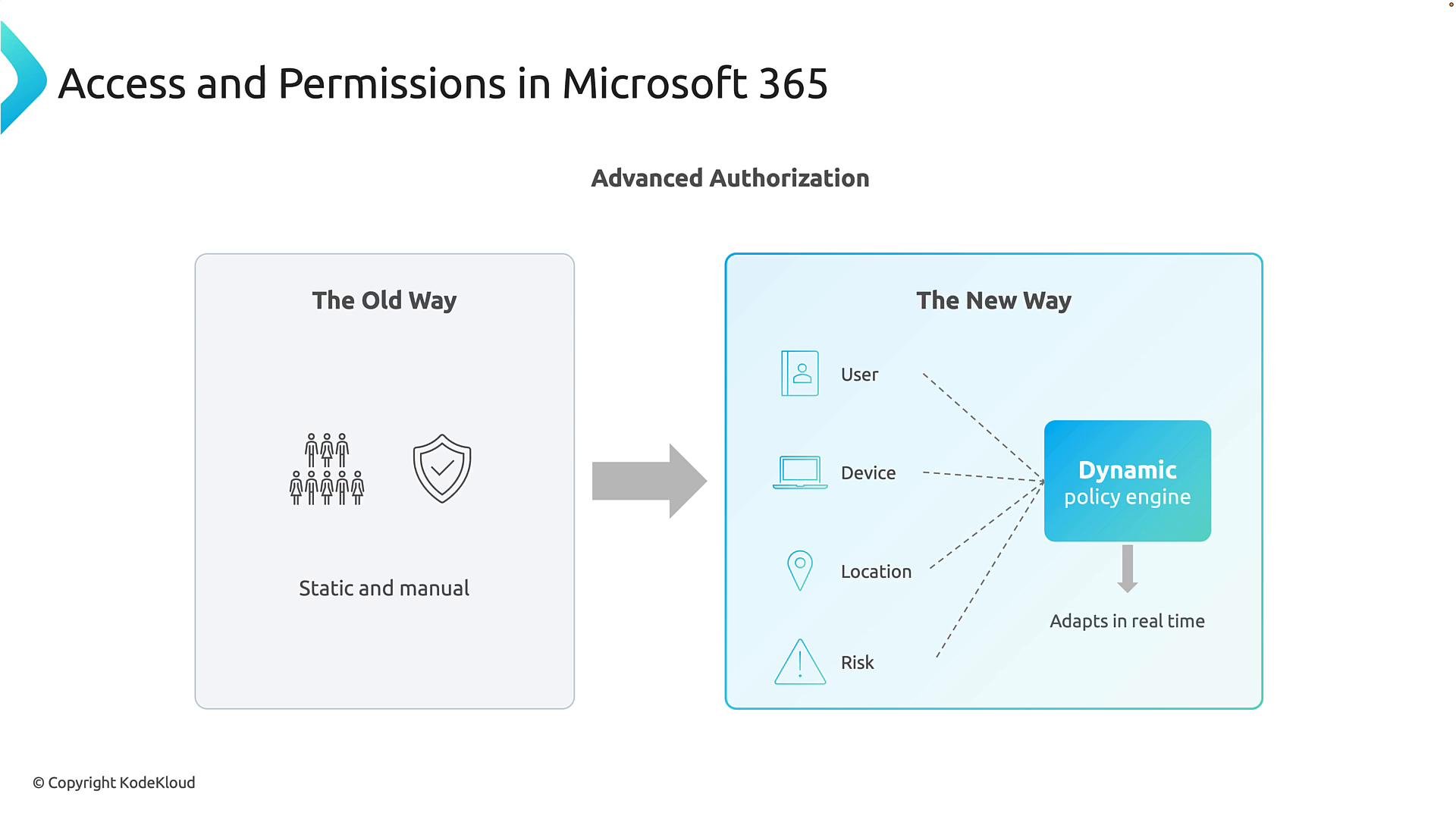
Security warning: Relying solely on static group membership or passwords increases risk. Implement Conditional Access, device compliance checks, and MFA to continuously enforce least privilege and reduce exposure.
Core Microsoft services for identity and access management
The Microsoft 365 Zero Trust and identity model is implemented by several integrated services. Below is a concise reference to the primary services and what they do.
These services work together to enable scalable identity governance, risk-aware access, and compliance across Microsoft 365 and Azure.
Further reading and references
- Microsoft Entra ID documentation: https://learn.microsoft.com/azure/active-directory/
- Conditional Access overview: https://learn.microsoft.com/azure/active-directory/conditional-access/
- Privileged Identity Management: https://learn.microsoft.com/azure/active-directory/privileged-identity-management/
- Identity Protection: https://learn.microsoft.com/azure/active-directory/identity-protection/
- Access Reviews and Entitlement Management: https://learn.microsoft.com/azure/active-directory/governance/
Implementing a modern access strategy
To implement secure, scalable access in Microsoft 365:- Centralize identities in Microsoft Entra ID and use groups for permission assignments.
- Apply least privilege via RBAC and minimize standing admin privileges with PIM.
- Use Conditional Access and Identity Protection to evaluate risk signals and adapt authentication/authorization in real time.
- Automate lifecycle and governance with Access Reviews and Entitlement Management.
- Continuously monitor and update policies to reflect changing risk and business needs.