

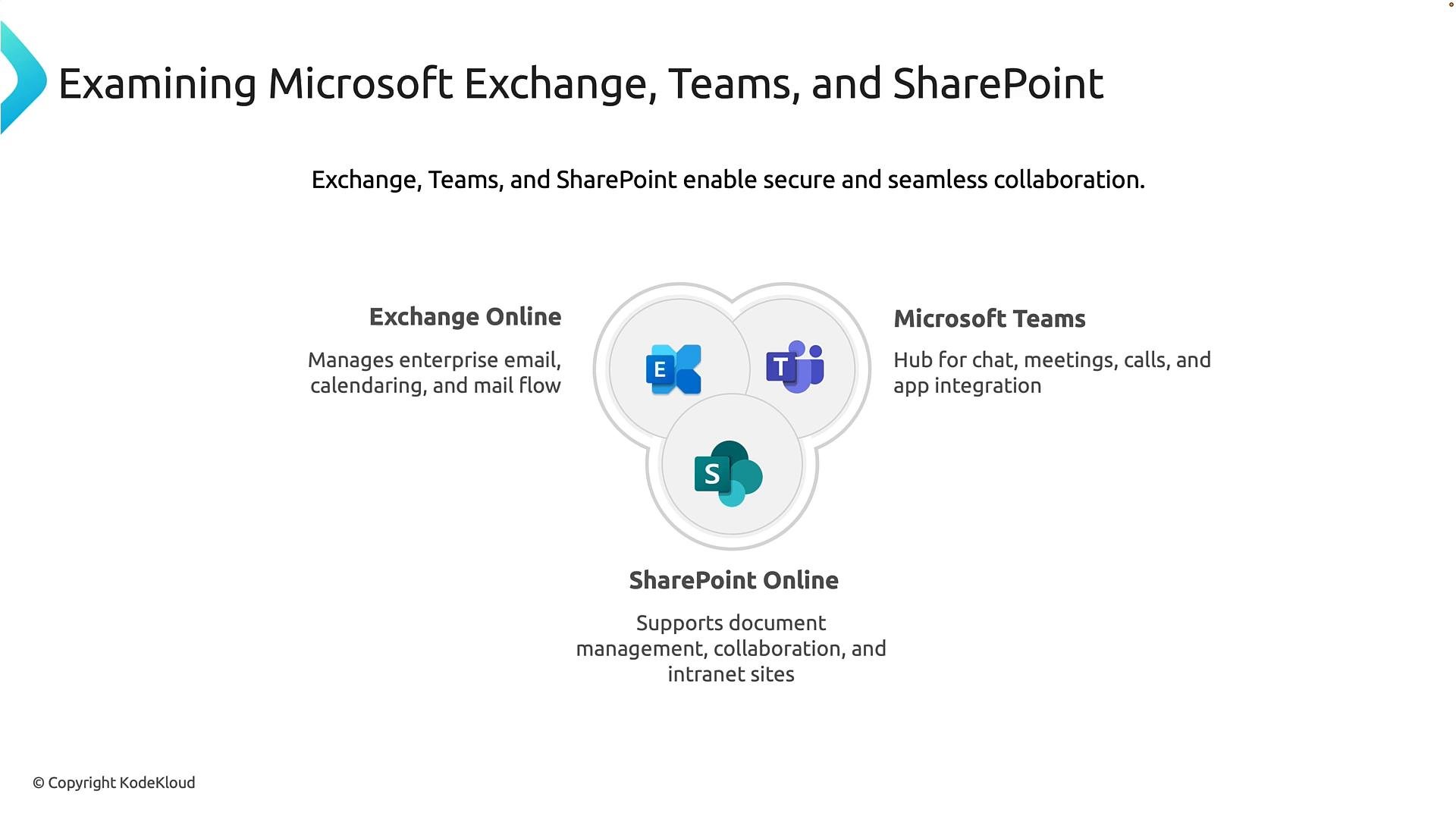
- Exchange Online: enterprise email, calendaring, and mail flow.
- Microsoft Teams: the collaboration hub for chat, meetings, and app integrations.
- SharePoint Online: enterprise content management, document libraries, and intranet sites.
Exchange Online — Email, Calendar, and Compliance
Exchange Online is Microsoft’s cloud messaging and calendaring service. It replaces on-premises Exchange servers for many organizations and provides enterprise-grade mail flow, security, and compliance features. Key capabilities:- Mailboxes: user, shared, resource (room/equipment), and migrated on-premises mailboxes.
- Mail flow and routing: transport rules, connectors, and message tracing.
- Security and compliance: anti-spam/anti-malware, message encryption, retention policies, litigation hold, and eDiscovery.
- Archiving and legal hold for long-term retention and compliance audits.
- Powers Outlook on the web and Outlook desktop/mobile experiences (email, calendar, contacts, scheduling).
- Drives calendar-based scheduling for meetings that integrate directly with Teams.
- Exchange Admin Center (EAC) for recipient management, mail flow, compliance, reporting, and message trace.
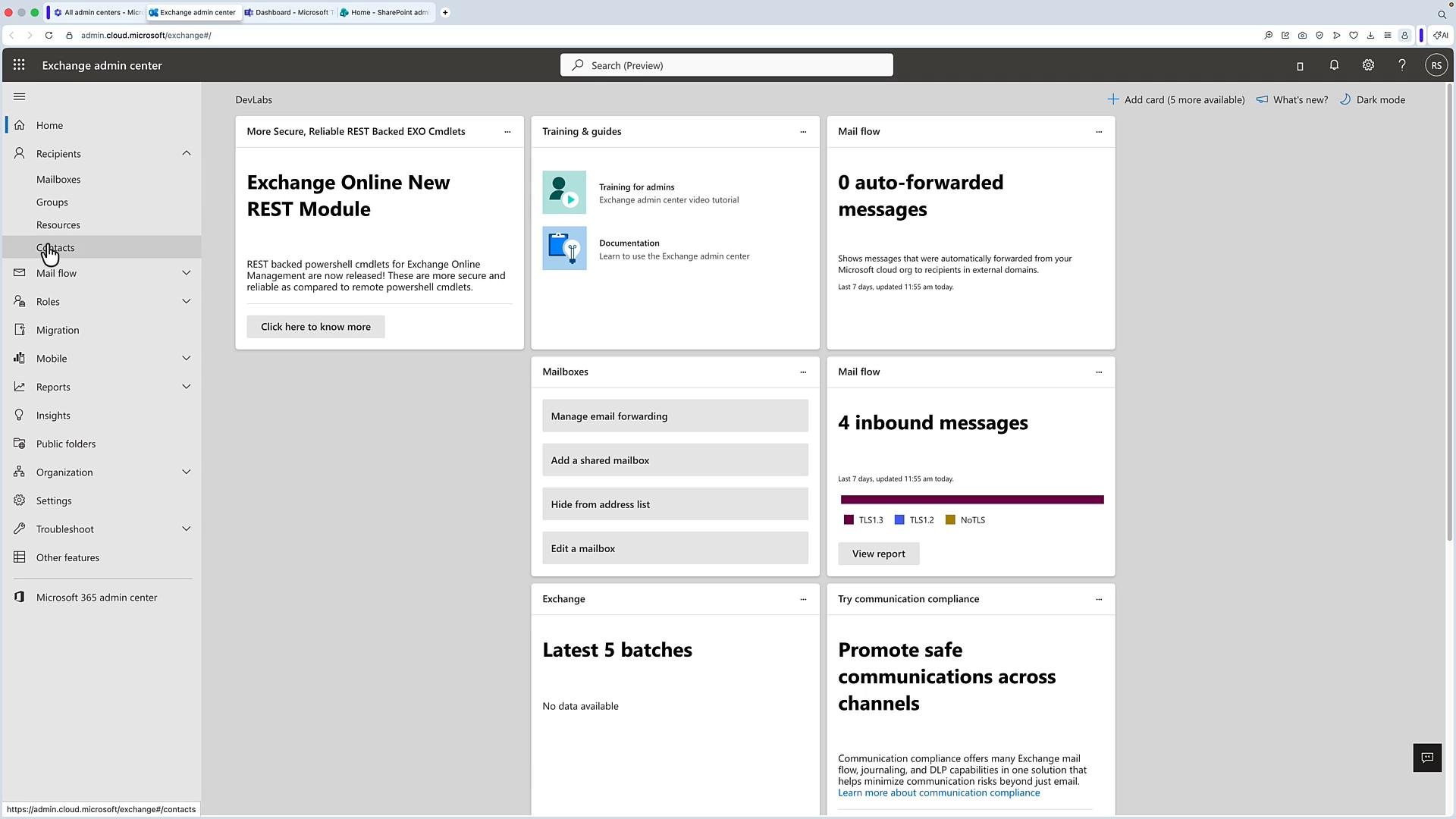
- Use transport rules and DLP policies to prevent data leakage.
- Implement retention and archive policies to meet compliance requirements.
- Monitor message trace and reporting to diagnose delivery issues.
SharePoint Online — Document Management and Intranet
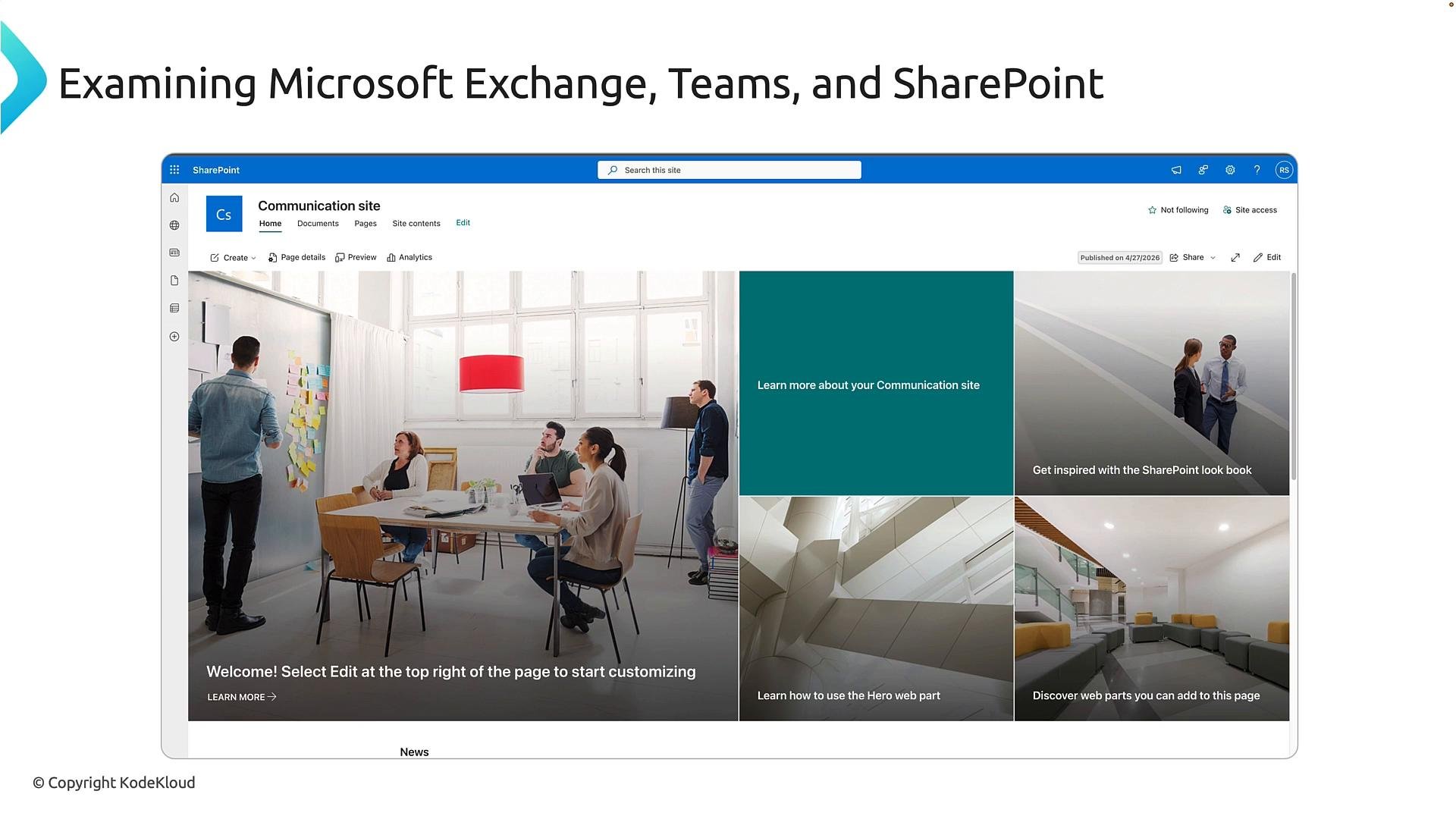
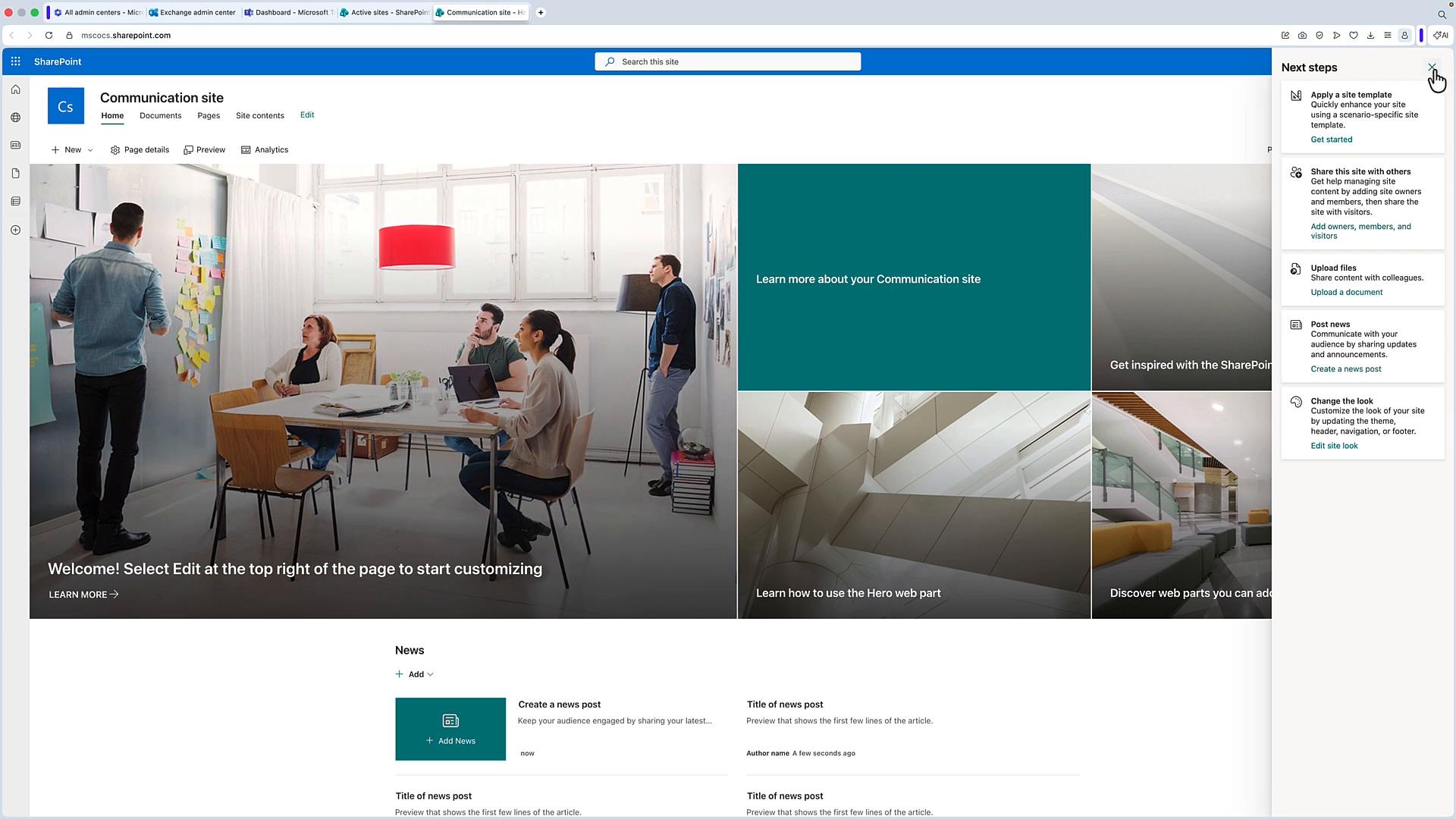
SharePoint Online is the content management and collaboration backbone of Microsoft 365. It provides team sites, communication sites, document libraries, and enterprise search. Primary uses:- Team sites for project collaboration and document co-authoring.
- Communication sites for company-wide news, policies, and resources.
- Document libraries with versioning, metadata, and retention controls.
- Storage backend for Teams channel files and OneDrive for Business.
- Files shared in Teams channels are stored in a SharePoint team site.
- OneDrive for Business uses SharePoint infrastructure for personal file storage.
- SharePoint supports enterprise search across sites, pages, and documents.
Microsoft Teams — Chat, Meetings, and Collaboration Hub
Microsoft Teams unifies chat, online meetings, calling, file collaboration, and third‑party app integrations into a single experience that’s tightly connected to Exchange and SharePoint. How Teams integrates with other services:- Calendar and meeting scheduling: Exchange Online stores calendar items and meeting invites.
- File storage: Channel files are stored in a SharePoint team site; 1:1 or group chat files are saved in OneDrive for Business.
- Identity and access: Managed through Azure AD and Microsoft 365 licenses.
- Teams Admin Center for meeting policies, external access, device management, and analytics.
- Policy-based controls to manage meeting behavior, guest access, and federation.
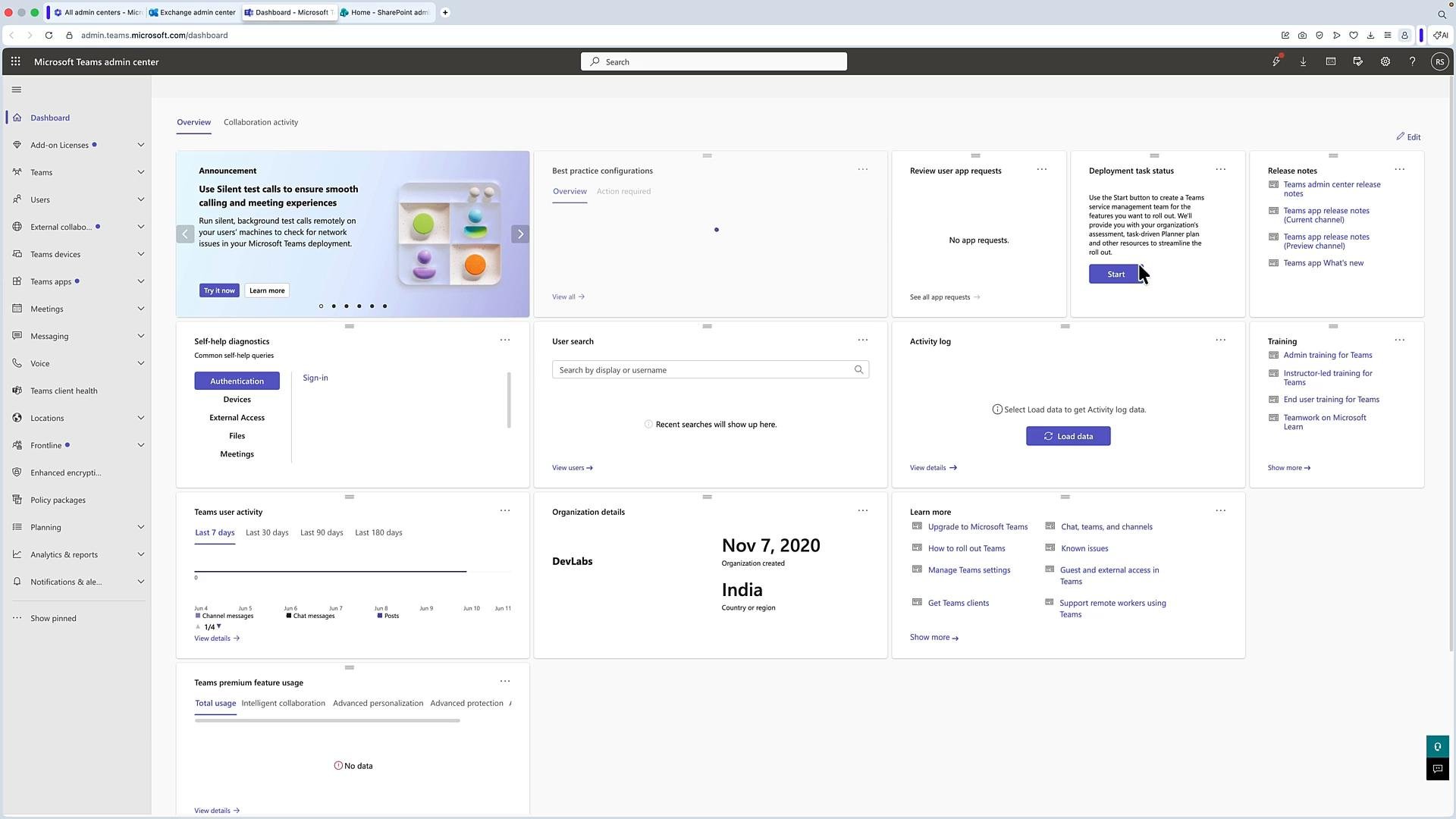
- Configure meeting and messaging policies to match organizational security requirements.
- Use sensitivity labels with SharePoint and Teams to protect sensitive files.
- Monitor usage reports from the Teams Admin Center for adoption and troubleshooting.
Quick Reference: Services, Roles, and Admin Surfaces
Admin centers and licensing
Administrators use the Microsoft 365 admin center to manage tenant-level settings and assign licenses. From there, you can open service-specific admin centers to manage configuration and policies. Licensing notes:- Plans such as Microsoft 365 E3 and E5 bundle Exchange, Teams, SharePoint, and additional security/compliance features.
- Assigning the correct license to users enables the services and features required by their job function.
Licenses such as E3 and E5 bundle multiple services. Ensure users are assigned the correct license so they can access Exchange, Teams, and SharePoint features required by their role.
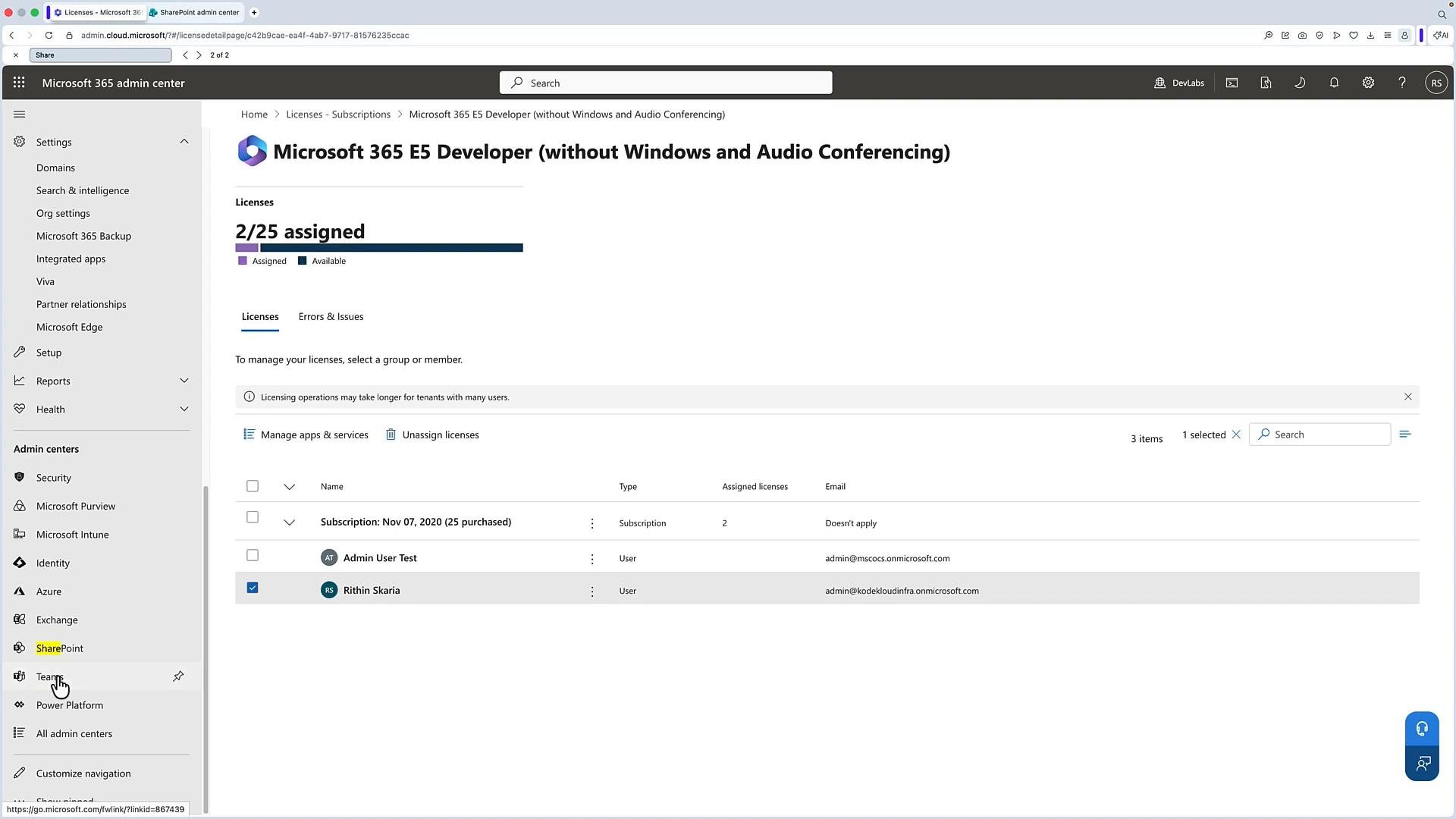
- Exchange Admin Center — manage mailboxes, mail flow, reporting, and compliance.
- Teams Admin Center — configure meeting policies, devices, and external collaboration.
- SharePoint Admin Center — manage active sites, sharing policies, and site settings.
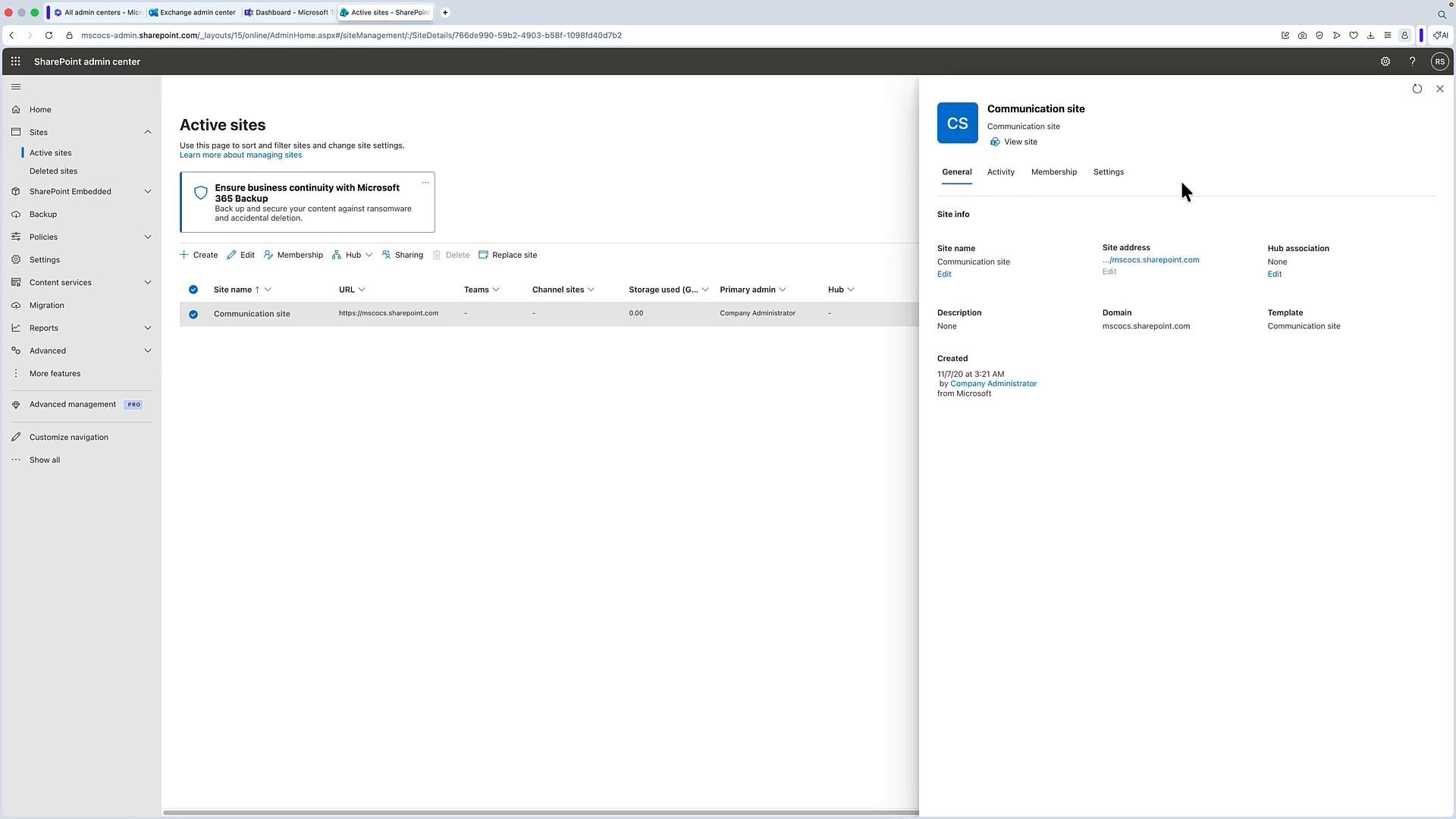
Be careful with sharing and guest access settings—overly permissive sharing can expose sensitive data. Use sensitivity labels, conditional access, and DLP policies to protect content across Exchange, Teams, and SharePoint.
Closing recap and further reading
Exchange Online, Microsoft Teams, and SharePoint Online form the core collaboration and content platform in Microsoft 365. When configured and governed together, they deliver a secure, integrated digital workplace for communication, meetings, and document collaboration. For deeper documentation and admin guidance:- Exchange Online documentation: https://learn.microsoft.com/exchange
- Microsoft Teams admin documentation: https://learn.microsoft.com/microsoftteams
- SharePoint Online documentation: https://learn.microsoft.com/sharepoint
- Microsoft 365 admin center: https://admin.microsoft.com