

What is Adaptive Protection?
Adaptive Protection in Microsoft Purview integrates two core services:- Insider Risk Management — continuously evaluates user activity to surface behavior that may indicate potential risk (for example: unusual downloads, excessive external sharing, or attempts to move sensitive information outside the organization). When elevated risk is detected, those signals can be shared with DLP policies so prevention controls behave differently for higher-risk users.
- Data Loss Prevention (DLP) — applies controls dynamically based on a user’s assessed risk level, enabling stronger protections when necessary while reducing friction for low-risk users.
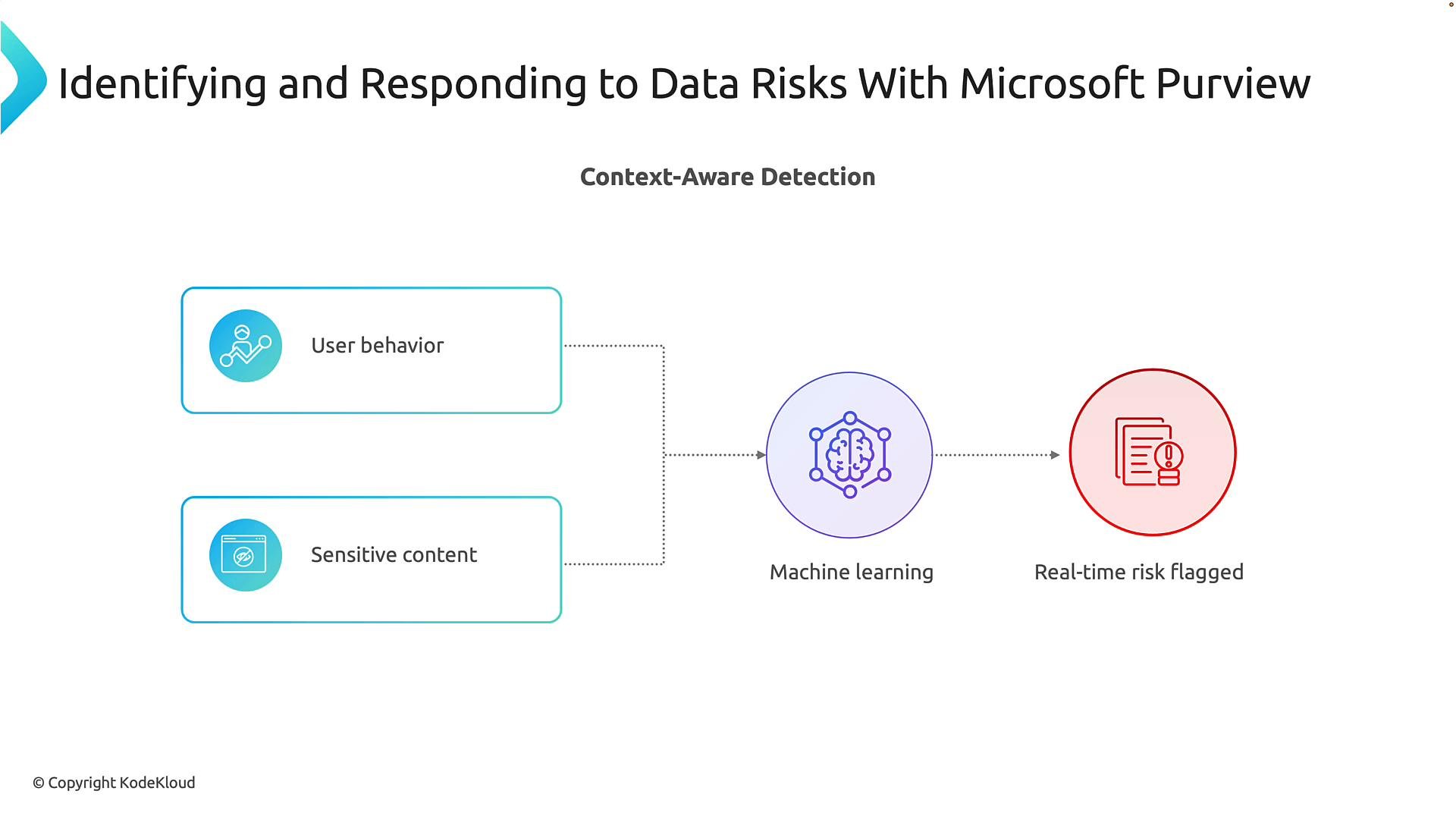
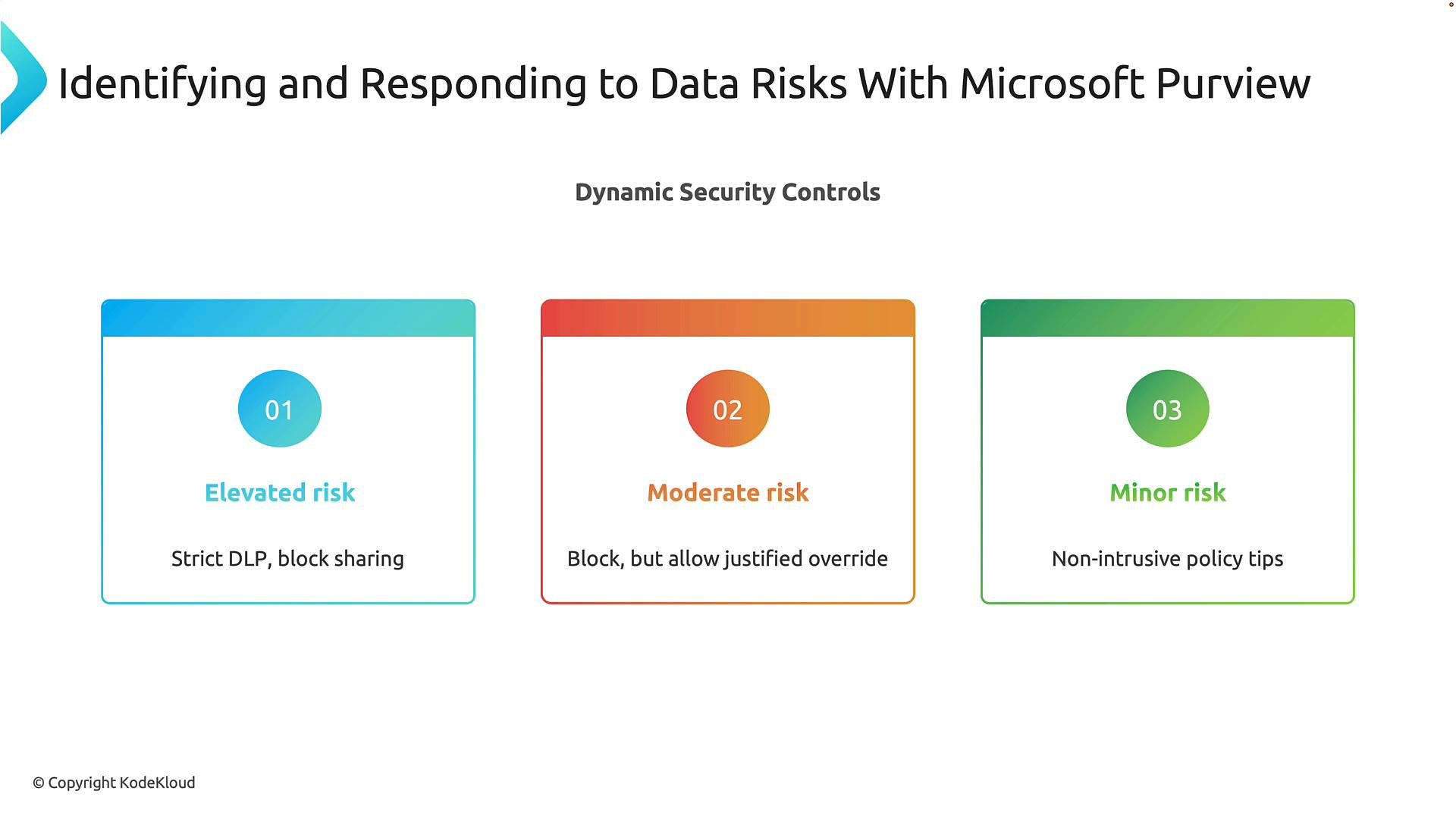
Graduated, risk-based responses
Not every risk requires the same response. Purview applies dynamic controls tuned to the severity of detected risk so enforcement is proportional and minimizes business impact.- Elevated risk: strict DLP controls — block sharing, restrict downloads, prevent sensitive data from leaving the organization.
- Moderate risk: block risky actions but allow users to provide a business justification for an override when appropriate.
- Minor risk: non‑intrusive policy tips or educational warnings without interrupting work.
Automation and automated mitigation
Automation is a key benefit of Purview’s Adaptive Protection. Where investigations and mitigation were traditionally manual and slow, automated investigation and mitigation enforce predefined controls immediately when risky behavior is detected — neutralizing incidents faster and reducing operational overhead so security teams can focus on higher-value tasks. For example, if a high-risk user attempts to upload confidential files to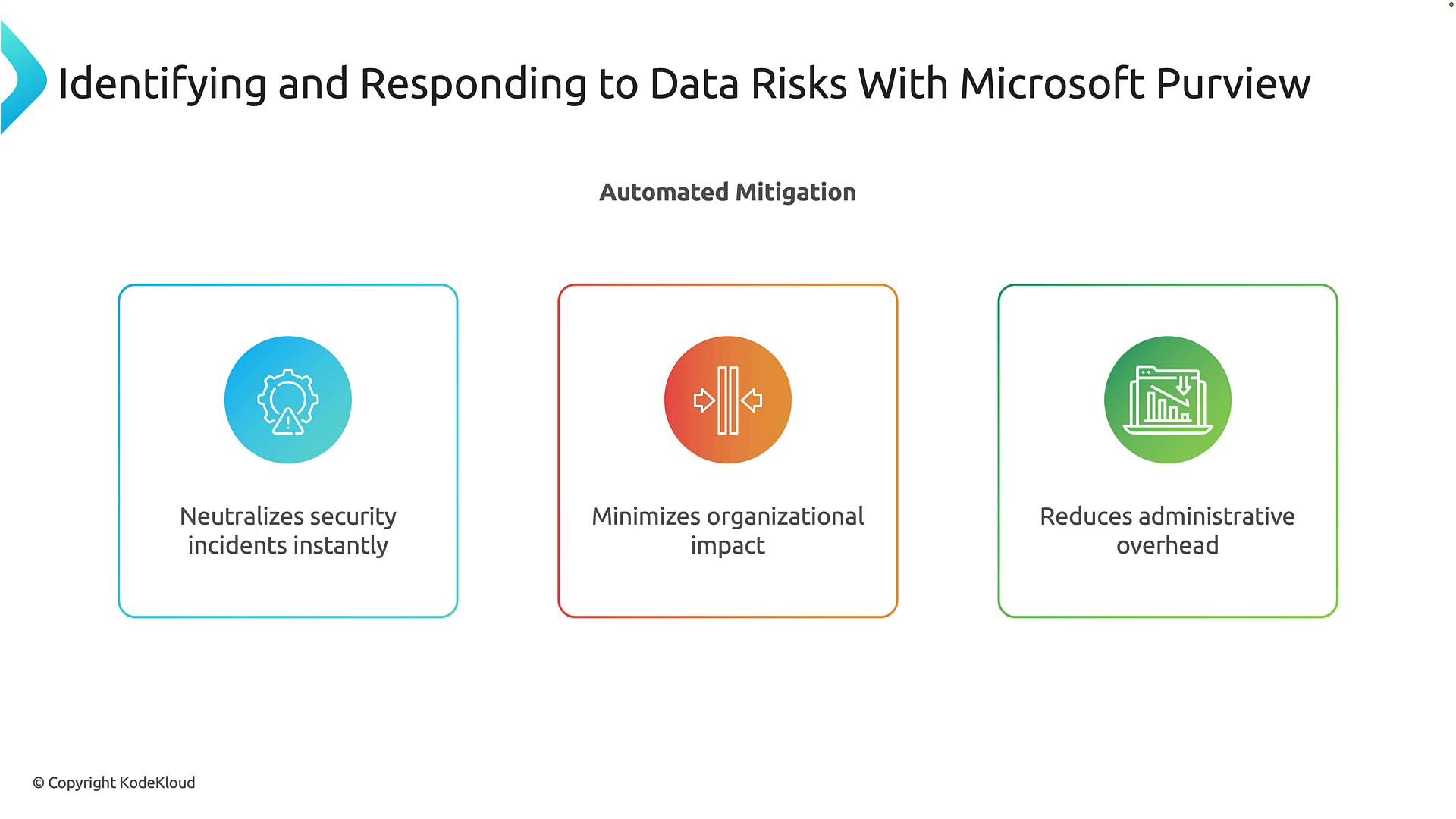
Automated blocking can affect business workflows. Always validate policies in report-only or audit mode and pilot policies with representative users before full enforcement.
Quick demo: Purview portal walkthrough
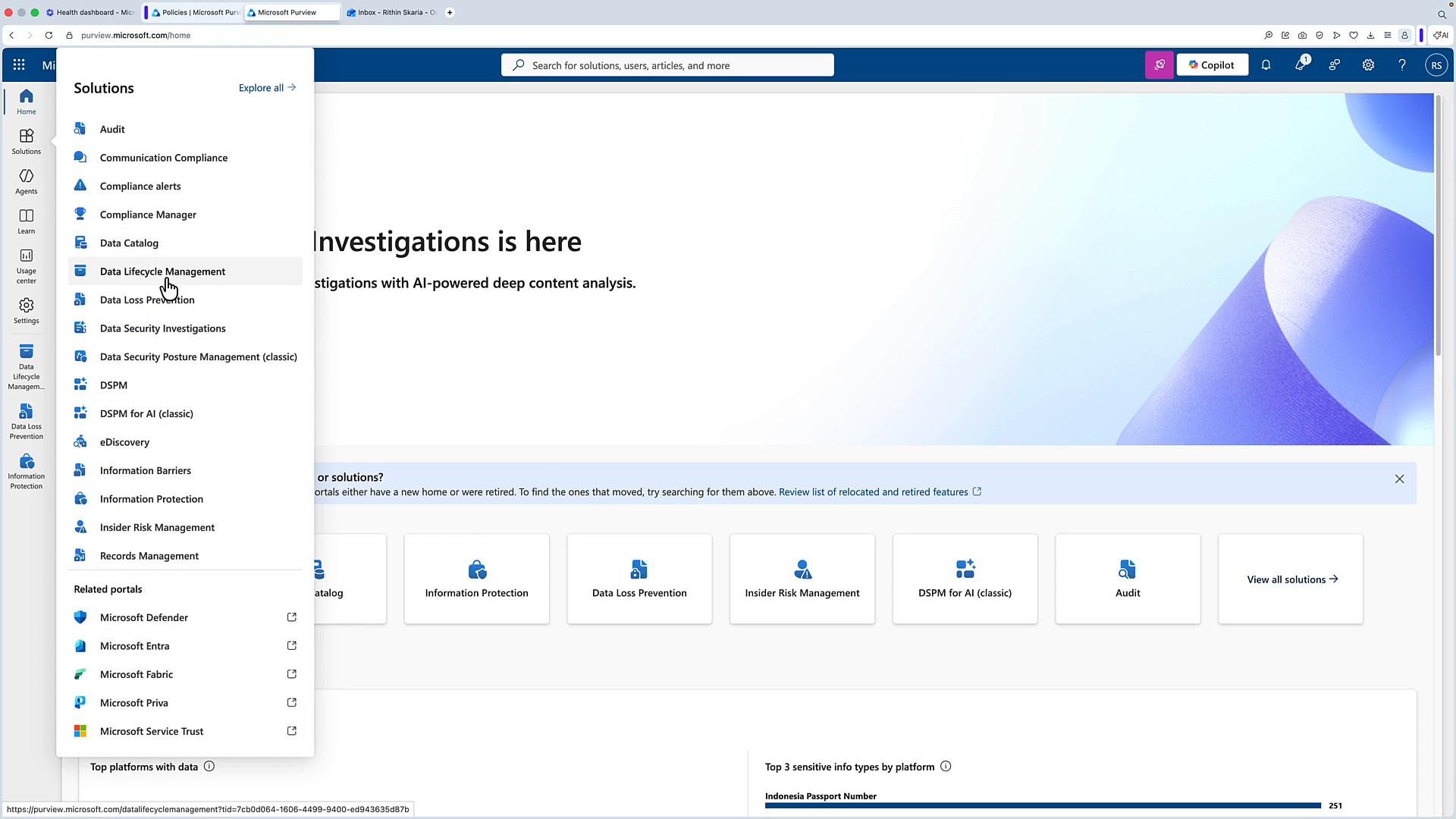
Below is a concise walkthrough showing where to find the Purview tools and how sensitivity labels and DLP policies interact.- Sign in to the Microsoft Purview compliance portal.
- Go to Solutions to locate capabilities such as Data Lifecycle Management, Data Loss Prevention (DLP), and Information Protection.
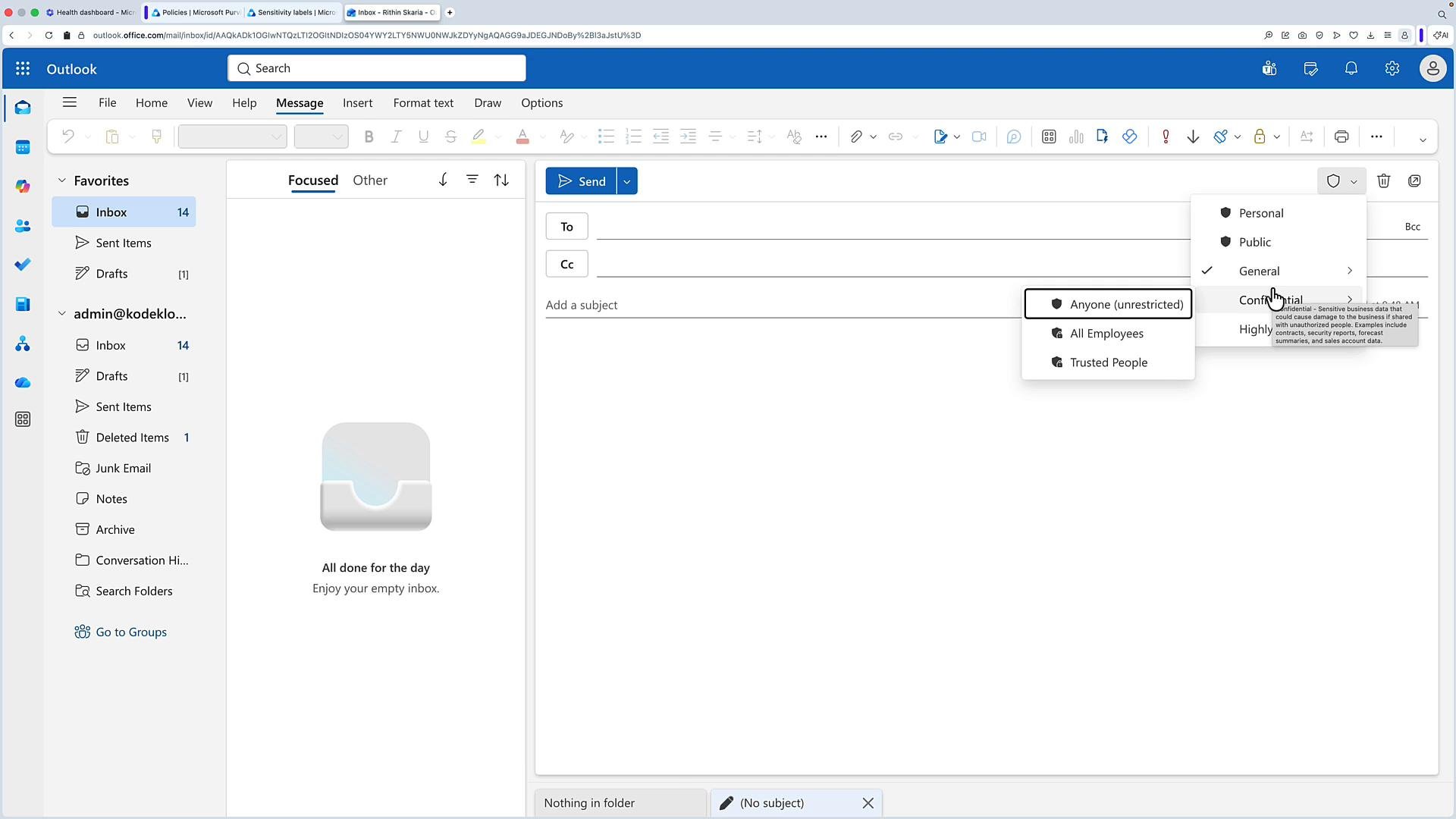
- Use Information Protection to create and scope sensitivity labels (for example: Personal, Public, General, Confidential, Highly confidential). Labels can be scoped to the entire organization or to specific groups.
- Configure DLP policies under Solutions > Data Loss Prevention to inspect content and enforce actions across Exchange, SharePoint, OneDrive, and Teams.
Sensitivity labels in action
Users can apply sensitivity labels to documents and emails to explicitly mark content sensitivity. When composing an email, Outlook displays the sensitivity label at the top of the compose window; changing the label can require a justification if policy requires it.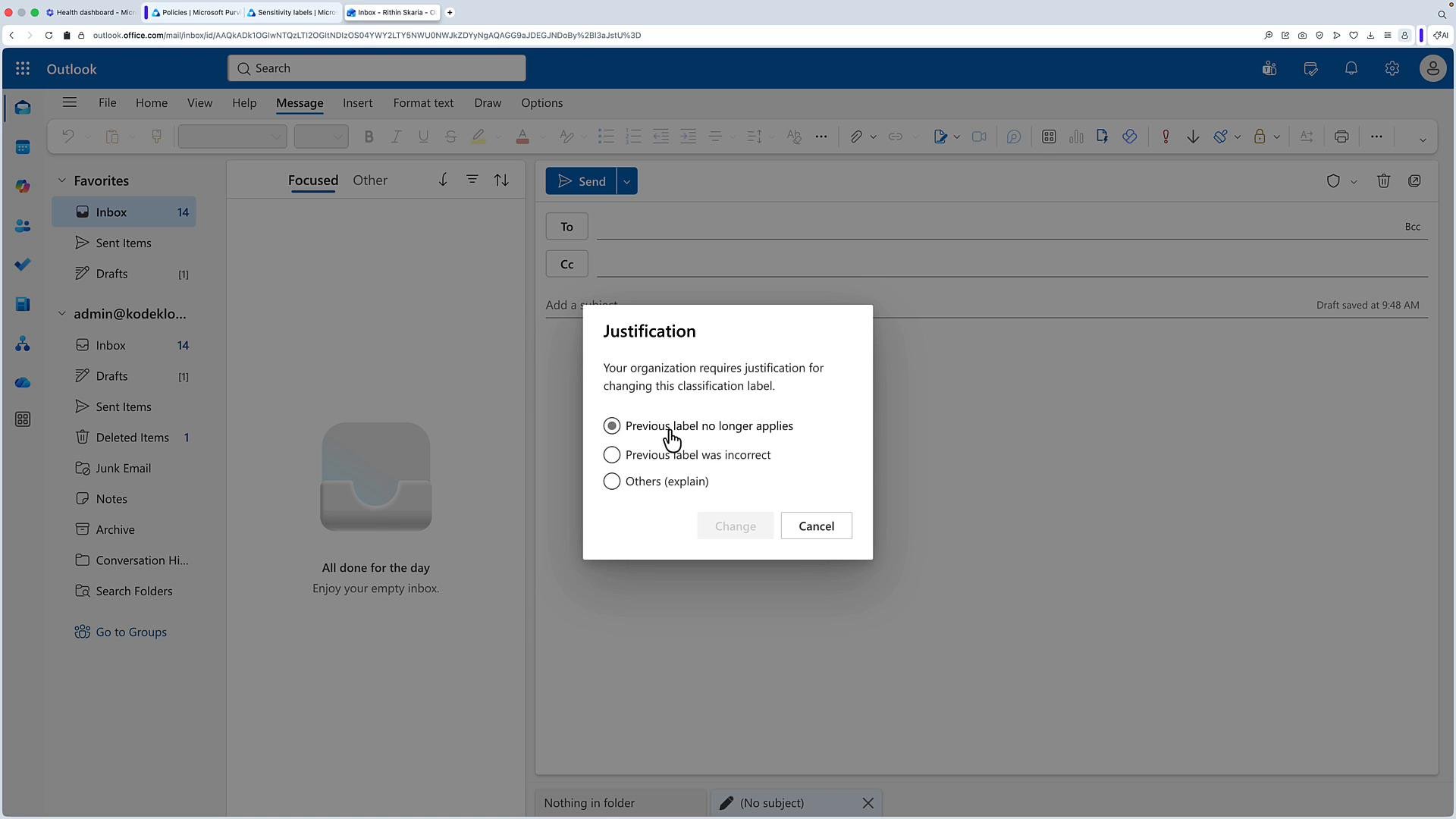
DLP policy example
A typical DLP policy inspects content for patterns (for example: credit card numbers, ABA routing numbers, or other regulated identifiers) and applies actions when a match occurs. Policies can be scoped to external sharing only or include internal sharing, depending on your requirements. Demo scenario:- Draft an email containing a credit card number and send it to an external recipient.
- The DLP policy detects the pattern and enforces the configured action.
- “Your email conflicts with the organizational policy.”
- “The message was not delivered to all recipients.”
- Additional details explaining the reason (e.g., contains a credit card number and was sent externally).
Test DLP policies in report-only or audit mode before enabling blocking to validate detections and reduce disruption.
Next steps and related capabilities
Beyond Adaptive Protection, Microsoft Purview provides additional capabilities for enterprise data governance and compliance, including compliance management, eDiscovery, data lifecycle governance, and information governance. These tools help organizations manage risk across data stores and business processes.Links and references
- Microsoft Purview documentation: https://learn.microsoft.com/microsoft-365/compliance/microsoft-purview
- Data Loss Prevention overview: https://learn.microsoft.com/microsoft-365/compliance/data-loss-prevention-policies
- Sensitivity labels and protection: https://learn.microsoft.com/microsoft-365/compliance/sensitivity-labels