This lesson explains how Helm packages, templating, and values solve Kubernetes configuration and deployment challenges for applications like WordPress. A Helm chart bundles manifest templates (parameterized using Go templating) together with a values.yaml file that supplies concrete values. When Helm renders the templates with values, it produces the final Kubernetes manifests that are applied to the cluster. Templates use Go template syntax (for example, {{ .Values.image }}) so a single values.yaml can customize many resources in one place. Below are example template files that you might find in a WordPress Helm chart. Each template demonstrates how variables are referenced and where values come from. templates/deployment.yaml
apiVersion: apps/v1
kind: Deployment
metadata:
  name: wordpress
  labels:
    app: wordpress
spec:
  selector:
    matchLabels:
      app: wordpress
      tier: frontend
  strategy:
    type: Recreate
  template:
    metadata:
      labels:
        app: wordpress
        tier: frontend
    spec:
      containers:
        - name: wordpress
          image: { { .Values.image } }
templates/pv.yaml
apiVersion: v1
kind: PersistentVolume
metadata:
  name: wordpress-pv
spec:
  capacity:
    storage: { { .Values.storage } }
  accessModes:
    - ReadWriteOnce
  gcePersistentDisk:
    pdName: wordpress-2
    fsType: ext4
templates/service.yaml
apiVersion: v1
kind: Service
metadata:
  name: wordpress
  labels:
    app: wordpress
spec:
  ports:
    - port: 80
  selector:
    app: wordpress
    tier: frontend
  type: LoadBalancer
templates/pvc.yaml
apiVersion: v1
kind: PersistentVolumeClaim
metadata:
  name: wp-pv-claim
  labels:
    app: wordpress
spec:
  accessModes:
    - ReadWriteOnce
  resources:
    requests:
      storage: { { .Values.storage } }
templates/secret.yaml
apiVersion: v1
kind: Secret
metadata:
  name: wordpress-admin-password
data:
  password: { { .Values.passwordEncoded } }
These template variables (for example, .Values.image, .Values.storage, .Values.passwordEncoded) are populated from the chart’s values.yaml file. Anyone deploying the chart can customize the deployment by editing that single file. Example values.yaml
image: wordpress:4.8-apache
storage: 20Gi
passwordEncoded: CajhWVUxSdzIZQzg0
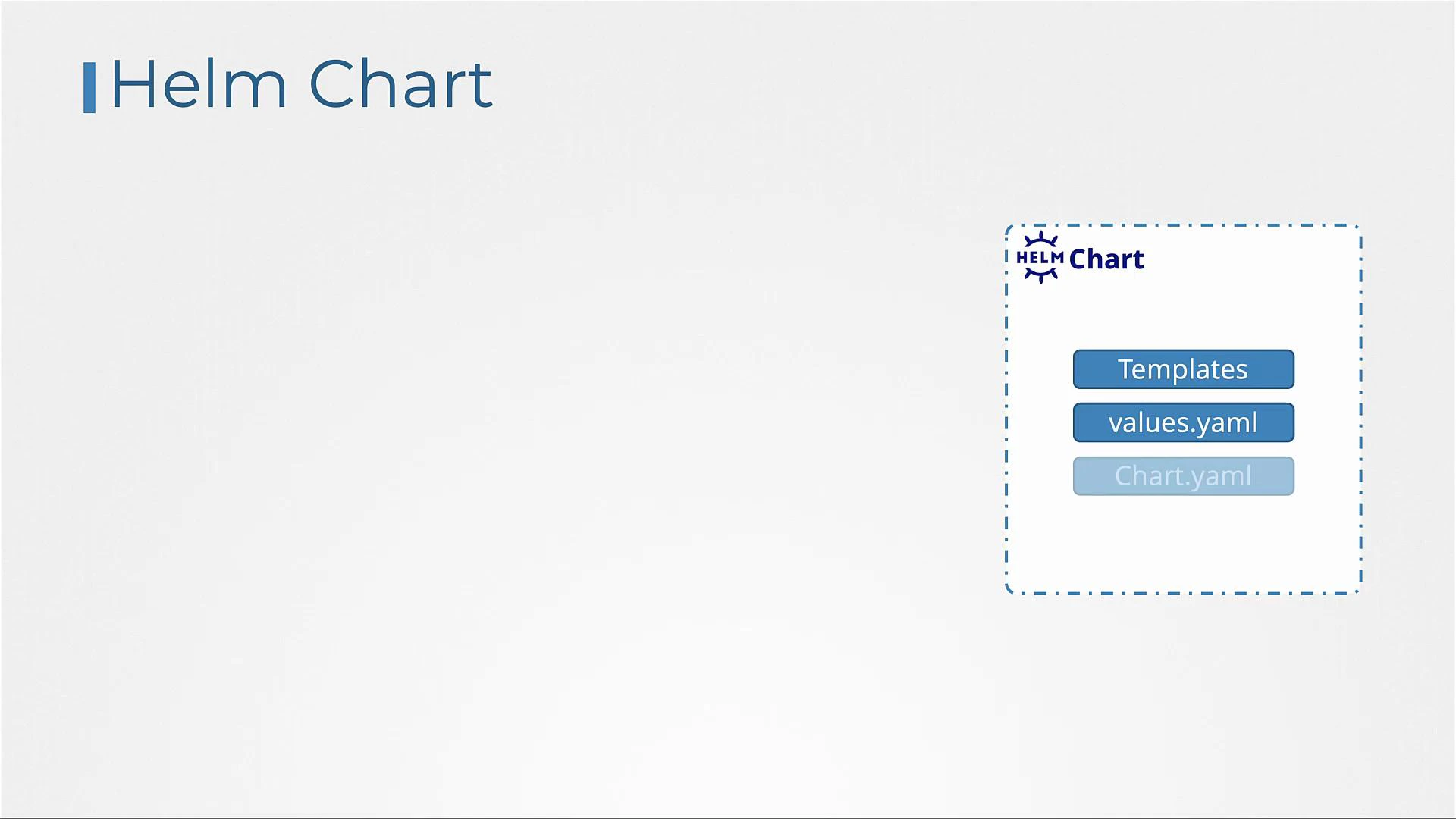
Together, templates + values.yaml form a Helm chart. Charts also include Chart metadata (Chart.yaml) describing the chart itself.
A presentation slide titled "Helm Chart" showing a dashed box labeled Helm
Chart on the right, containing three stacked rounded buttons: "Templates",
"values.yaml", and
"Chart.yaml".
Example Chart.yaml
apiVersion: v2
name: wordpress
version: 9.0.3
description: Web publishing platform for building blogs and websites.
keywords:
  - wordpress
  - cms
  - blog
  - http
  - web
  - application
  - php
home: http://www.wordpress.com/
sources:
  - https://github.com/bitnami/bitnami-docker-wordpress
maintainers:
  - email: containers@bitnami.com
    name: Bitnami
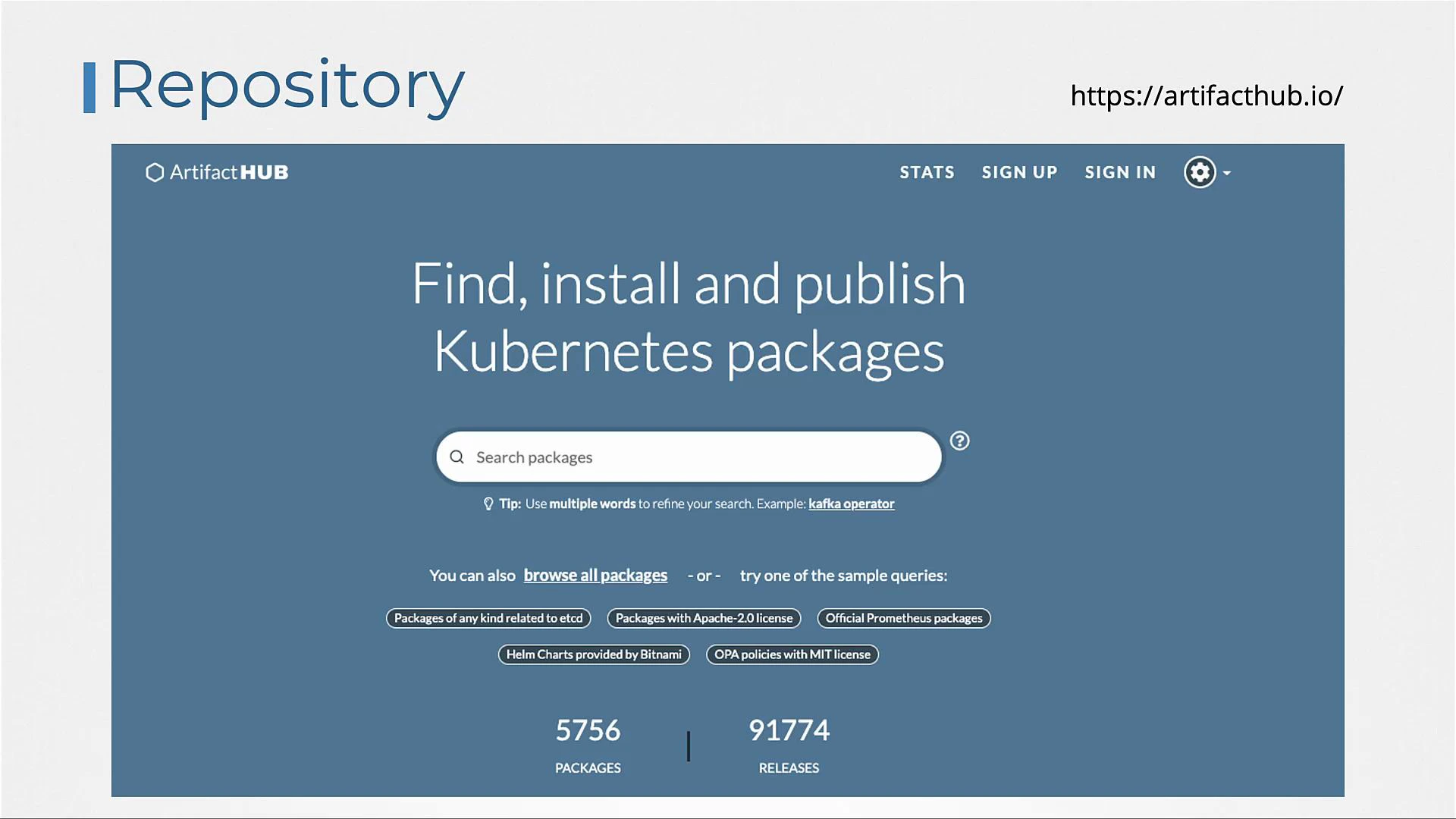
You can author your own chart or reuse community charts hosted on Artifact Hub. Artifact Hub is a central index of community-contributed Helm charts and other Kubernetes packages.
Screenshot of the Artifact Hub repository homepage showing a large headline
"Find, install and publish Kubernetes packages" with a central search box,
example queries, and package/release statistics. The site URL
(https://artifacthub.io/) is shown in the
corner.
As of this lesson, there are thousands of charts available on Artifact Hub. You can search charts from the web UI or directly from the Helm CLI. Search Artifact Hub from the Helm CLI:
helm search hub wordpress
# Example output:
# https://hub.helm.sh/charts/kube-wordpress/wordp...  0.1.0  1.1     this is my wordpress package
# https://hub.helm.sh/charts/groundhog2k/wordpress    0.4.1  5.8.0-apache  A Helm chart for Wordpress on Kubernetes
# https://hub.helm.sh/charts/bitnami-aks/wordpress    12.1.1 5.8.0  Web publishing platform for Wordpress...
If you want to use charts from a specific repository (for example Bitnami), add that repo to your local Helm configuration and search the repo:
helm repo add bitnami https://charts.bitnami.com/bitnami

helm search repo wordpress
# Example output:
# NAME                CHART VERSION  APP VERSION  DESCRIPTION
# bitnami/wordpress   12.1.14        5.8.1        Web publishing platform for building blogs and ...
To install a chart on your cluster:
helm install <release-name> <chart>
# Example:
helm install my-release bitnami/wordpress
Each installation of a chart is called a release. You can install the same chart multiple times under different release names; each release is independent:
helm install release-1 bitnami/wordpress
helm install release-2 bitnami/wordpress
helm install release-3 bitnami/wordpress
Common chart components and their purpose
Chart file / templatePurpose
templates/deployment.yamlDefines the application Deployment and container image reference.
templates/service.yamlExposes the application via Service (ClusterIP, NodePort, LoadBalancer).
templates/pv.yamlDefines a PersistentVolume to back storage requests (cluster-level resource).
templates/pvc.yamlRequests storage from PVs (namespaced PersistentVolumeClaim).
templates/secret.yamlStores credentials or secrets (data must be base64-encoded).
values.yamlCentral place to override template variables per deployment.
Chart.yamlChart metadata: name, version, description, maintainers, sources.
Useful Helm commands (summary)
CommandWhat it does
helm search hubSearches Artifact Hub from the CLI for charts.
helm repo addAdds a remote chart repository (e.g., Bitnami).
helm search repoSearches charts in the local repo index.
helm installInstalls a chart as a release in the cluster.
helm listLists deployed releases.
helm uninstallRemoves a release from the cluster.
helm pull —untarDownloads and extracts a chart to a local directory.
Examples and tips:
helm list
# Shows installed releases, e.g.:
# NAME        NAMESPACE  REVISION  UPDATED                      STATUS    CHART                   APP VERSION
helm uninstall my-release

helm pull --untar bitnami/wordpress
ls wordpress
# Example listing:
# Chart.lock  README.md  ci  values.schema.json
helm install release-4 ./wordpress
# Install the local, modified chart directory
Kubernetes Secret data values (the “data” field) must be base64-encoded. In the earlier secret template, .Values.passwordEncoded is expected to already be base64-encoded. If you prefer to supply the raw password in values.yaml and have Helm encode it during rendering, you can use the b64enc template function, for example:
data:
  password: {{ .Values.password | b64enc }}
Alternatively, use the Secret’s stringData field to provide raw (unencoded) string values and let the API server handle encoding:
stringData:
  password: "{{ .Values.password }}"
Avoid including raw passwords in plain text in version control; consider using external secret management or encrypted values files.
This lesson covered the essential Helm concepts for packaging and deploying applications: templates, values, charts, repositories, and the basic Helm CLI workflow. For production use and advanced exam topics, explore additional Helm features such as subcharts, chart dependencies, chart testing, hooks, and templating functions. Further reading and references

Watch Video

Practice Lab