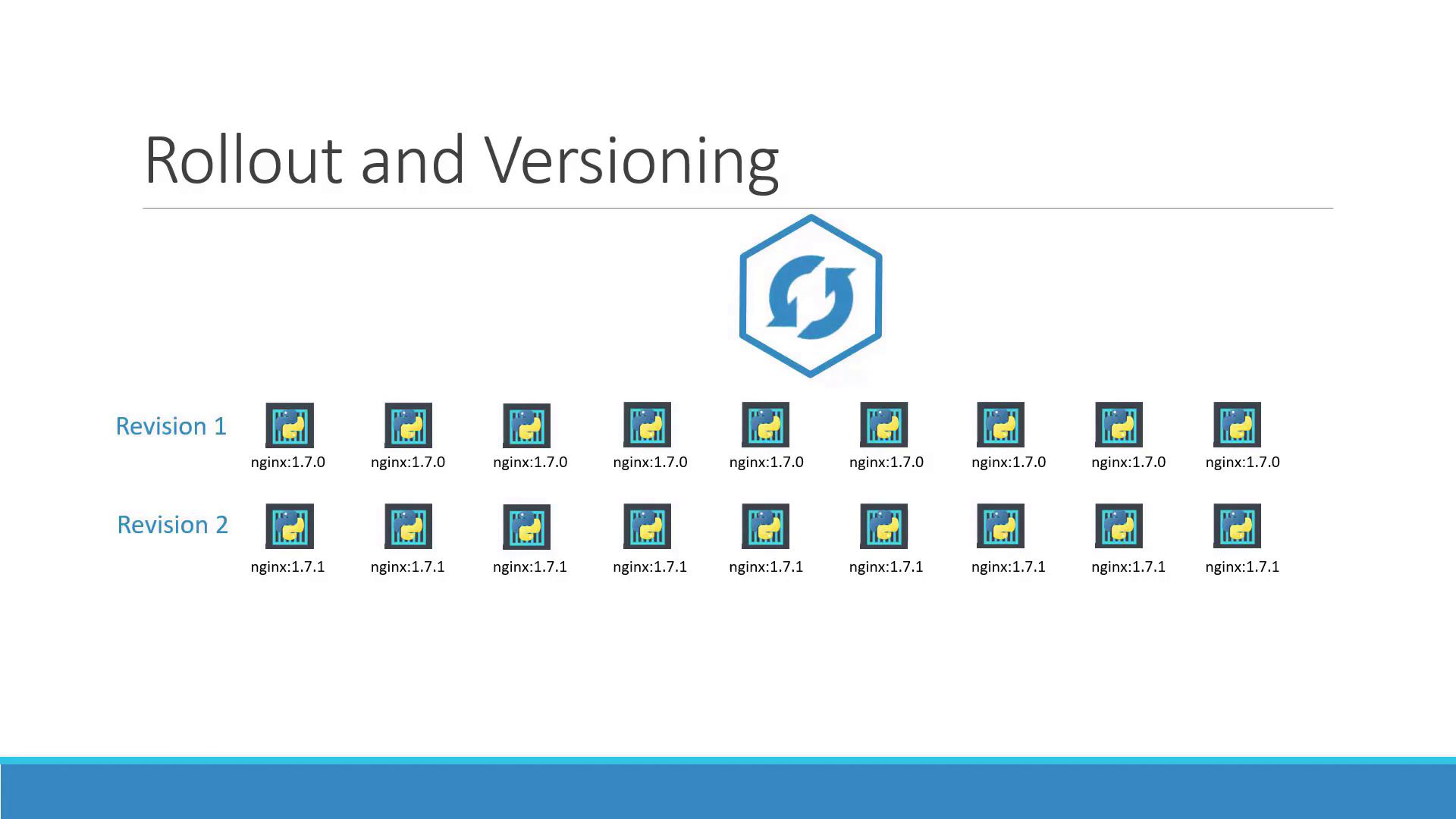
Welcome to this comprehensive guide on how updates and rollbacks work within a Kubernetes deployment. In this article, we will explore the concepts of rollouts, versioning, and deployment strategies, empowering you to manage application upgrades with minimal downtime. When you create a deployment, Kubernetes triggers an initial rollout, creating the first deployment revision (revision one). Later, when you update your application—for example, by changing the container image version—a new rollout occurs and a new deployment revision (revision two) is generated. This mechanism enables tracking changes and facilitates rolling back to a previous stable version if needed.
The image illustrates a rollout and versioning process, showing two revisions of nginx versions 1.7.0 and 1.7.1, with corresponding icons.
Tip: Use the following command to view the status of your rollout:
The command output will be similar to:
To review the revision history of your deployment, run:

Deployment Strategies

Kubernetes supports two primary deployment strategies:
  1. Recreate Strategy With the recreate strategy, if you have, for example, five replicas, all replicas are terminated and then replaced with new ones running the updated version. The main drawback is potential downtime, as the application is temporarily unavailable.
  2. Rolling Update Strategy The rolling update strategy gradually replaces the old version with the new one by updating replicas one at a time. This ensures continuous application availability during the upgrade. Note that Kubernetes uses the rolling update strategy by default when no specific strategy is configured.
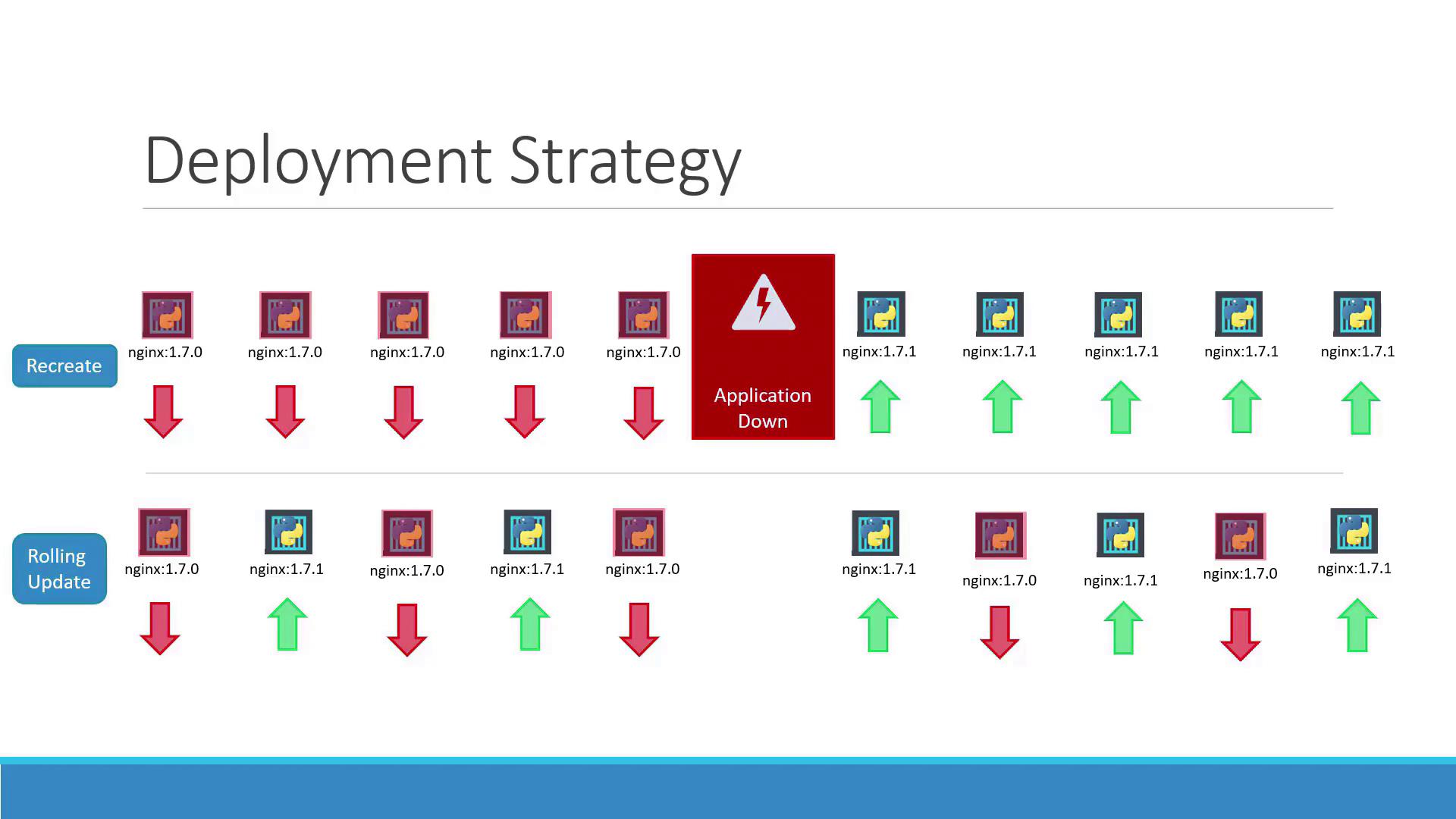
The diagram below visually compares the two strategies:
The image illustrates two deployment strategies, "Recreate" and "Rolling Update," showing the transition from nginx:1.7.0 to nginx:1.7.1 with application downtime in "Recreate."

Updating a Deployment

There are multiple methods to update your deployment. You can update the container image version, modify labels, or adjust the number of replicas. If you are using a deployment definition file, simply modify the file and apply the update:
This triggers a new rollout and creates a new deployment revision. Alternatively, update just the container image with:
Caution: Updating with kubectl set image modifies the running configuration, which may differ from the file-based configuration. Remember to update your deployment definition file accordingly.
Below is an example deployment definition file after updating the container image version:

Examining Deployment Details

Describing your deployment provides insights into the underlying processes and differences between deployment strategies. When using the recreate strategy, the old ReplicaSet scales down to zero before the new one scales up. Run:
You might see output similar to:
For the rolling update strategy, the output indicates that the old ReplicaSet reduces gradually as the new one scales up:
This produces an output similar to:
The rolling update strategy preserves application availability by gradually transitioning from the old to the new ReplicaSet.

Understanding the Underlying Process

When you create a deployment (for example, with five replicas), Kubernetes automatically creates a ReplicaSet that manages the corresponding pods. During an upgrade, a new ReplicaSet is created for the updated configuration while the old ReplicaSet gradually terminates its pods. You can monitor these changes by running:
This command displays both the old ReplicaSet (with zero pods) and the new ReplicaSet with the desired number of pods. If issues arise with the new release, Kubernetes allows you to roll back to the previous revision. To perform a rollback, use:
This command terminates the pods in the new ReplicaSet and restores the previous stable version. Compare the ReplicaSet status before and after the rollback: Before rollback:
After rollback:
When you run the undo command, you should see:

Quick Reference Summary

Below is a summary of the key commands used to create, update, monitor, and roll back your deployments: By mastering both the recreate and rolling update strategies along with the associated commands, you can effectively manage your Kubernetes deployments and minimize downtime during application updates.
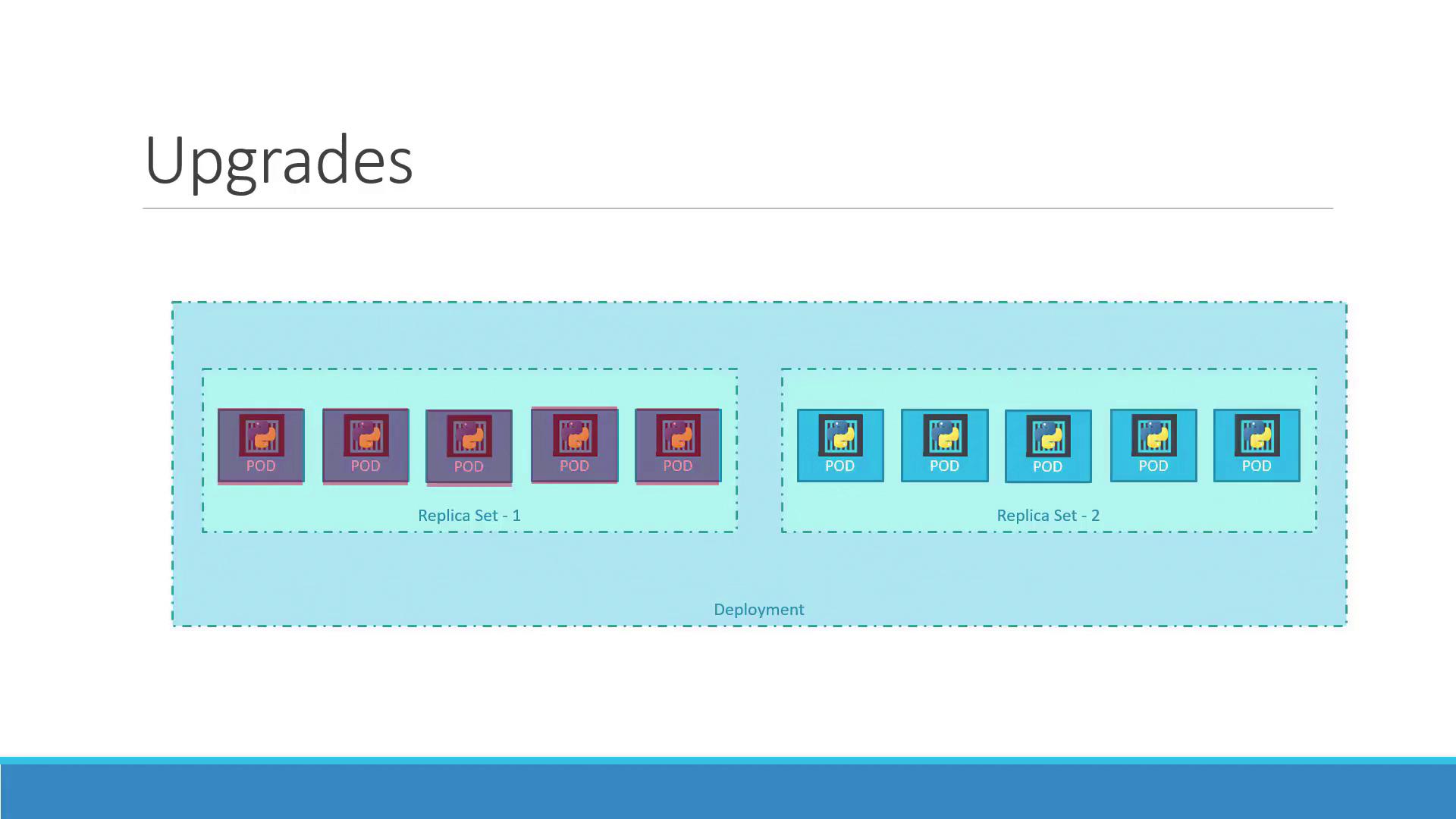
The image illustrates a Kubernetes deployment upgrade, showing two replica sets with pods, indicating a transition from one set to another.

Watch Video