

1) List Services in the current namespace
Run:- There is only one Service in the default namespace: the built-in Kubernetes API server Service.
- The TYPE column shows this Service is
ClusterIP.
Quick answers
2) Inspect the default Kubernetes Service (details)
Describe the Service to view port and endpoint details:- TargetPort is
6443/TCP. - Endpoints show
10.53.180.9:6443, which is a single endpoint for this Service. - Labels are listed under Labels in the describe output.
What are Endpoints?
Endpoints are the network addresses (IP:port) of Pods that a Service routes to. Kubernetes automatically maintains Endpoints to reflect the pods matched by the Service’s selector. If no Pods match, the Endpoints list is empty; if multiple Pods match, Endpoints contains multiple entries.Endpoints are not objects you normally edit. Kubernetes dynamically manages Endpoints to match the set of Pods selected by a Service’s selector.
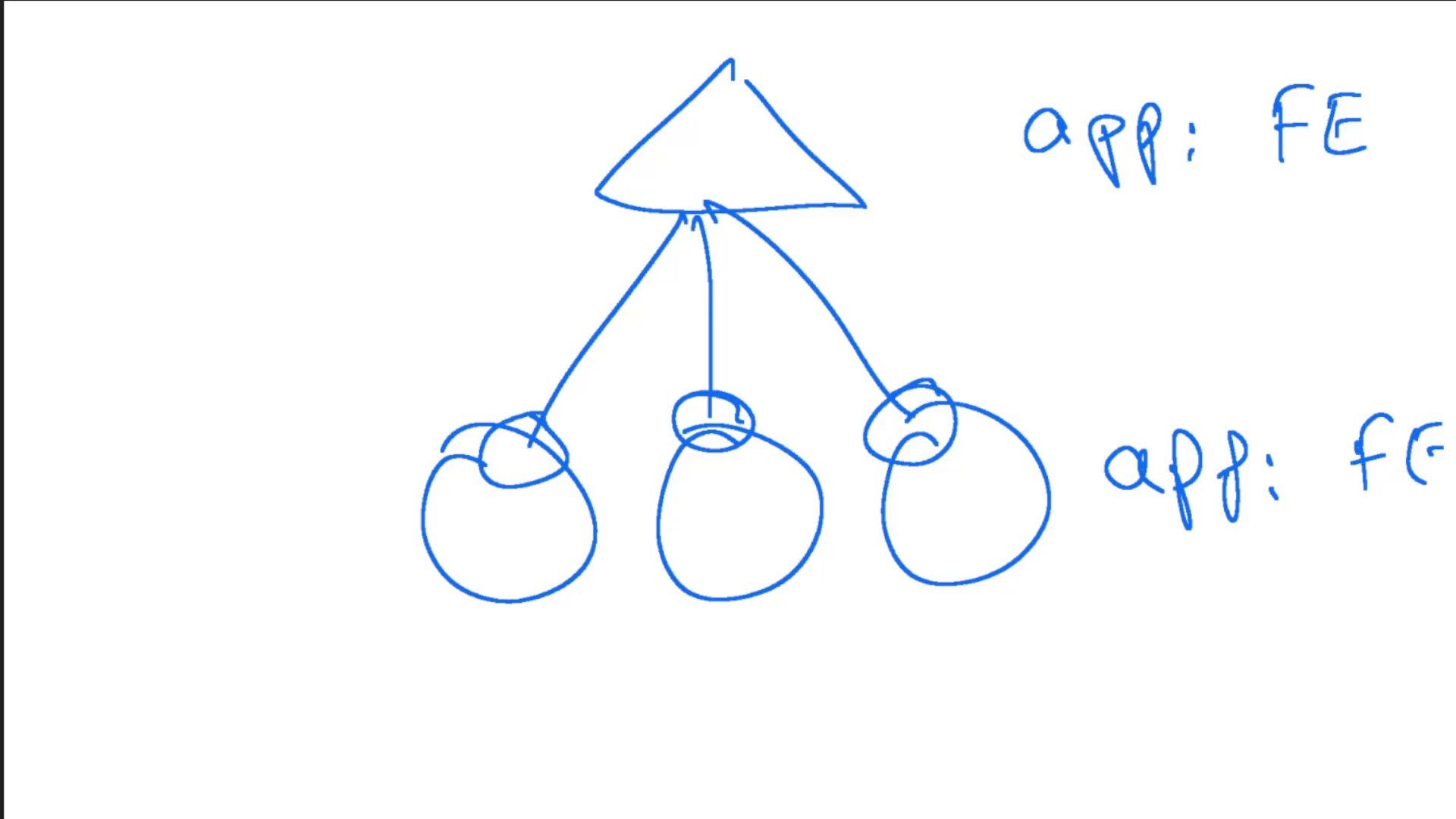
kubernetes Service example above, only one endpoint is present.
3) How many Deployments are present?
List Deployments:- There is one Deployment:
simple-webapp-deployment.
4) Which image does the Deployment use?
Describe the Deployment:- Container image:
kodekloud/simple-webapp:redis. - Container port:
8080/TCP.
5) Is the web UI accessible?
Attempting to access the app (for example via a NodePort on the node IP) produced a “Bad Gateway” error. The UI was not reachable because there was no Service routing external traffic to the Deployment’s Pods yet. You must create a Service that selects the Deployment’s Pods.6) Create a Service to expose the web application
A NodePort Service manifest that exposes the Deployment’s Pods on port 8080 looks like this:service-definition-1.yaml and create it:
7) Tip: generate skeleton manifests with kubectl
You can use kubectl’s imperative commands with--dry-run=client -o yaml to produce skeleton YAML you can edit before applying. Examples: