

1. Determining the Number of Pods
Begin by checking how many pods are currently running in your system. Execute the following command:2. Identifying the Environment Variable in the Pod
Next, determine which environment variable is configured in the container by describing the pod:3. Verifying the Environment Variable Value
Verify the value of the APP_COLOR variable. The output above indicates that its value is pink. ─────────────────────────────4. Viewing the Web Application
Click on the web app color tab to open the application in your browser. When the page loads, you should see the application displaying the color corresponding to the APP_COLOR value (in this case, pink). Once confirmed, click OK to proceed.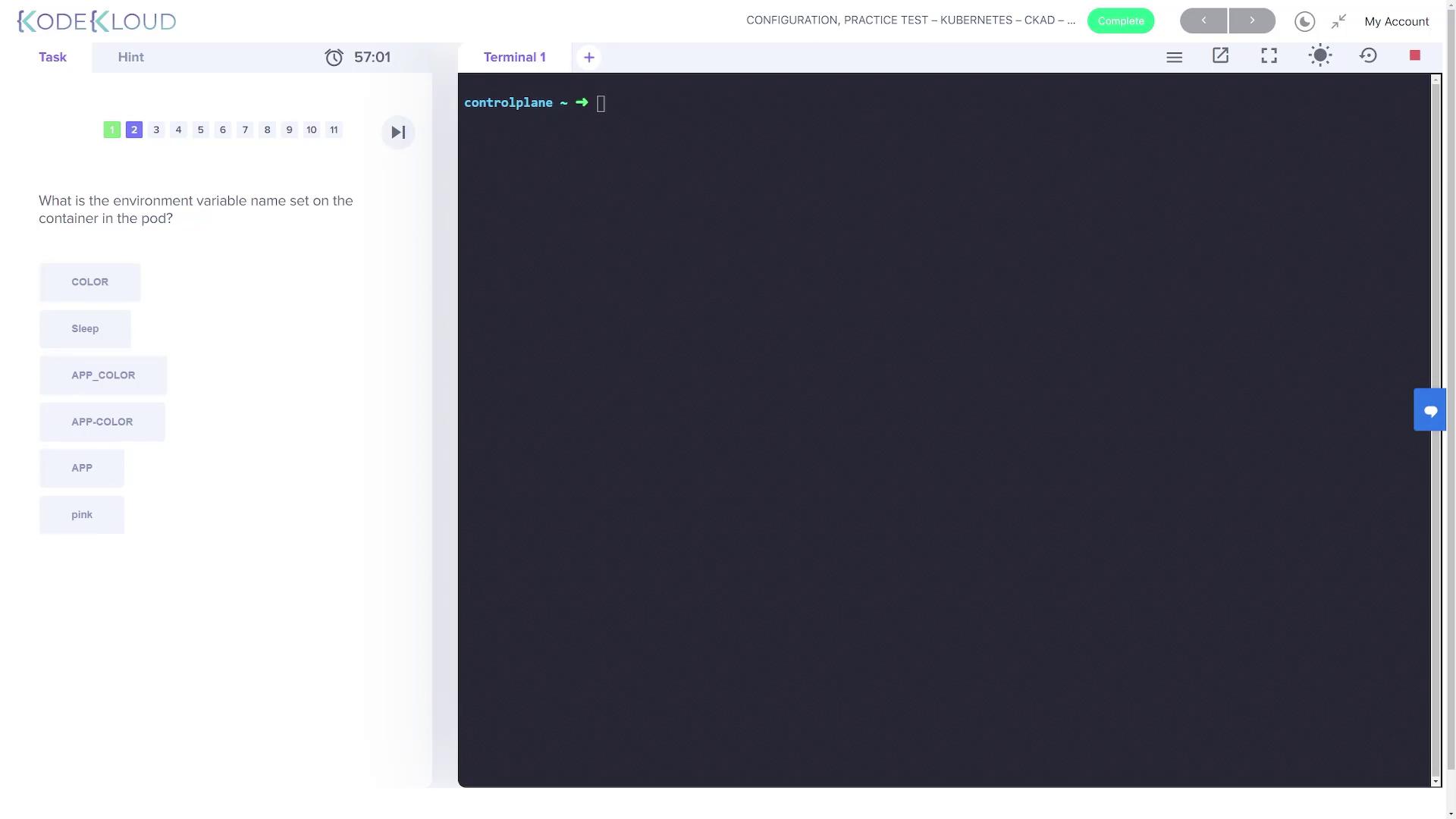
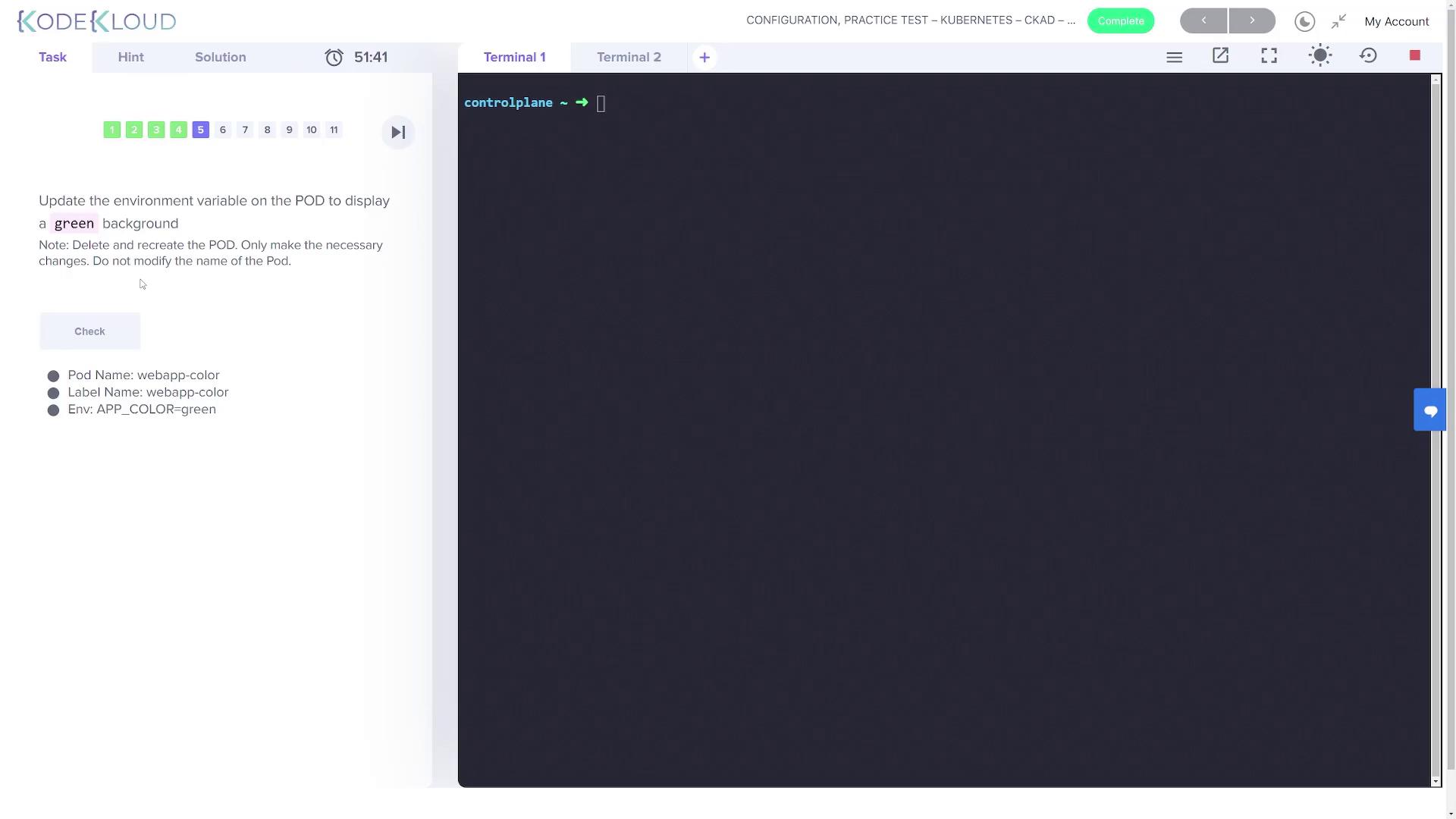
5. Updating the Environment Variable for a Green Background
The next task is to update the pod configuration so that the background changes to green. This involves deleting and recreating the pod with the necessary modification while keeping the pod name unchanged.5.1 Exporting the Current Pod YAML
First, verify the pod again:5.2 Deleting the Current Pod
Remove the running pod to make way for the updated configuration:5.3 Modifying and Applying the Pod Configuration
Open the exported pod.yaml file in your favorite text editor, such as usingvi:
6. Listing ConfigMaps in the Default Namespace
To determine how many ConfigMaps are available in the default namespace, run:7. Identifying the Database Host in the ConfigMap
Next, identify the database host by inspecting the ConfigMap named db-config:8. Creating a New ConfigMap for the Webapp-Color Pod
Create a new ConfigMap named webapp-config-map that defines the APP_COLOR variable with a value of darkblue by executing:9. Updating the Pod to Use the New ConfigMap
The next step is to update the webapp-color pod so that it sources the APP_COLOR environment variable from the new ConfigMap.9.1 Deleting the Existing Pod
Delete the current pod with this command:9.2 Modifying the Pod YAML
Update the pod.yaml file to reference the ConfigMap rather than using a hard-coded environment variable value. Modify the container specification under the env section as follows:10. Verifying the Updated Web Application
Finally, open the web app color interface once more and refresh the page. Confirm that the background has successfully changed to darkblue. When this change is verified, click OK to complete the exercise. ─────────────────────────────This concludes the assignment for the ConfigMap lab session.
Ensure that you carefully check the environment variable sections in both the pod description and the YAML file when making updates to avoid configuration errors.