

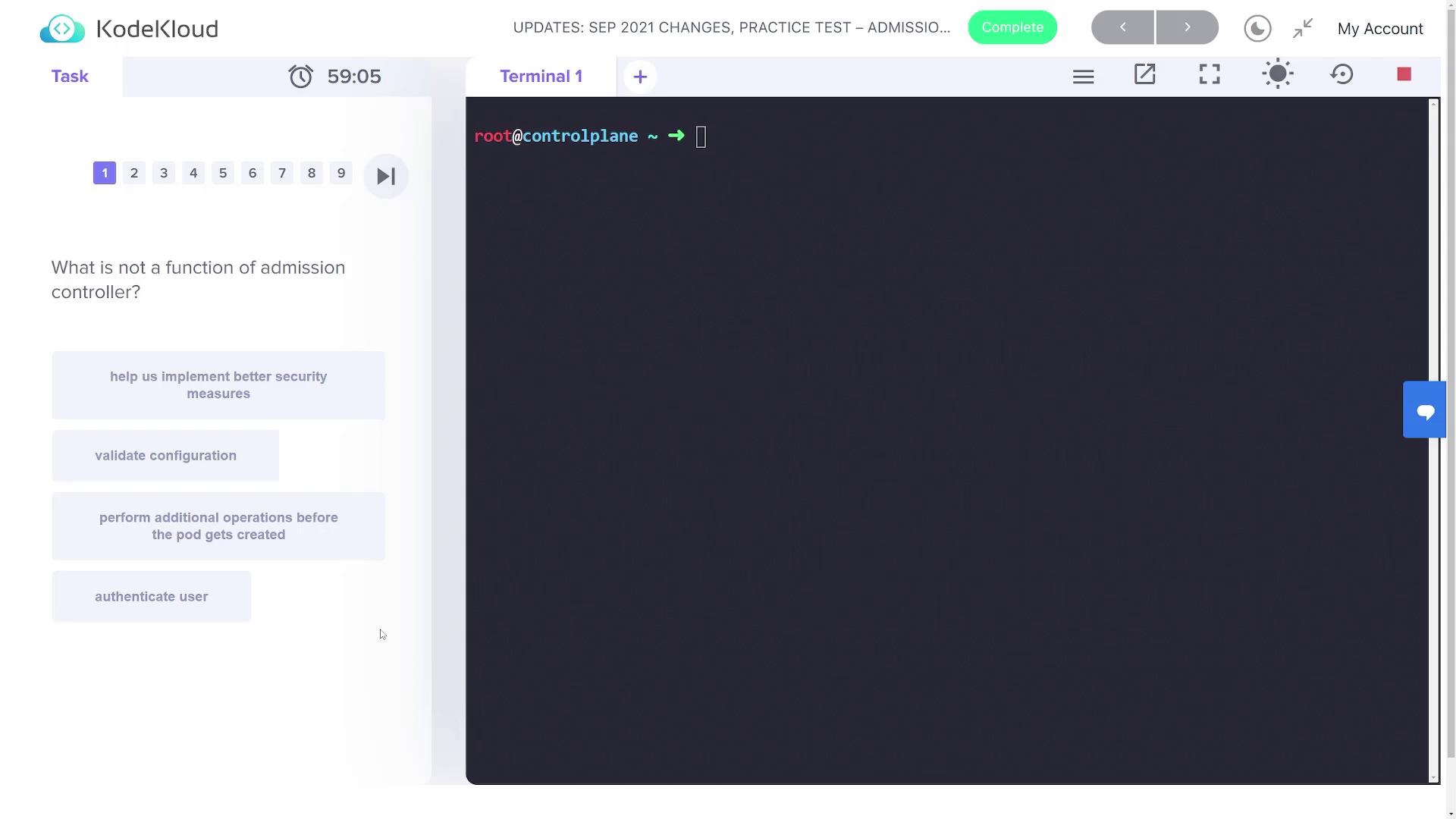
Understanding Admission Controller Functions
For the first question, you need to determine which option is NOT a function of admission controllers. The correct answer is “authenticate users” because admission controllers operate after authentication has already taken place; they do not handle user authentication.Verifying Enabled Admission Controllers
The next question asks which admission controller is not enabled by default. To find out, start by listing the pods in thekube-system namespace using the following command:
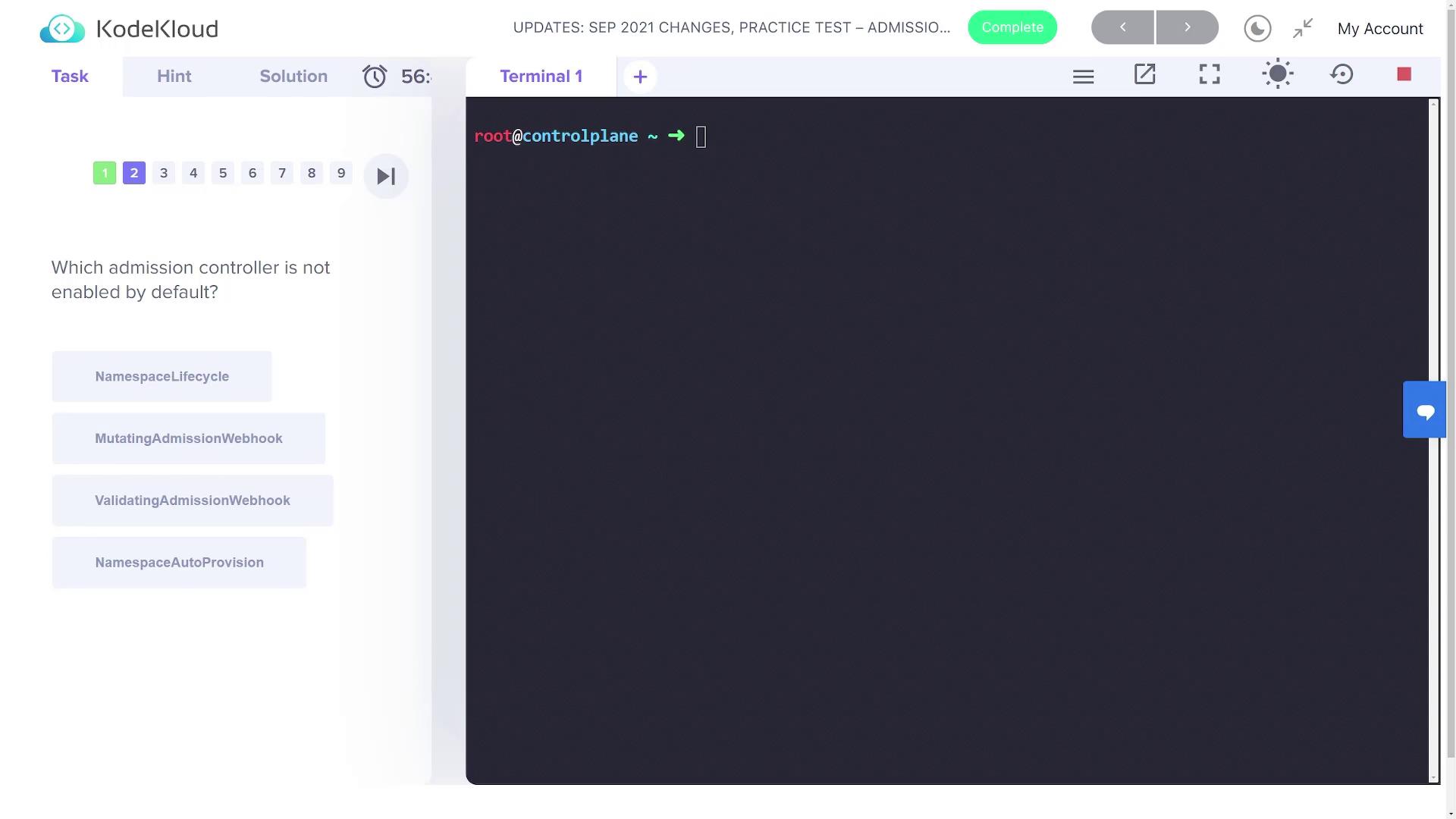
NamespaceLifecycle, LimitRanger, ServiceAccount, among others. Notice that “namespace auto-provision” is not listed. Also, verifying the enabled webhooks gives you the following output:
Identifying Explicitly Enabled Admission Controllers
The following question asks which admission controller is enabled in the cluster but is generally disabled by default. You can inspect the kube-apiserver configuration file located at/etc/kubernetes/manifests/kube-apiserver.yaml to determine the enabled plugins. Use your preferred text editor or run the following search command:
NodeRestriction admission controller is explicitly enabled, despite normally being disabled.
By inspecting the kube-apiserver configuration, you can verify which admission controllers are enabled and adjust your settings accordingly.
Enabling Namespace Auto Provision
The next task is to create an NGINX pod in the “blue” namespace. However, the lab specifies that the “blue” namespace has not been created yet. Attempting to run the following command:NamespaceAutoProvision admission controller. Edit the /etc/kubernetes/manifests/kube-apiserver.yaml file and update the --enable-admission-plugins flag. Insert NamespaceAutoProvision after NodeRestriction (separated by a comma). The updated configuration should look similar to this:
NamespaceAutoProvision admission controller.
Disabling the Default Storage Class Controller
The final task is to disable the default storage class admission controller. To do this, update the/etc/kubernetes/manifests/kube-apiserver.yaml file by adding the --disable-admission-plugins flag on a new line immediately after the enabled plugins. For example:
With these steps, you have successfully completed the admission controllers lab by understanding plugin functions, verifying defaults, enabling automatic namespace creation, and disabling unwanted admission controllers.