

buildspec.yml that builds a Docker image with CodeBuild and pushes it to Amazon ECR. We’ll cover a recommended, minimal buildspec, explain the important lines, show how to commit the file from Cloud9, and how to verify the commit in CodeCommit.
Prerequisites
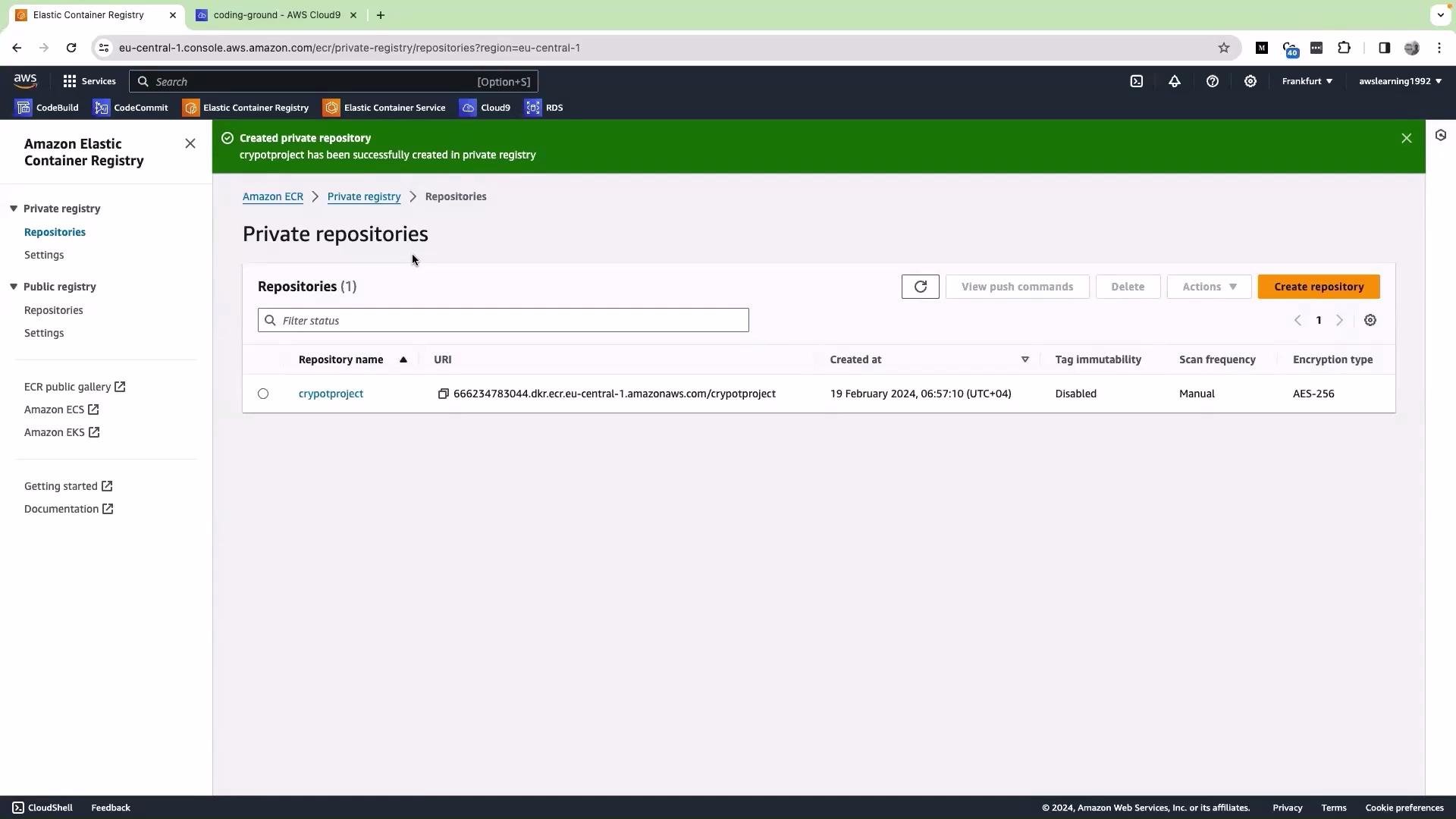
- An ECR repository already created in your AWS account.
- A Cloud9 environment with your source repository checked out.
- A CodeBuild project (or CodePipeline) that will use this
buildspec.yml. - The CodeBuild environment image must support Docker and have “Privileged” mode enabled (so Docker can run inside the build container).
- The CodeBuild service role must have permissions to interact with ECR.
buildspec.yml in the repository and paste the following content. This buildspec:
- Logs in to ECR using the modern
get-login-passwordmethod. - Computes a short commit SHA to use as an image tag.
- Builds and tags the Docker image.
- Pushes both
latestand the commit-tagged image to ECR.
aws ecr get-login-password --region $AWS_DEFAULT_REGION | docker login --username AWS --password-stdin $AWS_ACCOUNT_ID.dkr.ecr.$AWS_DEFAULT_REGION.amazonaws.com
Uses the supported way to authenticate Docker to ECR. Do not use the deprecatedaws ecr get-login.COMMIT_HASH=$(echo $CODEBUILD_RESOLVED_SOURCE_VERSION | cut -c 1-7)
CODEBUILD_RESOLVED_SOURCE_VERSIONis set by CodeBuild and typically contains the full commit SHA. Thecutextracts a short 7-character tag.REPOSITORY_URI
Should be provided as an environment variable in your CodeBuild project and typically looks like123456789012.dkr.ecr.eu-central-1.amazonaws.com/cryptoproject.- Pushing both
latestand the commit-tagged image gives you a stablelatestfor deployments and a traceable commit history in ECR.
Use
aws ecr get-login-password with docker login --password-stdin because aws ecr get-login is deprecated and may not be available in newer AWS CLI versions.Ensure the CodeBuild project runs in “Privileged” mode (required for Docker-in-Docker) and that the CodeBuild service role includes the ECR-related permissions listed above. Without these, your build will fail when attempting to build or push images.
buildspec.yml from Cloud9
- Save the file (Ctrl+S or File → Save).
- From the Cloud9 terminal run the following commands:
buildspec.yml appears in the repository root.
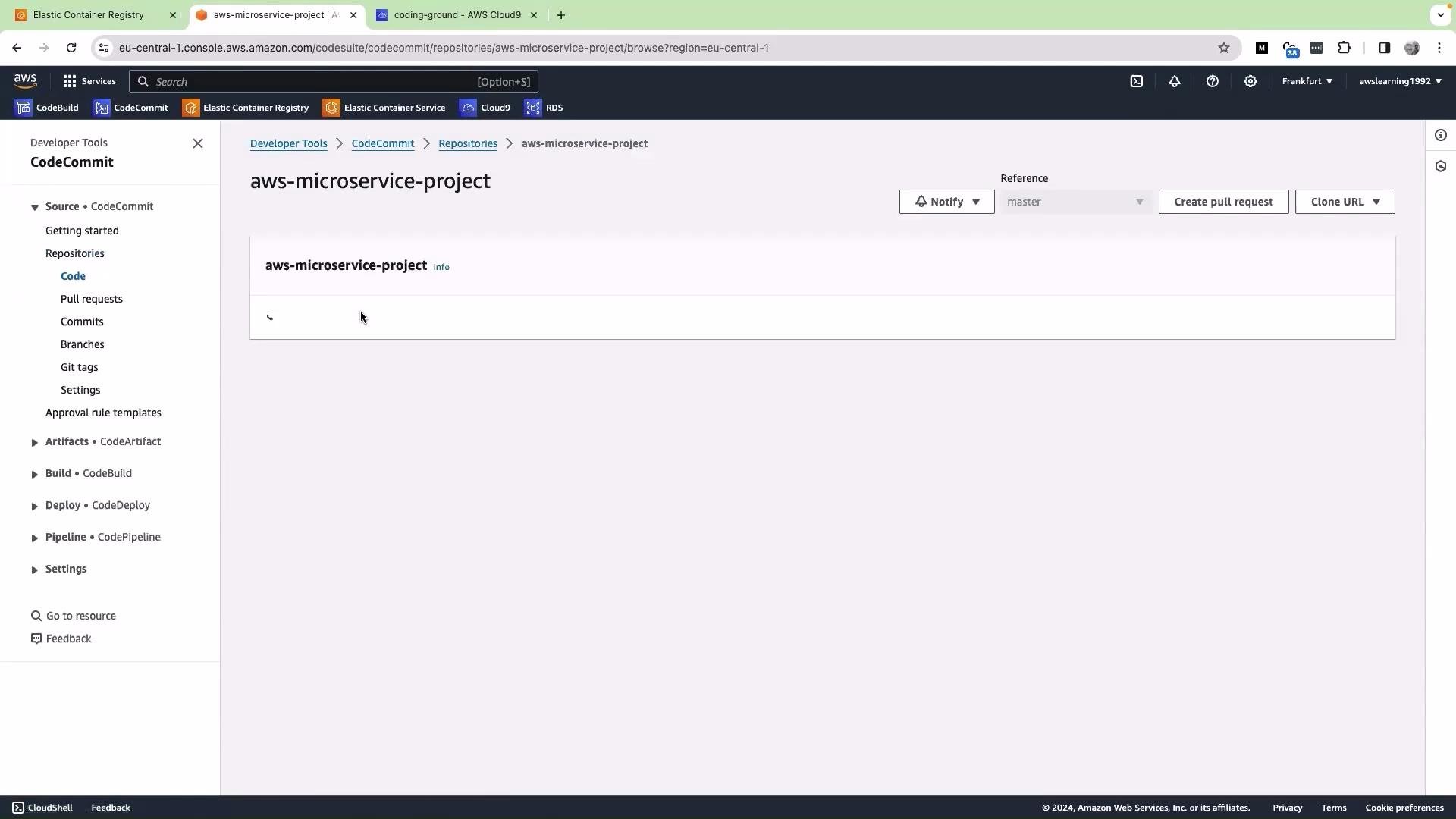
- Create or configure a CodeBuild project (or CodePipeline) that points to this repository and has the
REPOSITORY_URI,AWS_ACCOUNT_ID, andAWS_DEFAULT_REGIONenvironment variables set. - Make sure the build environment supports Docker and has privileged mode enabled.
- After a push, CodeBuild will run the
buildspec.ymlsteps, build the Docker image, and push it to ECR.
- Amazon ECR Documentation
- AWS CodeBuild User Guide
- AWS CLI - ecr get-login-password
- AWS CodeCommit User Guide