

- AWS region is set to the region you want to use.
- You have IAM permissions to create ECS, EC2, CloudFormation, and Auto Scaling resources.
- A VPC and subnets available in that region (or be ready to select them during cluster creation).
Ensure you have the correct AWS region selected and sufficient IAM permissions (ECS, EC2, CloudFormation, Auto Scaling) before creating the cluster.
- Open the ECS console. If you frequently use ECS, add it to bookmarks; otherwise type “ECS” in the AWS console search and choose Amazon ECS.
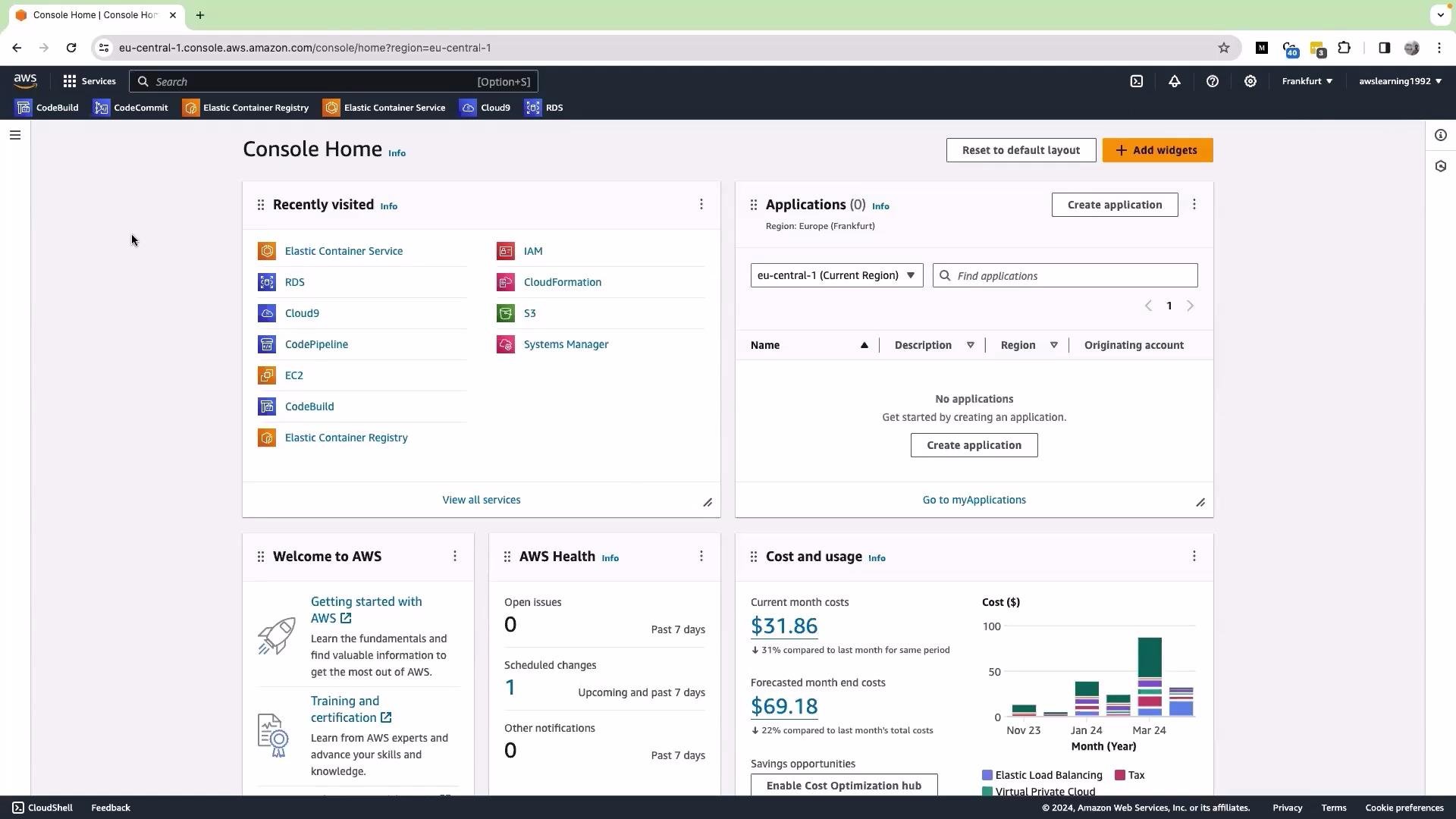
- Click Create cluster.
-
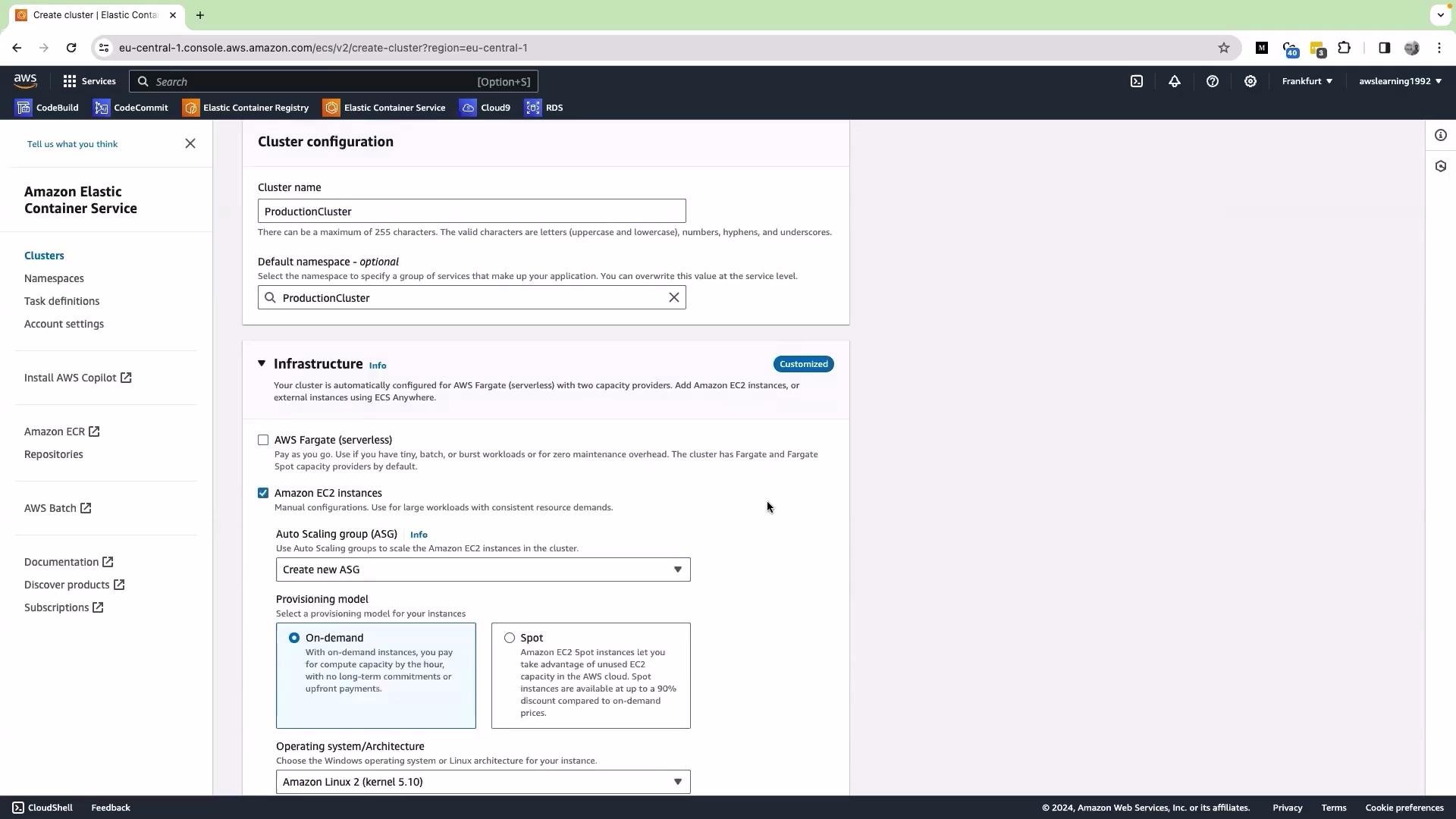
Configure basic cluster settings:
- Give the cluster a clear name (I used
production-cluster). - Leave the default namespace unless you need to configure an AWS Cloud Map service discovery namespace.
- For infrastructure, choose the launch type:
- Select Amazon EC2 when you need control over underlying instances (custom AMIs, GPUs, specific instance types, or host-level configuration).
- Choose AWS Fargate for serverless compute with no EC2 instance management.
- Give the cluster a clear name (I used
-
Set capacity (Auto Scaling group) details:
- Desired capacity: number of EC2 instances to start with (example uses
0). - Maximum capacity: upper limit to scale to (example uses
5). - Note: setting desired capacity to
0means no instances will be launched until you scale the ASG or use ECS Capacity Providers with Managed Scaling. Without managed scaling, you must increase the ASG desired capacity manually.
- Desired capacity: number of EC2 instances to start with (example uses
-
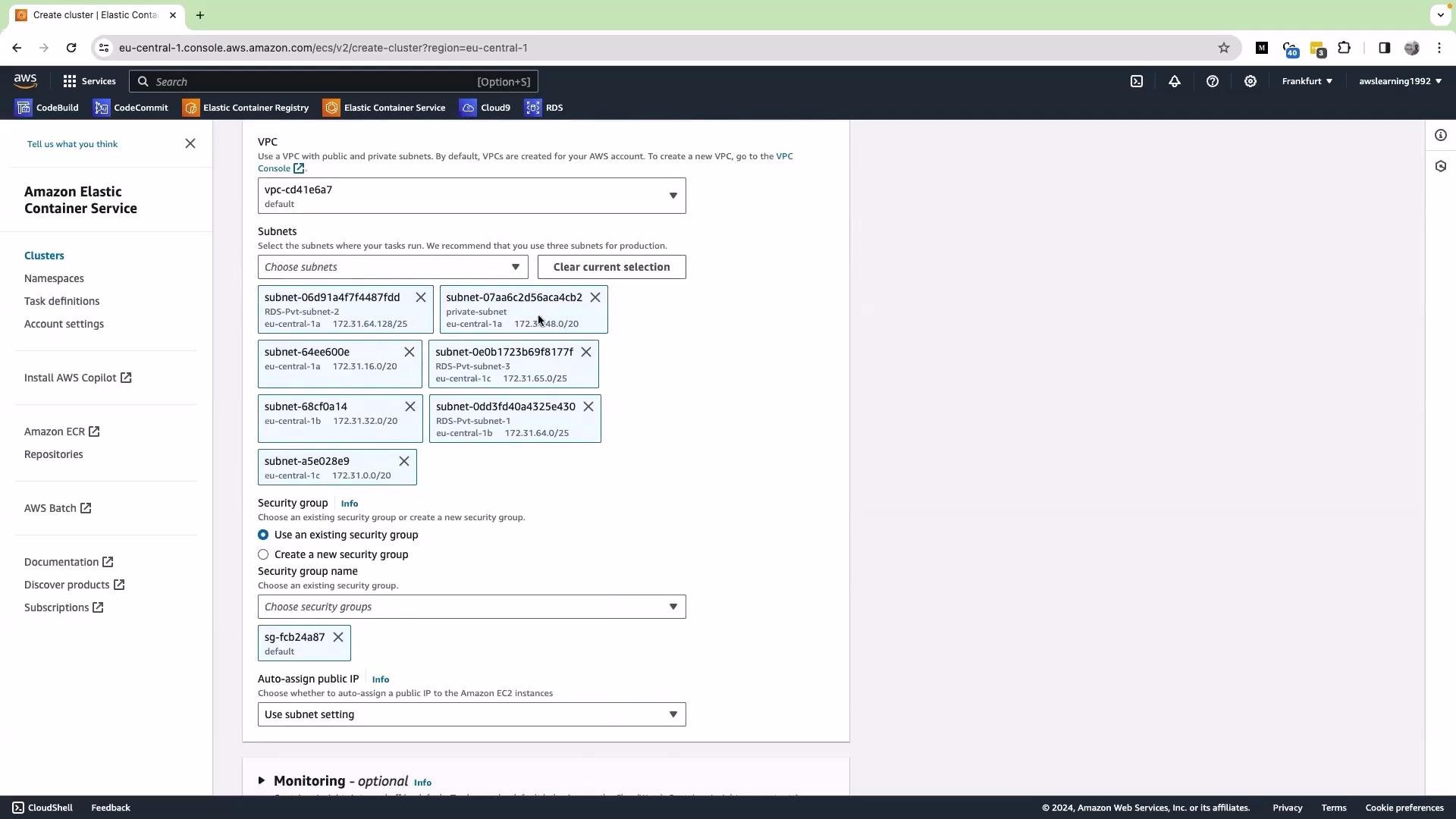
Select VPC and subnets:
- Choose subnets according to whether your instances need public IPs or only private connectivity.
- Remove private subnets if you want instances launched into public subnets only.
- Ensure security group selection allows required traffic (SSH for debugging, container ports, etc.).
- Review your settings and click Create.
- When you create an ECS cluster with the EC2 launch type via the console, AWS triggers a CloudFormation stack on your behalf. The stack provisions the underlying infrastructure: Auto Scaling group, launch template (or configuration), EC2 instances, security groups, IAM roles/policies, and related resources.
- Use the “View in CloudFormation” button from the ECS console to inspect the stack progress.
- Monitor CloudFormation provisioning:
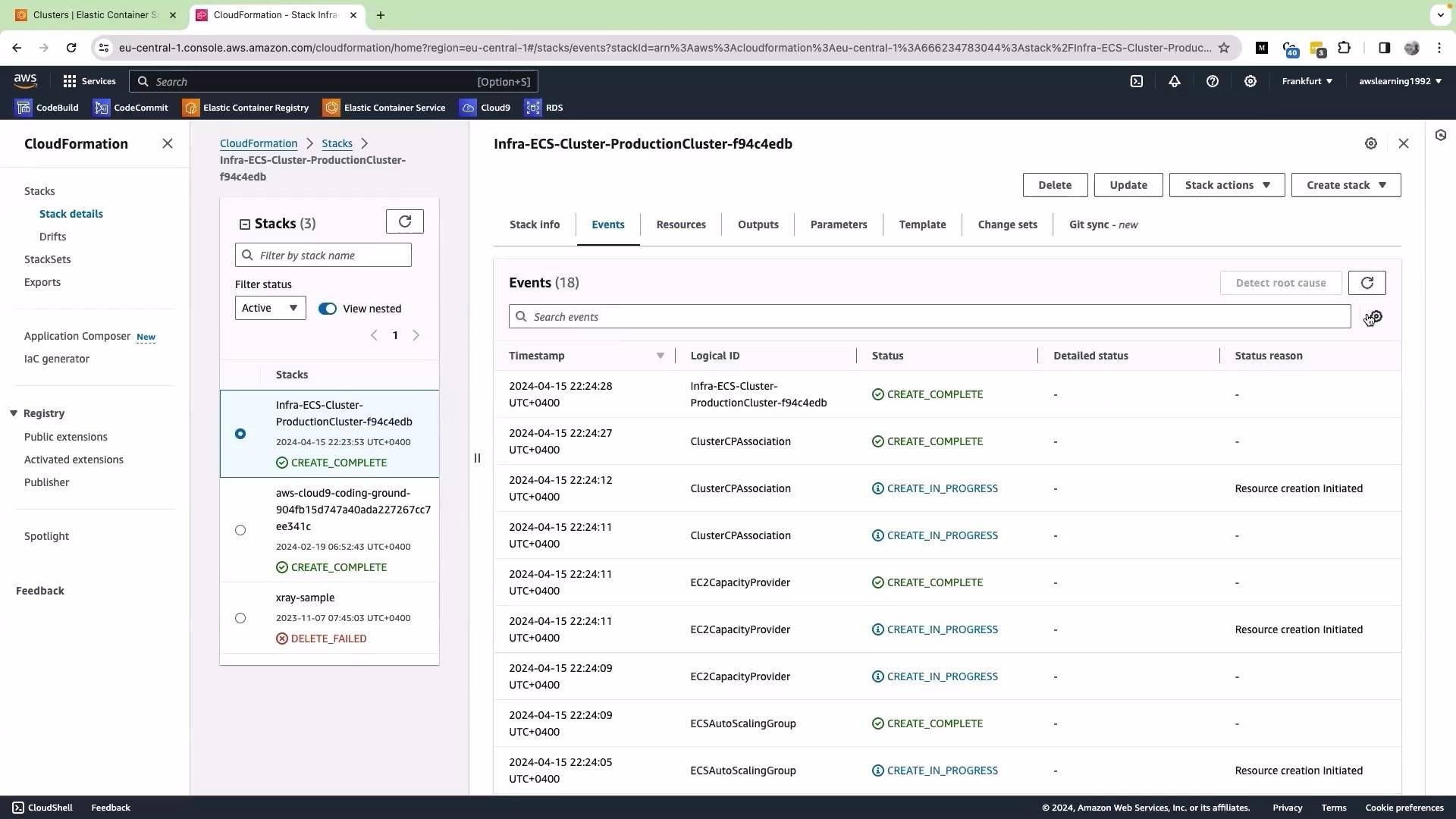
- In the CloudFormation console you can follow stack events, inspect created resources, and view the current stack status as it moves from CREATE_IN_PROGRESS to CREATE_COMPLETE.
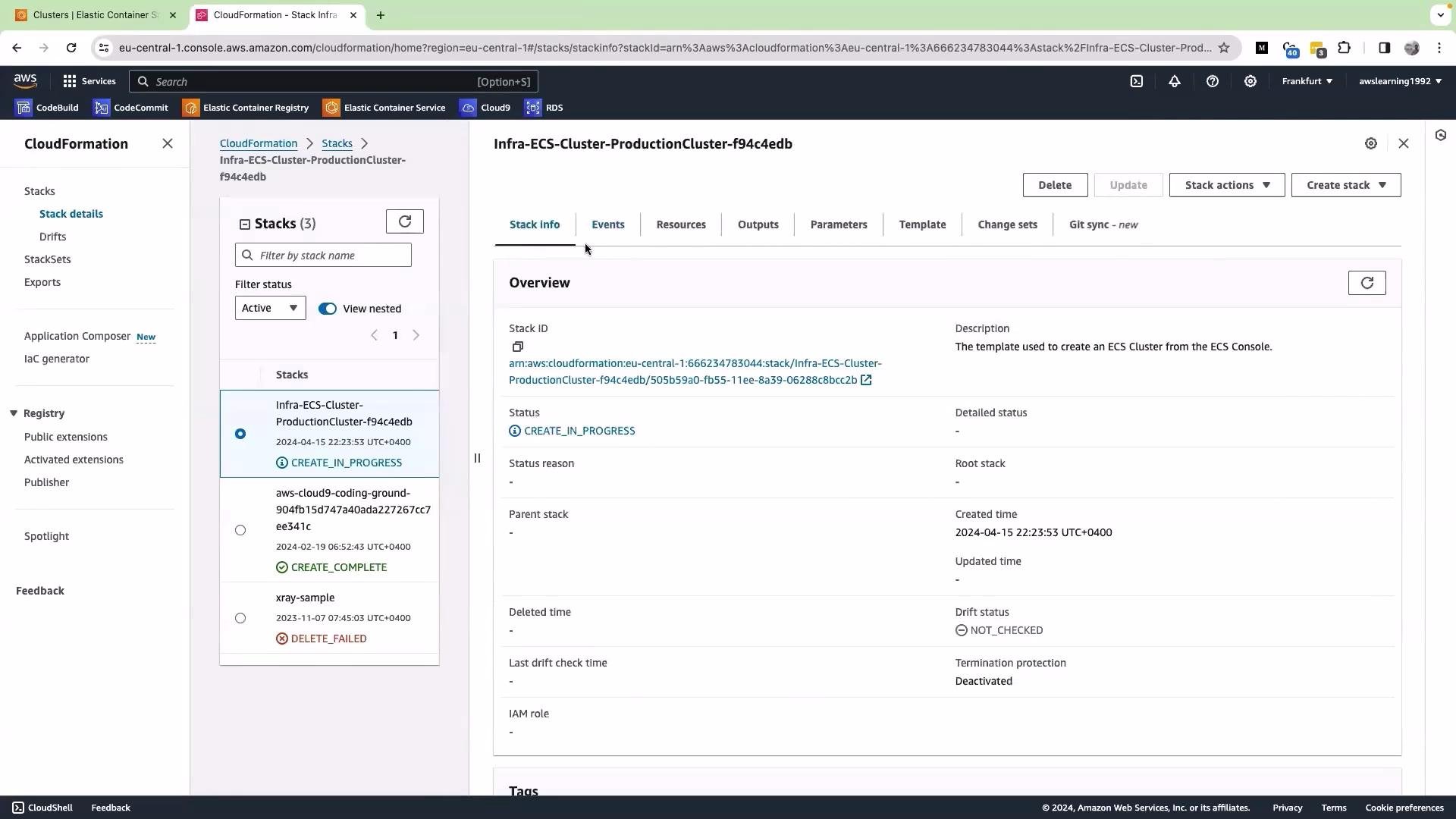
- Inspect stack resources and events:
- The Resources tab lists the physical AWS resources created by the stack (ASG, Launch Template, IAM roles, etc.).
- The Events tab shows a timestamped sequence of resource creation and status updates.
- Return to the ECS console after CloudFormation completes:
- Refresh the Clusters page and open your cluster. You should see it listed as active.
- From the cluster details you can view services, tasks, and other cluster-level information.
- We will use an ECS service to run and maintain our application tasks in a later lesson.
- Click the Infrastructure tab to view capacity providers, container instances, and the Auto Scaling group associated with the cluster.
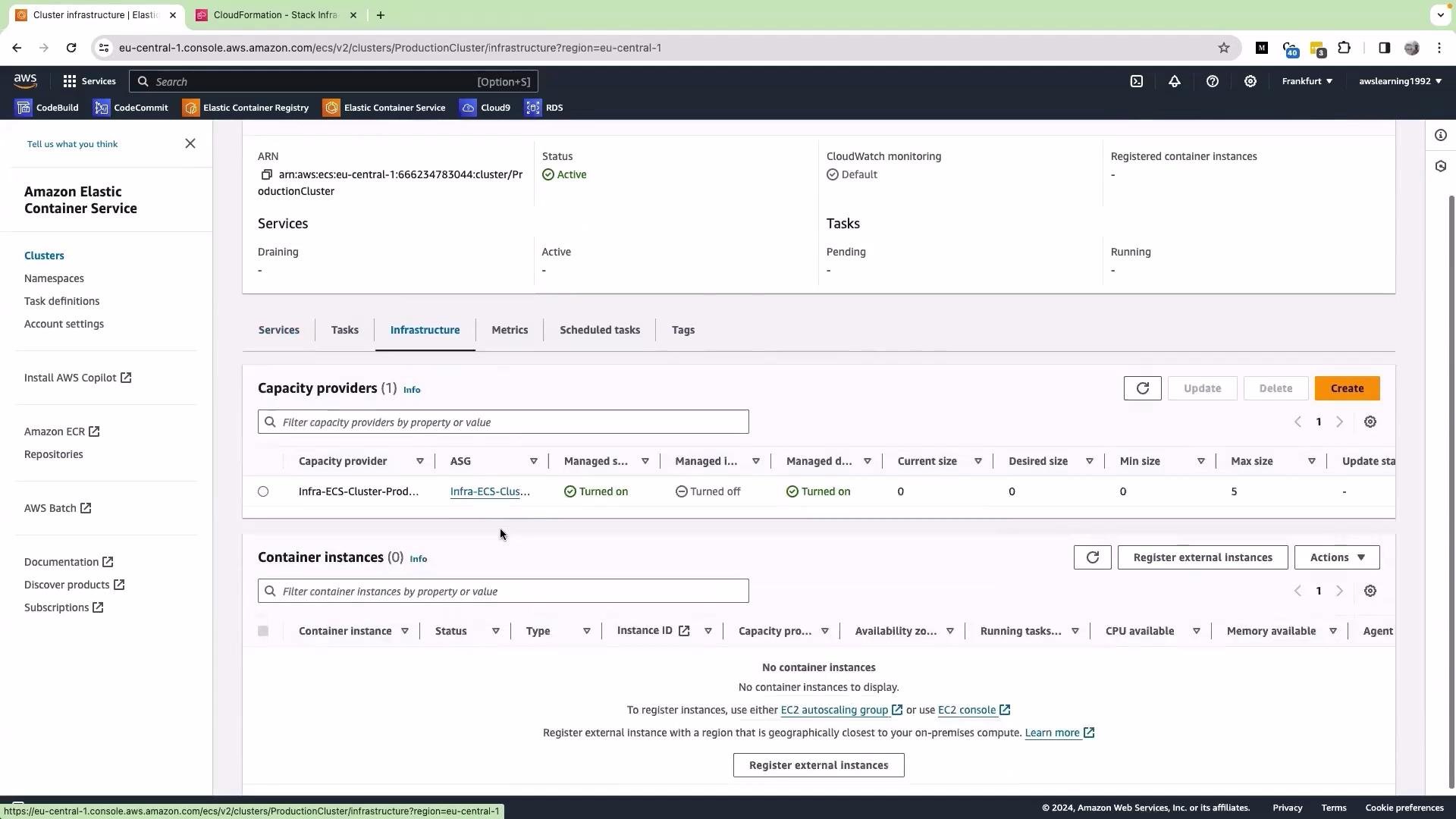
- Quick capacity change: edit the Auto Scaling Group to update desired/min/max instance counts.
- Managed scaling: consider using ECS Capacity Providers with Managed Scaling to automate instance scale-in/scale-out based on workload.
- Alternatively, adjust the desired count of your ECS service (this will launch tasks, and if capacity providers are configured, scale instances accordingly).
- Use the Metrics tab for basic cluster metrics—CPU and memory utilization, registered container instances, and running tasks—to monitor health and scaling behavior.
Creating EC2 instances and associated infrastructure incurs AWS charges. Clean up unused clusters, Auto Scaling groups, and stacks when not needed to avoid unexpected costs.
- With the ECS cluster ready, the next lesson will cover creating a task definition and deploying an ECS service to run your application on this production cluster.