

- Step-by-step console flow for updating an ECS service
- What happens under the hood during a rolling update
- How to tune deployment behavior and connection draining
- Failure scenarios and rollback options
- Open the ECS cluster for your production environment.
- Choose the existing service for your application (this example uses a “crypto app”).
- Click Create a new service (or Update service if modifying an existing one).
- In the deployment options choose between Rolling update (default) and Blue/Green deployment.
- Update the service to a new task definition revision and, for example, increase the desired task count to four. Click Update to start the process.
- ECS creates a new deployment and the service scheduler starts new tasks using the selected task definition revision (e.g., revision 2).
- The ALB target group begins registering the new task IPs/targets. ALB health checks determine when these targets become healthy.
- While the new targets are coming up, the old targets remain registered and continue serving traffic.
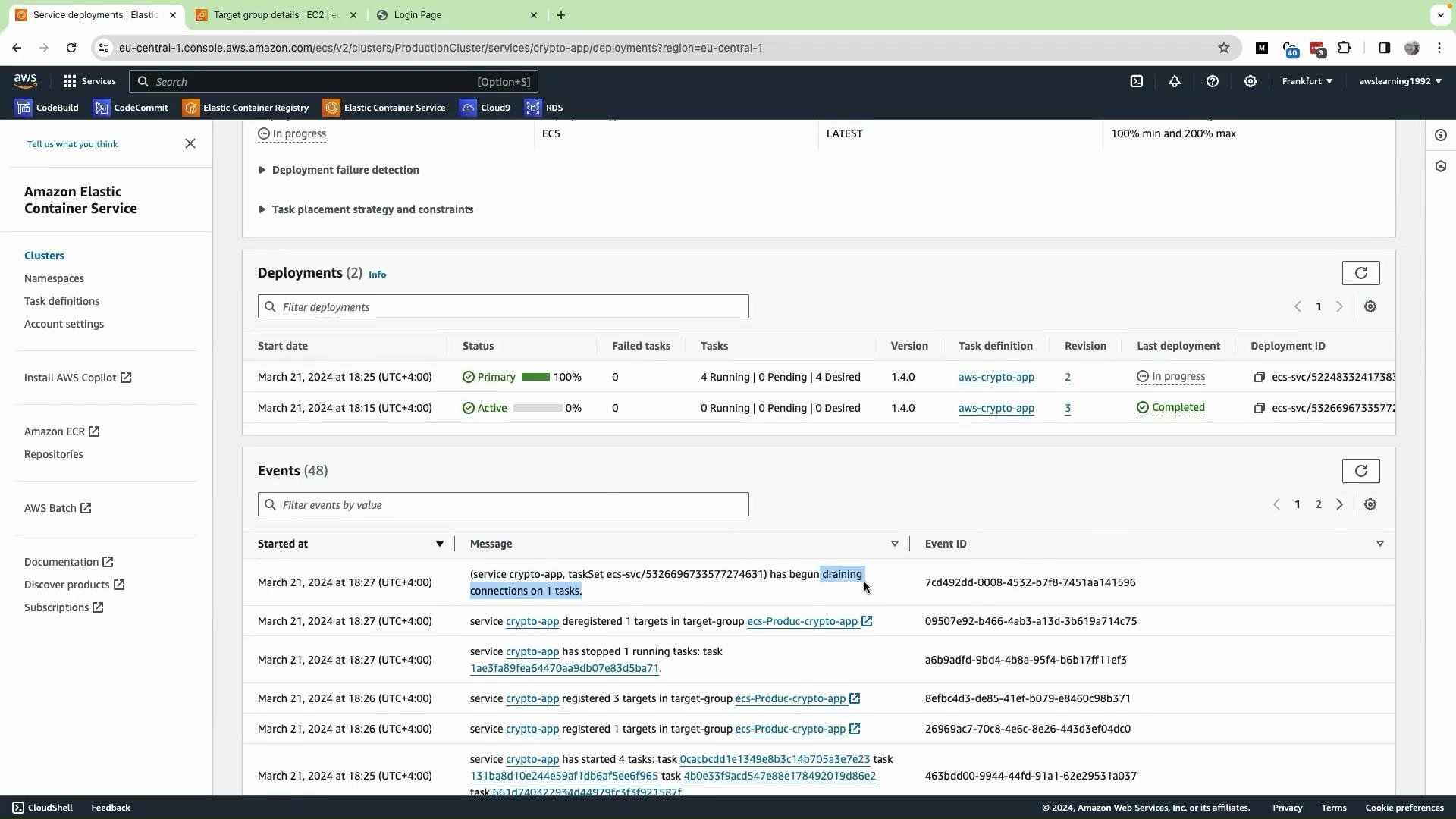
- As each new target becomes healthy, the ALB starts routing traffic to it. Once traffic shifts and the old target is deregistered, ECS stops the old task after connection draining (the target group’s deregistration delay).
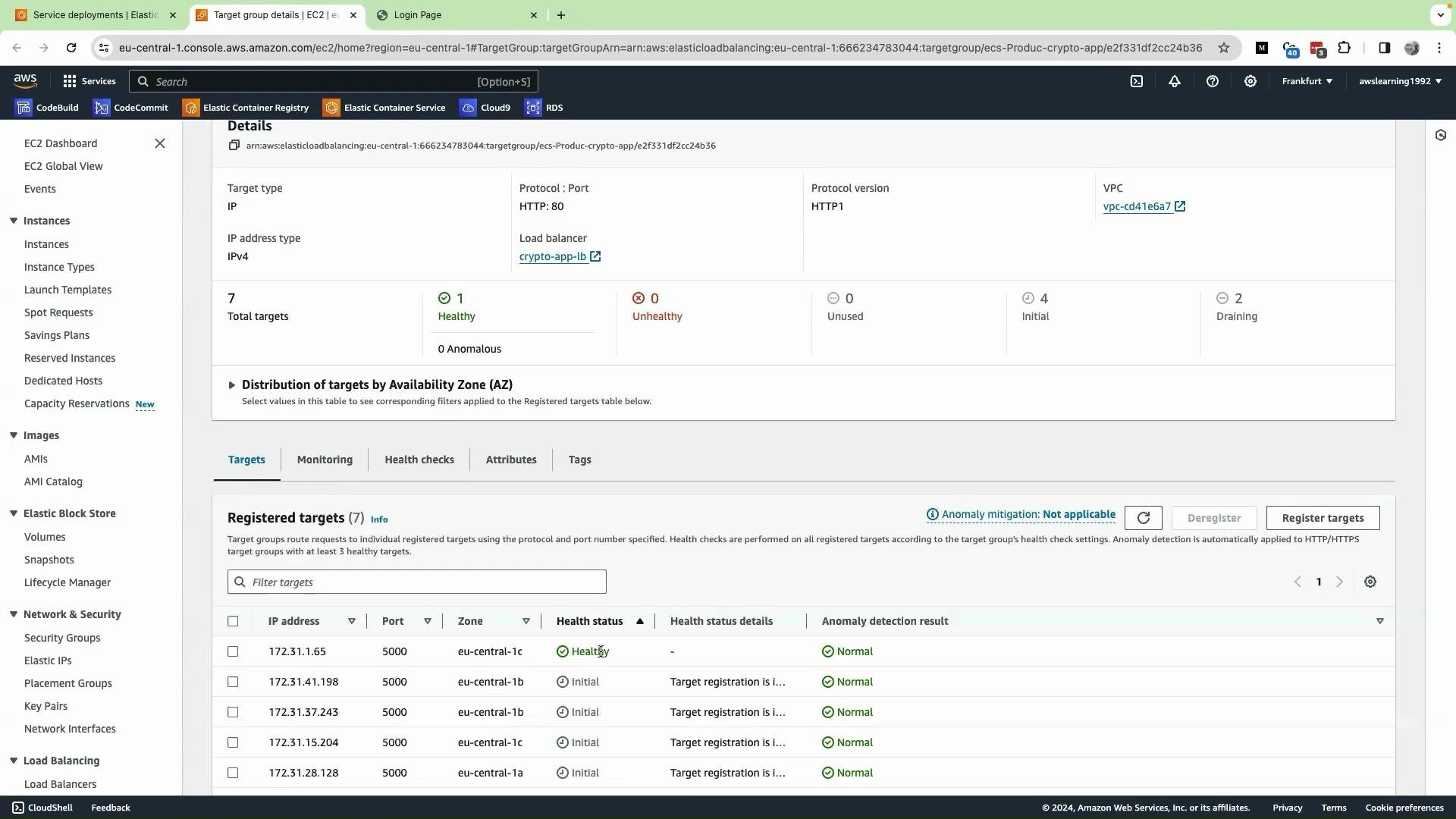
- The ECS console shows deployment progress as a percentage of desired tasks that have been updated and passed health checks. For example, 25% means roughly 25% of desired tasks are already replaced and healthy.
- When ECS starts removing old tasks you will see “draining” activity in the service events. “Draining” means the target is being deregistered from the target group and the container is being stopped gracefully (connections can continue to drain for the configured deregistration delay).
Example ECS service JSON snippet (deployment configuration):
- Lower
minimumHealthyPercentallows ECS to stop more old tasks sooner (faster cutover but riskier). - Higher
maximumPercentallows ECS to start more new tasks above the desired count (requires available capacity). - Decrease ALB deregistration delay to reduce wait time for draining connections, but only if your application tolerates shorter drain windows.
- Configure ALB health checks (path, interval, healthy threshold) to balance speed of promotion vs. safety.
- If new tasks fail health checks or crash, ECS will not automatically revert the running tasks to the previous task definition for a rolling-update deployment.
- Depending on
minimumHealthyPercent, a failed deployment may either block progress or reduce the number of running tasks until you intervene. - To roll back a failed rolling update you typically:
- Update the service again and specify the previous task definition revision, or
- Re-deploy the previous image, or
- Use a CI/CD pipeline that automates rollback steps.
- For automated rollback and traffic-shift rollback capabilities, consider Blue/Green deployments managed by AWS CodeDeploy, which can enforce automatic rollbacks on failure conditions.
Control ECS rolling-update behavior with
minimumHealthyPercent and maximumPercent, and tune ALB target group deregistration delay to manage concurrency and connection draining during updates.ECS rolling updates do not automatically roll back to a previous task definition. Monitor deployments and prepare a rollback plan (manual re-deploy or automated CI/CD pipeline) in case the new revision fails health checks.
- Amazon ECS Best Practices
- ECS Service Scheduler Concepts
- ALB Target Groups and Health Checks
- AWS CodeDeploy Blue/Green Deployments with ECS