

Prerequisites
- An ECS cluster already created and set to run Fargate tasks.
- Your Docker image pushed to Amazon ECR.
- A VPC and subnets configured for Fargate (and ALB if you plan to expose HTTP traffic).
- IAM permissions to create task definitions, roles, and services.
Step 1 — Create a new Task Definition
- Open the ECS console and select Task Definitions.
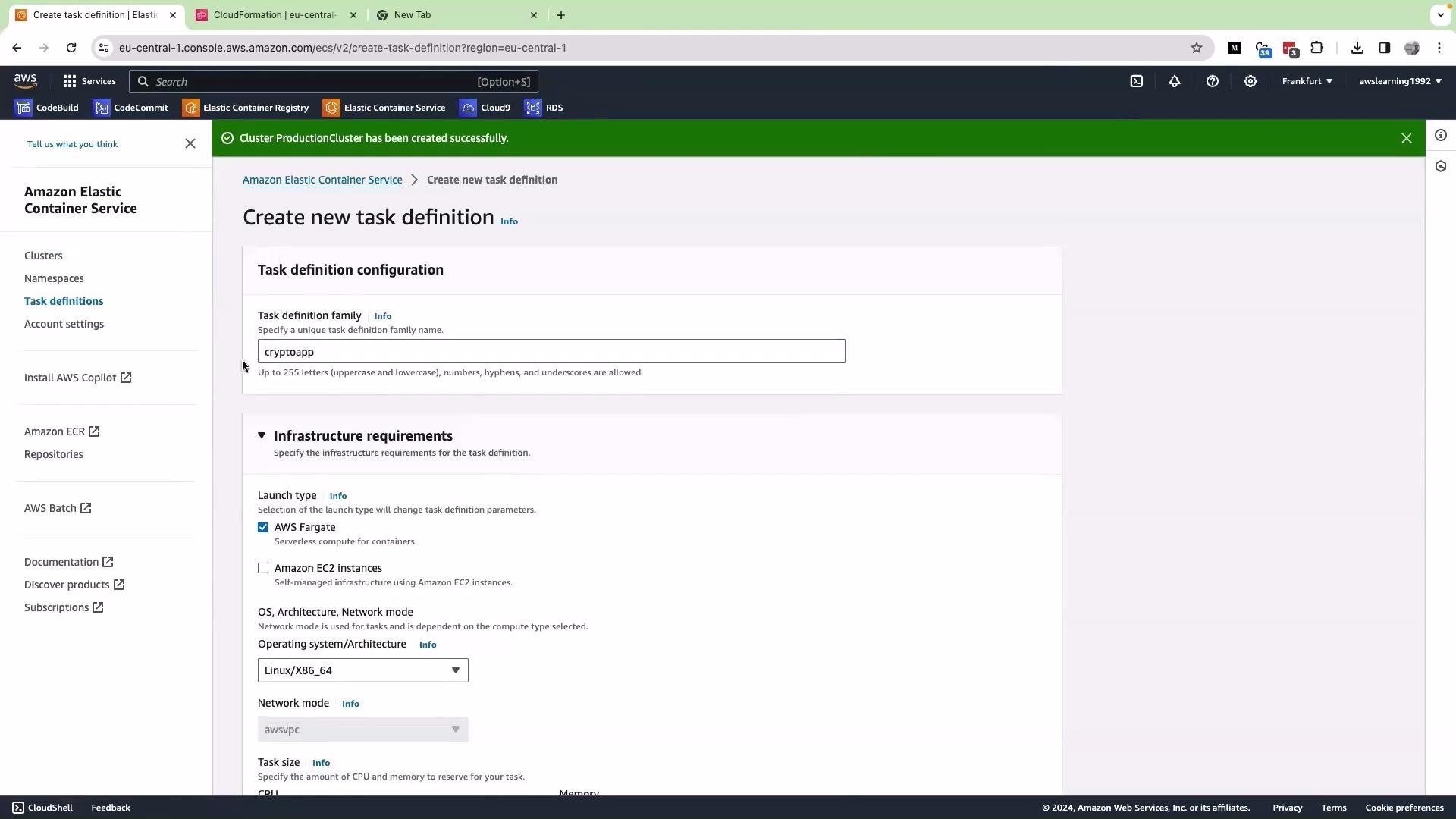
- Click Create new task definition and give it a name (for example,
Crypto App). - For Launch type / infrastructure choose AWS Fargate.
Task role vs Task execution role
- Task role: assumed by the application container when it calls AWS APIs directly (for example, to access S3 or DynamoDB).
- Task execution role: used by the ECS agent to pull images from ECR and send logs to CloudWatch.
If you do not have a task role already, you can leave Task role as
None. For the task execution role, choose Create a new role so ECS can attach the permissions required to pull images and manage logs.Step 2 — Add a Container Definition
Scroll down and add a container definition:- Name the container (e.g.,
crypto-app). - Provide the container image URI from ECR.
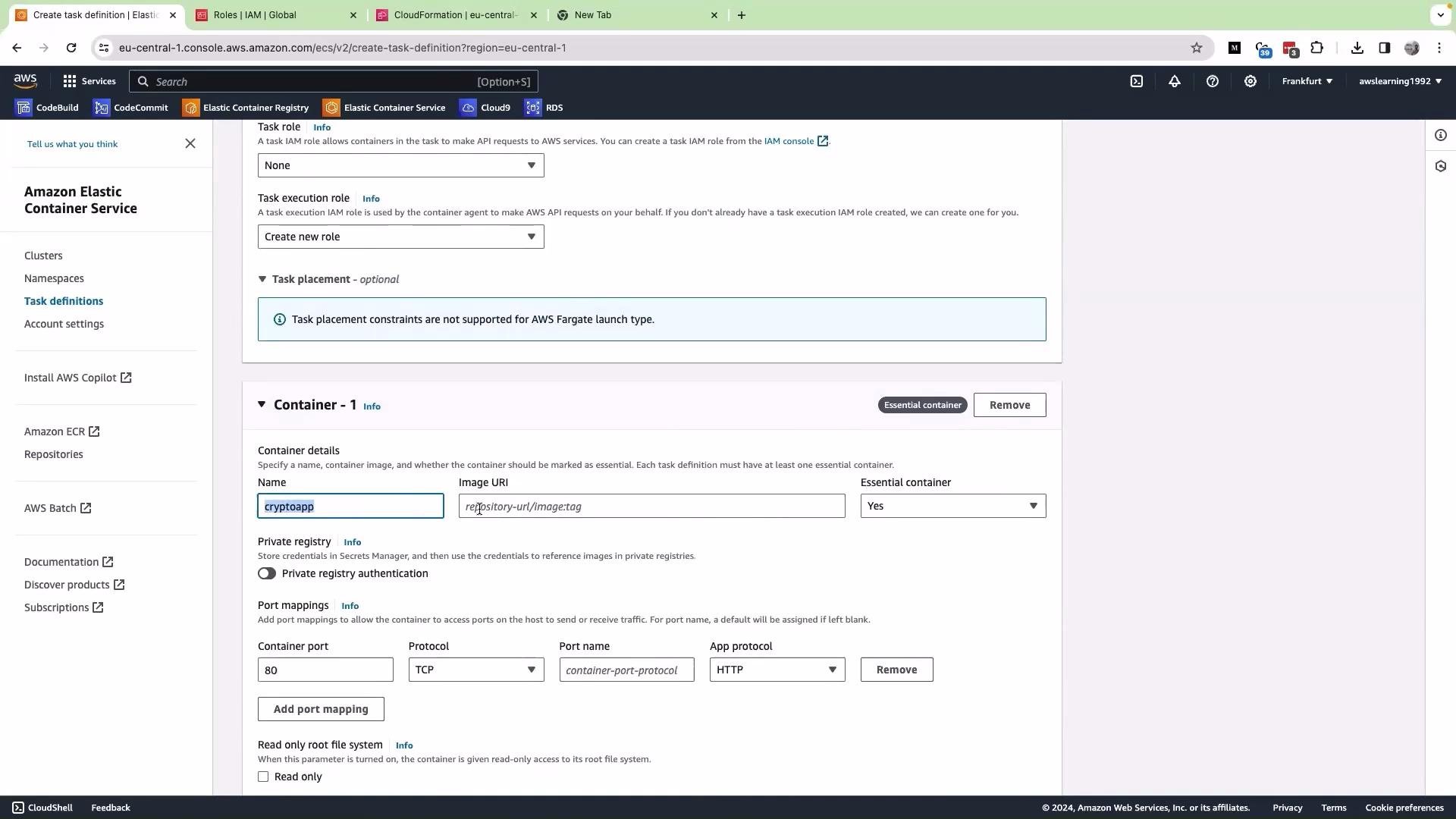
- Open your ECR repository.
- Locate the desired image tag and copy the image URI.
Example:123456789012.dkr.ecr.<region>.amazonaws.com/<repository-name>:<tag>
Step 3 — Configure Ports and Health Checks
- Set the container port to the port your application listens on (e.g., a Flask app commonly uses
5000). - If exposing via an Application Load Balancer (ALB) on port
80, configure the ALB target group to use the container port (for example,5000) and forward traffic from port80to the target group. - Configure container health checks or ALB health checks to point at the correct path and port (for example,
/healthon port5000).
80 internally—only the ALB listener typically uses 80/443. Ensure your security groups allow the ALB to reach the container port.
Tip: For predictable behavior, configure both container health checks and ALB health checks to the same path. This simplifies troubleshooting when a service fails to reach a healthy state.
Step 4 — Register and Run the Task / Create a Service
After creating the task definition:- Register it (the console does this as part of creation).
- Create a new Fargate service in your cluster using that task definition.
- Create or select an ALB.
- Create a target group with the container port (e.g.,
5000). - Attach the Fargate service to that target group.
- Configure the ALB listener to forward from port
80(or443) to the target group.
Example: Testing the deployed app
In this lesson we performed a simple functional test:- Opened the app, filled the order form (name, address, quantity), and clicked Submit Order.
- Returned to the product page and verified the expected app flow and responses.
Architecture summary
Troubleshooting checklist
- Confirm the task execution role has ECR pull and CloudWatch permissions.
- Verify security groups allow ALB-to-task traffic on the container port.
- Check target group health checks and ECS container health checks for correct path and port.
- Review CloudWatch logs for container startup errors.
- Ensure the image URI and tag match what’s present in ECR.