

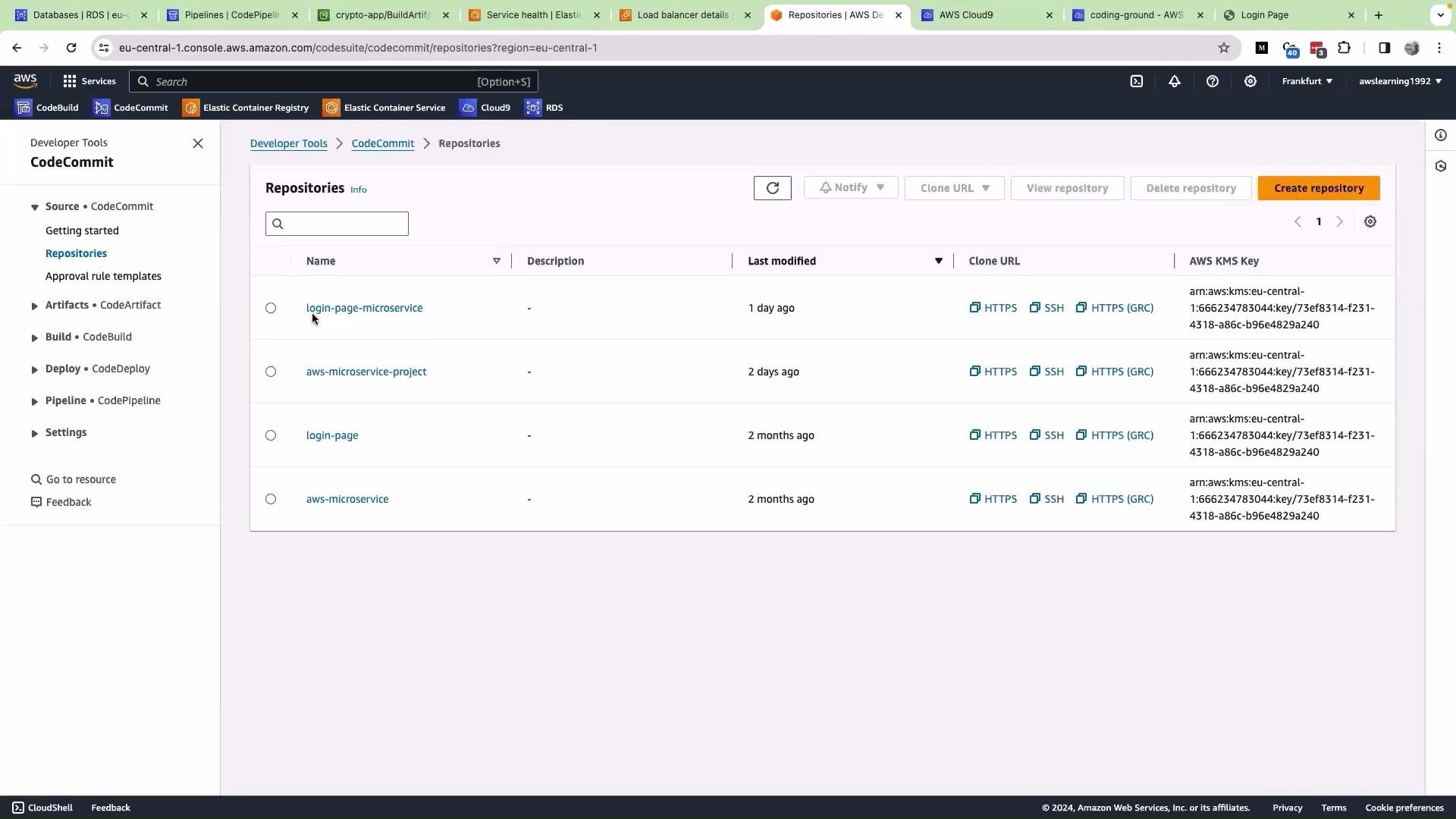
- Locate the CodeCommit repository in the AWS Console.
- Clone the repo into your Cloud9 environment (or another terminal).
- Save and run the helper script that creates the
userstable and inserts dummy accounts. - Verify the inserted rows using a SQL client such as DBeaver.
login-page-microservice). You should see the same repository in your exercise account.
- AWS Cloud9 (or any machine with terminal access to your repo).
- Python 3 and
pip3. psycopg2installed (orpsycopg2-binary).- Network access to your PostgreSQL instance (RDS endpoint or other host).
- A SQL client like DBeaver for verification.
helper_script.py)
Below is a clean, robust helper script that:
- reads DB connection settings from environment variables,
- creates the
userstable if it doesn’t exist, - inserts dummy users using
ON CONFLICT DO NOTHINGto avoid duplicate-key errors.
Important: use environment variables or a secrets manager for credentials; avoid hardcoding secrets.
Clone and run from Cloud9 (or any terminal in the repo)
- Clone the CodeCommit repository into your environment (HTTPS example):
- If
psycopg2is missing, install dependencies fromrequirements.txt:
- Ensure environment variables are set (example Bash):
- Run the helper script:
Always prefer using environment variables for credentials (or a secrets manager). Avoid hardcoding passwords or database hosts directly in scripts.
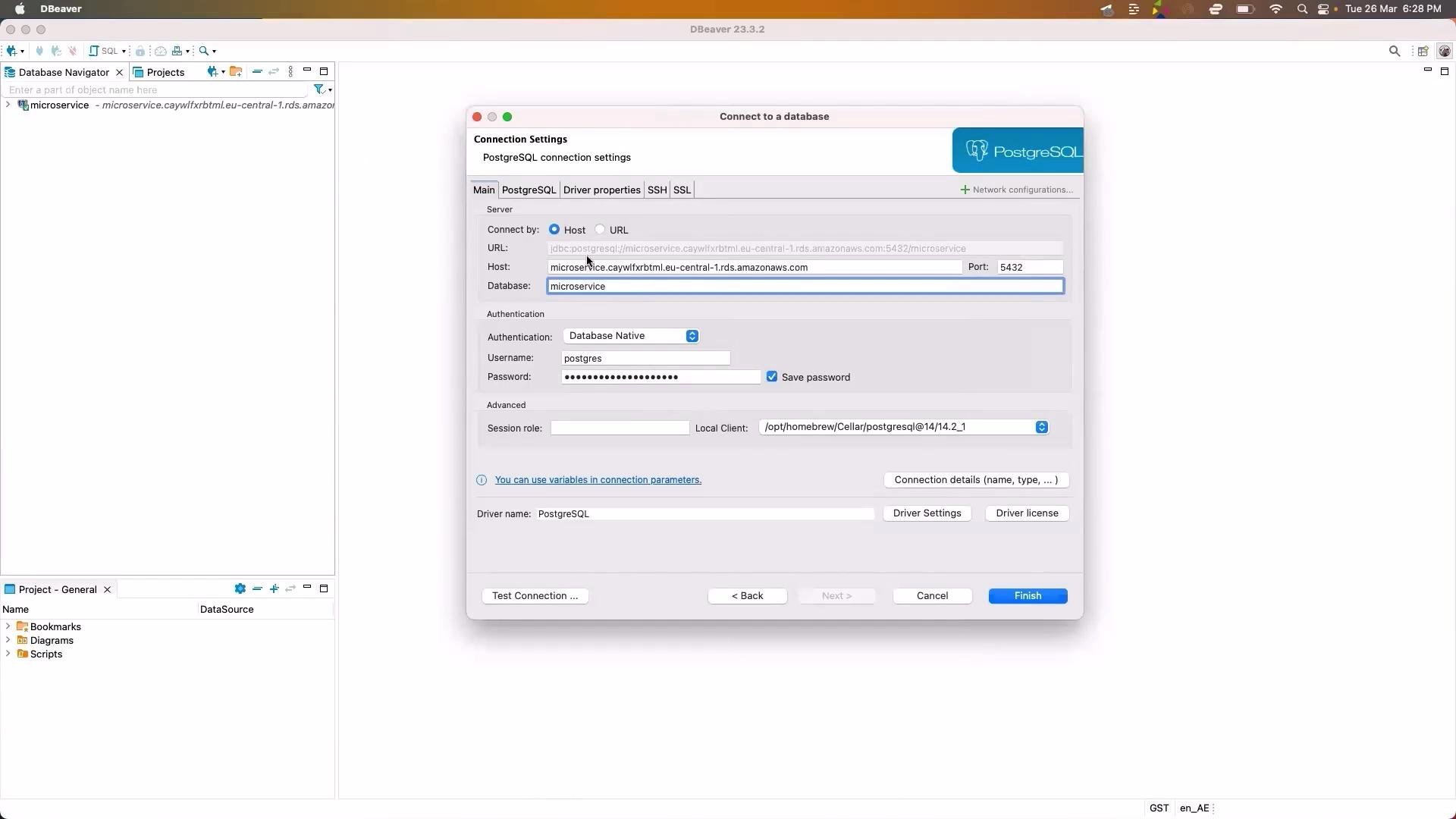
- Open DBeaver and create a new PostgreSQL connection.
- Provide host, port, username, password, and database name (for example
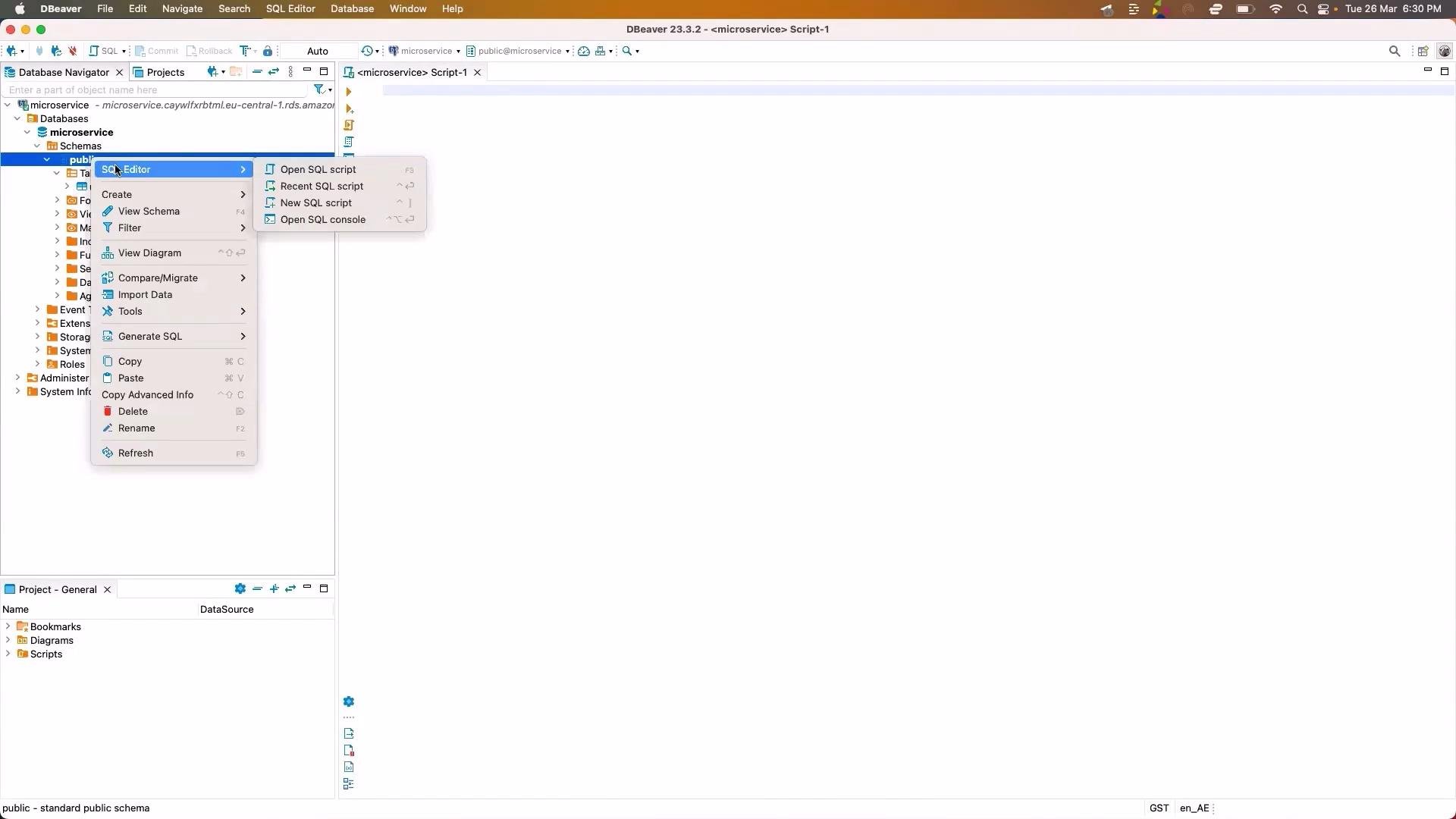
microservice). - Expand the connection: Databases → microservice → Schemas → public → Tables to find the
userstable.
microservice database and run:
email column. Example:
If you see a unique constraint error, either update the script to upsert or use
ON CONFLICT DO NOTHING (as shown above), or clear the table before reinserting data if that is acceptable for your workflow.- Review how the login microservice queries the
userstable and integrates authentication. - Promote the initialization script into a deployment automation step if you want repeatable environment setups (consider migrations tools such as Flyway or Alembic for production schema changes).