

Prerequisites
- Image pushed to ECR (copy its image URI).
- An ECS cluster (here, a production cluster).
- Appropriate VPC, subnets, and security groups configured for the ALB and ECS tasks.
- Port 5000 used by the Flask application.
1. Create the Task Definition
- Open the AWS Console and navigate to ECS.
- Click Task Definitions → Create new task definition.
- Give the task definition a descriptive name.
- Scroll down to add a container:
- Paste the image URI you copied from ECR into the container image field.
- Add a port mapping: container port
5000. - Leave other settings at their defaults unless you need resource limits or environment variables.
- Click Create.
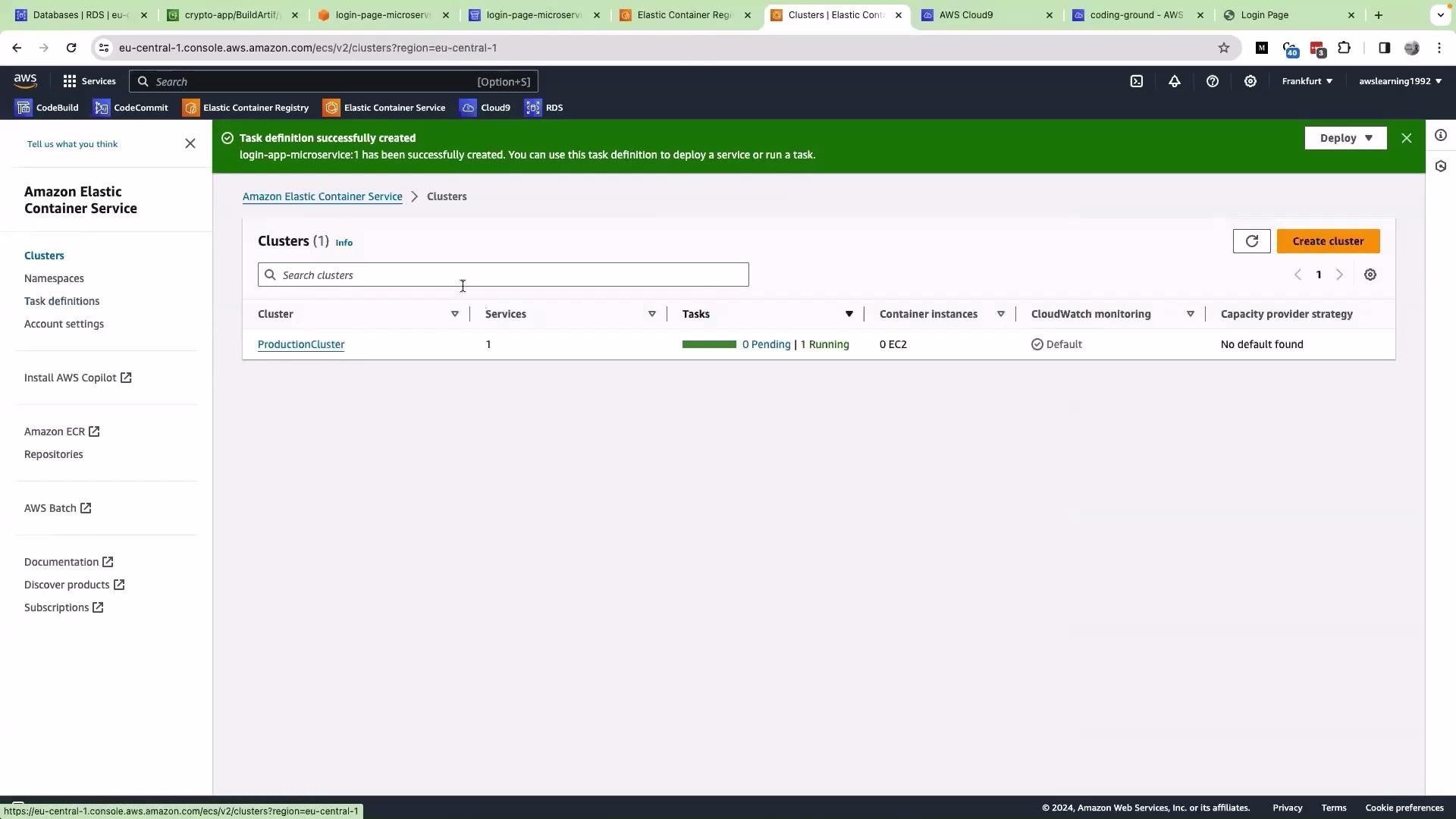
2. Create the Service from the Cluster
- Go to Clusters and select your production cluster.
- Click Create to create a new service.
- Select the task definition you created for the login app.
- Give the service a name such as
login-app-microservice.
3. Configure Load Balancing (Application Load Balancer)
- Under Load balancing, choose Application Load Balancer (ALB).
- You can select an existing load balancer or create a new one:
- If creating new, give the ALB a name and set the idle timeout to
30seconds. - Configure a listener for port
5000and map it to the target group used by the ECS service.
- If creating new, give the ALB a name and set the idle timeout to
- Ensure the target group uses the correct port (
5000) and a health check path that your app responds to (e.g.,/or/health).
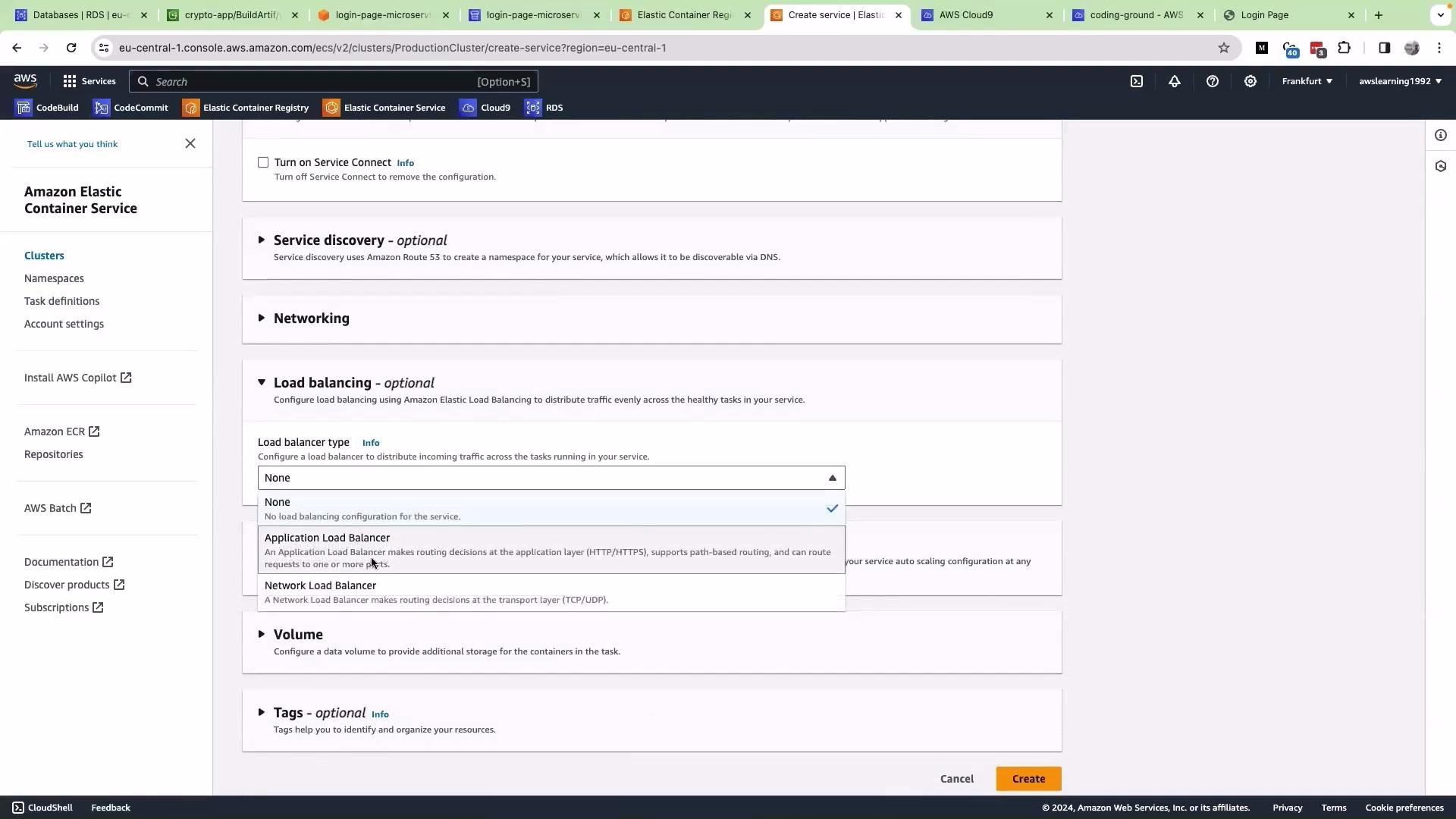
If you encounter a subnet error while creating the load balancer, it typically means you selected subnets that are not reachable from the ALB (for example, private-only subnets). Remove private-only subnets or include public subnets that have routes to an Internet Gateway, then retry.
4. Wait for Deployment and Verify Health
- After creating the service, ECS launches tasks and registers them with the ALB target group.
- Wait until the service deployment becomes STABLE and the tasks report as healthy.
- If the deployment fails or stays unhealthy, check:
- ECS service events for error messages.
- Task logs in CloudWatch (or the container logs).
- ALB target group health check results.
- Security groups: ensure ALB can reach container port
5000and the ALB has an inbound rule for the client port you will use.
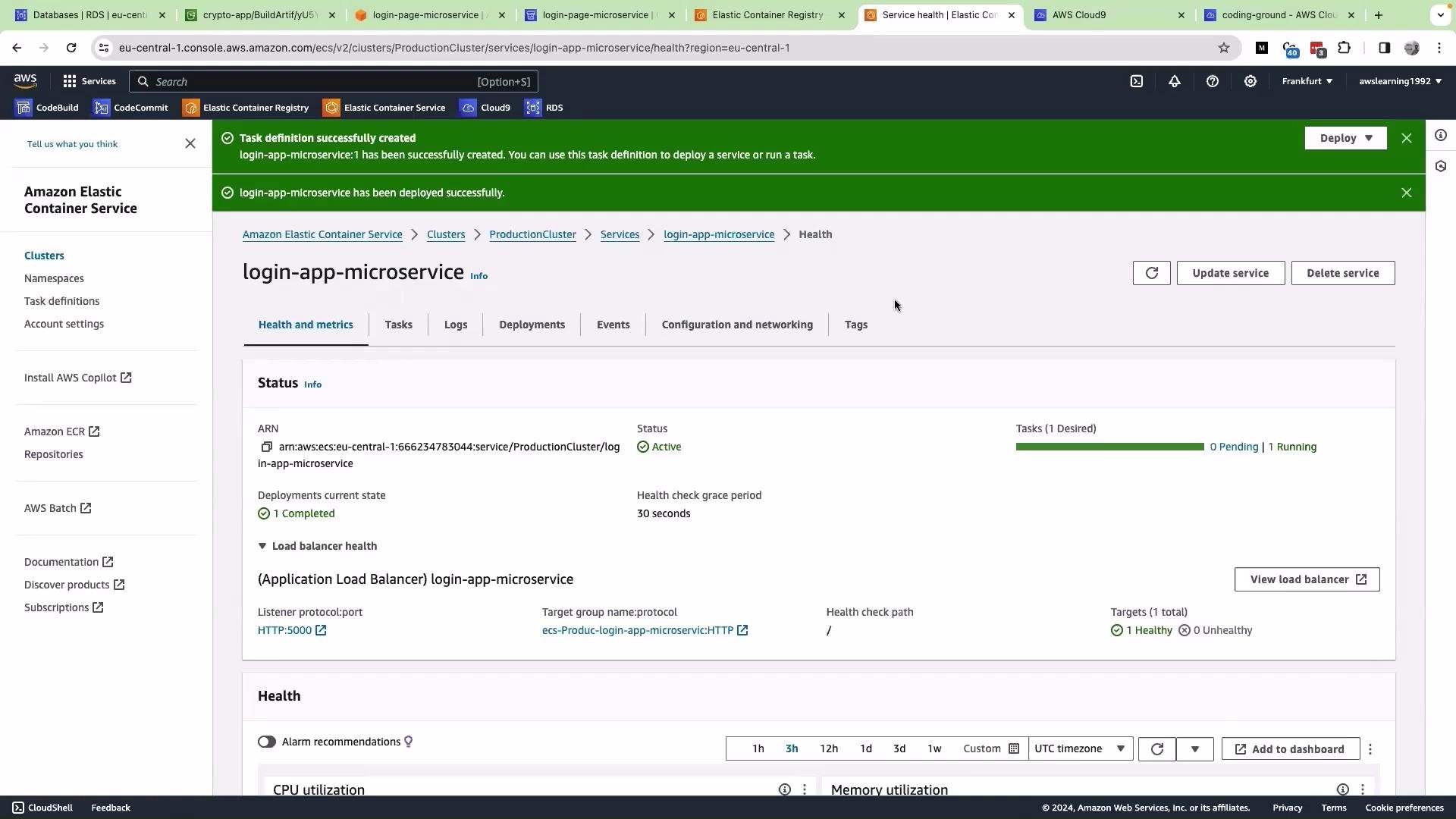
5. Validate the Application
- In the ECS service page, click View Load Balancer for this service.
- Copy the Load Balancer DNS name.
- Open a browser and visit:
http://<LOAD_BALANCER_DNS>:5000(wrap the DNS placeholder in backticks as shown).
Common ECS/ALB settings (recommended)
Troubleshooting checklist
- Subnet selection error: ensure ALB subnets are public or reachable.
- ALB target health failing: check health check path and container response.
- No response in browser: verify security group inbound rules and that ALB is listening on the expected port.
- Task keeps restarting: inspect container logs for exceptions and verify environment variables, database connectivity, and required secrets.
6. Fix the Flask redirect issue
If login UI loads but navigation or login redirects fail, inspect the Flask code. Avoid hard-coded external IP addresses in redirects. Use relative paths or configure the base URL via environment variables. Example (app.py):Do not hardcode IP addresses in redirects. Use relative paths (e.g.,
redirect('/welcomepage')), environment-configured base URLs, service discovery, or the load balancer DNS (http://<LOAD_BALANCER_DNS>:5000) so the application remains portable and resilient to infrastructure changes.Next steps and best practices
- Use environment variables for service URLs and external endpoints rather than hard-coded values.
- Configure health checks that match actual application endpoints and response times.
- Centralize logs in CloudWatch and set up alerts for unhealthy targets or repeated task restarts.
- Consider using HTTPS with a certificate on the ALB for secure traffic.
- For production, consider placing tasks in private subnets and using the ALB in public subnets only.
- Amazon ECS documentation
- Amazon ECR documentation
- ALB documentation and target groups
- Flask documentation