

AWS Lambda CLI: Updating Environment Variables
The AWS CLI command for updating Lambda function configuration is documented in the AWS CLI Command Reference. One key option in this command is “environment,” which accepts environment variables as key-value pairs. Below is an overview of the command syntax: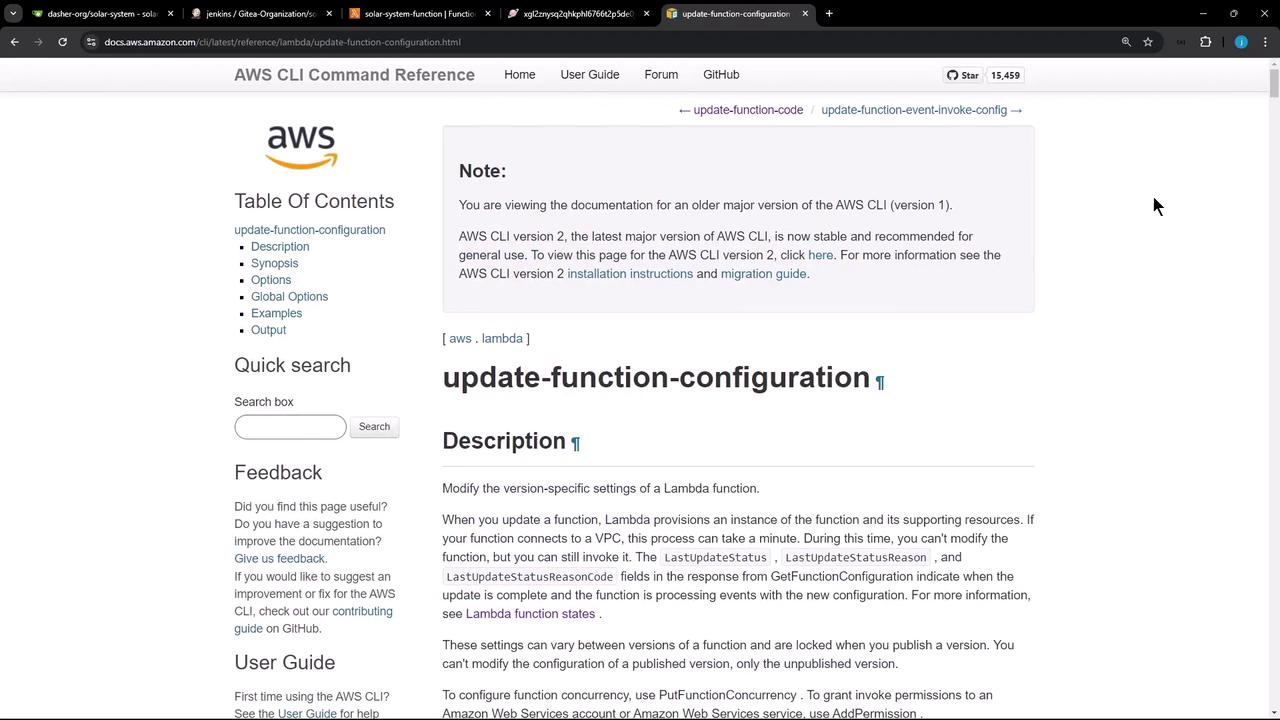

AWS SAM Template Example
Here is an example snippet from an AWS SAM template showing a basic function configuration. Although our focus is on using the CLI, this template illustrates how a function is defined:Updating Lambda Configuration via CLI
To update the environment variables with the AWS CLI, use a command similar to the following example:Integrating Lambda Updates in Jenkinsfile
Next, update your Jenkinsfile to reuse environment variables like Mongo username, Mongo password, and the Mongo URI. Below is an example snippet from the Jenkinsfile:Lambda S3 Upload and Deploy Stage
In the Jenkinsfile, the Lambda S3 upload and deploy stage proceeds in two steps: updating the function code and then updating the configuration using the AWS CLI. Here’s how the shell scripts are organized:-
Zip the Application Files
-
Upload to S3
-
Update Lambda Environment Variables
-
Update Lambda Function Code
Modifying the Application File
Prior to packaging, certain modifications are made to the application file (e.g., “app.js”):Handling Dependency Vulnerabilities
During the build process, you may encounter dependency issues. For example, the pipeline might initially fail due to a detected critical vulnerability in the “i18n” dependency. To temporarily bypass this issue, you can modify the dependency scanning stage in the Jenkinsfile by setting thestopBuild flag to false.
It is best practice to resolve such vulnerabilities rather than bypassing them. Use the bypass only as a temporary measure.
Final Deployment and Verification
After committing these modifications and triggering a new Jenkins build, the deployment process will:- Update the Lambda function configuration with the new environment variables.
- Upload the updated zipped package to S3.
- Update the Lambda function code.
