

Exploring the Jenkins Workspace
First, examine the files in our workspace through the classic Jenkins UI. The workspace contains multiple files and directories representing various report types generated during the build process: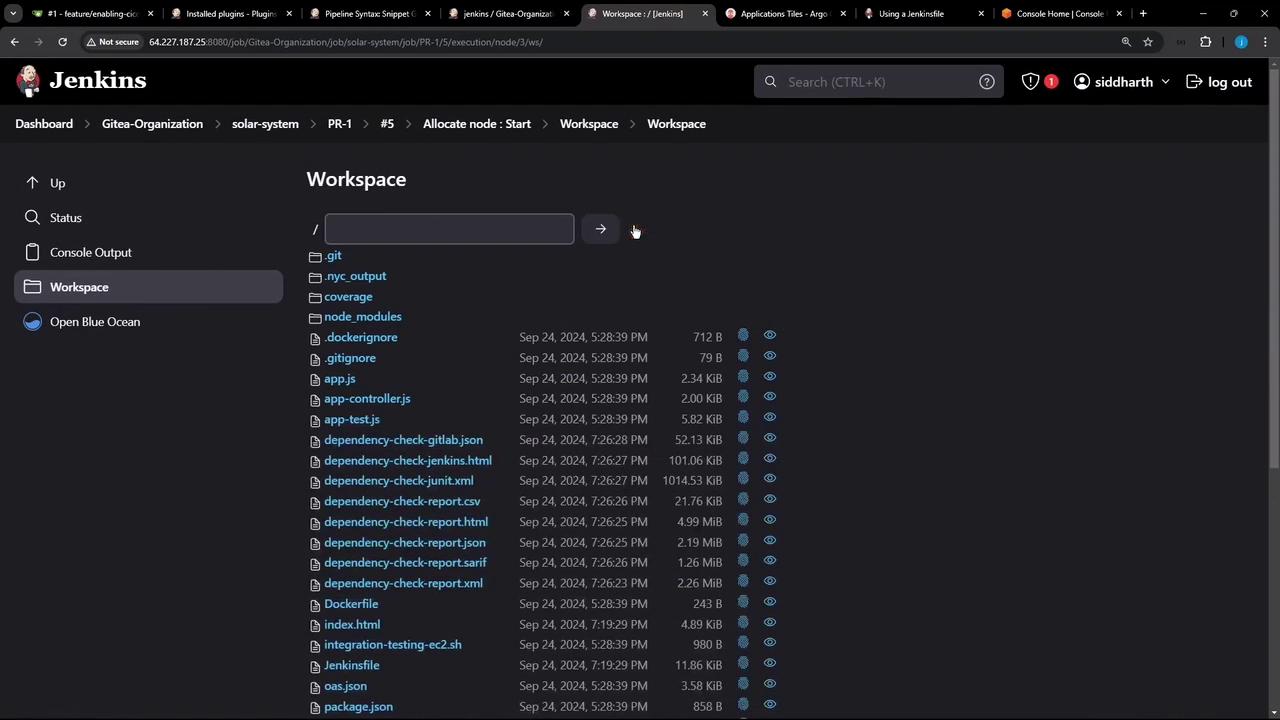
- Coverage reports located in the
coveragefolder. - Dependency check reports in multiple formats.
- Unit test report (
test-results.xml). - Vulnerability scanning reports generated by Trivy.
- Dynamic Application Security Testing (DAST) reports from ZAP.
Configuring the S3 Bucket
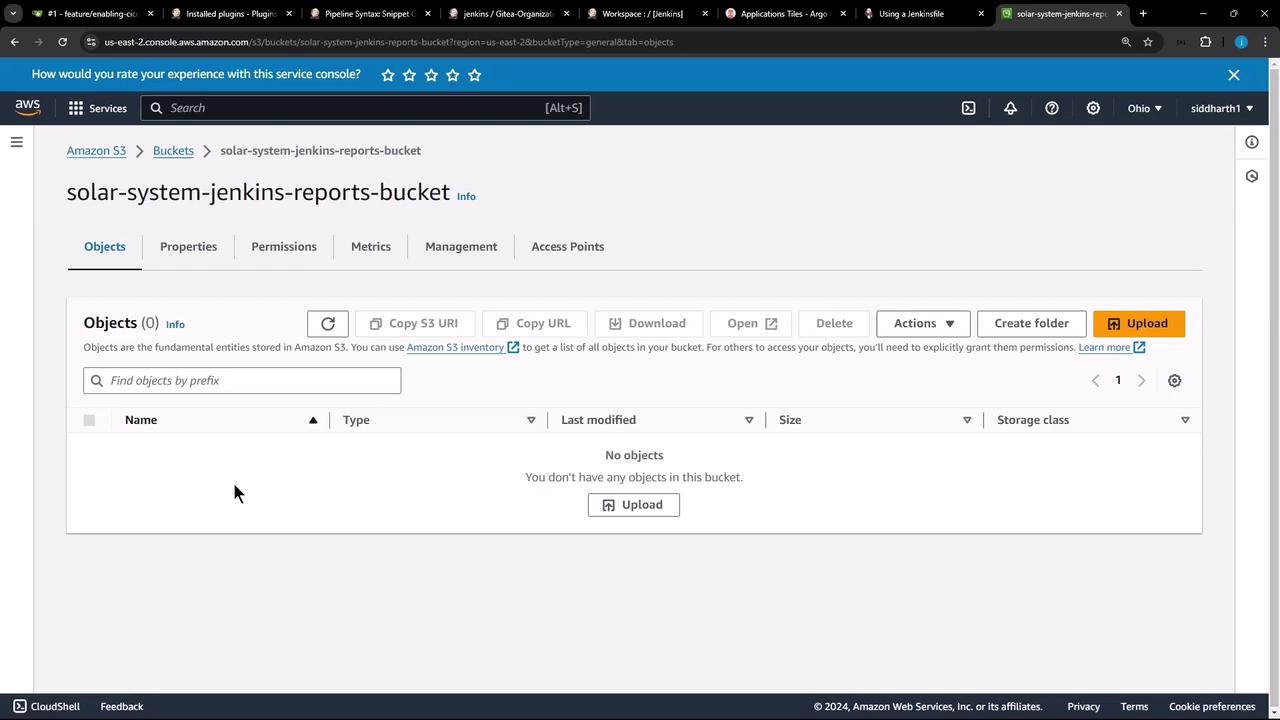
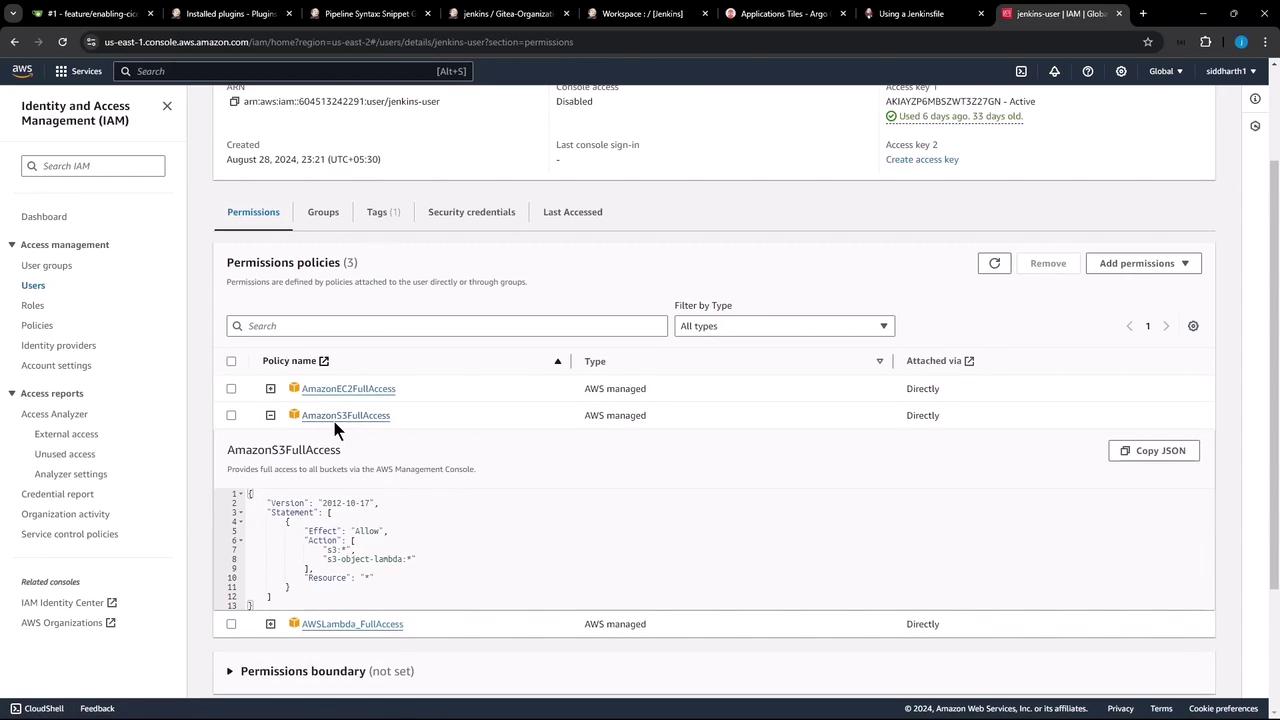
An S3 bucket named solar-system-jenkins-reports-bucket has been created within our AWS account in the US East 2 region. Currently, the bucket is empty: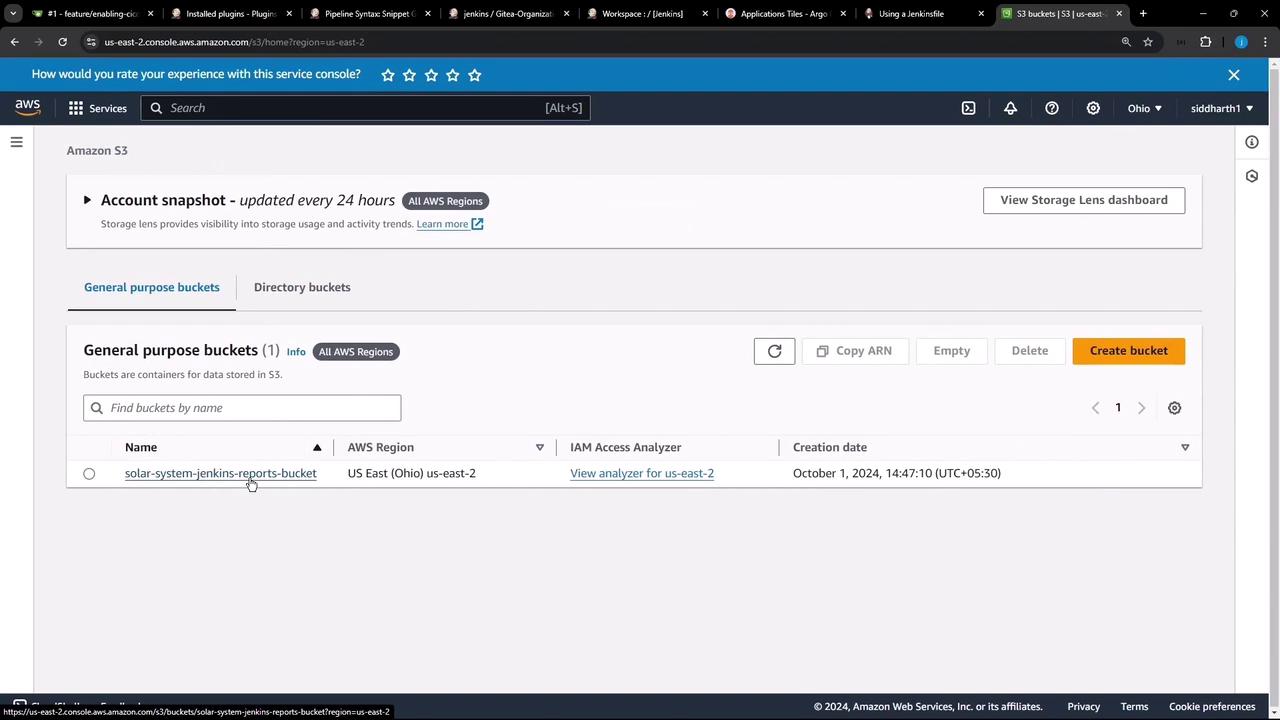
Implementing S3 Upload Functionality in Jenkins
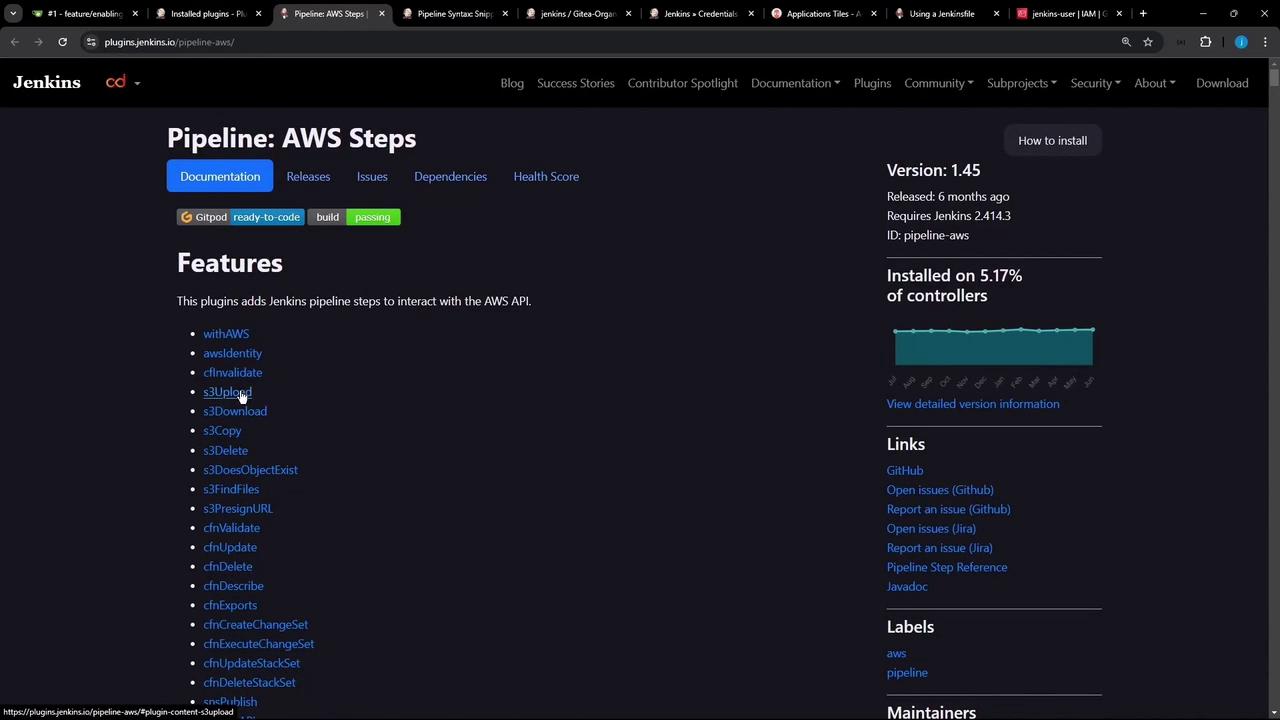
Jenkins leverages the Pipeline AWS Steps plugin which provides an S3 upload step. This step allows you to upload files or directories from your workspace directly to an S3 bucket. Below are some fundamental usage examples:Jenkinsfile Stage for Preparing and Uploading Reports
The following Jenkinsfile stage illustrates how to create a dedicated reports directory and upload it to S3. Notice the careful use of Groovy string interpolation (with double quotes) to properly substitute the environment variable$BUILD_ID.
- Lists all files in the workspace.
- Creates a new directory named
reports-$BUILD_ID. - Copies the coverage folder alongside dependency reports, test results, Trivy reports, and ZAP reports into the newly created directory.
- Invokes the
s3Uploadstep to transfer the directory to the specified S3 bucket in a designated subfolder (incorporating the build ID).
When using environment variables inside Groovy maps (such as during the S3 upload), ensure that you use double quotes to enable proper variable interpolation.
Advanced S3 Upload Options
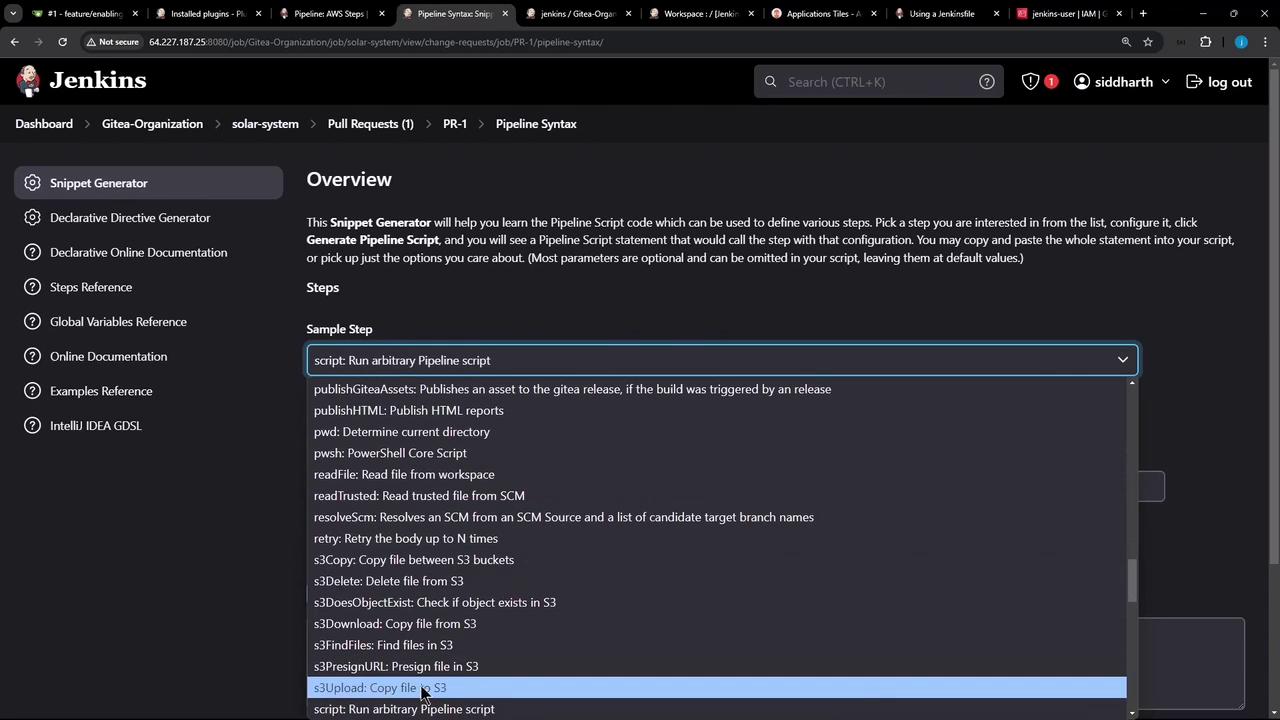
You have the flexibility to use additional parameters for advanced upload scenarios. For instance, you can exclude files with specific patterns, add metadata, or set cache control headers. Here’s how you can use these options with the snippet generator:Experiment with these settings via the Jenkins Snippet Generator to ensure your S3 uploads meet your requirements.
Verifying the Upload
Once you commit your changes to the feature branch, a new build will be triggered. You can verify the process by checking the build logs which should indicate that:- The reports directory (
reports-$BUILD_ID) is created and populated with the appropriate files. - The S3 upload stage successfully uploads the directory to the S3 bucket under a specific path based on the build ID.
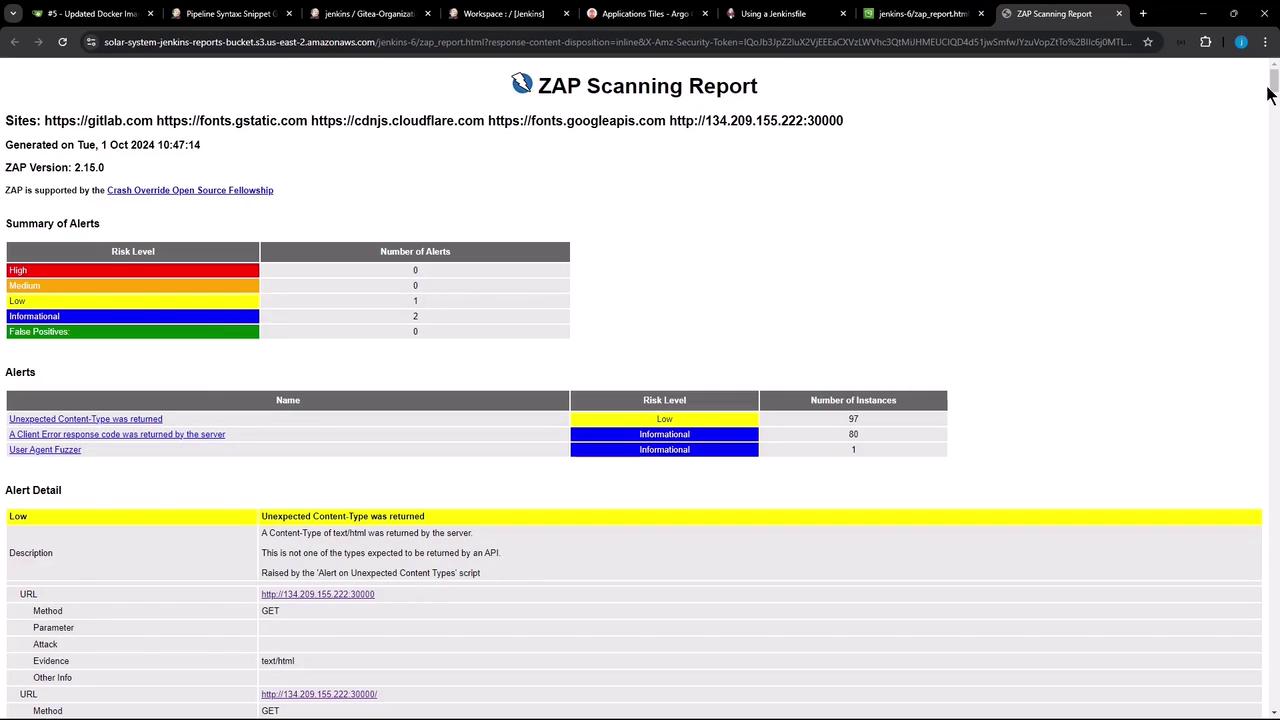
jenkins-6) containing the uploaded reports. Opening one of these reports (for instance, the latest ZAP HTML report) in your browser will verify the upload’s success.
Summary
In this guide, we demonstrated how to:- Prepare a reports directory by selectively copying relevant files from the Jenkins workspace.
- Use the Jenkins Pipeline AWS Steps plugin to upload these reports to an Amazon S3 bucket.
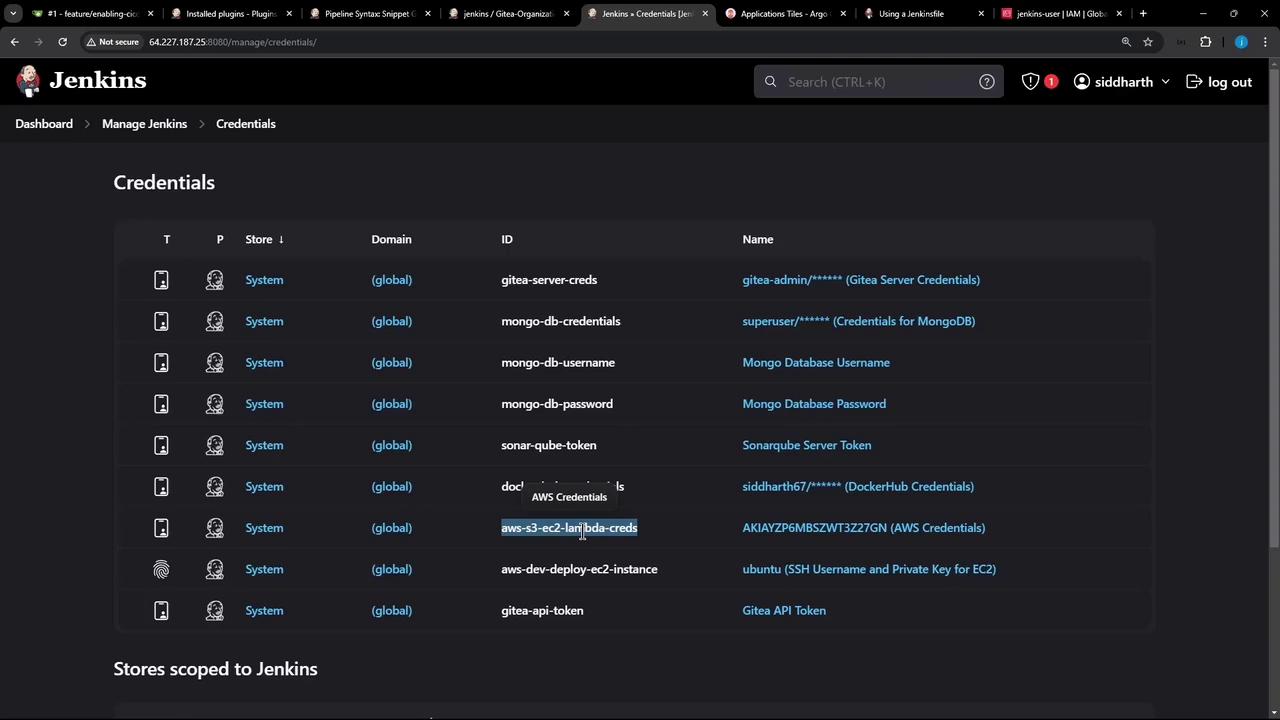
- Authenticate and make use of AWS credentials with the
withAWSstep. - Apply correct Groovy string interpolation for environment variables.