

Fixing Vulnerabilities Locally
When running the audit command, you might see output that lists critical, high, and low vulnerabilities. For example:feature/enabling-cicd) addressing the vulnerabilities. Start by running the audit with the critical level:
echo $? will return a non-zero code (1) after the audit if a critical vulnerability exists.
To fix the issues, you have two options:
- Run
npm audit fixto automatically correct all vulnerabilities. - Update dependencies manually. For example, to fix the critical vulnerability in
@babel/traverse, install version 7.23.2 or greater:
package.json and package-lock.json files. For example, your package.json may now include:
Updating the Jenkins Pipeline to Publish Reports
After committing the fixes, a new build is triggered in Jenkins. Next, configure your Jenkins pipeline to publish both HTML and JUnit reports, ensuring that developers have easy access to detailed vulnerability information from the Jenkins UI.Publishing the HTML Report
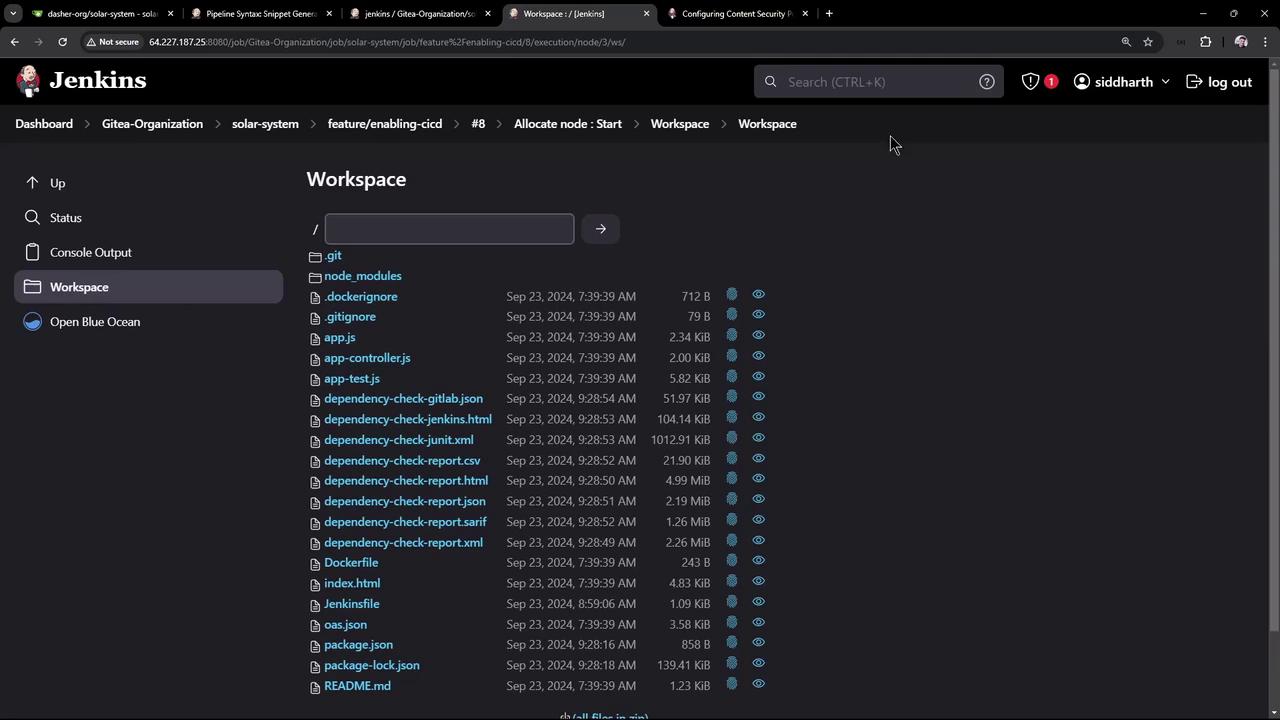
In your project workspace, locate the HTML report file (e.g.,dependency-check-jenkins.html). For example, the following screenshot shows where the file is located:
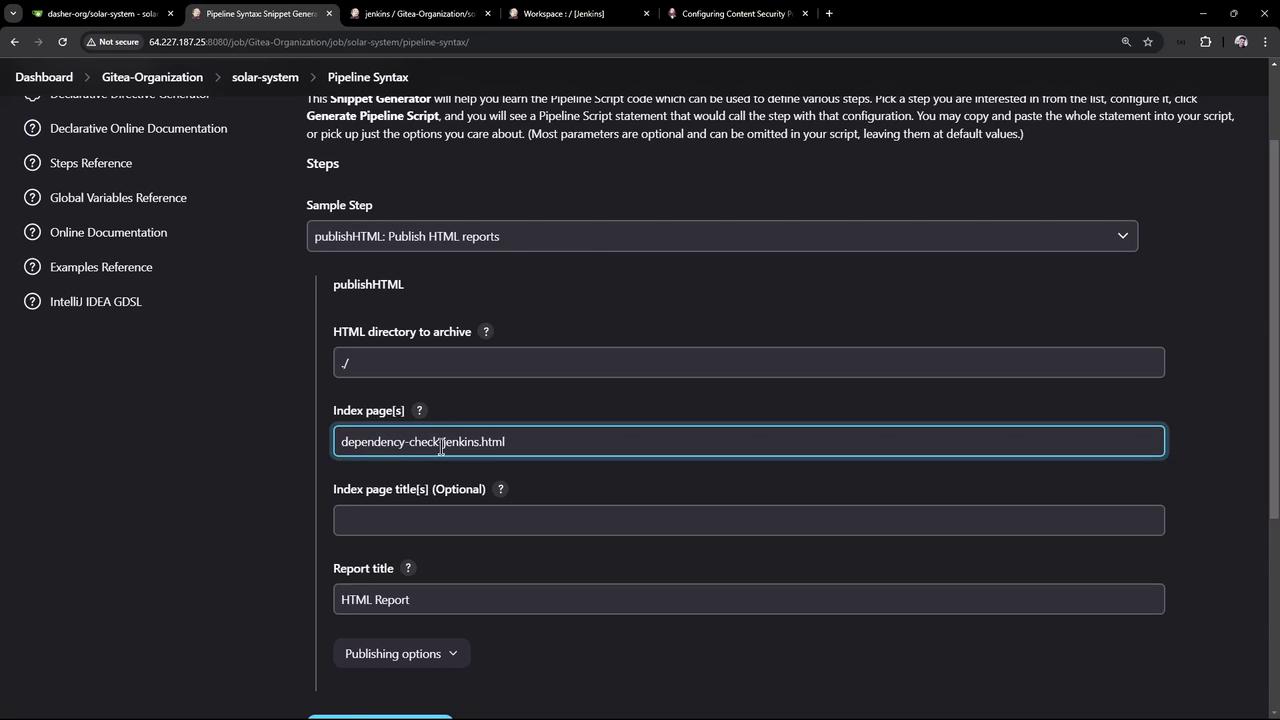
- Directory containing the report (e.g., the root directory
./). - The report file name (
dependency-check-jenkins.html). - An optional report title if multiple reports exist.
Publishing JUnit Test Reports
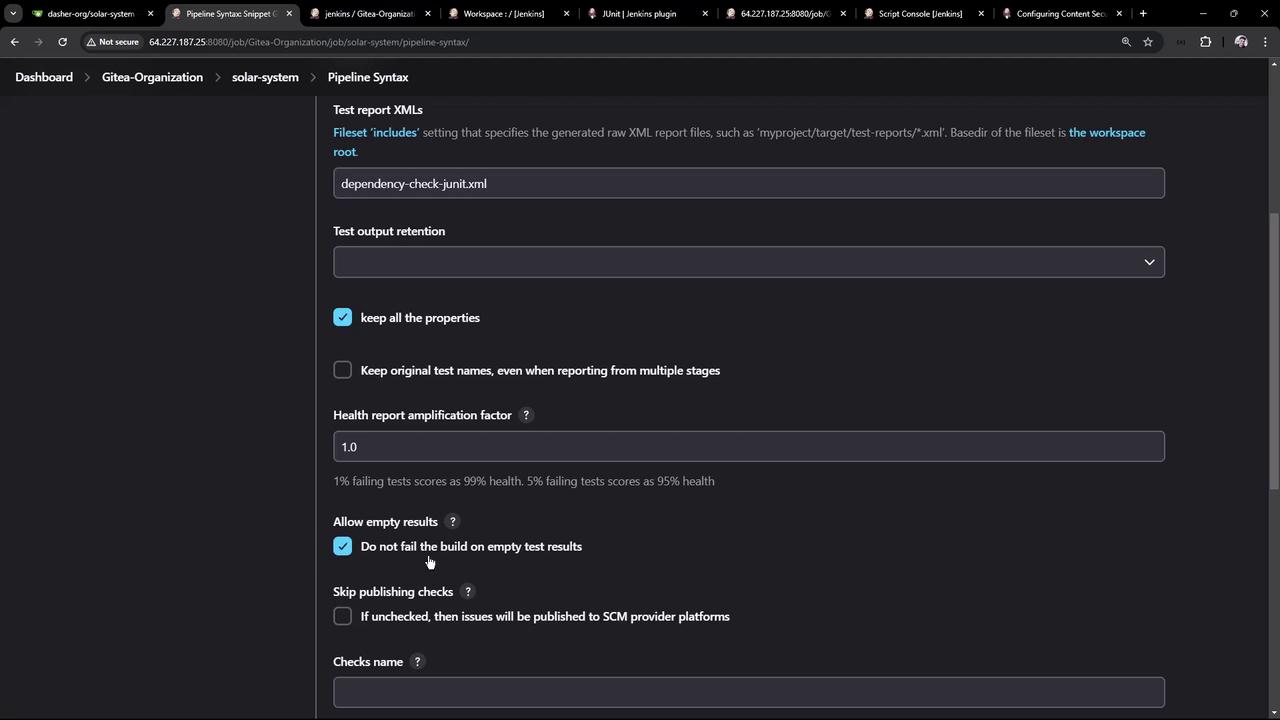
Additionally, publish JUnit XML reports to display test results in Jenkins. For example, if you generate a file likedependency-check-junit.xml, configure the JUnit publisher step as follows:
Combined Pipeline Snippet
Below is a consolidated snippet from the Jenkinsfile that includes the npm audit step, OWASP Dependency-Check, and both report publishing configurations: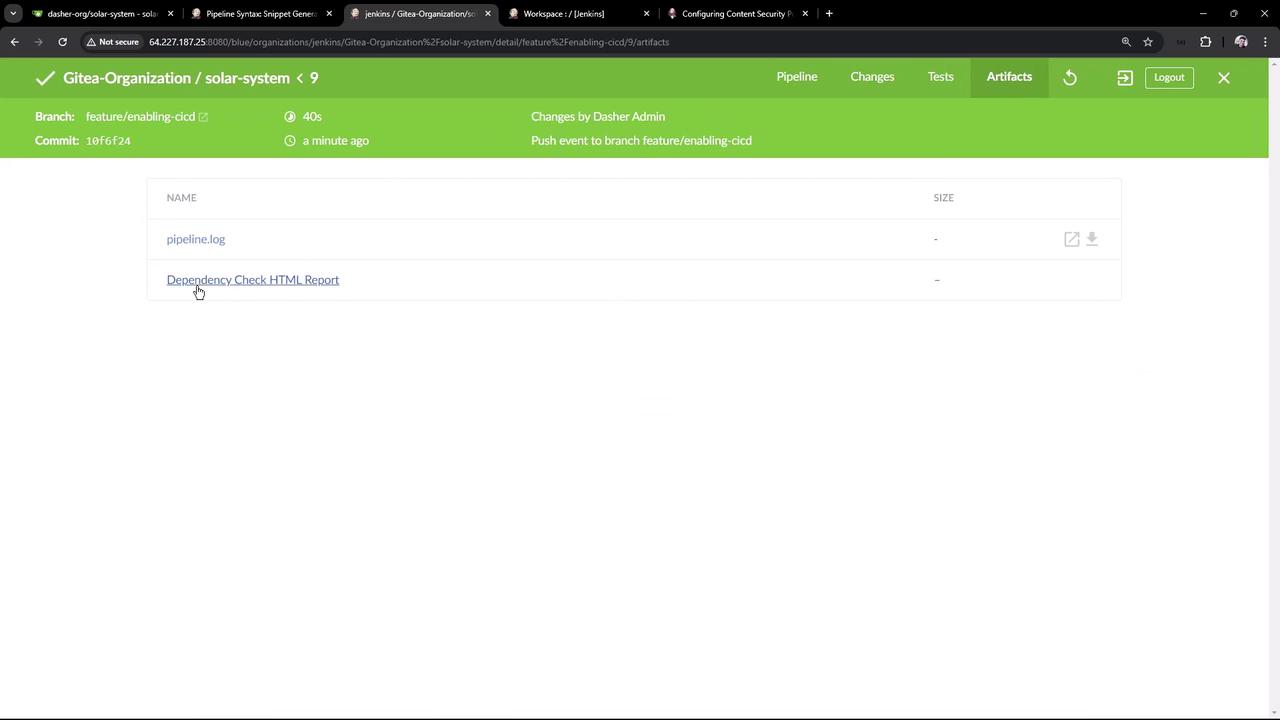
Additional Configuration: Content Security Policy
By default, the published HTML report may lack CSS styling due to strict Content Security Policies (CSP) in Jenkins. To ensure the report is correctly styled, update the system property accordingly.
Viewing Test Results
After the build completes, view the JUnit test results by navigating to the Test Results tab in Jenkins. The reports will present detailed information on vulnerabilities such as severity, CVSS scores, impacts, available patches, and workarounds. For example, a snapshot of the test results might display: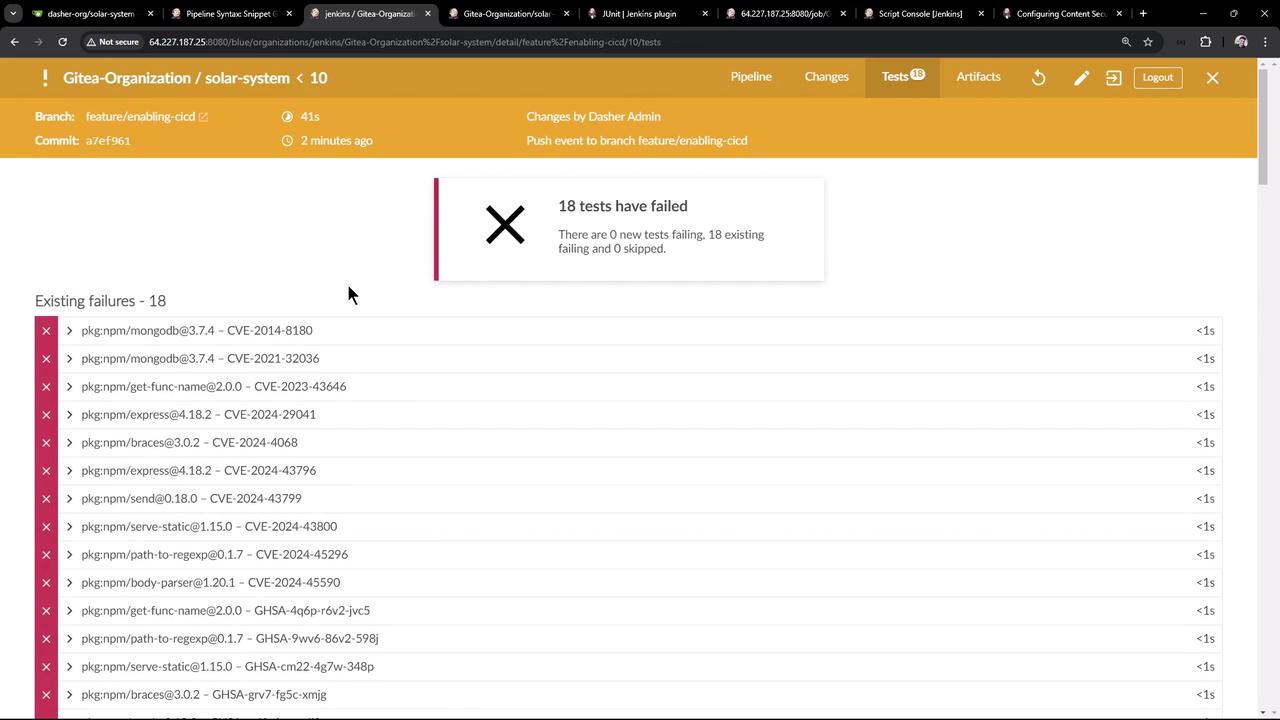
Conclusion
This guide demonstrated how to:- Run the
npm auditcommand and update vulnerable dependencies. - Commit changes to trigger a new CI/CD build.
- Configure your Jenkins pipeline to publish both HTML and JUnit reports.
- Update the Content Security Policy (CSP) in Jenkins to correctly display the HTML reports.