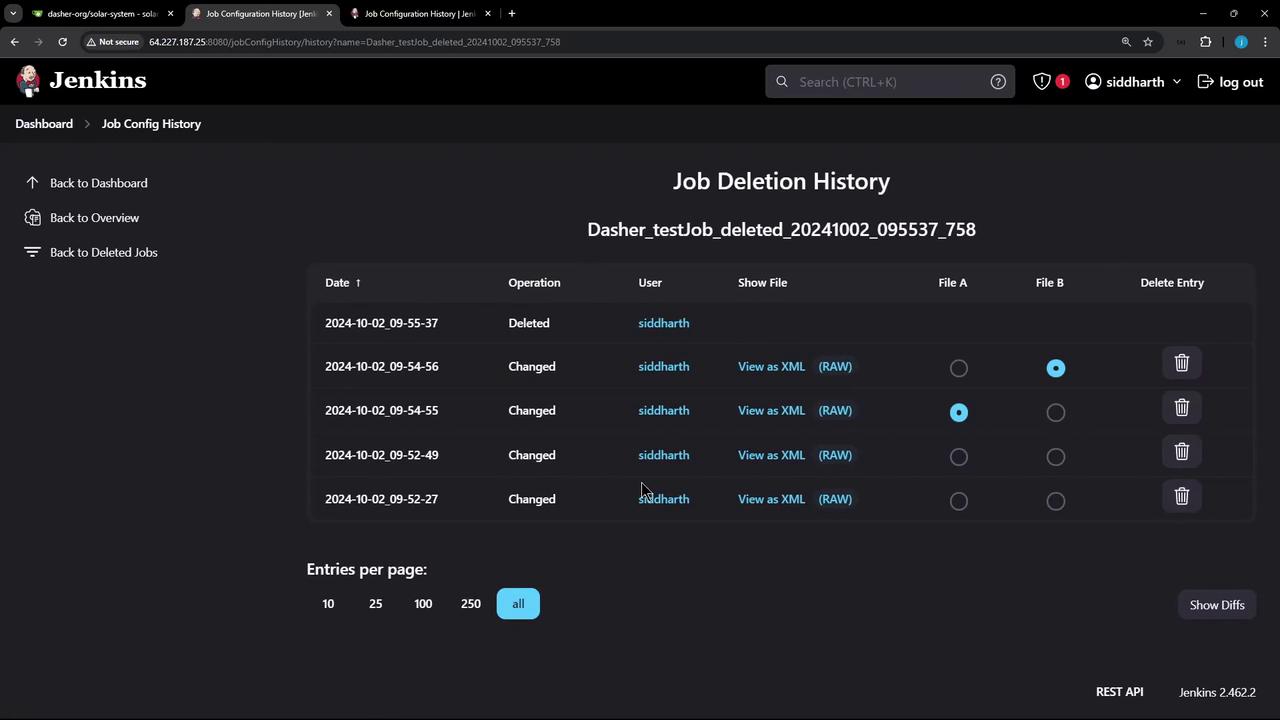
Before you begin, install the plugin and restart Jenkins manually to ensure all features are active.
Installation and Initial Setup
- Install the Job Configuration History plugin.
- Manually restart Jenkins after installation.
- On the Jenkins dashboard, locate the new “Job Config History” option.

Navigating the Configuration History
Once you click the “Job Config History” link, you will be directed to a page that lists all configuration changes. Use the filters on the left to sort through system configurations, job configurations, created jobs, or deleted jobs.Demonstration: Modifying a Test Job
Follow the steps below to see how configuration changes are tracked:1. Update Job Restrictions
- From the dashboard, select your test job.
- Update the job restriction settings by disabling previously defined rules.
- Save the changes.
2. Modify the Build Steps
Edit the build steps for your test job by adding a shell command:3. Add an Additional Build Step
Further refine the job configuration by including an extra shell command to pause execution:Reviewing and Restoring Configuration Versions
Return to the “Job Config History” page and click “Show All Configs” to review the tracked changes. You will now see the configuration files displayed in XML format. For example:-
First build configuration:
-
Second build configuration:
Restoring a Previous Version
If you need to revert to an earlier configuration:- Locate the job’s configuration history.
- Click “Show Difference” to compare the two versions.
- Choose the correct version (for example, the one with only the echo command) and click “Restore”.
The restore feature allows you to quickly recover from any unintended configuration changes by reverting to a known good state.
Managing Deleted Jobs
The plugin also tracks deleted jobs. If you accidentally remove a job, you can filter the history to display only deleted jobs and restore them as necessary.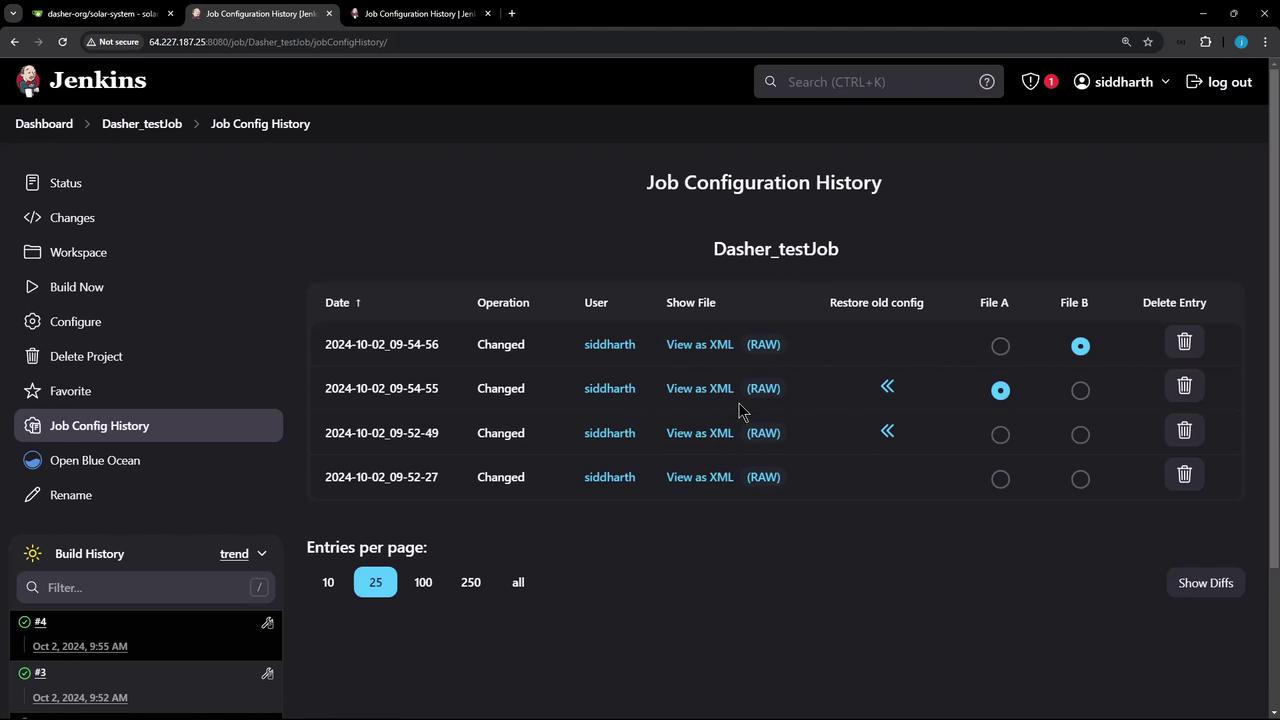
- Filter by deleted jobs.
- Click on the restore option.
- Confirm the restoration, and the job will reappear on the dashboard.