

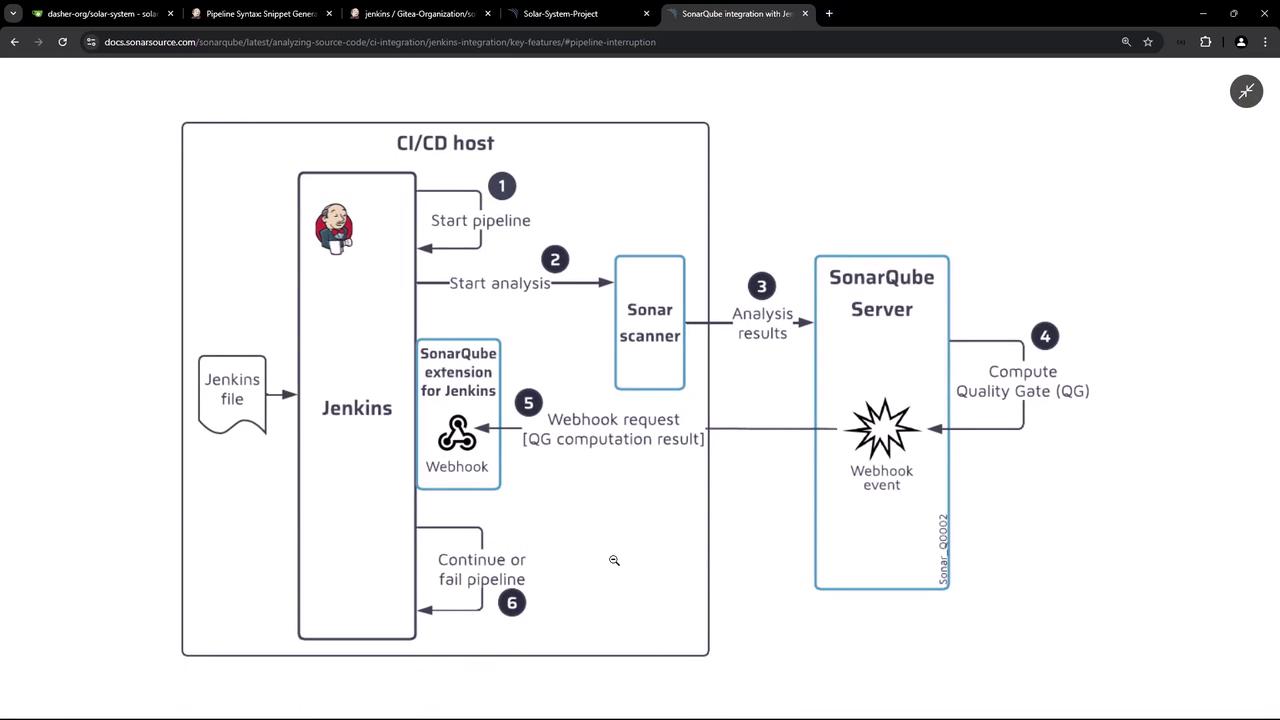
- Jenkins triggers the pipeline.
- The pipeline runs the SonarScanner to analyze the application.
- SonarScanner uploads analysis results to the SonarQube server.
- SonarQube computes the quality gate for the project and determines if it passes or fails.
- The server sends the quality gate status back to Jenkins via the configured webhook.
- Depending on the quality gate status, the pipeline either continues (if passed) or aborts (if failed).
Ensure that your Jenkins and SonarQube instances are properly integrated before proceeding with these configurations.
Configuring the SonarQube Webhook
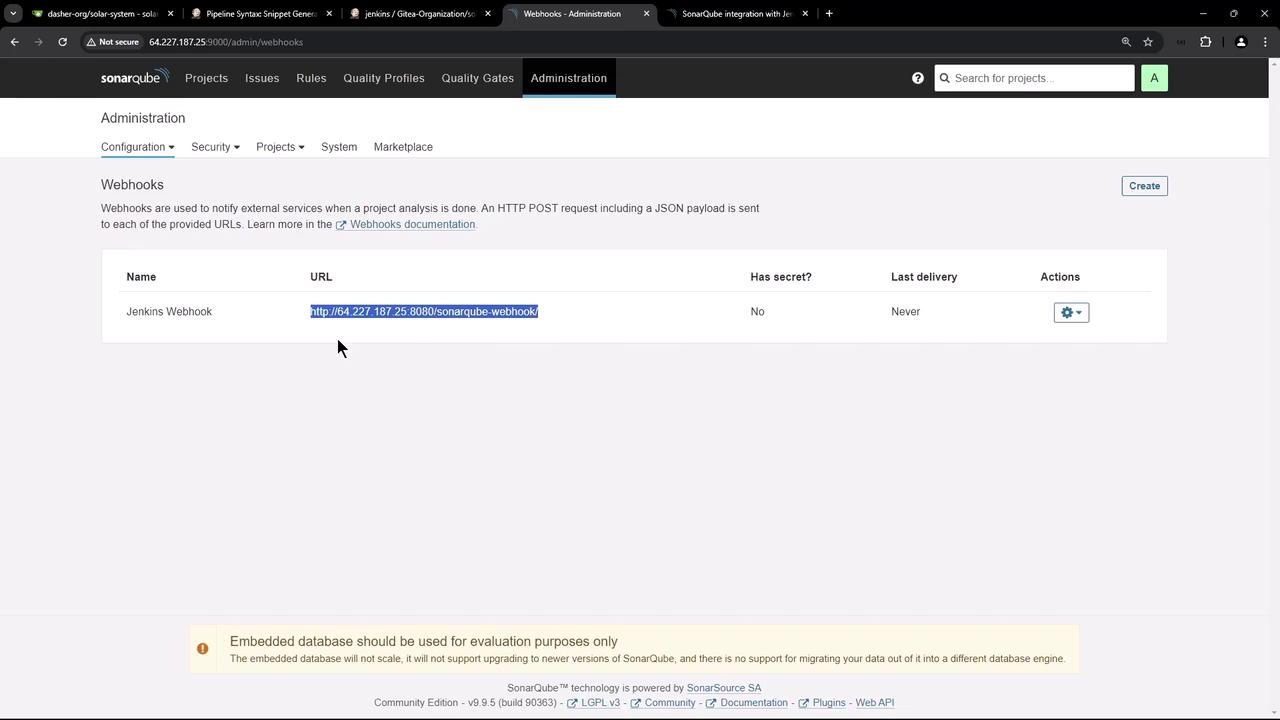
Before integrating quality gate status notifications, verify that Jenkins exposes a webhook URL. Open a new browser tab, navigate to Jenkins on port 8080, and access theSonarQube-webhook endpoint exposed by the SonarQube plugin.
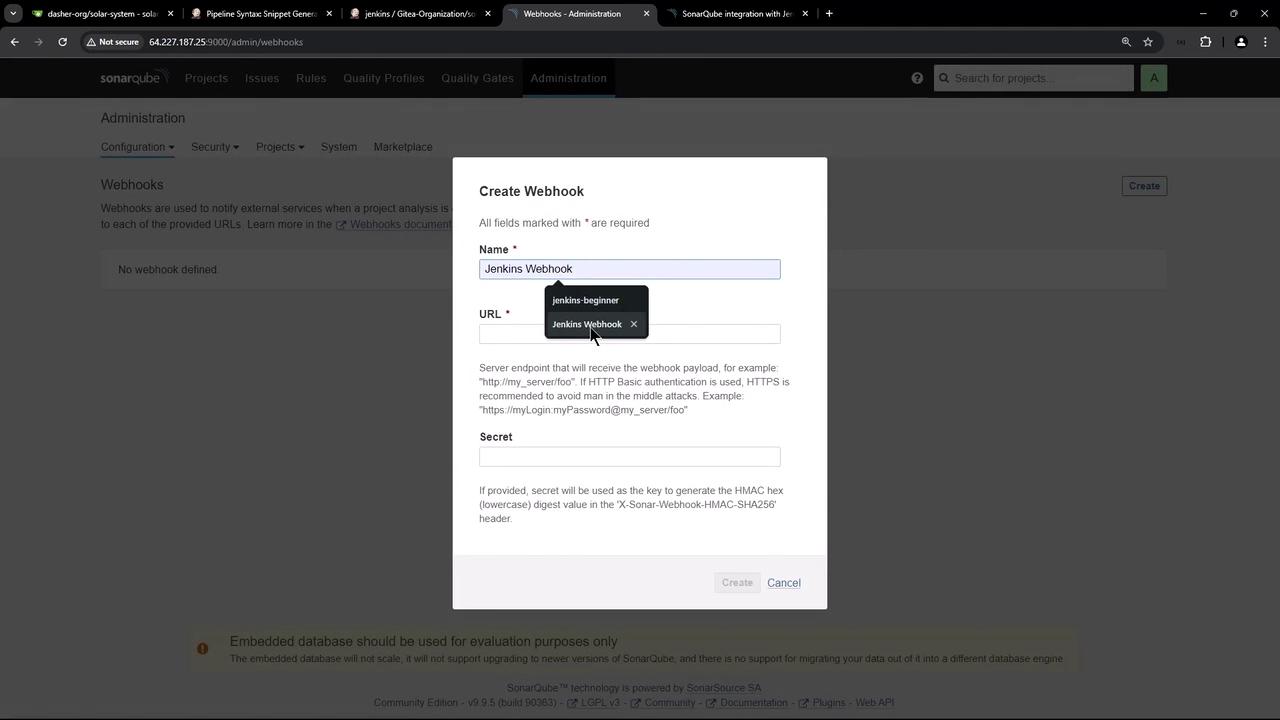
Next, configure the webhook in SonarQube with these steps:
- Navigate to Administration > Configure Webhook.
- Note that no webhook is defined by default.
- Create a new webhook named “Jenkins webhook” and paste the Jenkins webhook URL copied in the previous step.
Refactoring the Jenkins Pipeline
Initially, the Jenkinsfile exposed the authentication token directly in the script, which is not secure. To improve security, you should configure the SonarQube installation within Jenkins and update the Jenkinsfile accordingly.Adding a SonarQube Server in Jenkins
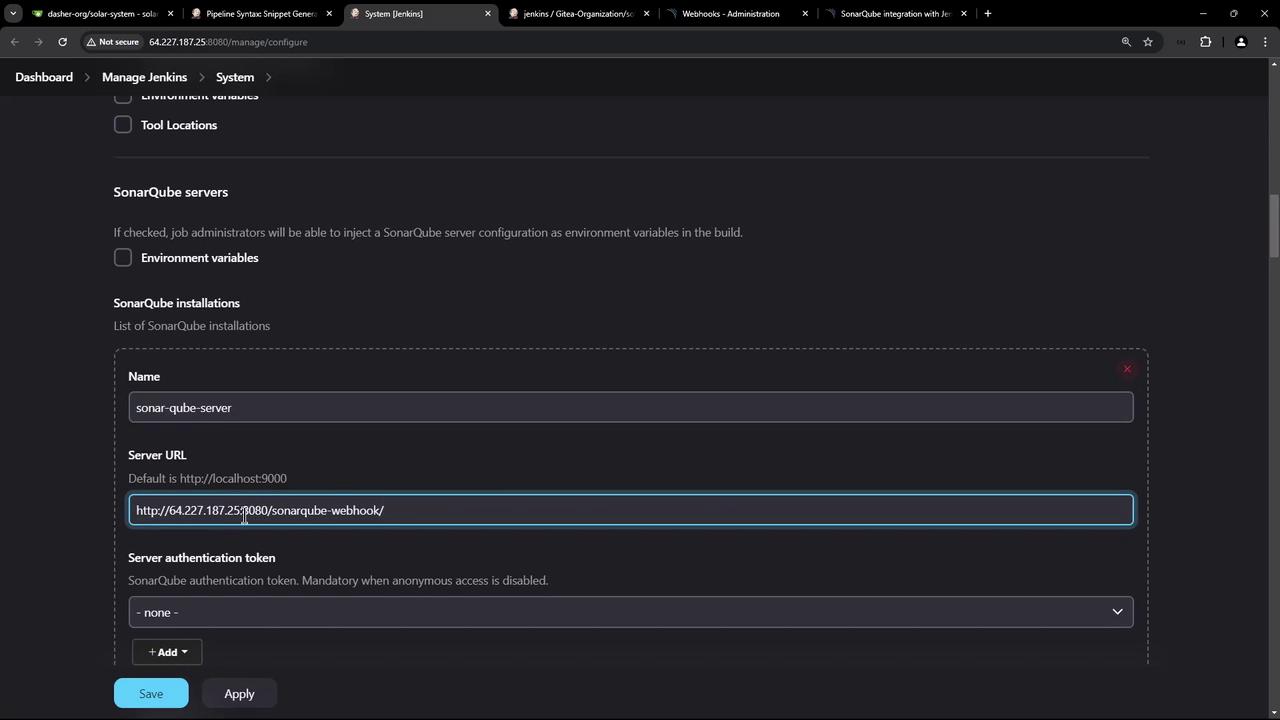
- Navigate to Jenkins configuration.
- Add a new SonarQube server by providing:
- A unique name (e.g., “sonar-qube-server”)
- The SonarQube endpoint (e.g., running on port 9000)
- The authentication token
- Create a new credential of type “Secret Text” using the token. For example, assign a credential ID like “SonarQube server token.”
Updating the Jenkinsfile
Modify your Jenkinsfile so that SonarScanner commands are executed within the context of the SonarQube installation. For instance, replace the insecure stage that exposed the token:Waiting for the Quality Gate Status
To prevent the pipeline from proceeding before the SonarQube analysis is complete, incorporate the “waitForQualityGate” step. This step waits for the quality gate status and can be wrapped in a timeout to avoid indefinite blocking.Declarative Pipeline Example
Scripted Pipeline Example
Disabling the OWASP Yarn Audit Analyzer
If your dependency check stage takes too long due to the initialization of the Yarn audit analyzer—and you are already using the Node.js or NPM audit analyzer—you can disable the Yarn audit analyzer to avoid unnecessary delays or errors. Simply add an argument in your dependency scanning configuration to disable Yarn audit. Below is an example Jenkinsfile with several stages, including Dependency Scanning, Unit Testing, Code Coverage, and a refactored SAST stage:- The SonarQube stage executes.
- The quality gate step waits and aborts the pipeline if the quality gate fails.
- The SonarQube webhook reports the quality gate status back to Jenkins.
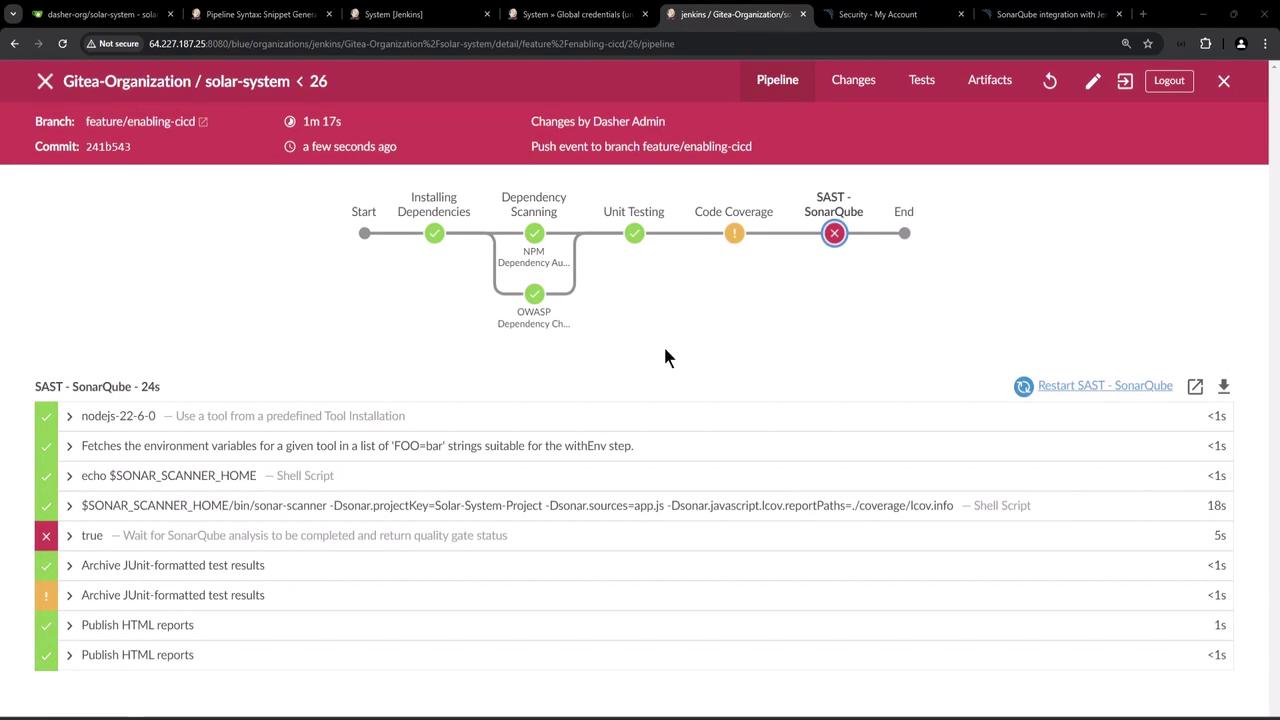
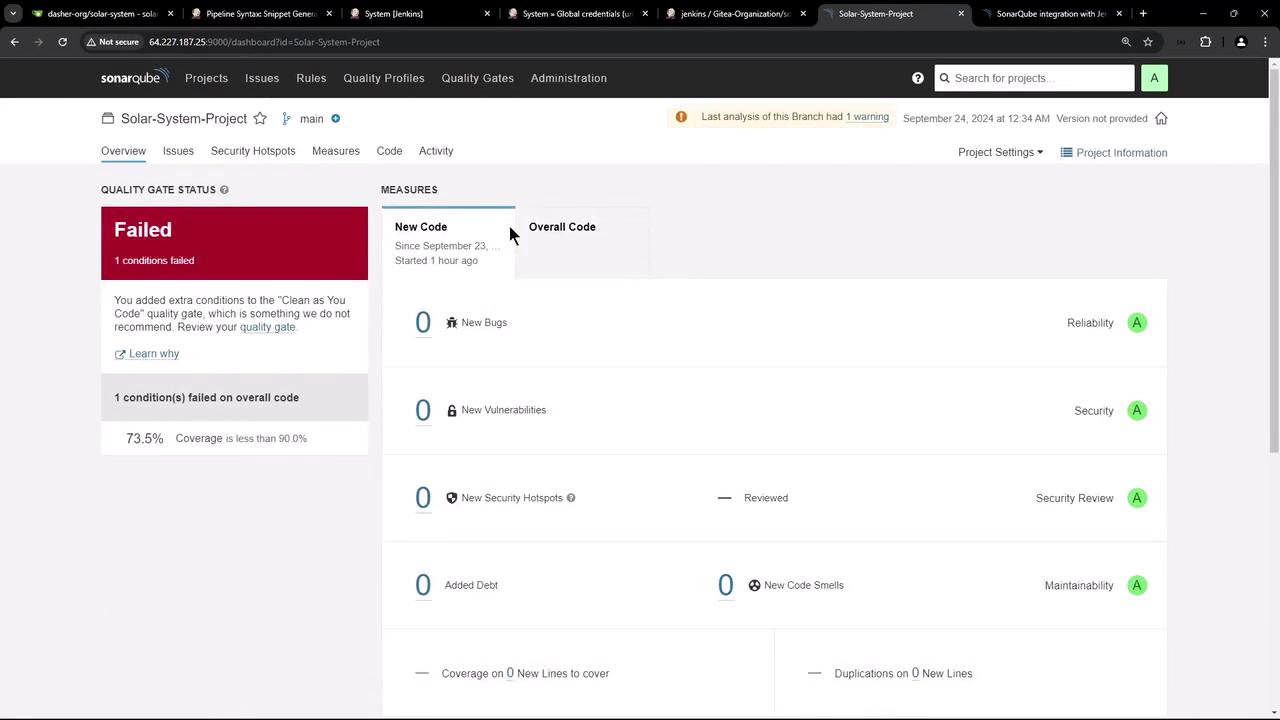
Managing and Updating Quality Gate Settings
For subsequent demos or builds, update the quality gate configuration in SonarQube (for example, lower the coverage threshold) to pass the analysis. You can retrigger the pipeline or restart only the SonarQube stage. Once the quality gate status is successful, the build continues and completes successfully. When reviewing the detailed quality gate conditions in SonarQube, you might see output like this: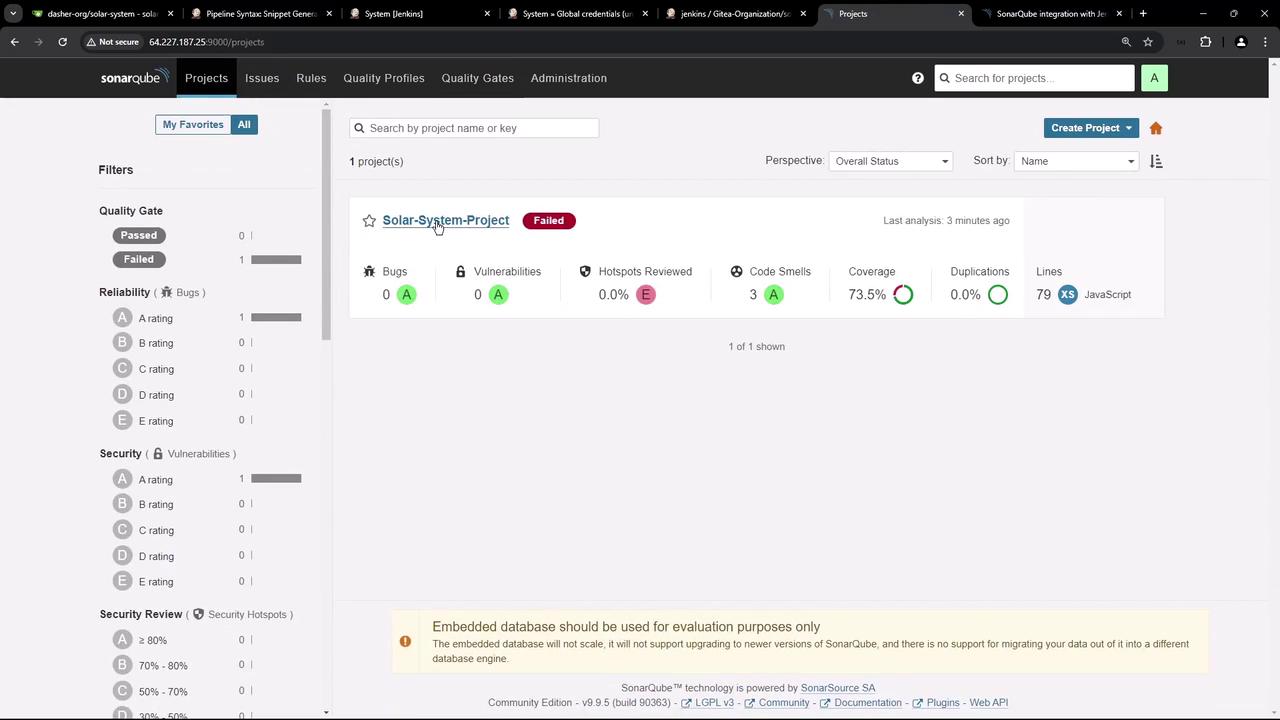
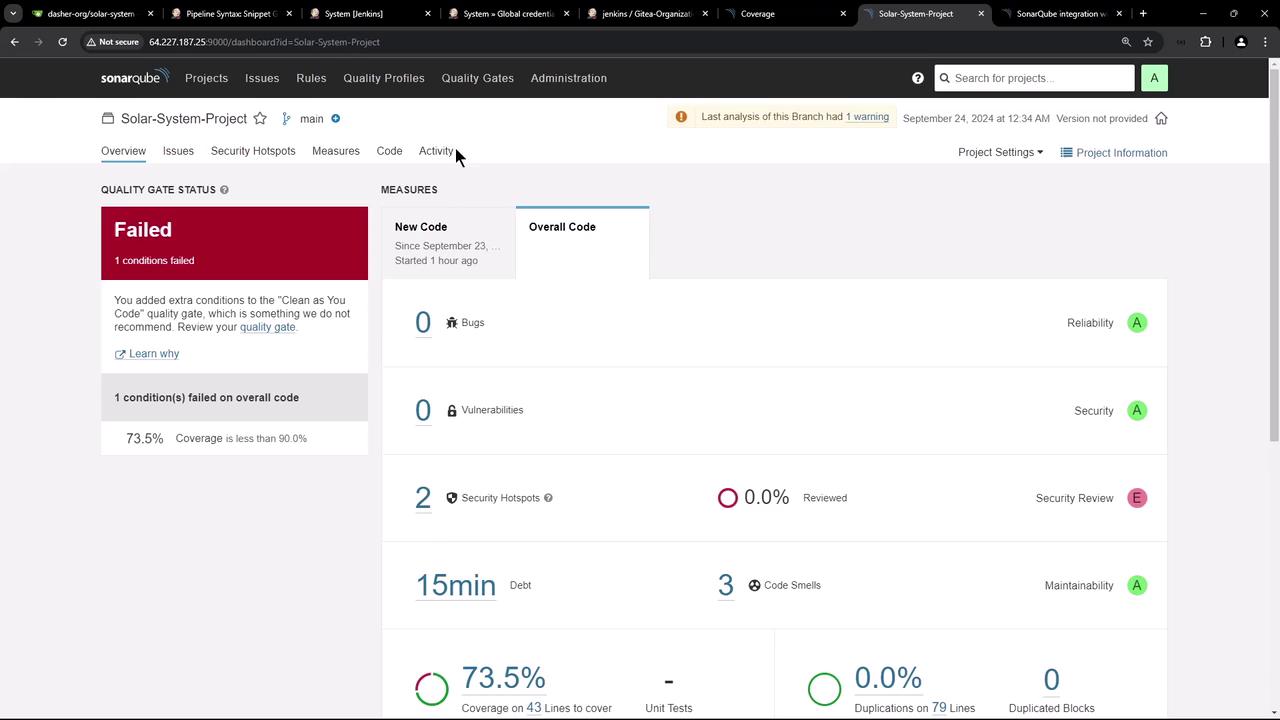
Thank you for following this lesson on integrating SonarQube with Jenkins and refactoring your pipeline configuration.