Overview
Previously, our Docker image was deployed to an Amazon Elastic Compute Cloud (EC2) instance. Now, we improve upon that setup by integrating dynamic fetching of instance details using the AWS CLI. This enables our Jenkins pipeline to extract the correct endpoint and validate our application’s responsiveness through automated tests.Testing the Running Docker Container
Before proceeding with dynamic integration testing, you might want to confirm that your Docker container is running on the EC2 instance. Execute the following command on your instance:Static vs. Dynamic Configuration
In earlier Jenkins pipeline configurations, the deployment stages used static details:Creating the Shell Script for Integration Testing
Within your Git repository’s root directory, create a new shell script namedintegration-testing-ec2.sh and paste one of the versions below.
Ensure that you have AWS CLI version 2.17.56 or later and the
jq command-line JSON processor installed on your system.Version 1: Fetching Using Network Interface Details
Version 2: Fetching Using the Public IP Address Directly
How the Script Operates
-
AWS CLI Execution
The script initiates by running theaws ec2 describe-instancescommand to retrieve details about the instances. -
Parsing Instance Information
It then filters for the EC2 instance tagged as"dev-deploy"usingjqto extract either the public IP address or DNS name. -
Endpoint Testing
Once the URL is identified, two tests follow:- A GET request to
/liveverifies service availability. - A POST request to
/planetwith JSON data ({"id": "3"}) retrieves planet data.
- A GET request to
-
Validation
The script examines whether the HTTP status code is200and if the retrieved planet name is"Earth". If both conditions are met, the tests pass; otherwise, the script exits with an error.
Sample JSON Response
Below is a representative JSON response from thedescribe-instances command. Although the response contains multiple details, only the public DNS or public IP is used in our script:
Invoking the Shell Script via Jenkins Pipeline
Integrate the testing script into your Jenkins pipeline by adding a dedicated stage. Update your Jenkinsfile as follows:Make sure that your Jenkins controller node has the necessary AWS credentials and that the AWS CLI is properly configured with the correct region. You can verify the installation by running
aws --version.AWS CLI Authentication and Jenkins Credentials
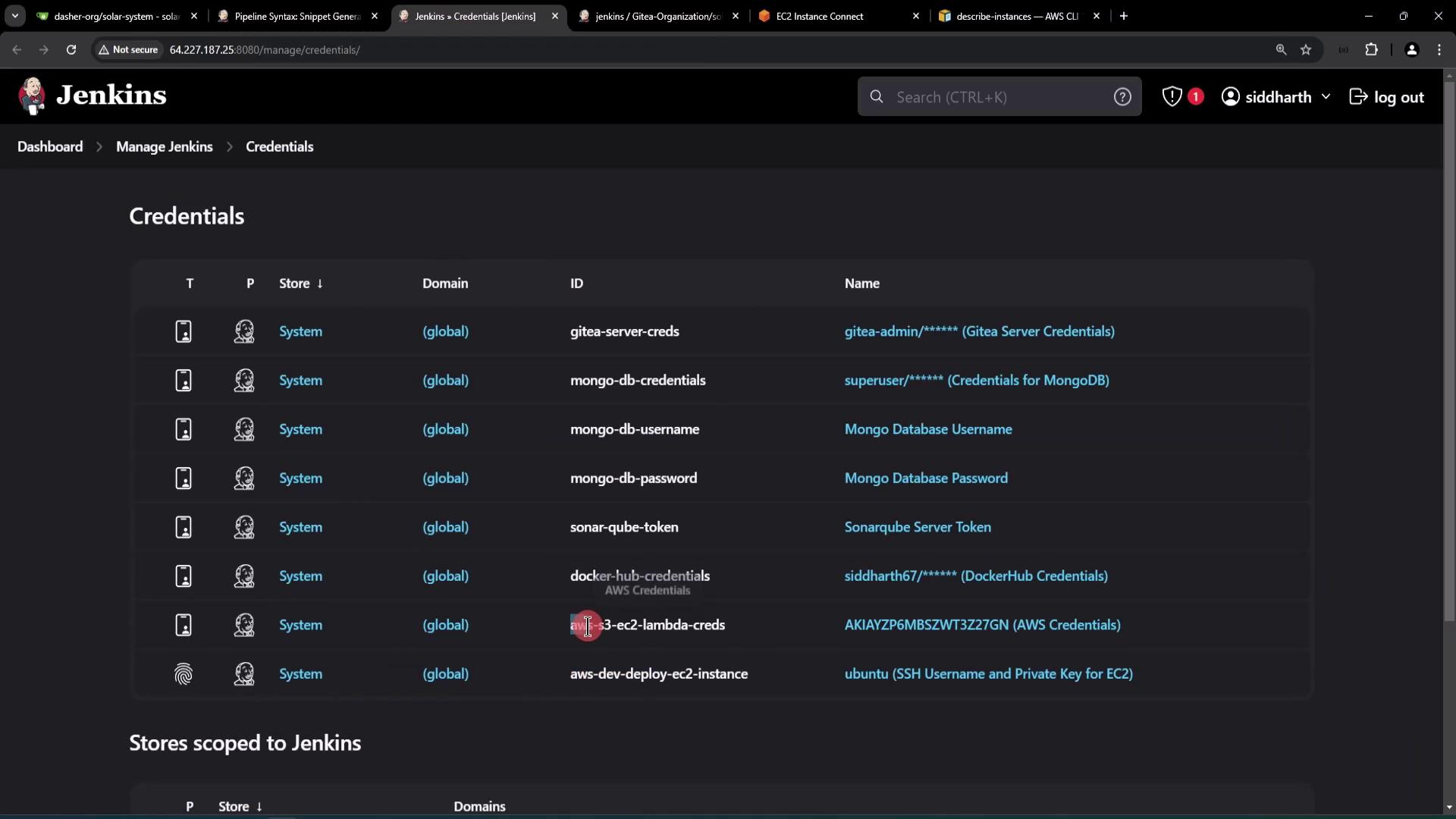
The AWS CLI requires a valid AWS Access Key, Secret Key, and defined region. Credentials can be managed on the Jenkins Dashboard. Additionally:- In Jenkins, view stored credentials for services (e.g., MongoDB, Gitea, DockerHub).
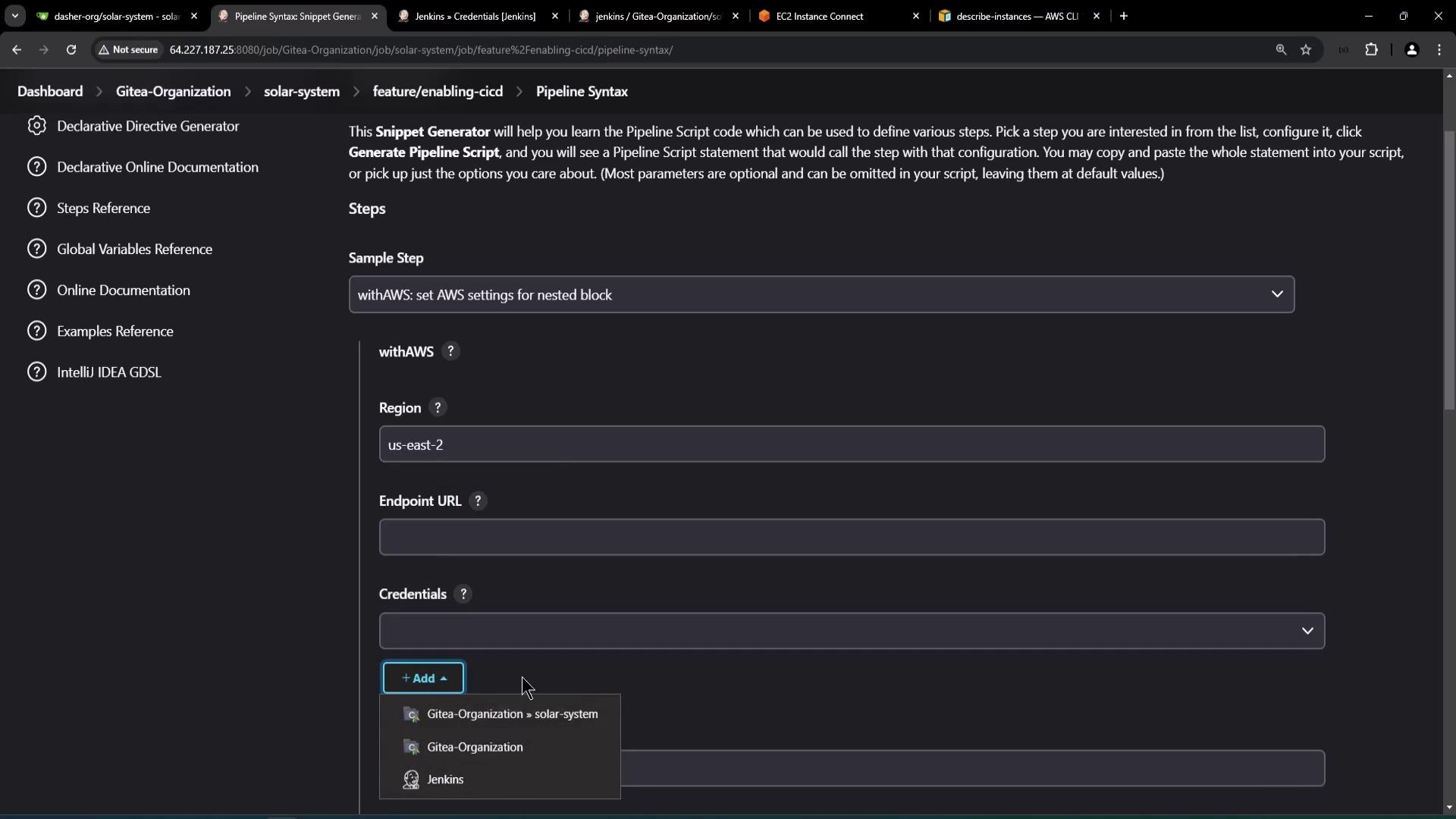
- Use a snippet generator for configuring AWS Pipeline Settings, specifying your region (e.g.,
us-east-2).
Pipeline Execution and Log Verification
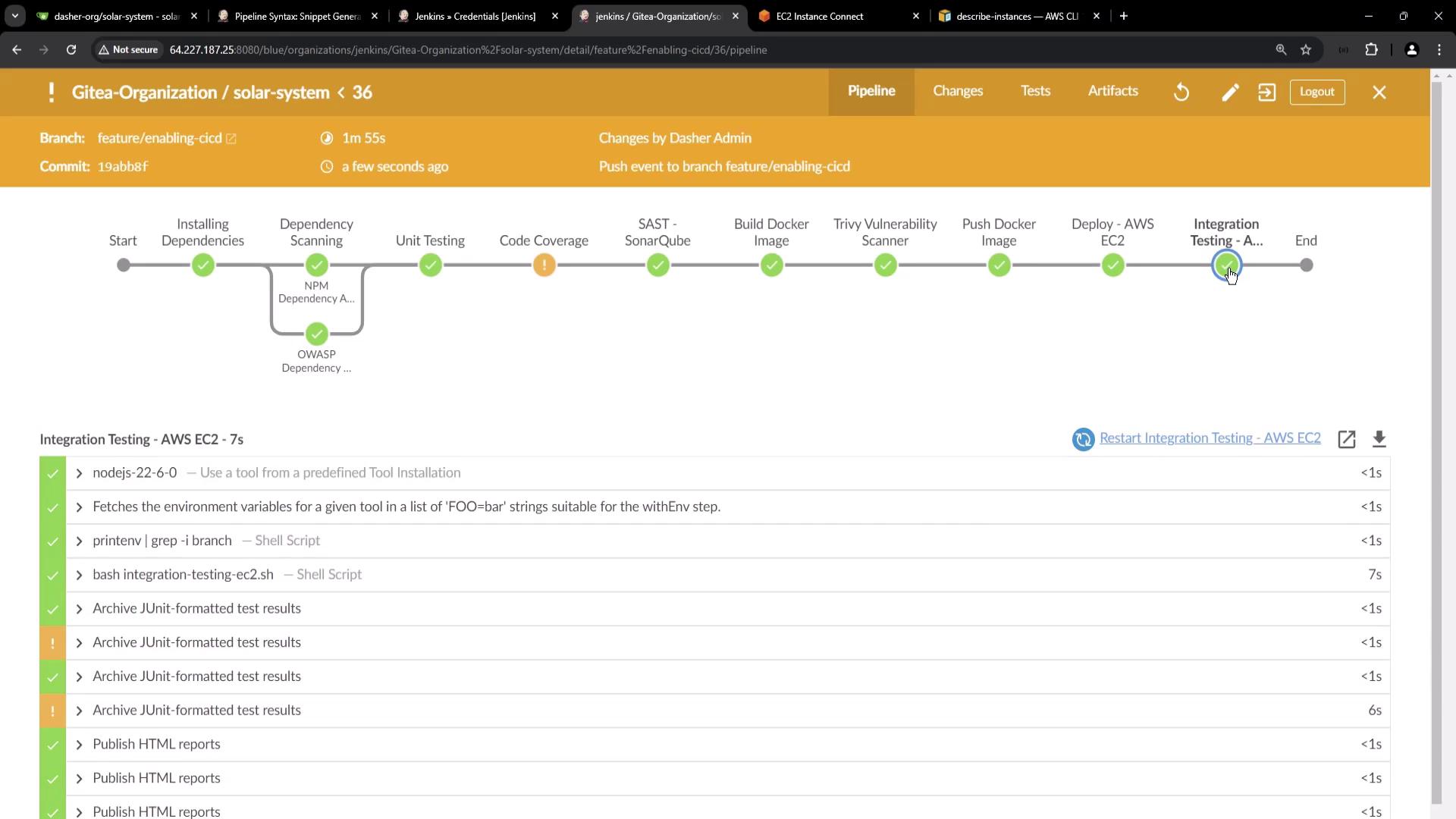
When the Jenkins pipeline runs, it will build the Docker image, deploy it to the AWS EC2 instance, and execute the integration tests. The console logs might contain output similar to:- The integration test retrieves instance details dynamically.
- The
/liveendpoint returns a200HTTP status code. - The
/planetPOST request returns data with"name": "Earth". - The tests pass, verifying a successful integration process.
Documentation and References
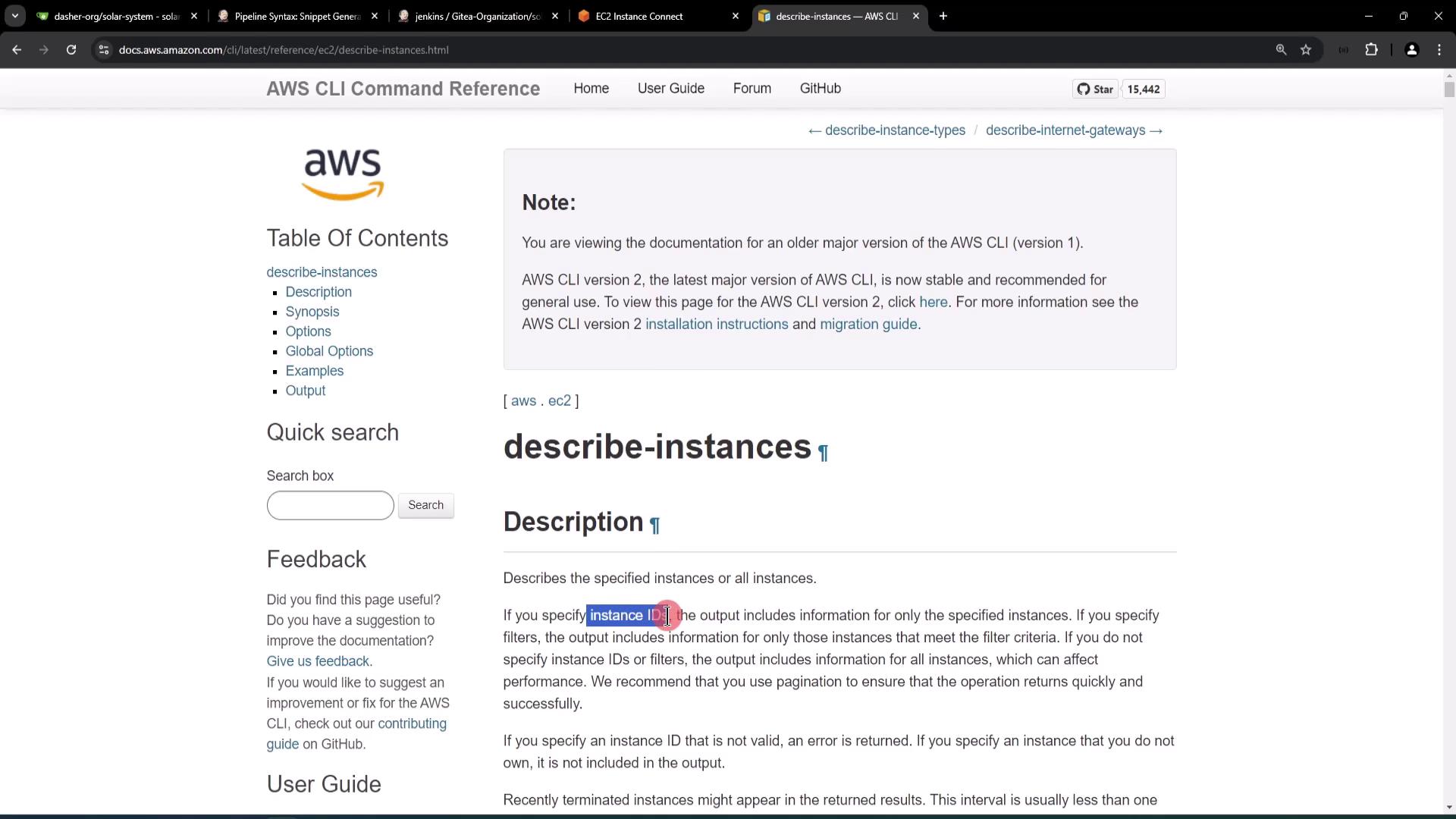
For further details on the AWS CLIdescribe-instances command, refer to the official AWS CLI Command Reference documentation.
Visual References