This article provides an overview of Node.js, its environment, and a sample project to help developers understand its basics and application setup.
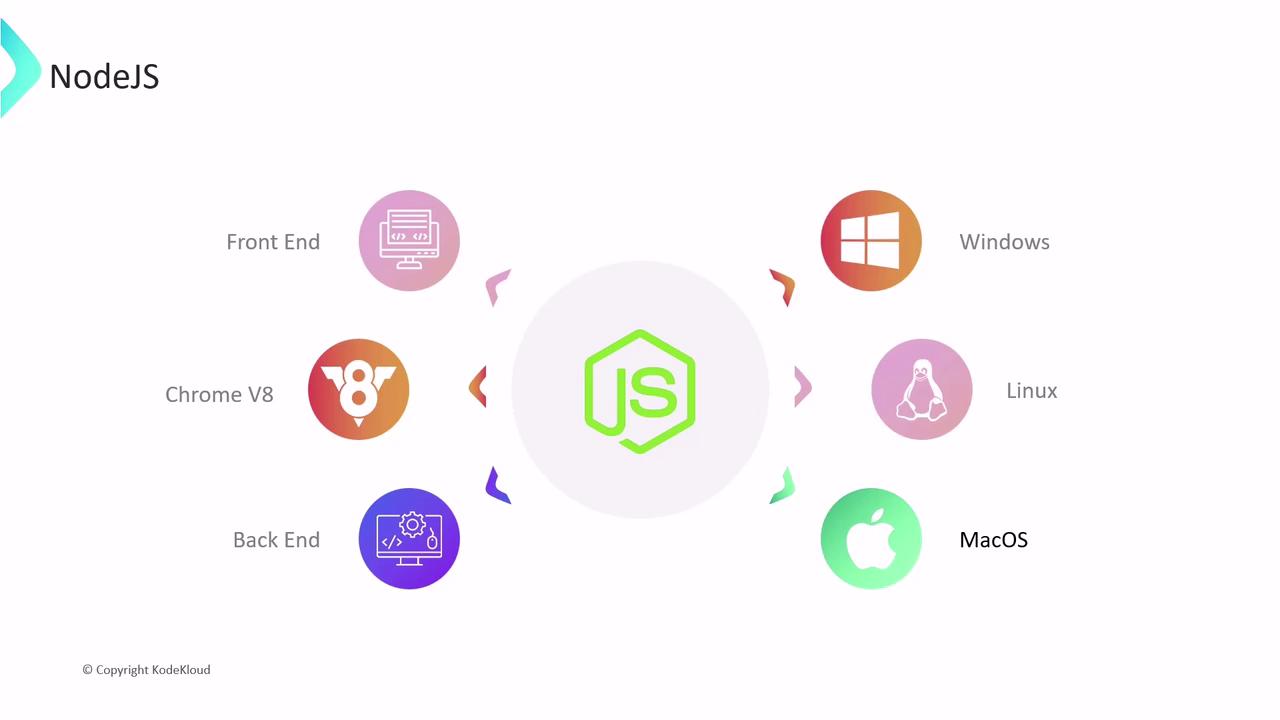
In this article, we provide an overview of Node.js and demonstrate a sample Node.js project. This guide is ideal for developers seeking to understand the basics of Node.js, its environment, and how to run tests and start an application.Node.js is an open-source runtime environment that allows you to execute JavaScript code outside of web browsers. Leveraging the Chrome V8 JavaScript engine, Node.js enables both front-end and back-end development using familiar JavaScript, while ensuring high performance and scalability. It is also compatible with all major platforms including Windows, macOS, and various Linux distributions.
Installing Node.js automatically bundles NPM (Node Package Manager). NPM facilitates the discovery, sharing, distribution, and management of libraries, packages, and dependencies in JavaScript and Node.js applications.
In our sample project, we illustrate a minimal “Hello World” Node.js application. Key components of the project include:
package.json: Contains metadata such as the project name, version, dependencies, and scripts. Running the npm install command reads this file, installing the required external packages into the node_modules directory.
index.js: This file holds the main business logic of your application.
test.js: Contains test cases, which are executed using the npm test command.
Once dependencies are installed and tests pass, you can launch your application with the npm start command. When the application is running, navigate to the appropriate port (typically 3000) in your web browser to access it.
For enhanced security and stability, always ensure that your Node.js and NPM versions are up to date.
Below is an example of verifying your Node.js and NPM versions, installing dependencies, running tests, and starting your Node.js application:
$ node -vv18.16.0$ npm -v9.8.1$ npm installadded 58 packages, and audited 59 packages in 5s$ npm testTesting is successful$ npm startApp listening on port 3000
Access your application by navigating to the specified port number in your web browser. This streamlined process and well-structured project setup serve as a practical introduction to working with Node.js for both new and experienced developers.For further reading, consider exploring additional resources: