

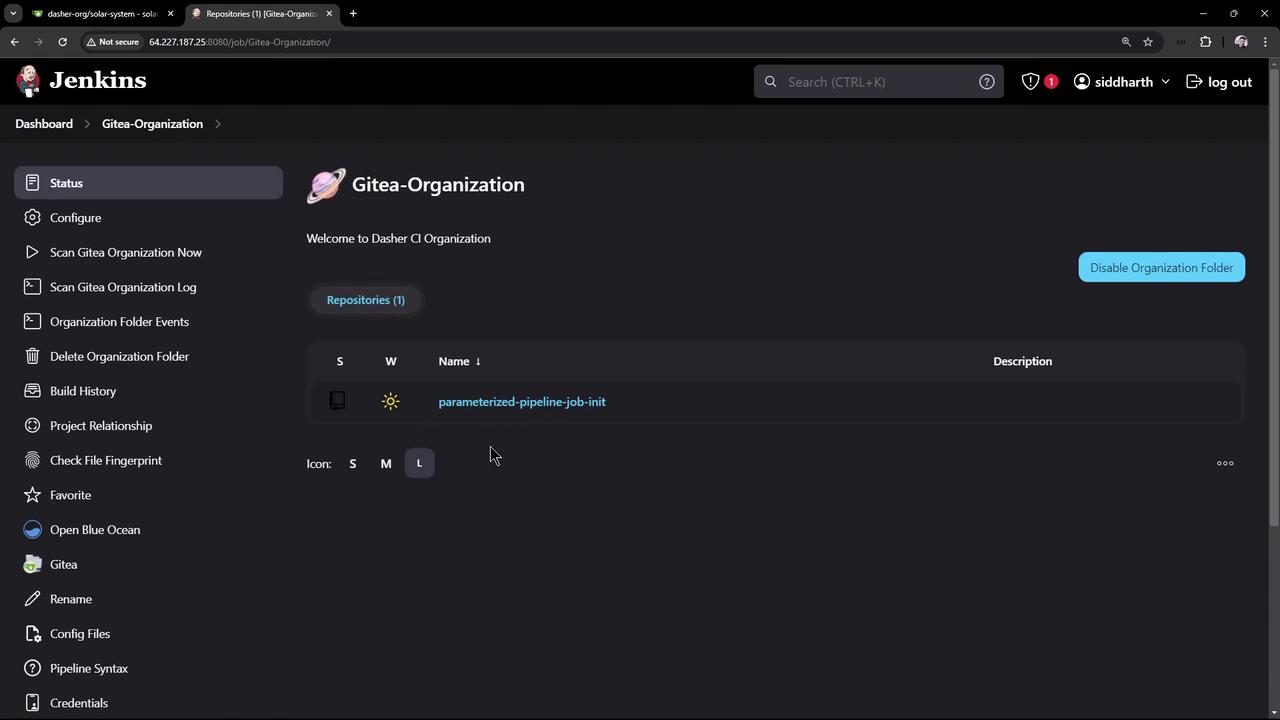
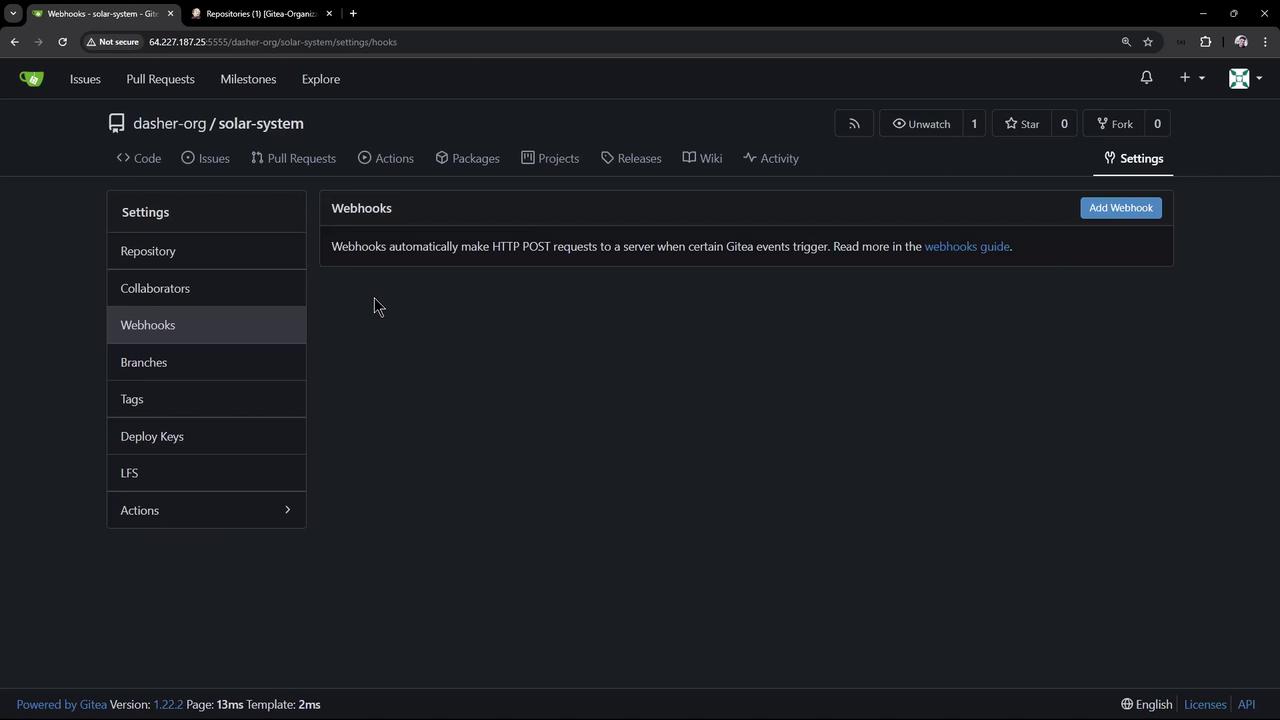
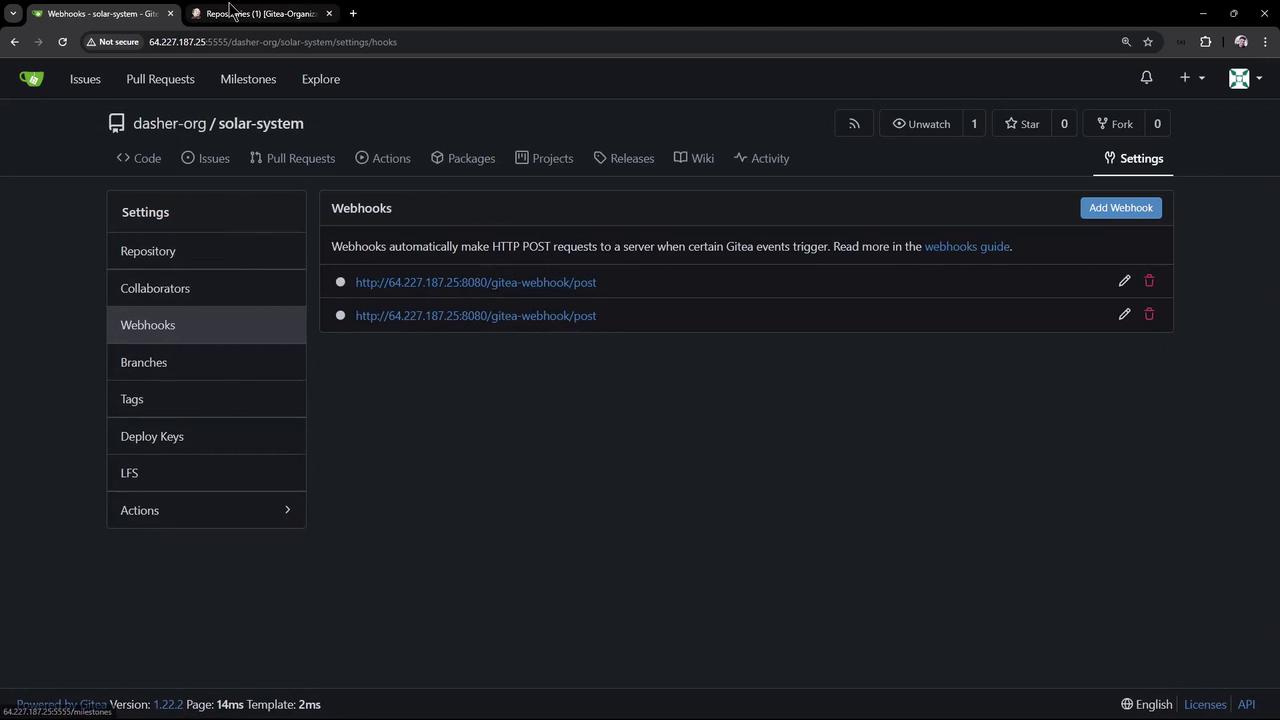
Adding a Jenkinsfile to the repository allows Jenkins to automatically detect and trigger builds using webhooks. This setup ensures that every branch with a Jenkinsfile receives its own pipeline job.
Enabling CI/CD with a Jenkinsfile
Follow these steps to add a Jenkinsfile to the Solar System repository and enable its CI/CD pipeline:1. Clone the Repository
Clone the Solar System repository to your virtual machine:2. Create a Feature Branch
Create a new feature branch to add the Jenkinsfile and various pipeline stages:3. Create and Configure the Jenkinsfile
In your project explorer, create a file namedJenkinsfile and add the following pipeline definition. This simple pipeline prints the Node.js and npm versions using a shell step:
4. Verify in the Jenkins UI
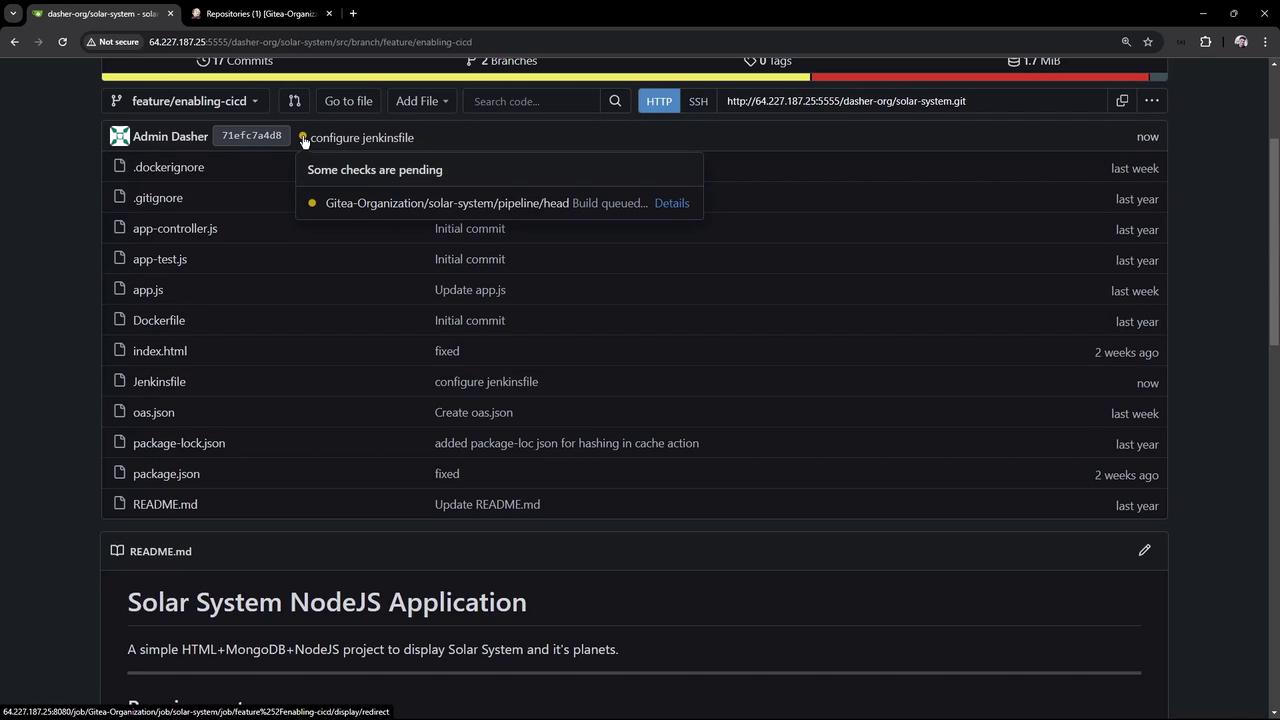
Open the Jenkins UI and navigate to the Solar System repository. Verify that thefeature/enabling-cicd branch is recognized and the Jenkinsfile is detected. You will be able to see the branch details and pipeline execution history.
5. Review the Organization Scan Log
The Jenkins organization folder project scans repositories and branches. For example, during the scan, Jenkins evaluates whether a branch contains a Jenkinsfile:6. Pipeline Execution
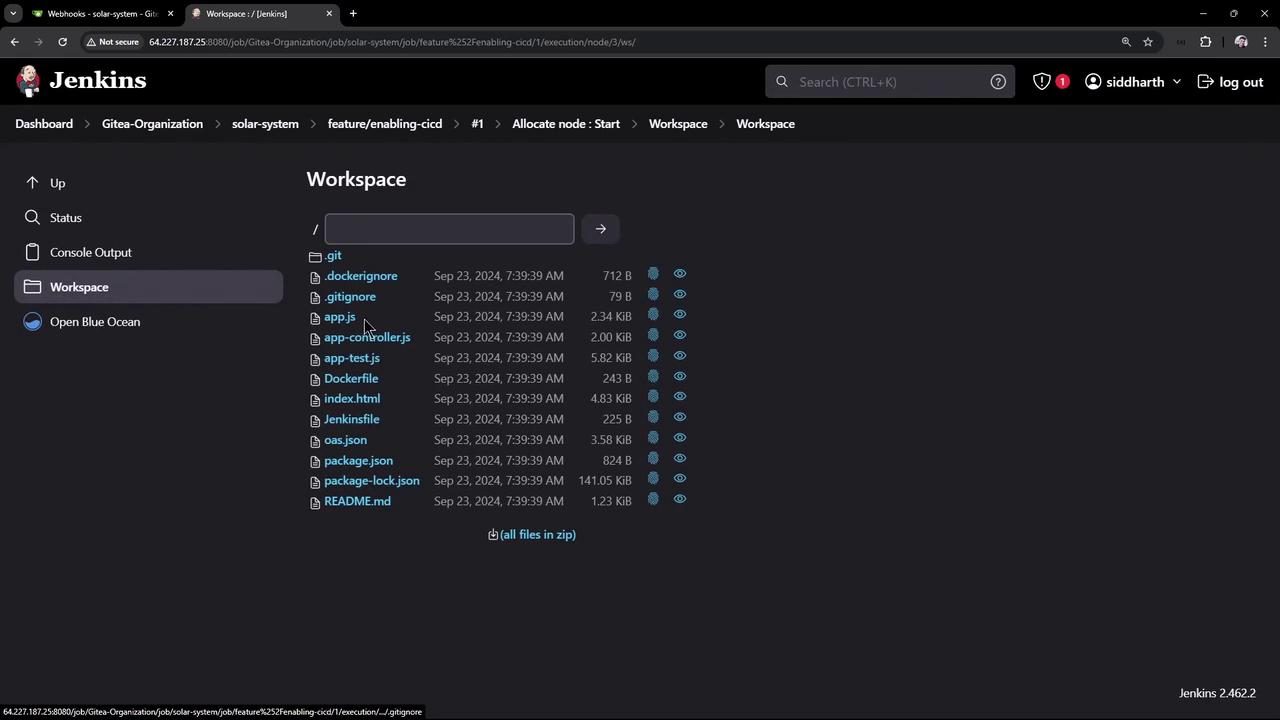
After the Jenkinsfile is detected, Jenkins creates a job for the Solar System repository on thefeature/enabling-cicd branch. The pipeline checks out the source code from SCM and executes the defined stage:

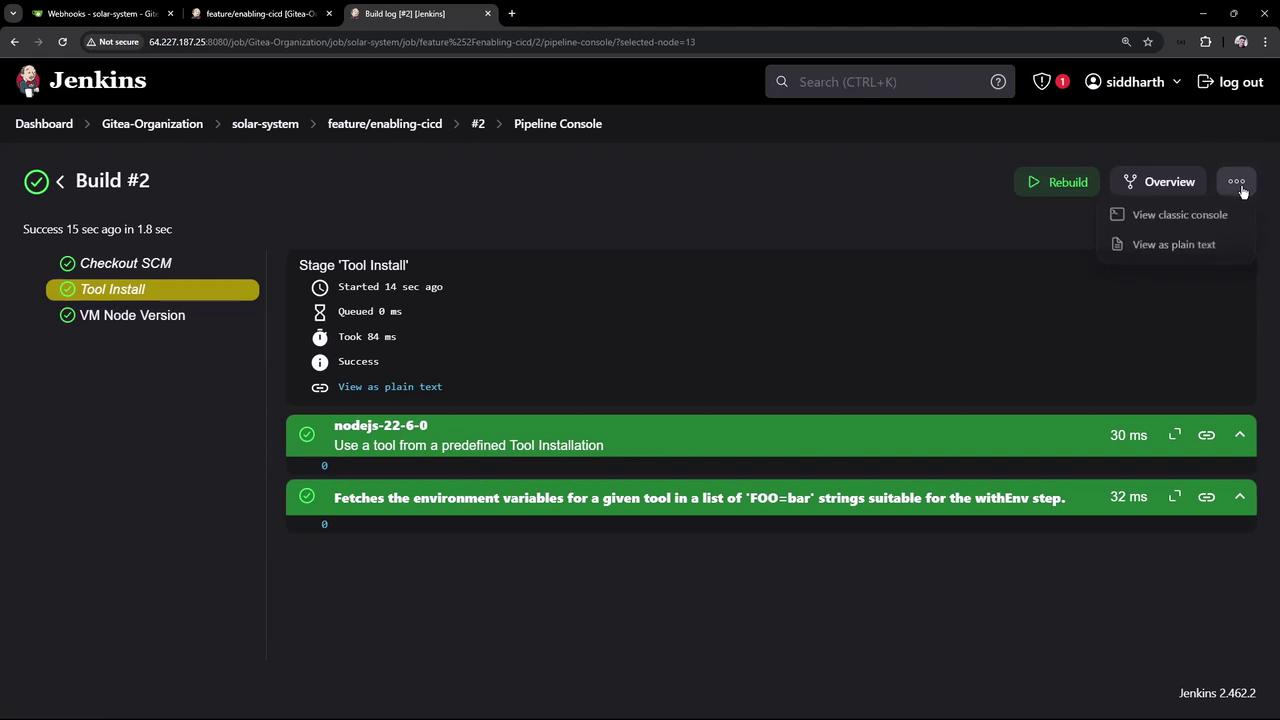
7. Using a Configured Node.js Installation
To utilize a specific Node.js installation configured in Jenkins, update the Jenkinsfile with the tool configuration. Replace the existing pipeline definition with the updated version below: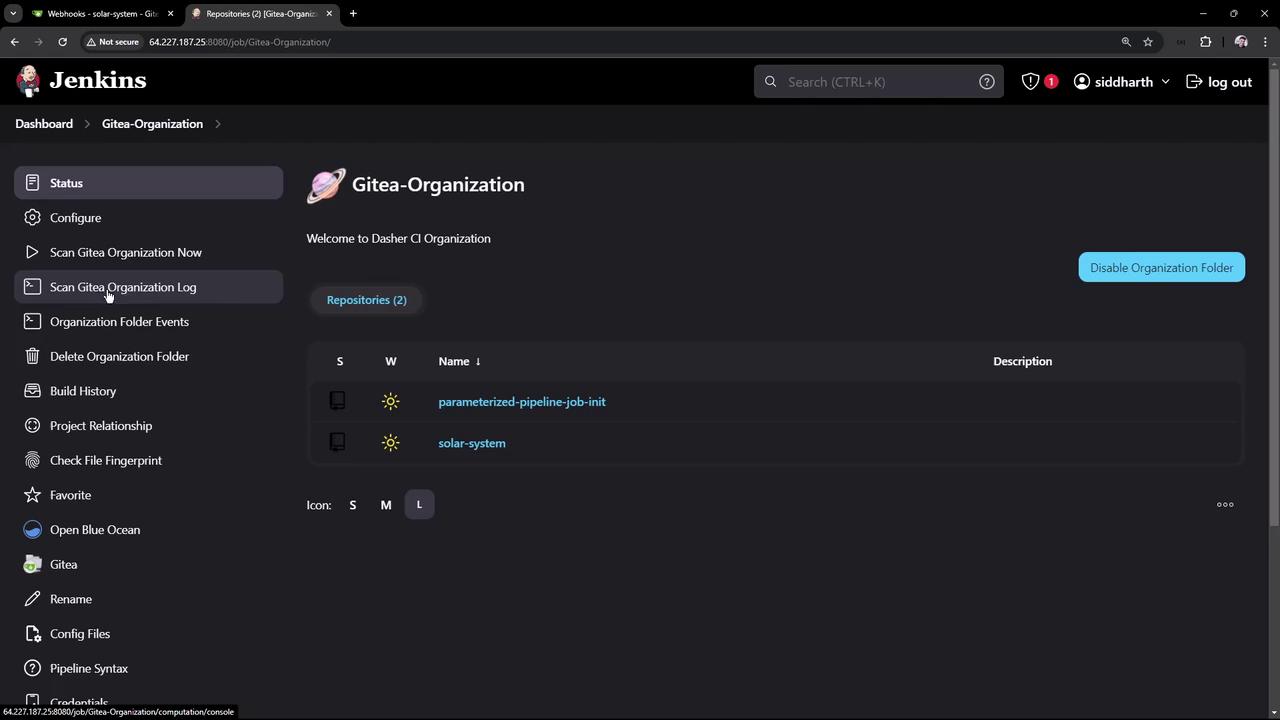
Next Steps
In the next session, we will enhance the pipeline further by installing the necessary dependencies and expanding the configuration beyond this basic setup. This foundational lesson illustrates how Jenkins automatically discovers and configures pipelines for branches with a Jenkinsfile, streamlining your CI/CD process. Thank you for following along.- For more details on Jenkins pipelines, visit the Jenkins Documentation.
- Learn more about how webhooks and organization folder projects work in Jenkins by exploring related guides.