This article explains how to configure a Jenkins pipeline for unit testing and analyzing JUnit reports.
In this guide, we explain how to configure a new stage in your Jenkins pipeline to run unit tests and analyze JUnit reports. You will update your Jenkinsfile, address environment variable issues, and secure sensitive credentials.
Begin by opening your Jenkinsfile. Copy the existing “Installing Dependencies” stage and rename it to “Unit Testing.” Initially, your file might include a stage that installs dependencies using an npm command. For instance:
Next, update the stage to run the unit tests using the command npm test. Your updated stage should look like this:
stage('Unit Testing') { steps { sh 'npm test' }}
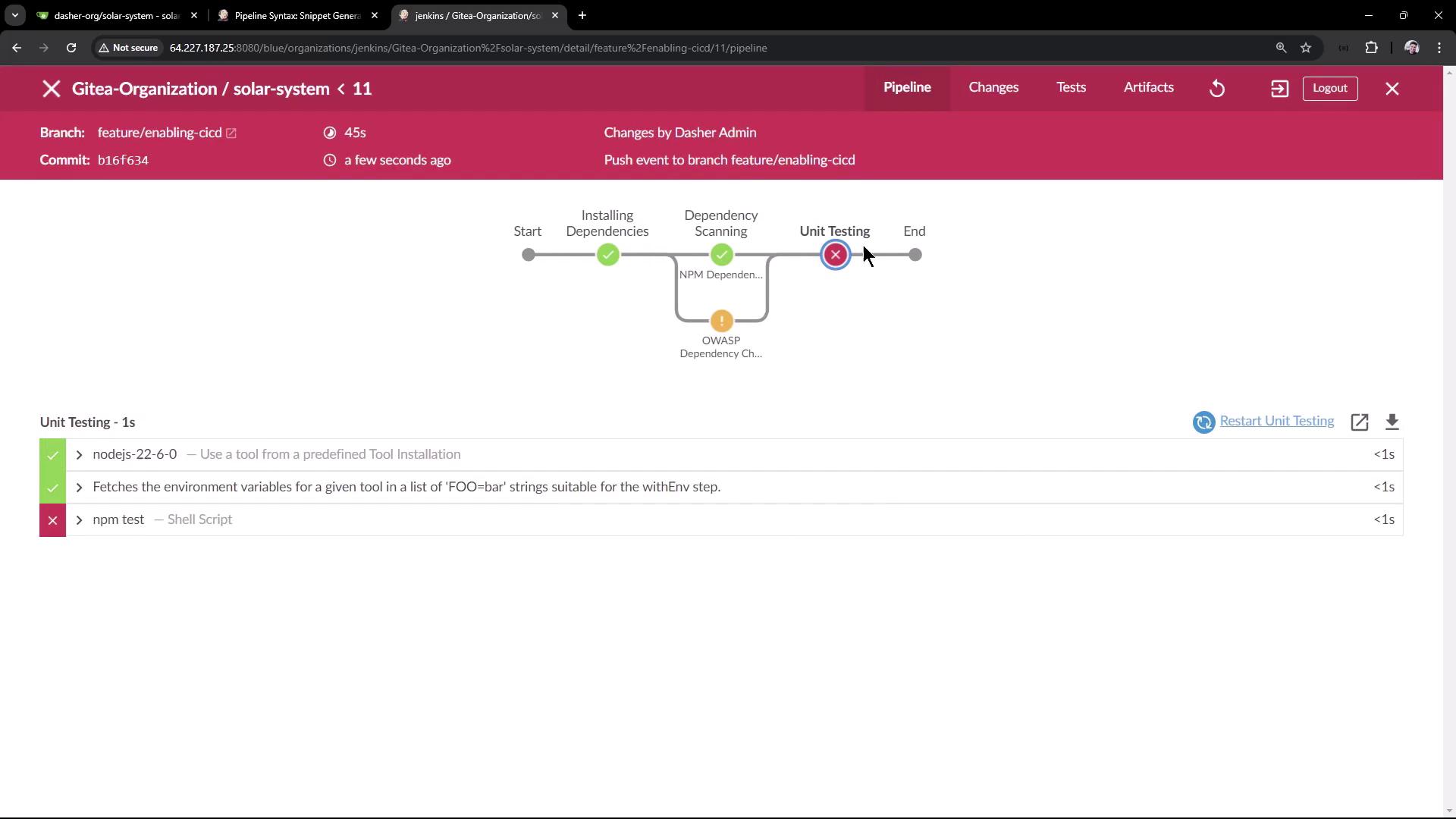
Save and commit the changes. When you trigger the pipeline build, the process will include the new unit testing stage. If the unit testing step fails, consult the logs for details.
If the job fails, you might encounter an error similar to the example shown below:
The logs might indicate that MongoDB connectivity failed due to undefined environment variables (e.g., MONGO_URI, MONGO_USERNAME, and MONGO_PASSWORD). For example, a portion of your app.js might include:
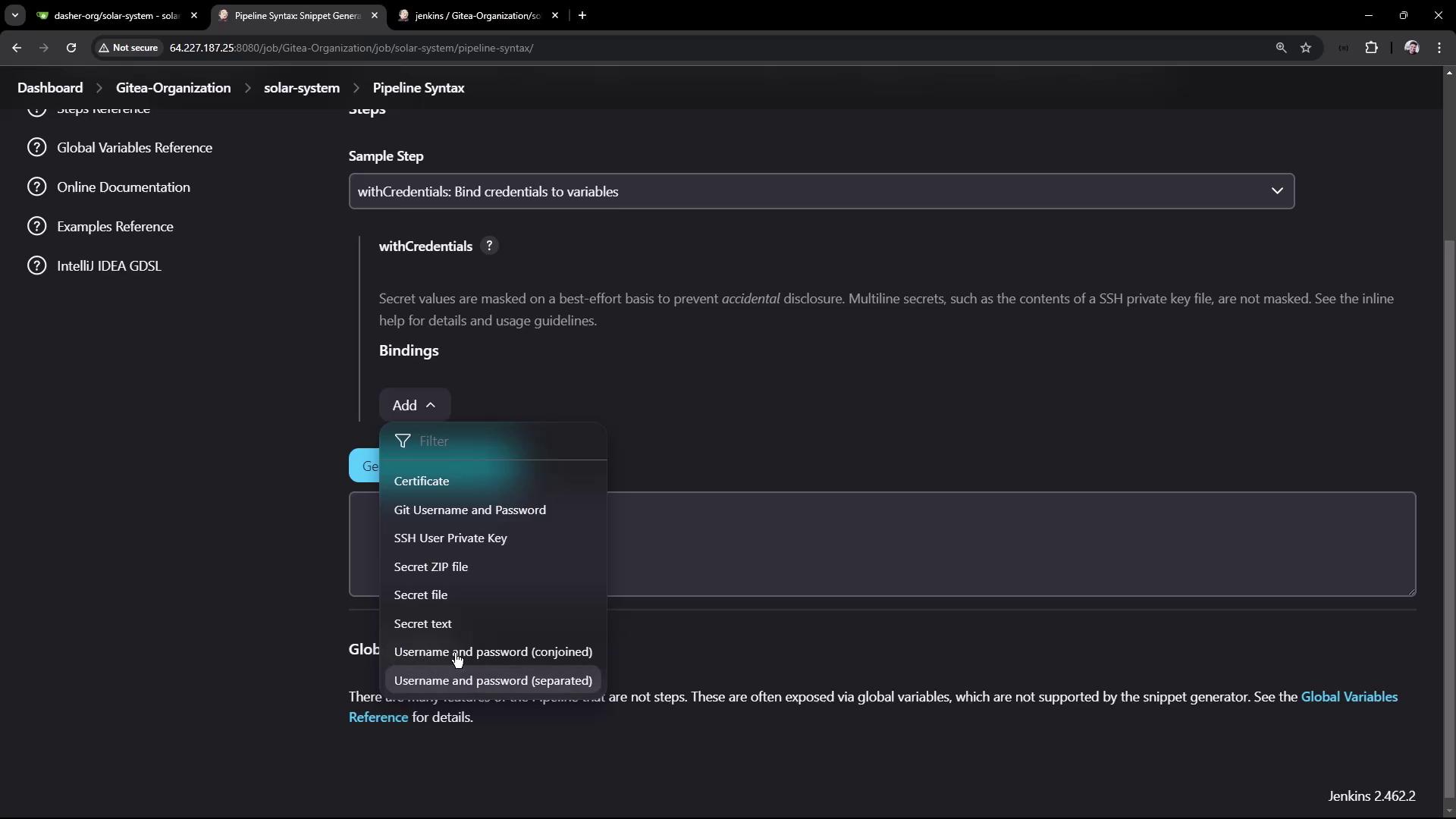
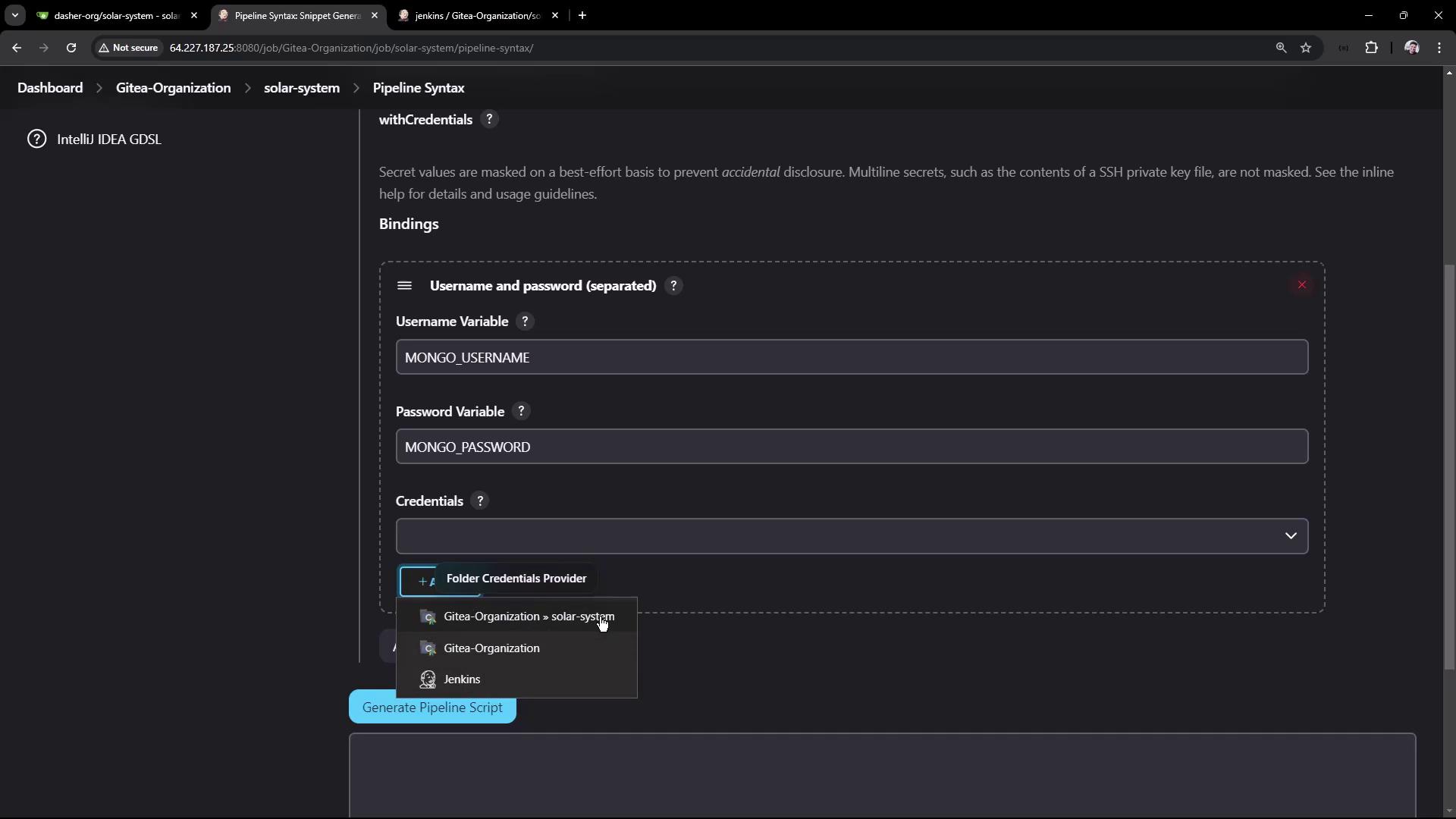
Be aware that storing sensitive data (like usernames, passwords, or API tokens) in plain text is not secure. For credentials such as MongoDB’s username and password, use Jenkins credentials stored at the global level, and reference them with the withCredentials step. For instance:
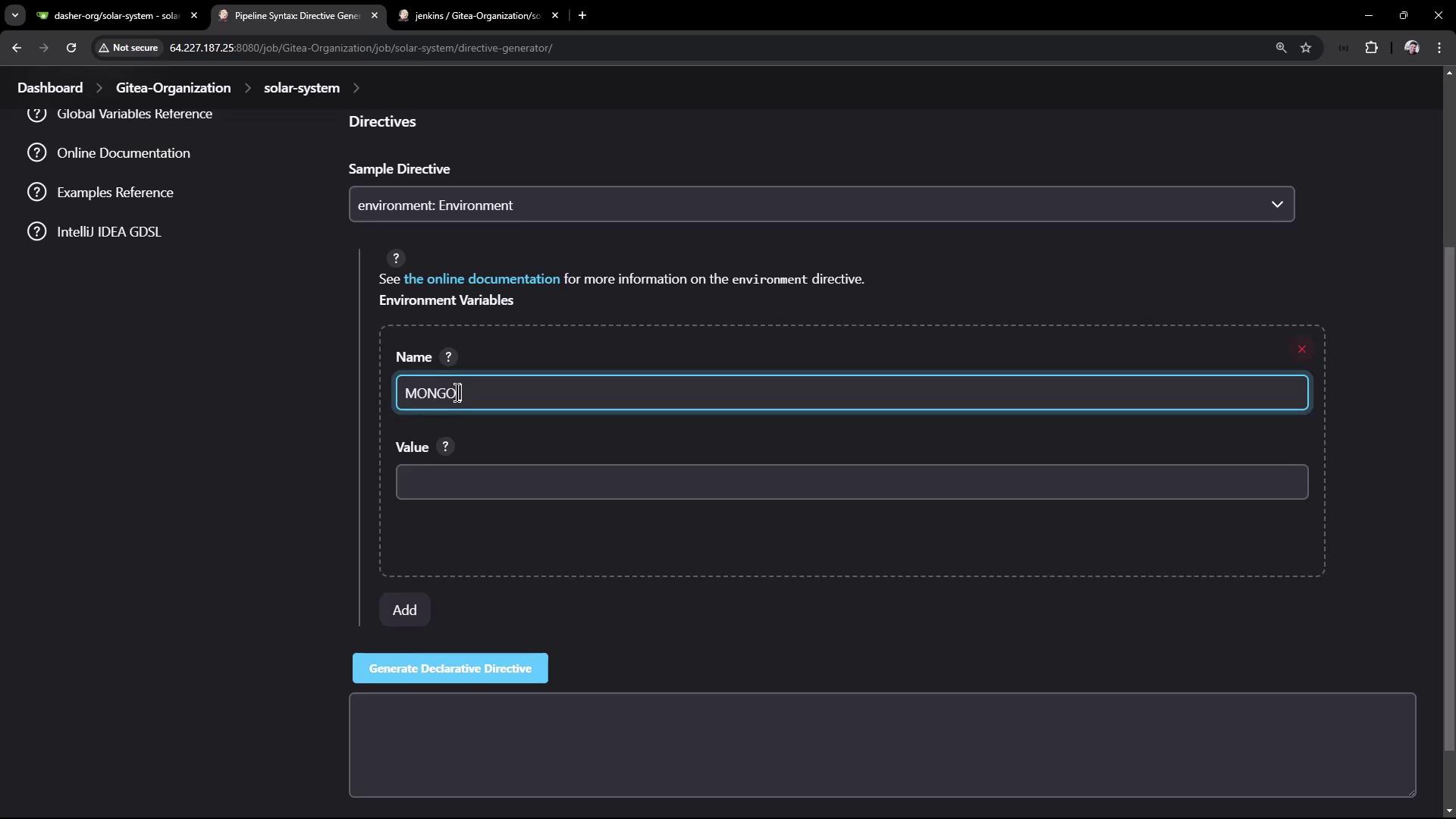
The Jenkins UI allows you to set environment variables and manage credentials. Consider the screenshot below, which illustrates configuring an environment variable for MongoDB:
After configuring the environment variable and credentials, update your Jenkinsfile’s unit testing stage as follows:
In the credentials setup, you might see options for certificates, Git username/password, SSH keys, and more. The screenshot below demonstrates that:
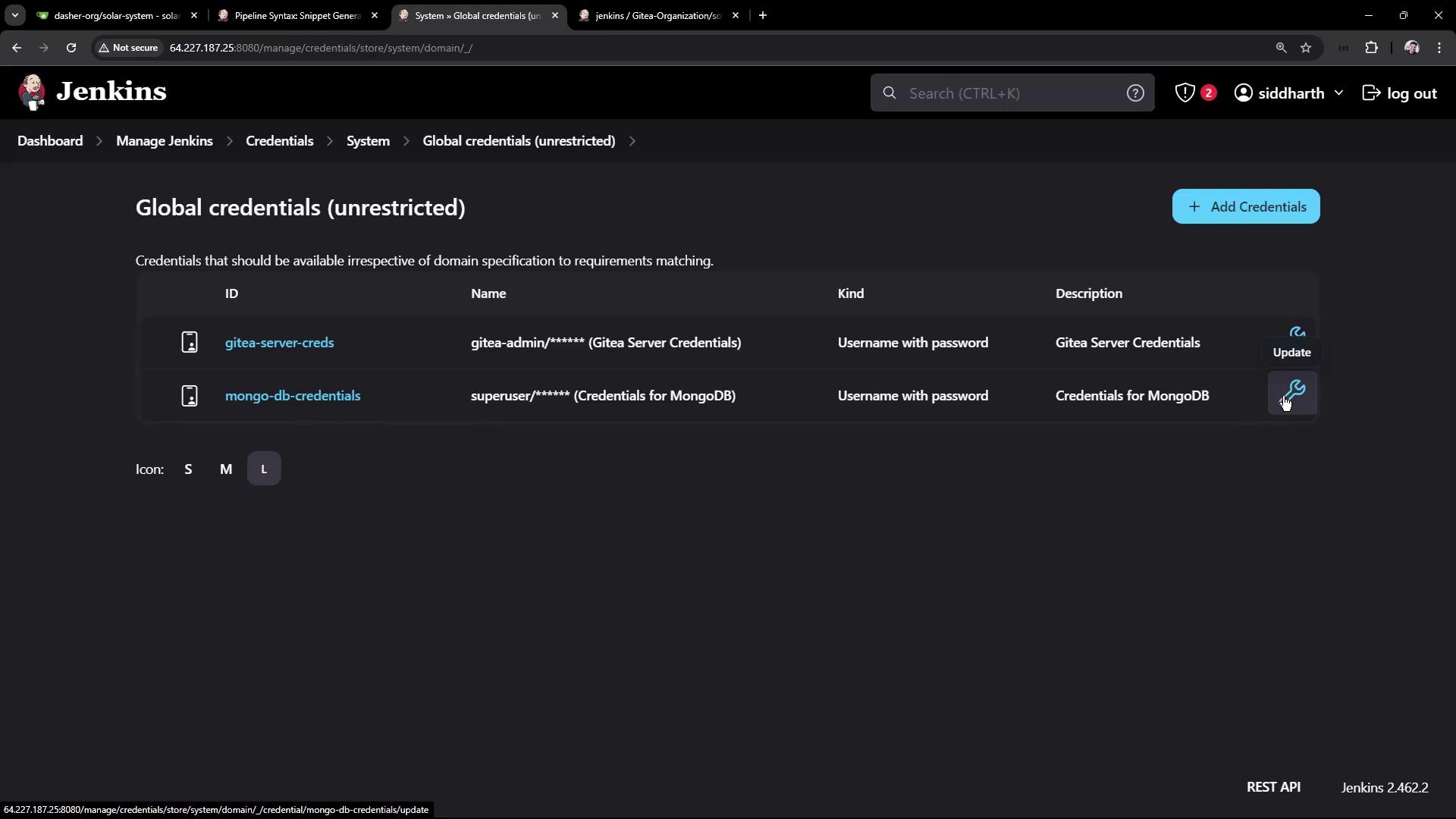
When adding MongoDB credentials, you might configure a username (e.g., “superuser”) and a password (“superpassword”) with a unique ID such as mongo-db-credentials:
Manage these credentials through Jenkins’s Global Credentials page:
After executing the npm test command successfully, your tests generate a JUnit XML report (e.g., test-results.xml). Archive these results by adding a junit step after your tests. A complete Jenkinsfile configuration incorporating environment variables, credentials, and JUnit archiving might appear as follows:
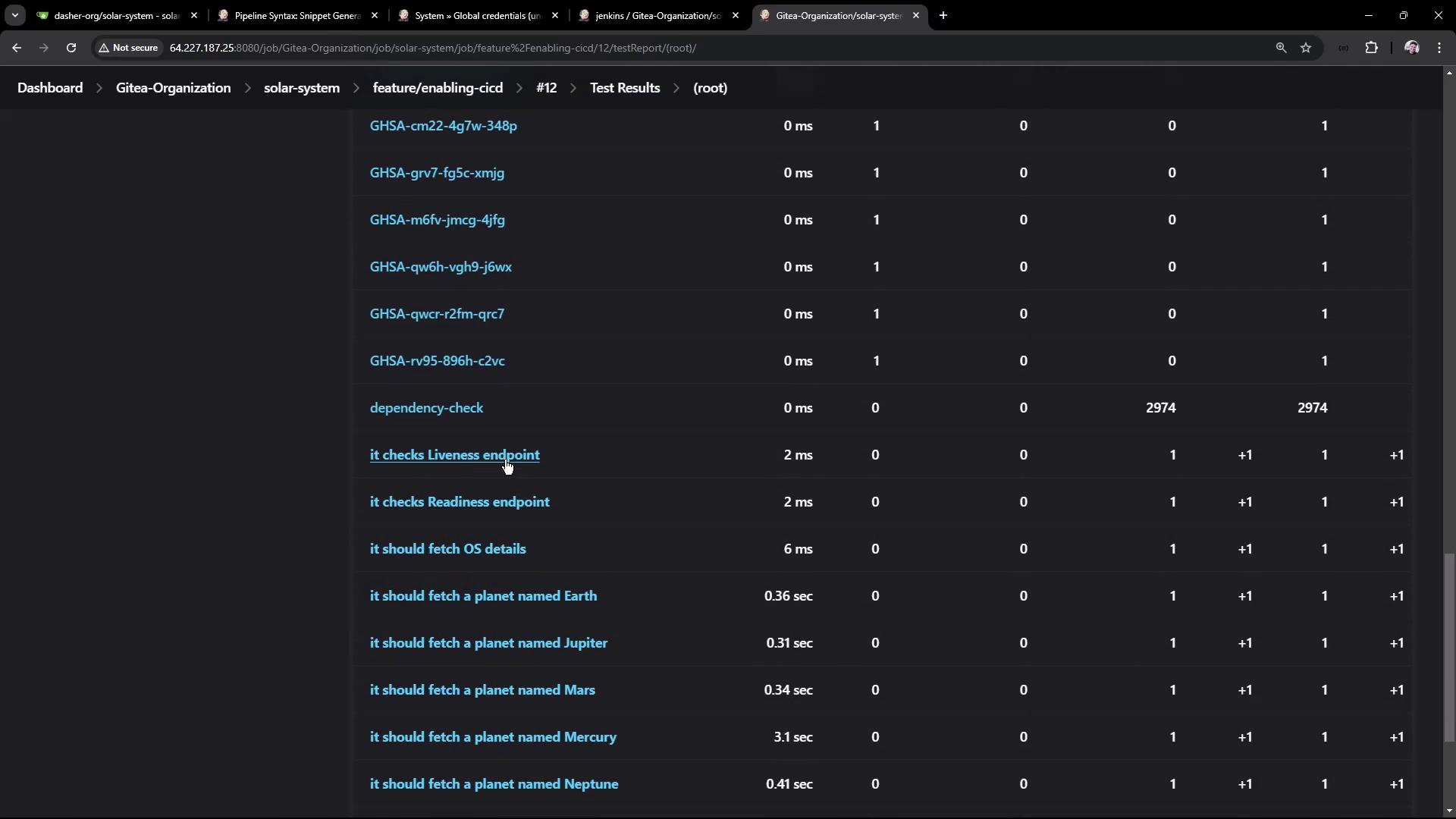
After committing these changes and triggering your pipeline, Jenkins will run the tests and archive the test report. You can inspect the test results directly through the Jenkins interface. If you are dealing with a substantial number of tests, consider using the classic UI for detailed results, including endpoint checks such as liveness and readiness tests.For example, the screenshot below displays a test report interface with endpoint check results:
After committing these improvements to your Jenkinsfile and running the pipeline, your logs should indicate successful MongoDB connections, test executions, and archived test reports. This setup provides an efficient way to review both current and historical test data.
Ensure that your credentials are managed securely by periodically reviewing and updating them in Jenkins Global Credentials.