

Step 1: Install the Slack Notification Plugin
Begin by installing the Slack Notification plugin on your Jenkins instance. This plugin is accessible via the Plugin Manager in Jenkins, helping to integrate Jenkins with Slack by sending build status messages.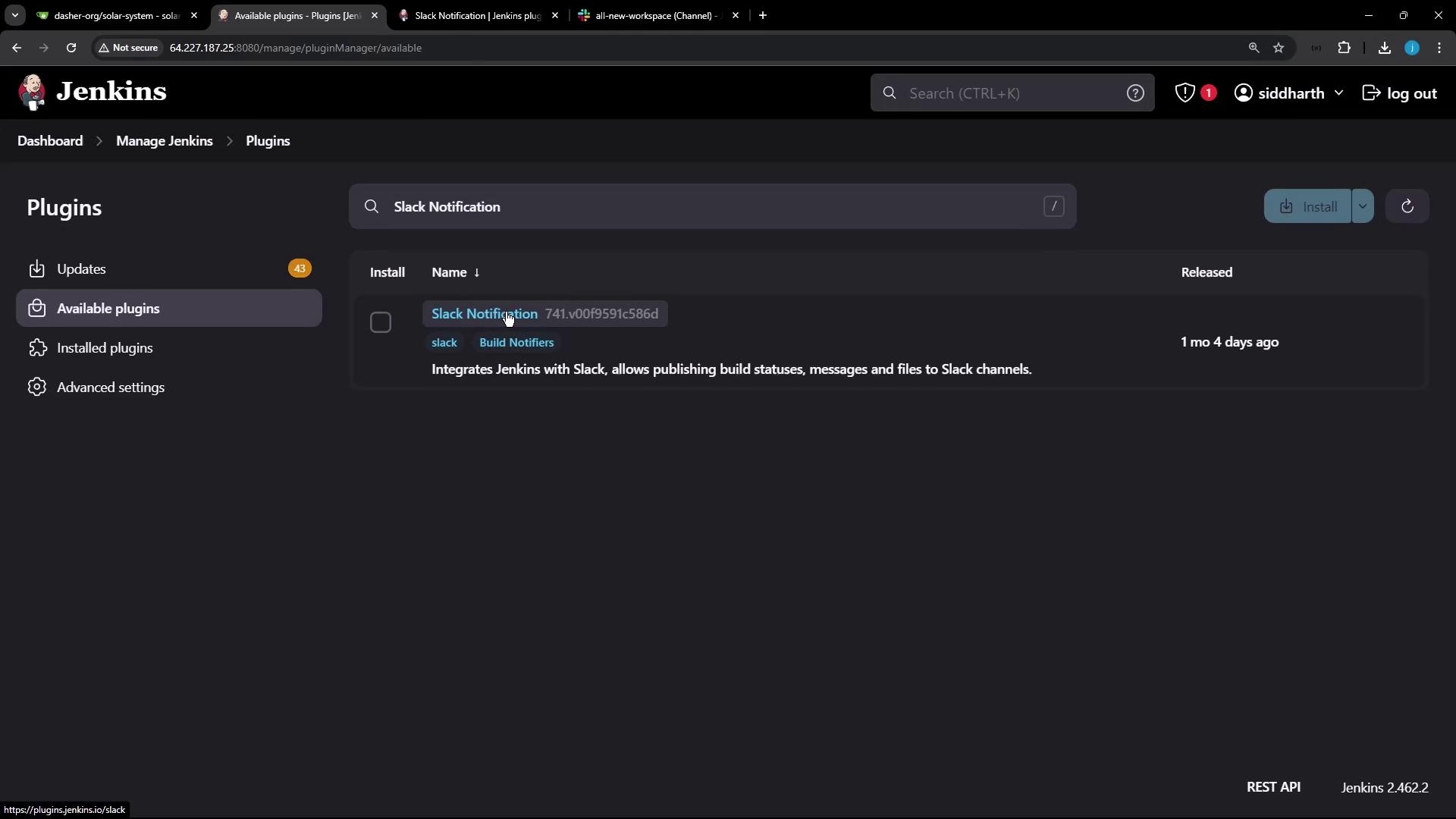
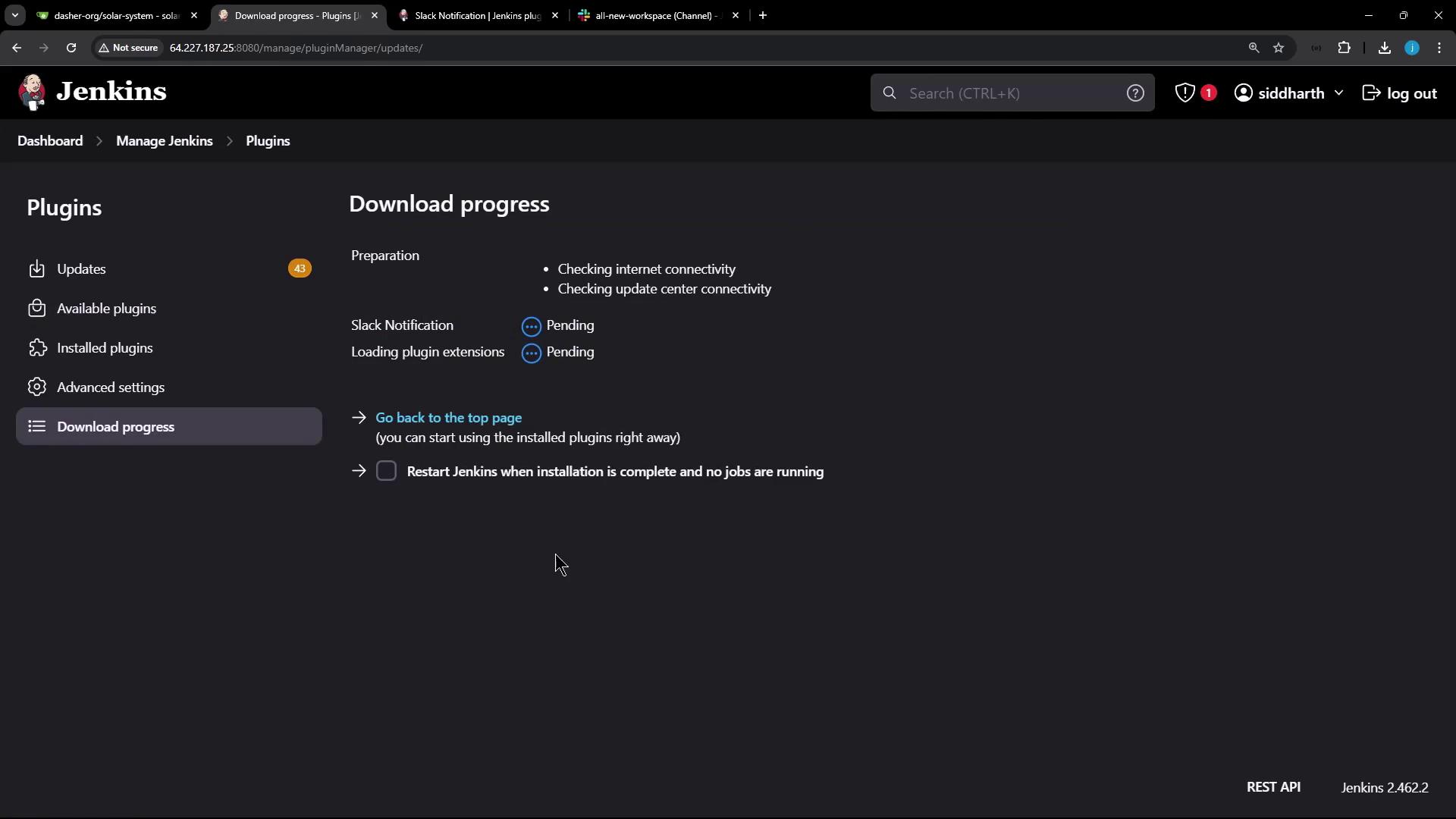
Step 2: Review Slack Notification Plugin Documentation
Before diving into configuration, it is essential to review the Slack Notification plugin documentation. If you are new to Slack, first create an account and set up your workspace. Within this workspace, create a dedicated Slack channel for receiving Jenkins notifications. For instance, you might create a channel named “Dasher notifications.”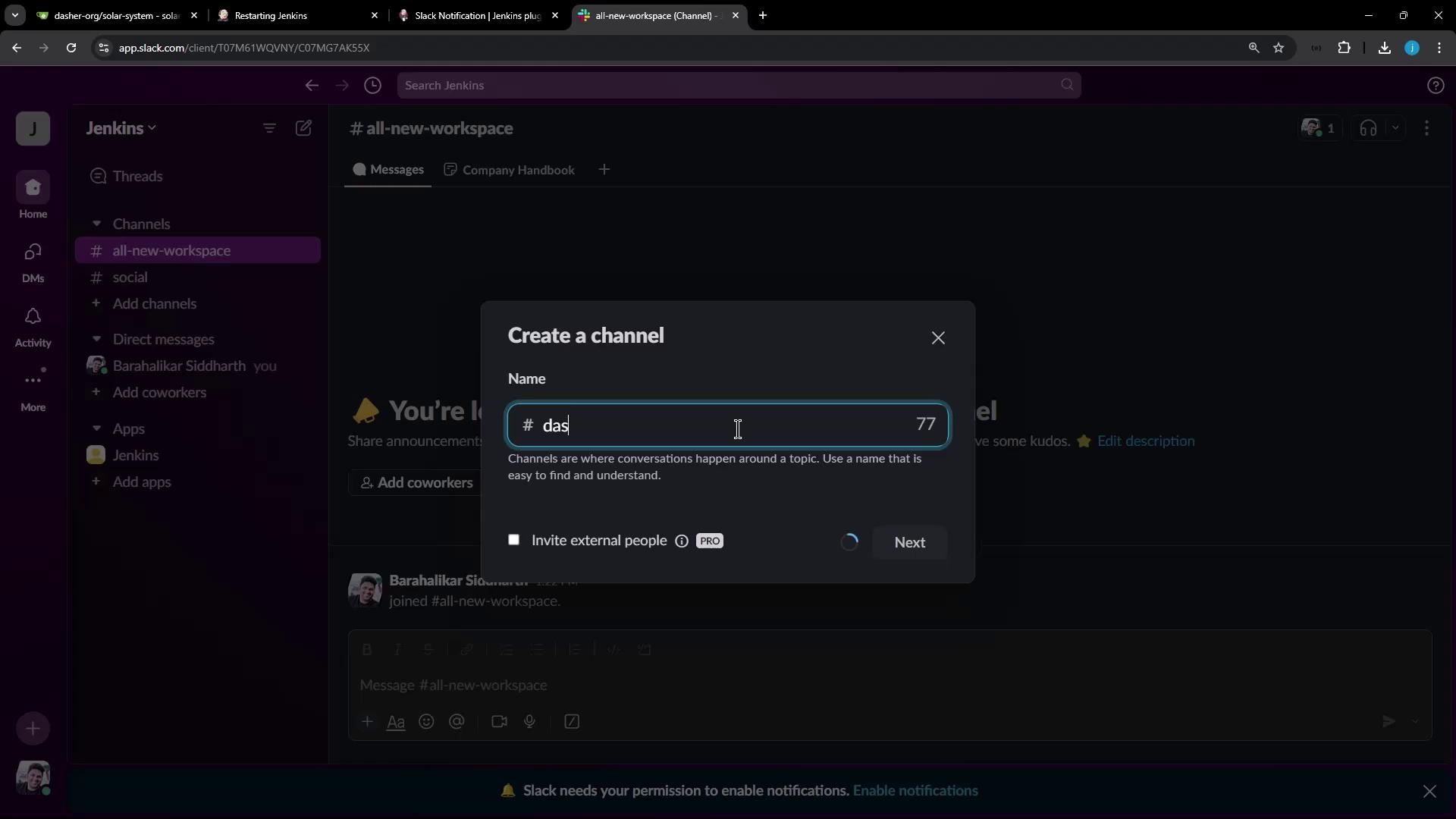
Step 3: Create a Slack App from Manifest
Next, create a new Slack App in your workspace. In Slack’s app configuration, choose to create an app from an app manifest. Select your workspace (for our purposes, the Jenkins workspace), and replace any pre-filled content with the YAML manifest provided below.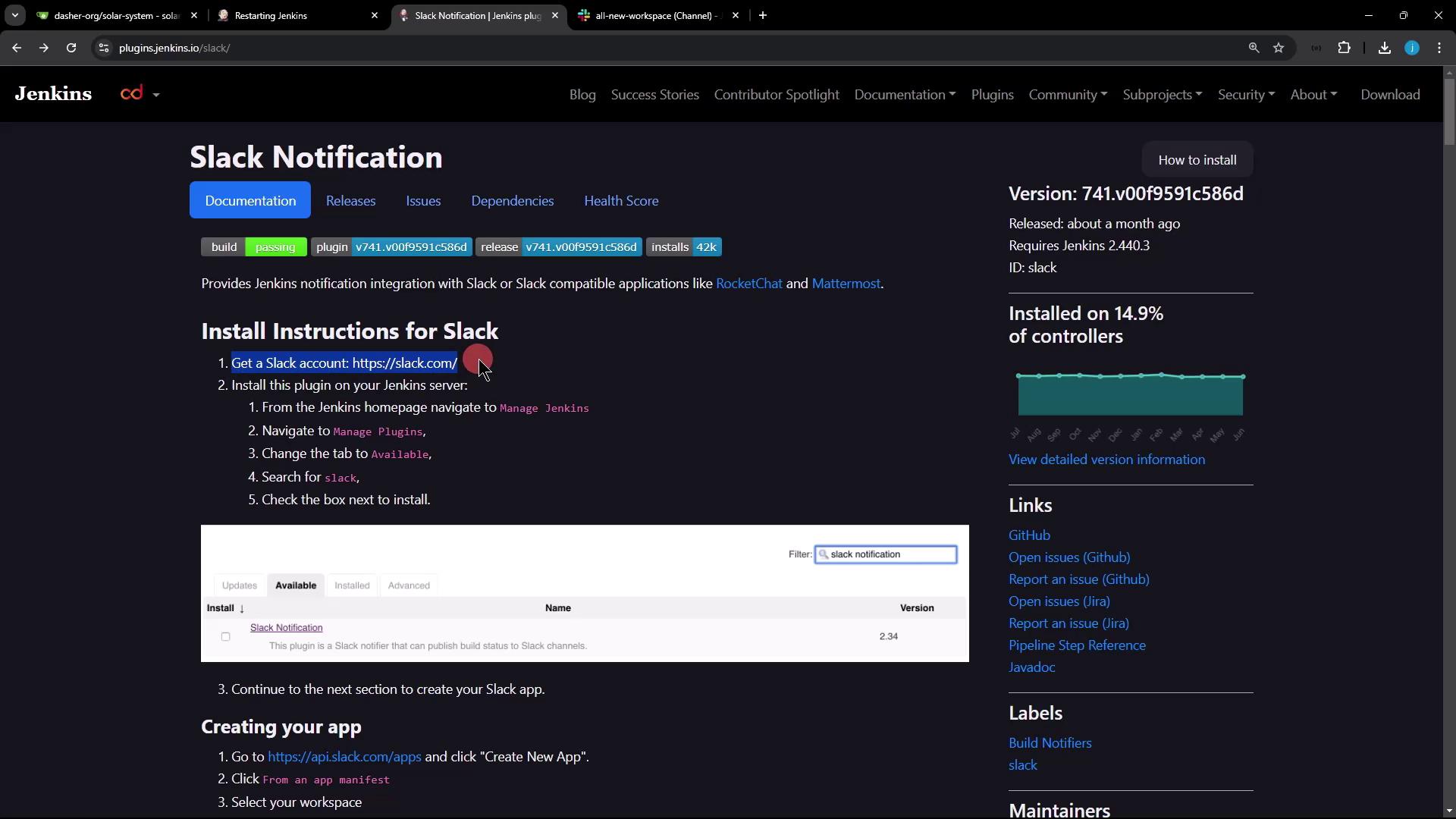
YAML Manifest for Slack App
Use the following YAML manifest, which includes all required bot scopes for full functionality: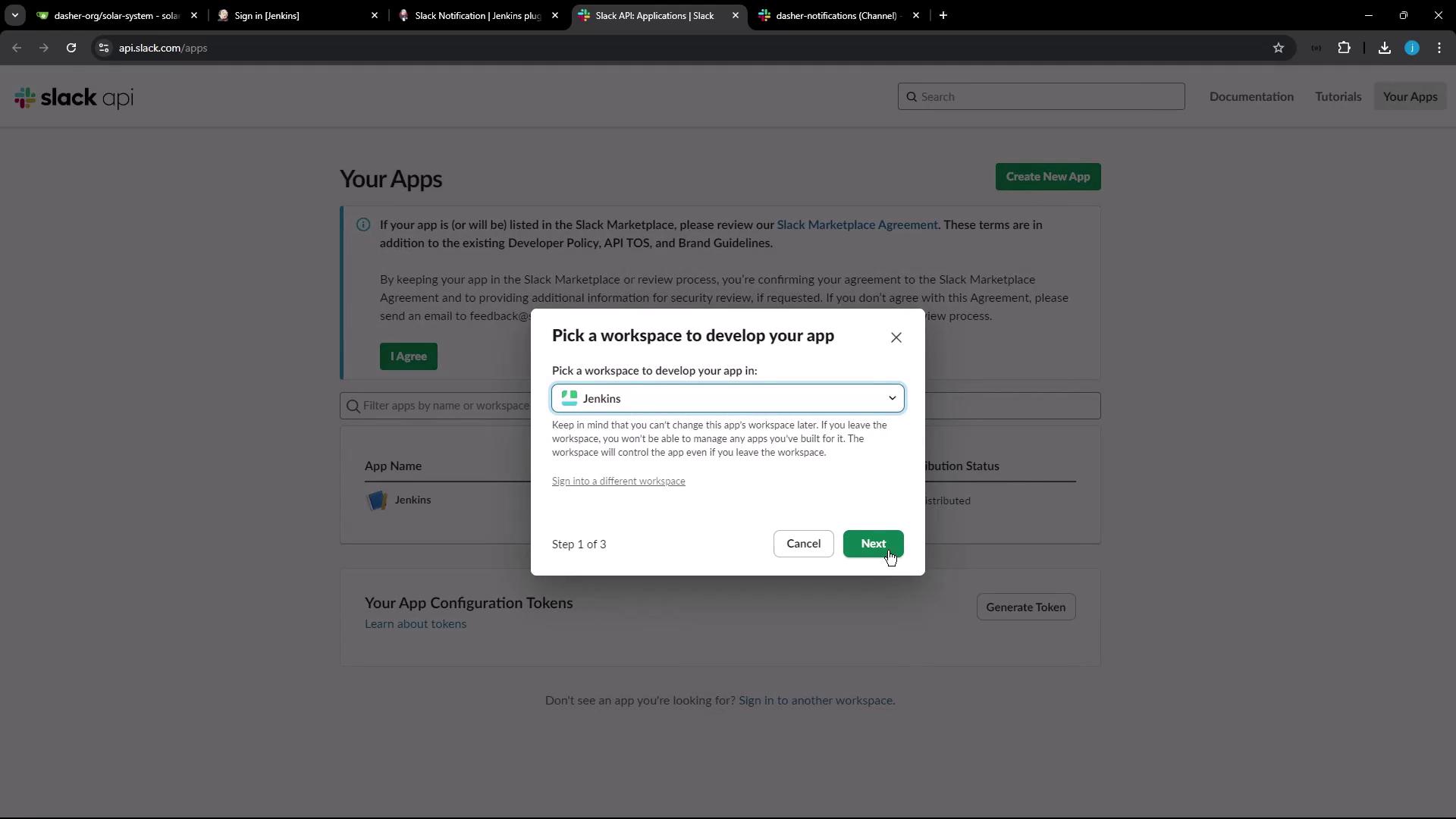
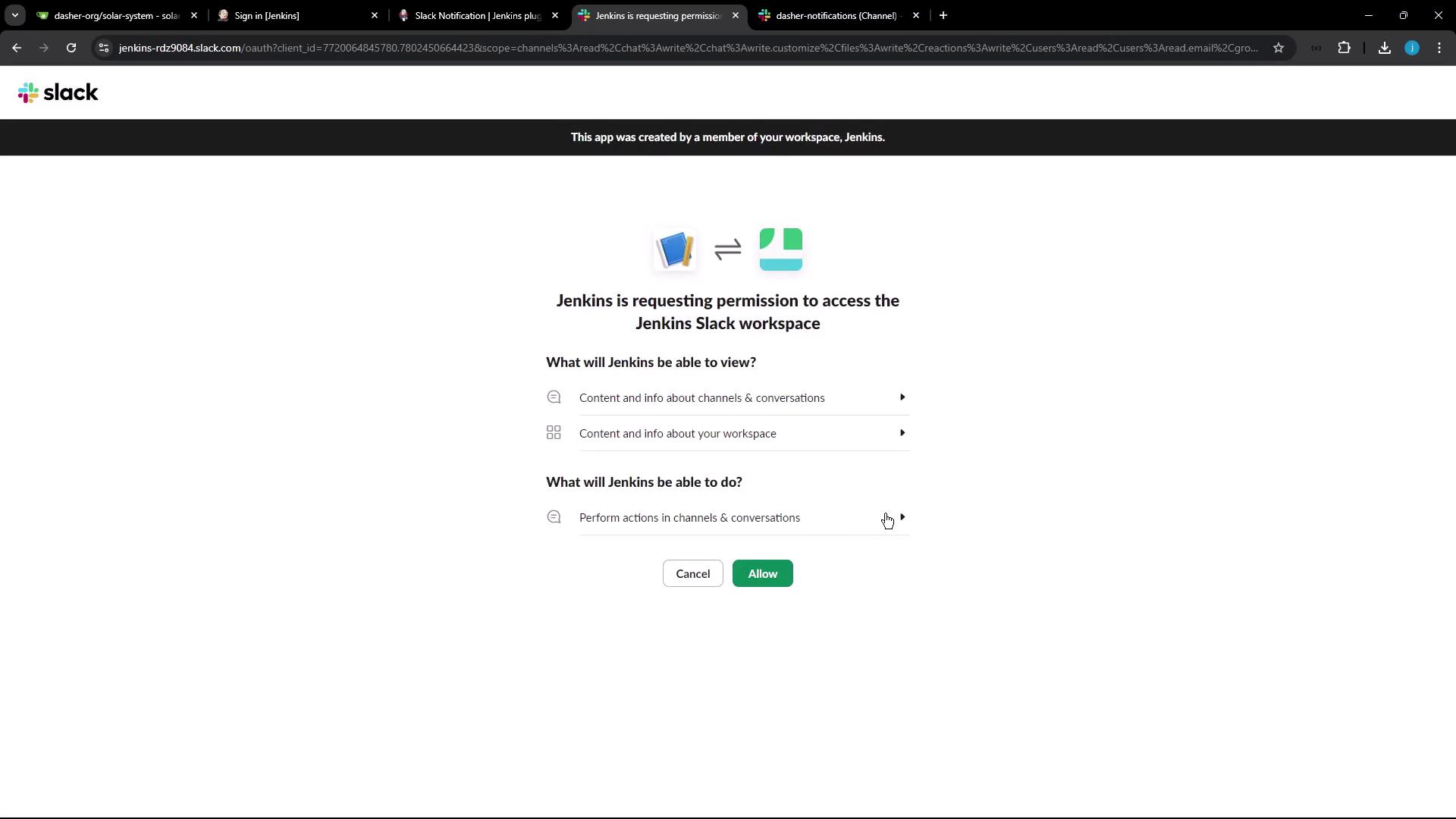
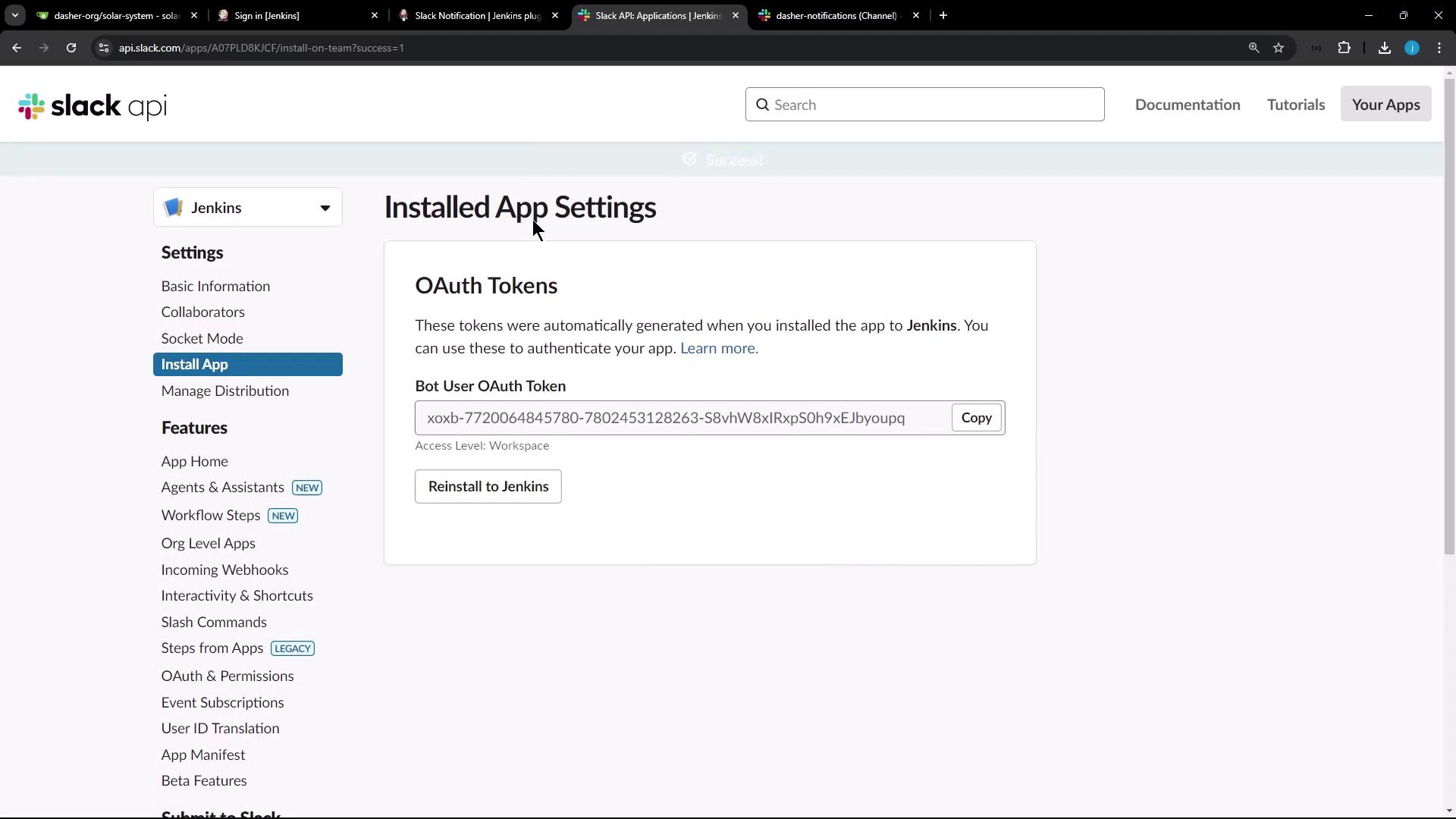
Step 4: Configure Slack Credentials in Jenkins
With your OAuth token ready, proceed to configure the Slack integration within Jenkins:- Navigate to Manage Jenkins → Configure System.
- Locate the Slack notification settings.
- Enter your workspace name (for example, Jenkins).
- Create new credentials of type Secret Text, then paste your bot user OAuth token. For instance, set the credential ID as “Slack bot token.”
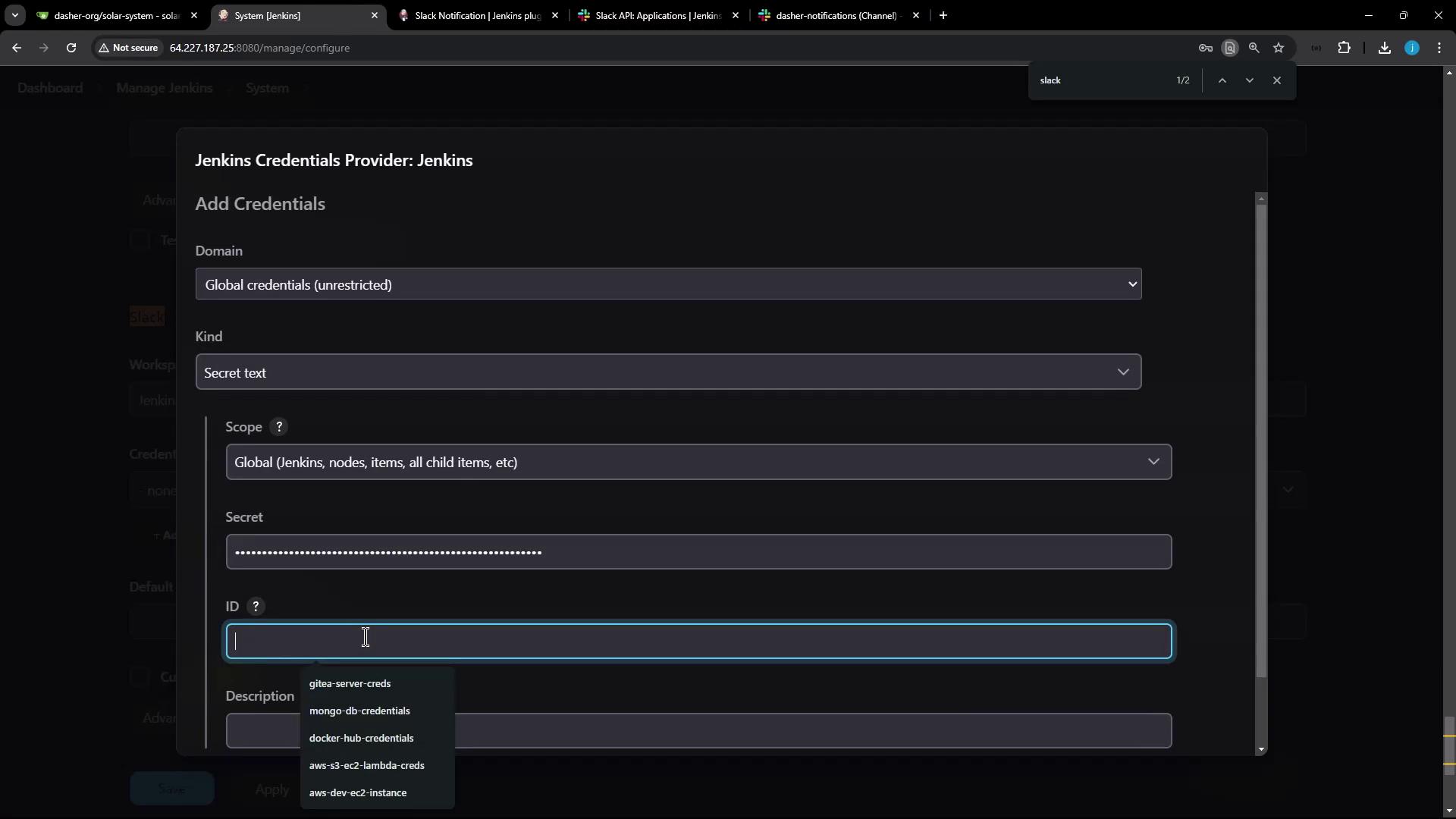
This error indicates that your Jenkins app user is not a member of the specified Slack channel. To resolve this, invite the Jenkins app to the channel by typing @Jenkins (or the app’s display name) within the channel.
Conclusion
With these steps completed, you have successfully set up Slack notifications in Jenkins. Your build statuses and messages will now be automatically posted to the designated Slack channel, ensuring that you stay informed of build outcomes in real time. For further details about the Slack/Jenkins integration, you can visit the plugin page at Jenkins Plugin Page. Thank you for following this lesson.For more information, consider reviewing the following resources: