

Quick access: Open Billing
- Sign in to the GCP Console.
- Type “Billing” in the top search bar and select Billing from the results: https://cloud.google.com/billing/docs/how-to/overview
- The Billing overview gives a snapshot of current spend and quick links to deeper tools.
Reports and Cost Breakdown
Click Reports to inspect historical usage and cost trends. Use the report filters to slice costs by:- Timeframe (daily, weekly, monthly)
- Projects
- Services
- SKUs
- Labels or applications
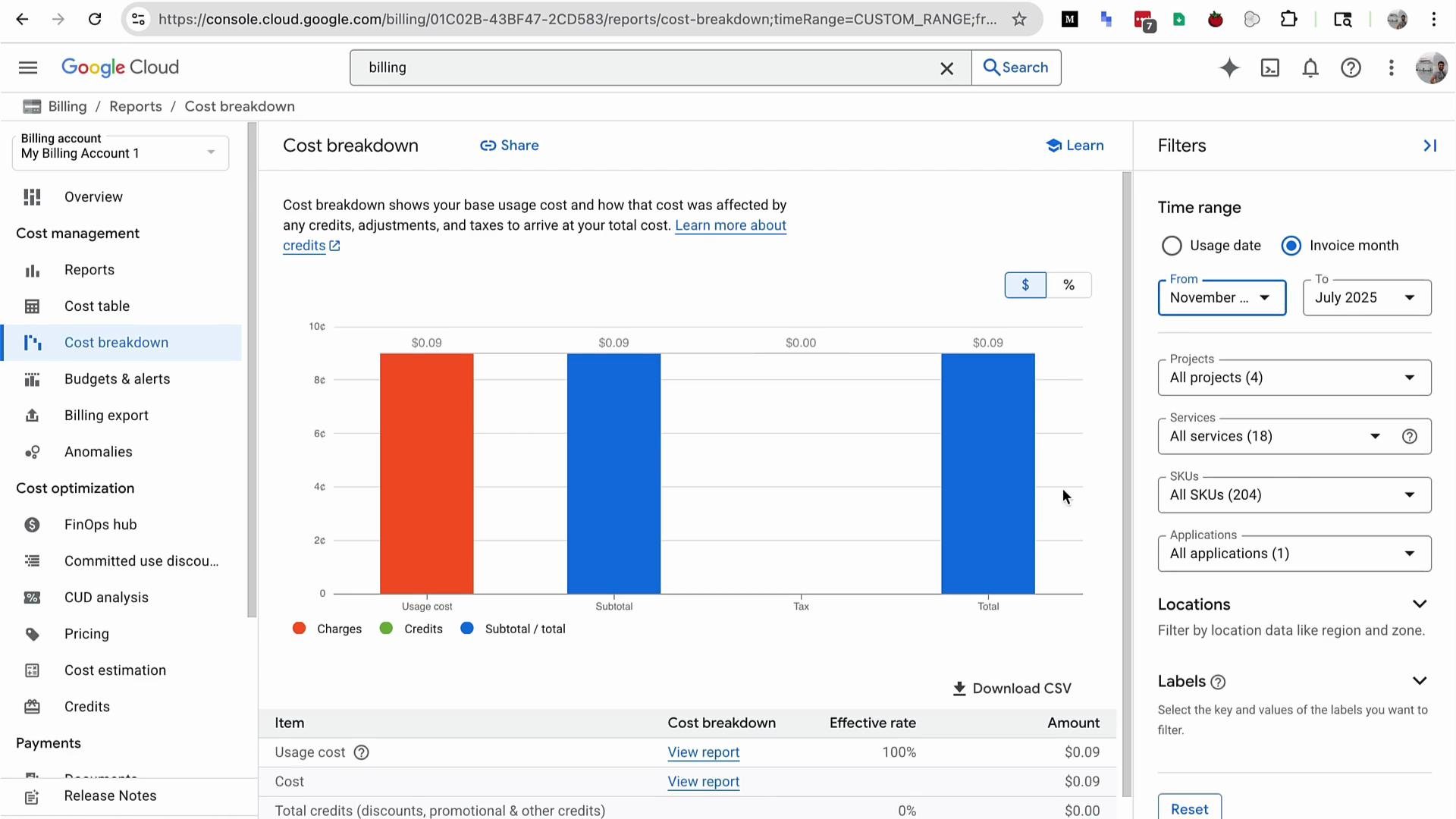
Budgets, Anomalies, and the FinOps Hub
Beyond Reports and Cost Breakdown, the Billing console provides:- Budgets & alerts — define thresholds and receive notifications (similar to AWS Budgets)
- Anomalies — automated detection of unusual spend spikes
- FinOps Hub — an area that consolidates actionable FinOps insights (realized savings, active recommendations, potential monthly savings, and priority items)
To view consolidated costs for all projects in an organization you need access to the billing account that pays for those projects. If you only have project-level access, you will see costs only for that project.
Discounts, Commitments, and Pricing Details
GCP surfaces discounts and commitment options in Billing—most notably Committed Use Discounts (CUDs) and reservations. If your organization uses CUDs, reservations, sustained-use discounts, or credits, these will appear in relevant Billing pages and affect effective pricing. To inspect SKU-level pricing and effective discounts, use the Pricing section. Example services commonly reviewed for pricing and discounts include Deep Learning VM and Cloud Pub/Sub: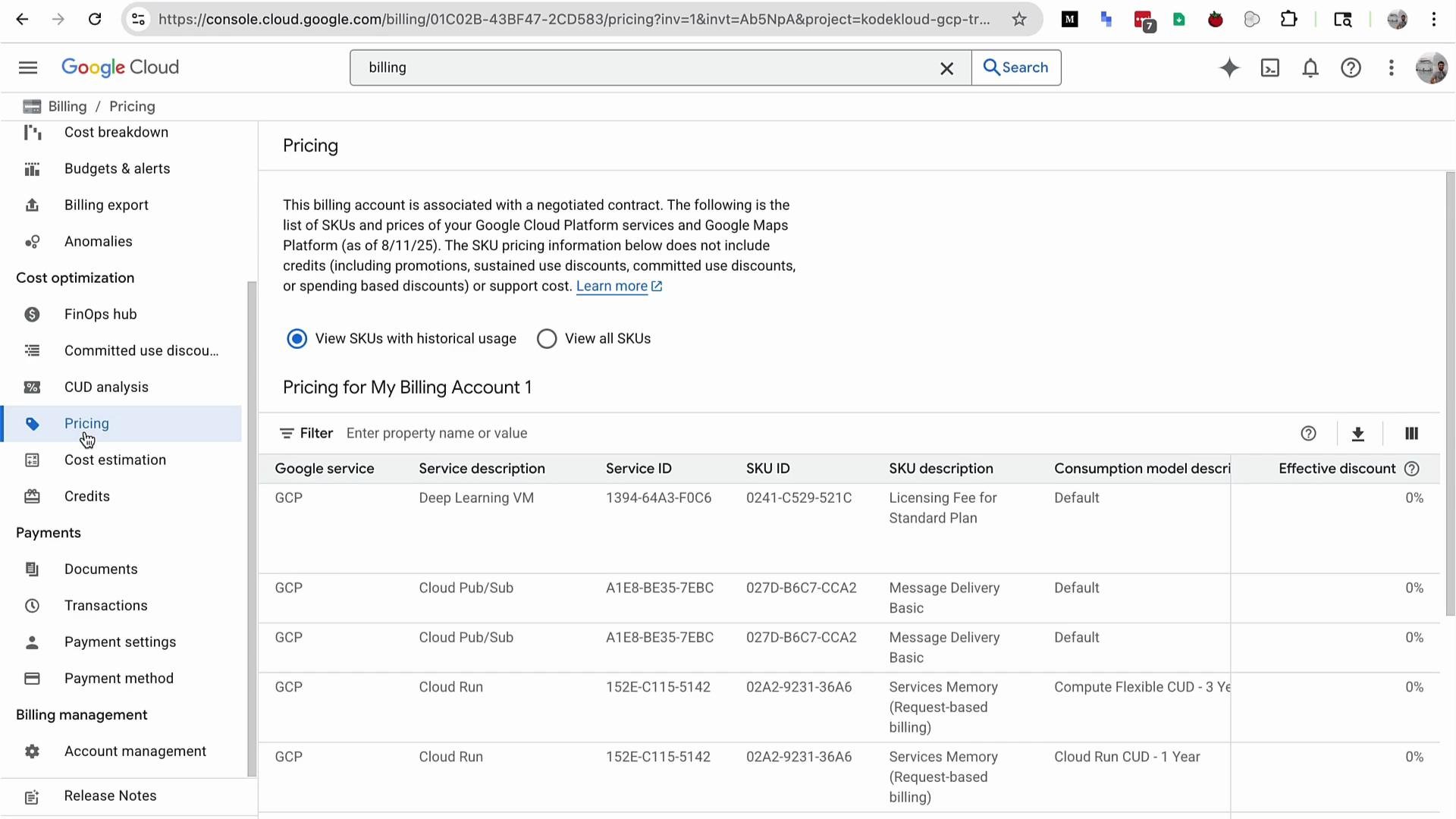
Documents and Invoices
Use the Documents section to download invoices, monthly PDFs, and CSV exports. Scroll through the Documents/invoices list to find months with activity (e.g., September, August) and download the artifacts you need for accounting or audits.Feature Summary
Quick tips
- Use labels or cost-center tags consistently across projects to improve reporting granularity.
- Set conservative budgets and use anomaly detection to catch unexpected spikes early.
- Review committed use and reservation options only after you have stable usage patterns and accurate forecasts.
- Export CSVs or integrate with BigQuery for advanced cost analytics and dashboards.
References and further reading
- Google Cloud Billing Overview: https://cloud.google.com/billing/docs/how-to/overview
- Committed Use Discounts (CUDs): https://cloud.google.com/compute/docs/instances/committed-use-discounts
- Deep Learning VM images: https://cloud.google.com/compute/docs/gpus/deep-learning-vm-images
- Cloud Pub/Sub: https://cloud.google.com/pubsub/docs/overview
- AWS Cost Explorer (comparison): https://aws.amazon.com/aws-cost-management/aws-cost-explorer/
- AWS Budgets (comparison): https://aws.amazon.com/aws-cost-management/aws-budgets