

Step 1: Verifying the Existing Posts Table
Before adding the votes table, verify the contents of the existing posts table by executing the following query:Step 2: Creating the Votes Table
Within the tables section of pgAdmin, create a new table called “votes.” Define the following columns:- post_id: Stores the associated post’s ID.
- user_id: Stores the ID of the user casting the vote.
Step 3: Defining Foreign Key Constraints
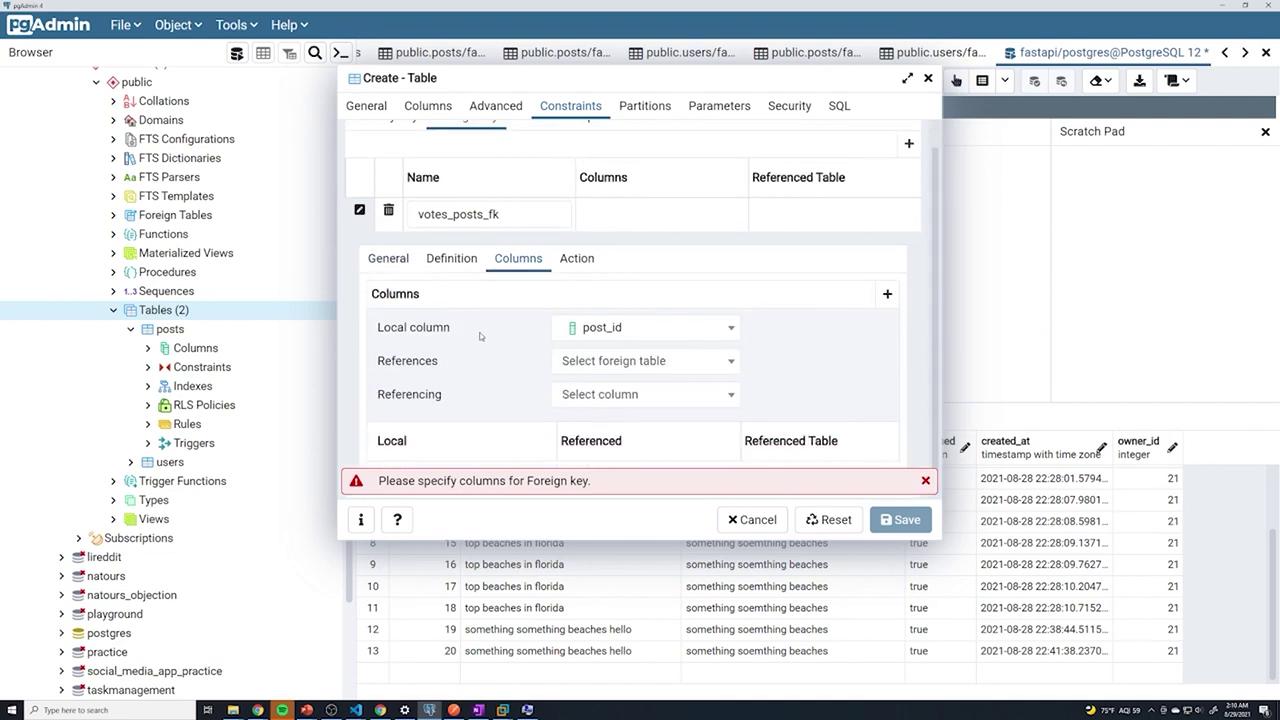
Establish foreign key constraints to maintain proper relationships among tables.Adding the Foreign Key for post_id
Set a foreign key constraint on the post_id column so it references the ID column in the posts table. Be sure to apply the “ON DELETE CASCADE” rule, which ensures that deleting a post will also remove its associated votes.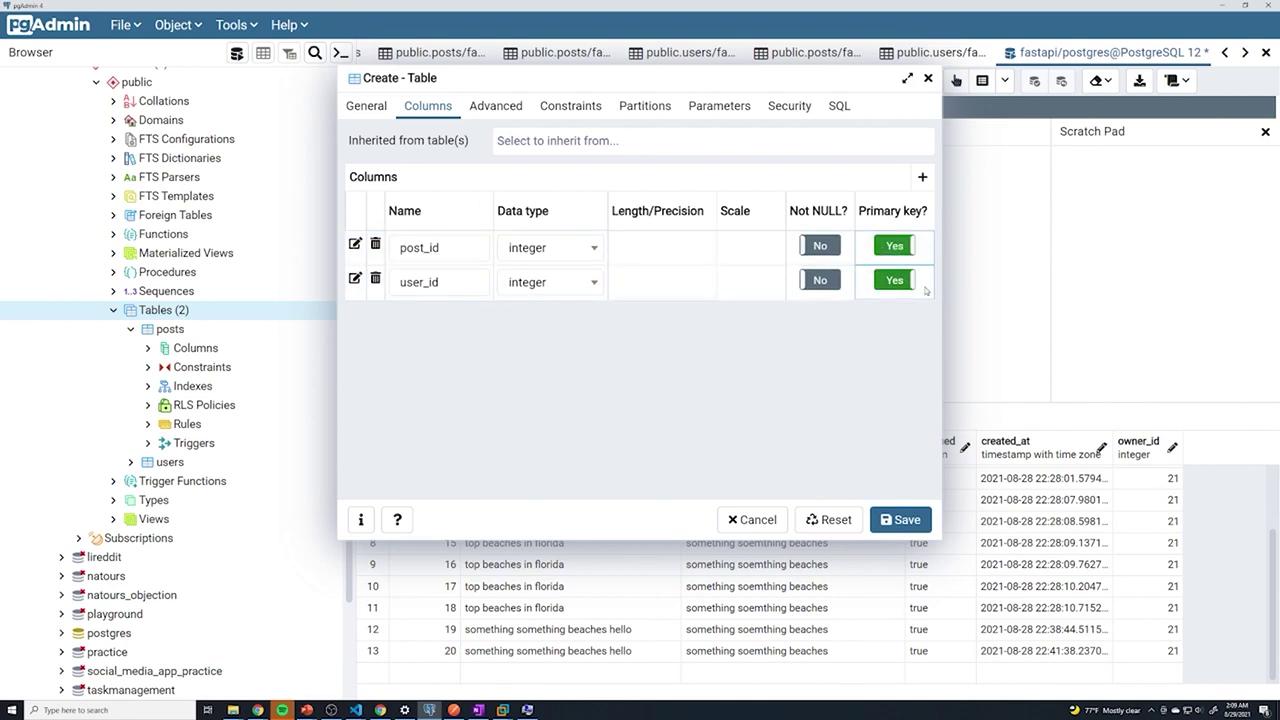
Adding the Foreign Key for user_id
Next, add a foreign key constraint for the user_id column, setting it to reference the ID column in the users table. Again, configure the “ON DELETE CASCADE” rule to ensure that deleting a user also removes the associated votes.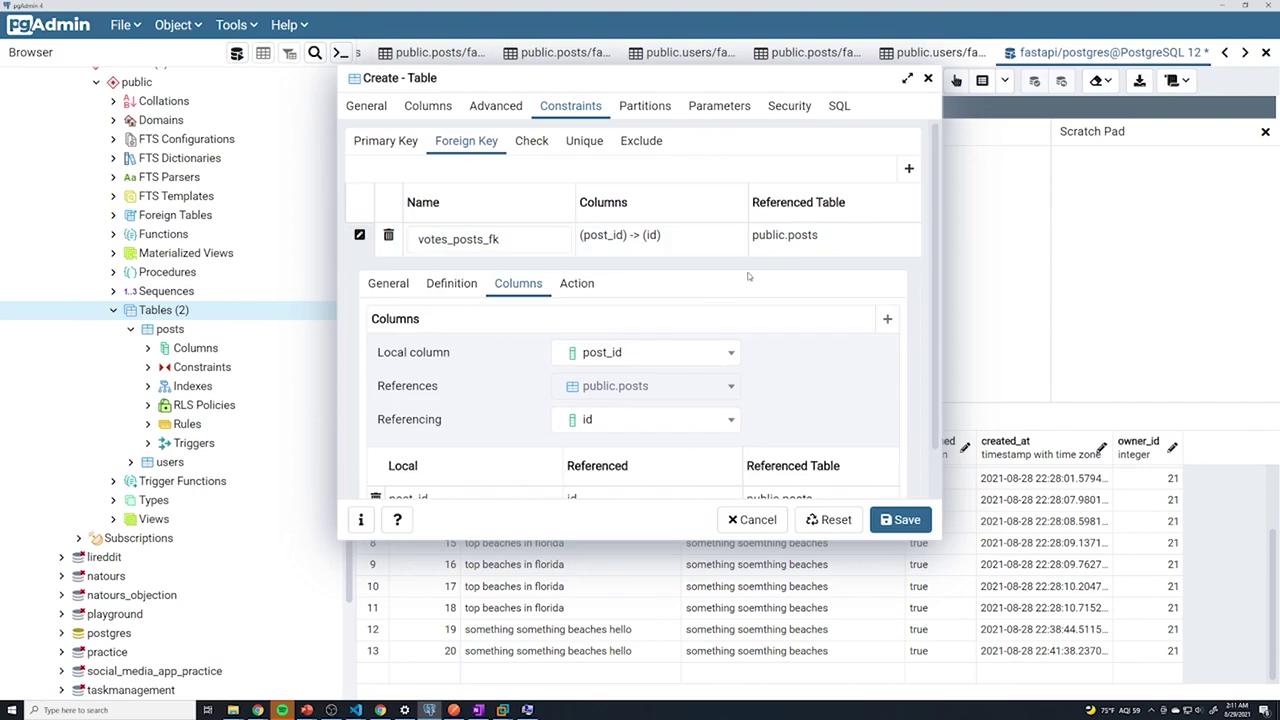
Step 4: Verifying and Testing the Votes Table
To review the data in the votes table, right-click on the table in pgAdmin and select “View/Edit Data.” You can also open a new query window and execute the following SQL command to display the votes ordered by post_id and user_id:When testing, try inserting a vote using valid post and user IDs (for example, post ID 10 and user ID 21) to ensure that the entry is successful. Conversely, attempt an insertion with an invalid post or user ID to confirm that the foreign key constraints properly prevent the entry. Leaving any foreign key field blank should trigger an error.