

Step 1: Open VS Code and Navigate to Your Project Directory
Launch VS Code and open the directory containing your project files. Next, open a new integrated terminal:- Click “Terminal” in the top menu.
- Select “New Terminal.”
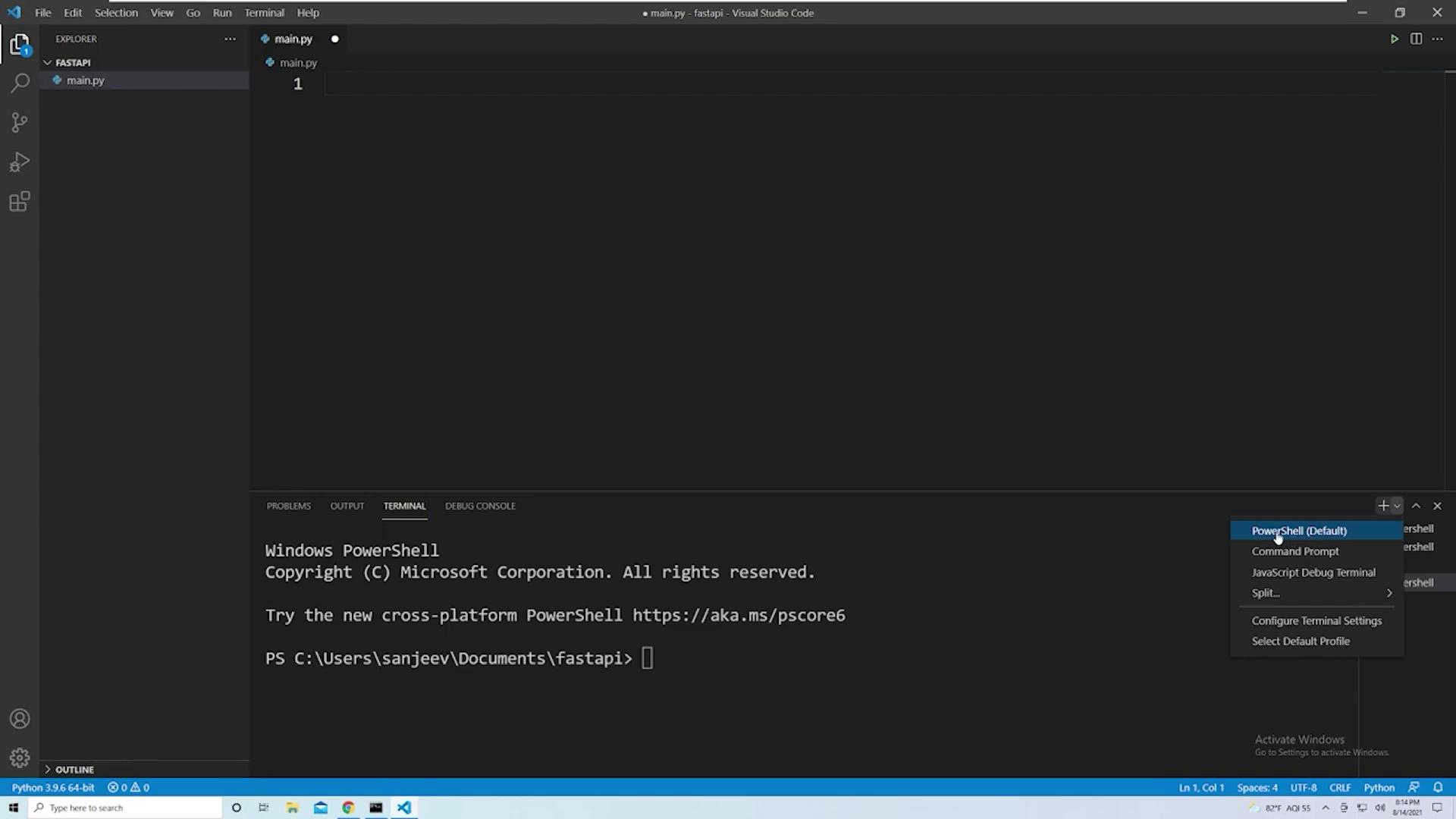
Step 2: Create the Virtual Environment
Use Python’s built-invenv module to create an isolated environment. You can name your virtual environment anything you like (commonly “venv” or the project name). Run the following command in the terminal:
Step 3: Configure the Python Interpreter in VS Code
Although you started with the global Python interpreter, it’s important to switch to the one inside your virtual environment. Follow these steps:- Open the Command Palette by navigating to View → Command Palette.
- Search for and select Python: Select Interpreter.
- In the list of interpreters, click on Enter interpreter path.
-
Provide the path to the Python executable in your virtual environment. The typical path structure is:
Step 4: Activate the Virtual Environment
In the integrated terminal, activate your virtual environment by executing:Always verify that your virtual environment is active before installing any packages. If the terminal reverts to the global Python interpreter, simply reactivate it using the command above.