

1. Creating a Droplet on DigitalOcean
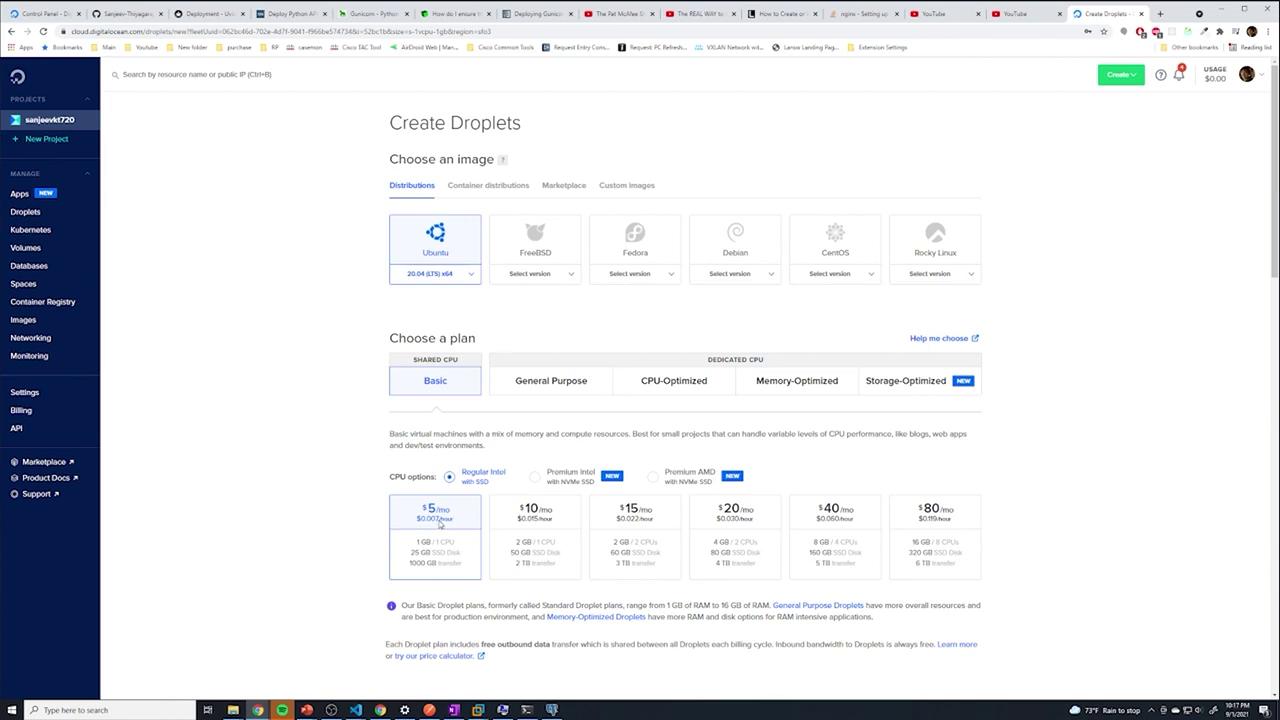
Start by selecting Get Started with a Droplet on the DigitalOcean dashboard. Choose the following options:- Image: Ubuntu 20.04 (or a newer version if available; the commands remain the same).
- CPU Options: Regular Intel with SSD for optimum pricing.
- Plan: Select the $5/month option (0.007 per hour).
- Data Center: Pick the regional data center closest to you (e.g., East Coast).
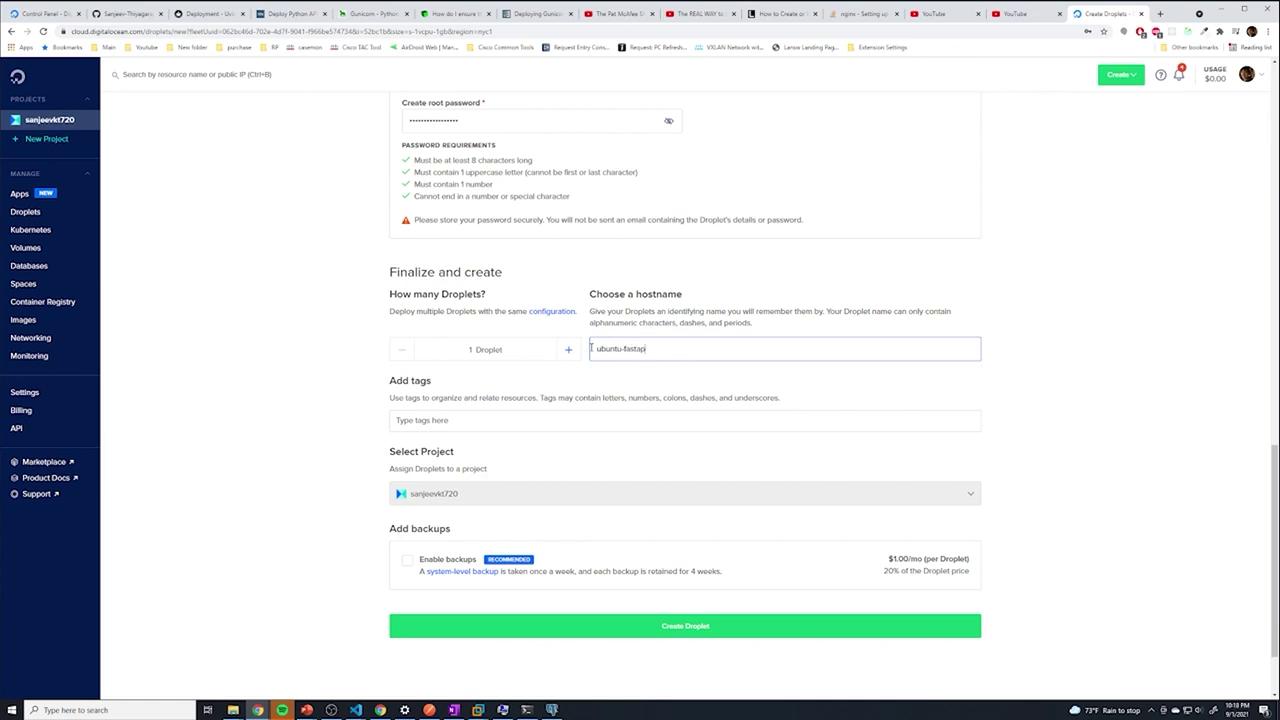
- Authentication: Either set a strong password (ensuring you meet DigitalOcean’s password criteria) or use SSH keys if preferred.
- Hostname: Use a descriptive name for your droplet, such as
ubuntu-fastapi.
2. Connecting to Your Ubuntu VM
Once your droplet is ready, connect via SSH:- Open your terminal (or Command Prompt/VS Code integrated terminal).
-
Execute the SSH command:
For example:
- Type “yes” when prompted to accept the fingerprint and then enter your password.
snap folder). It is vital to update your Ubuntu system:
Using the
-y flag automatically confirms prompts during the upgrade process. You may be asked to confirm configuration changes for applications like openssh-server.3. Installing Python, pip, and Virtual Environment
First, verify that Python is installed:4. Installing and Configuring PostgreSQL
Set up PostgreSQL and its additional libraries with:psql command. By default, a PostgreSQL user named postgres is created with peer authentication:
-
Switch to the
postgresuser: -
Access psql:
-
Set a new password for the
postgresuser: -
Exit psql:
/etc/postgresql/12/main:
-
In
pg_hba.conf, change:to: -
To enable remote connections (if needed), edit
postgresql.confand set:
5. Creating a Non-Root User and Setting Up the Application Environment
For enhanced security, create a non-root user instead of running your application as root. For example, create a user namedsanjeev:
src) for your source code and clone your FastAPI project from GitHub:
src, clone them directly by appending a dot (.) at the end.
Install the necessary project dependencies:
libpq-fe.h), install the development libraries:
6. Running the Application with Gunicorn and Creating a systemd Service
Production with Gunicorn
For production environments, use Gunicorn with Uvicorn workers. Install Gunicorn (if not already included in your requirements):Creating a systemd Service
To ensure that your application runs in the background and starts automatically on reboot, create a systemd service file. Create a file namedapi.service in /etc/systemd/system/ with the following contents (adjust the paths and usernames to match your environment):
The
EnvironmentFile directive loads additional environment variables from your .env file. Ensure this file contains all required credentials and settings.secret_key or access_token_expire_minutes), ensure your .env file (located in your home directory) includes lines similar to:
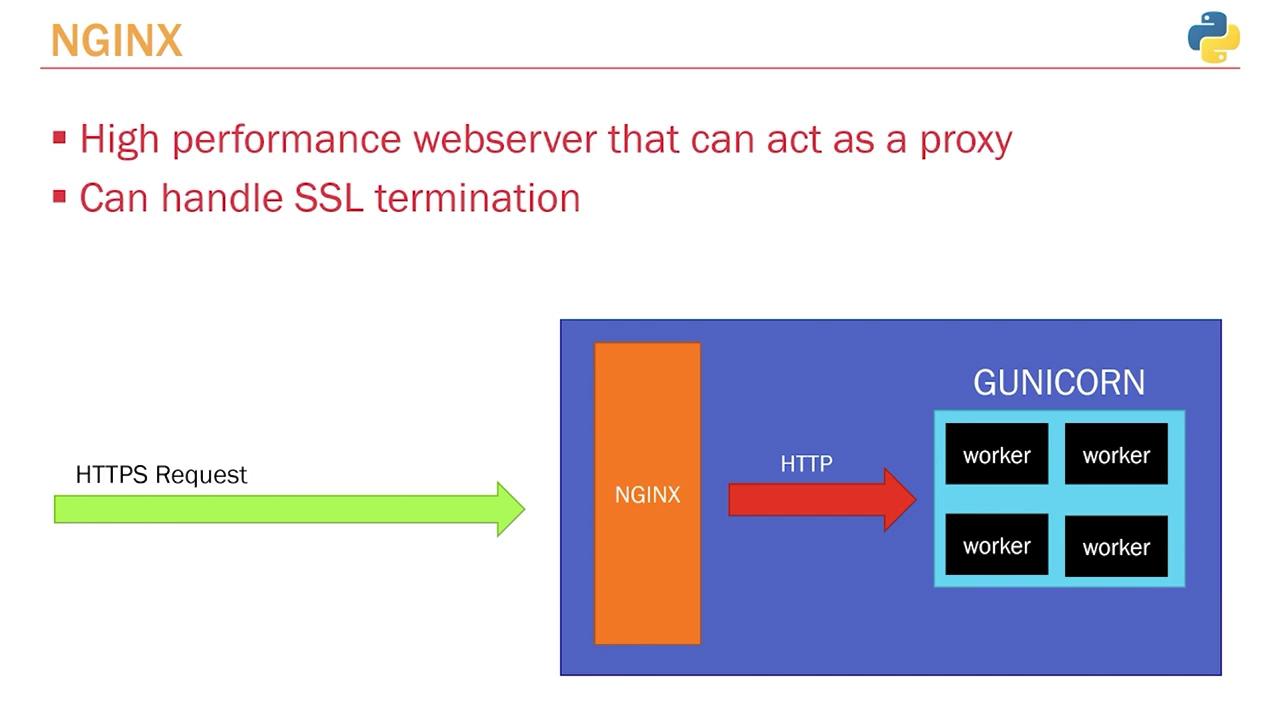
7. Configuring Nginx as a Reverse Proxy
Installing Nginx
Install Nginx with:Configuring the Reverse Proxy
Edit the default server block for Nginx by modifying the configuration file located at/etc/nginx/sites-available/default:
8. Setting Up DNS and Domain Name
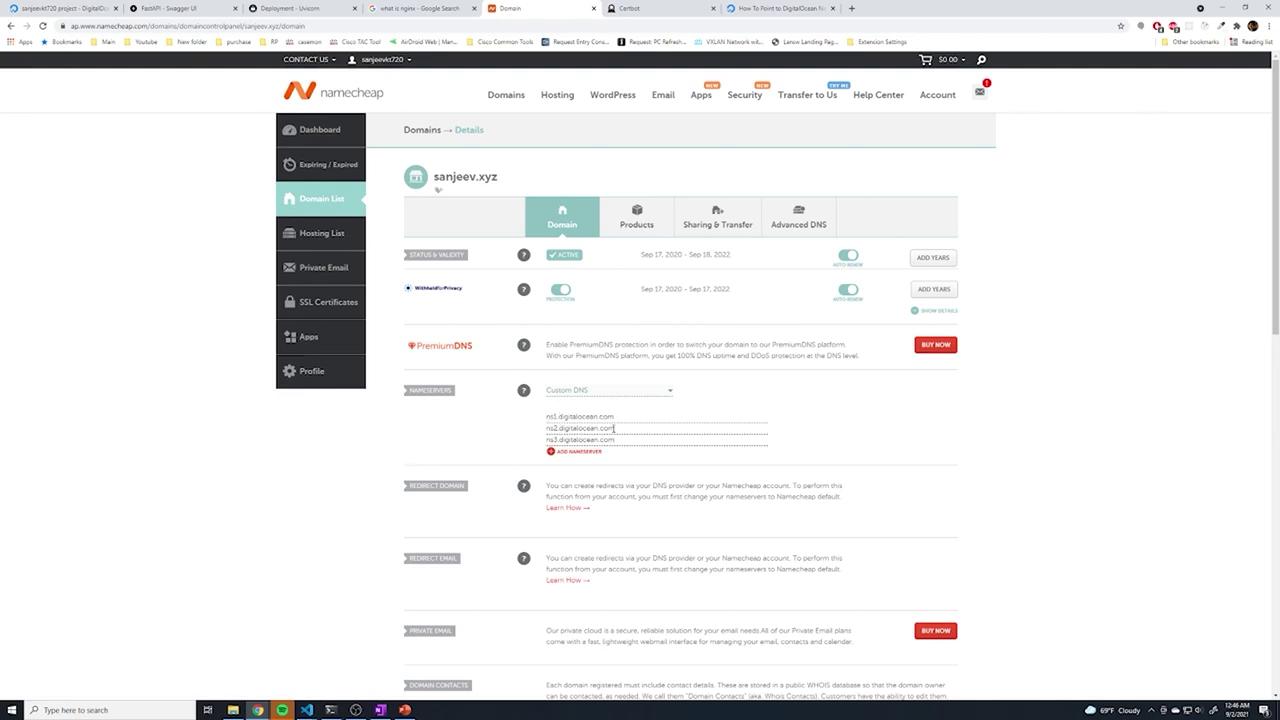
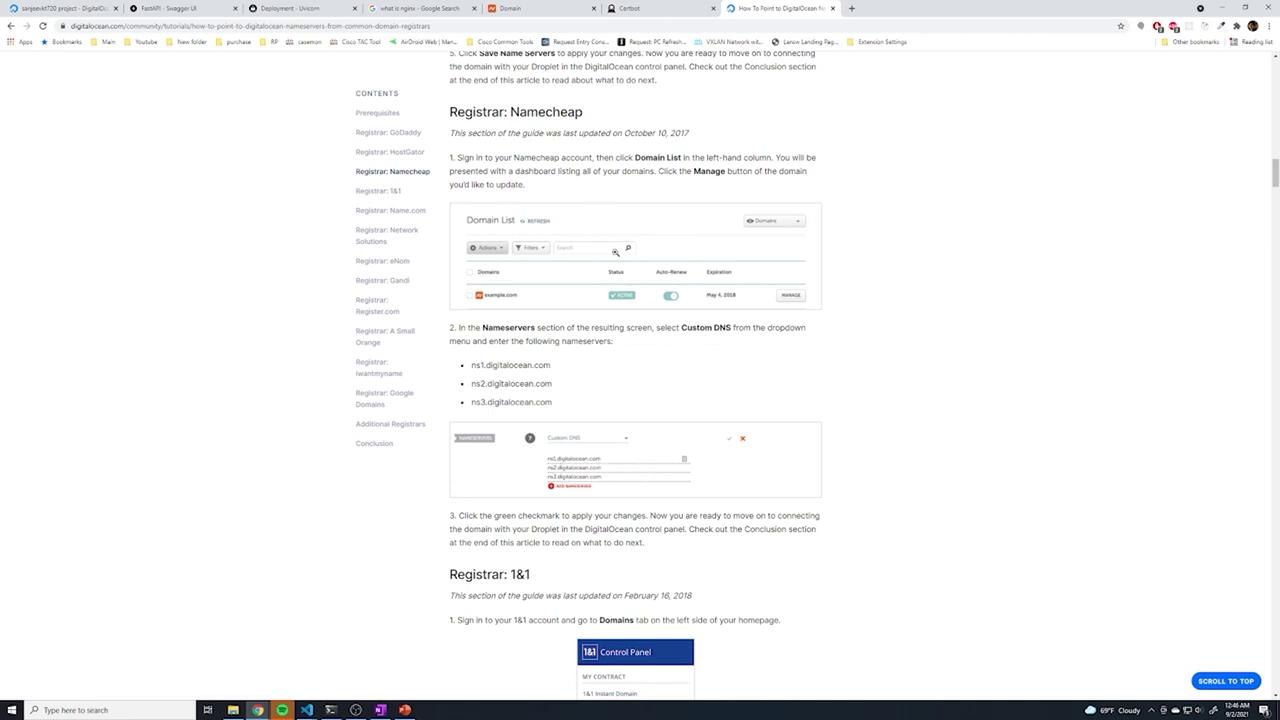
If you have a custom domain (e.g., purchased from Namecheap), point its DNS to your DigitalOcean droplet:-
Log in to your domain registrar and update the name servers to:
- ns1.digitalocean.com
- ns2.digitalocean.com
- ns3.digitalocean.com
-
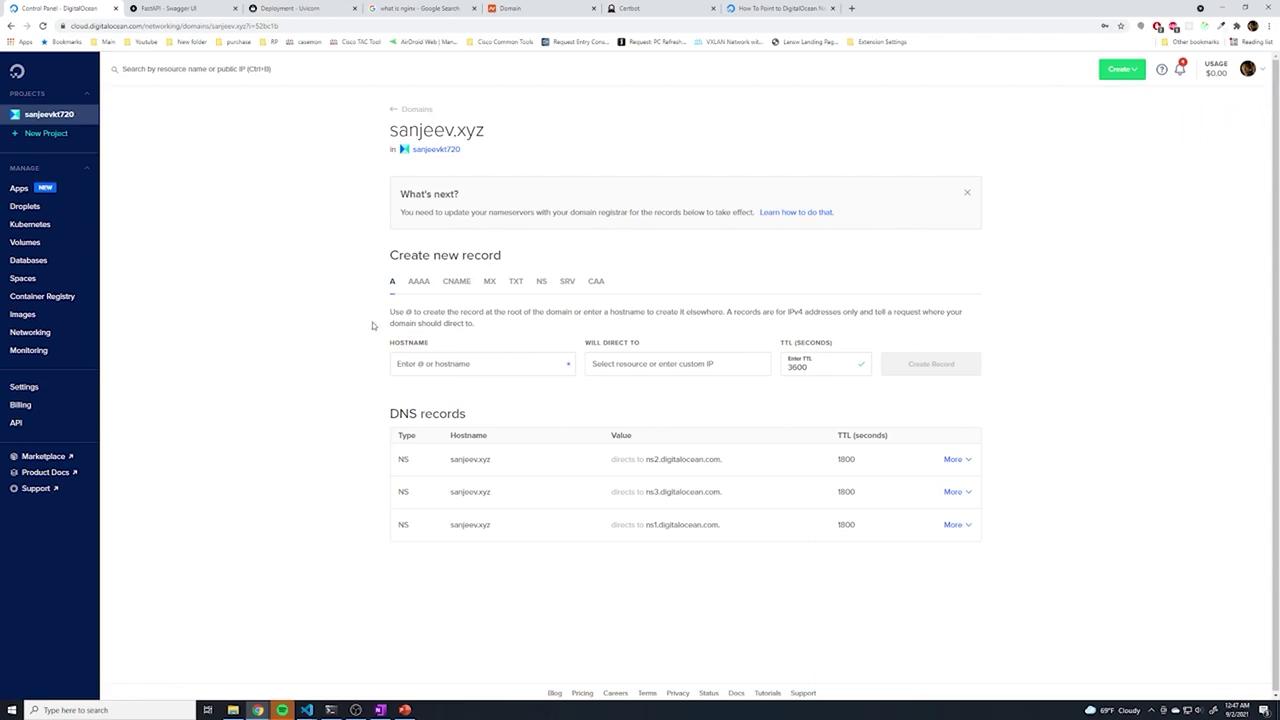
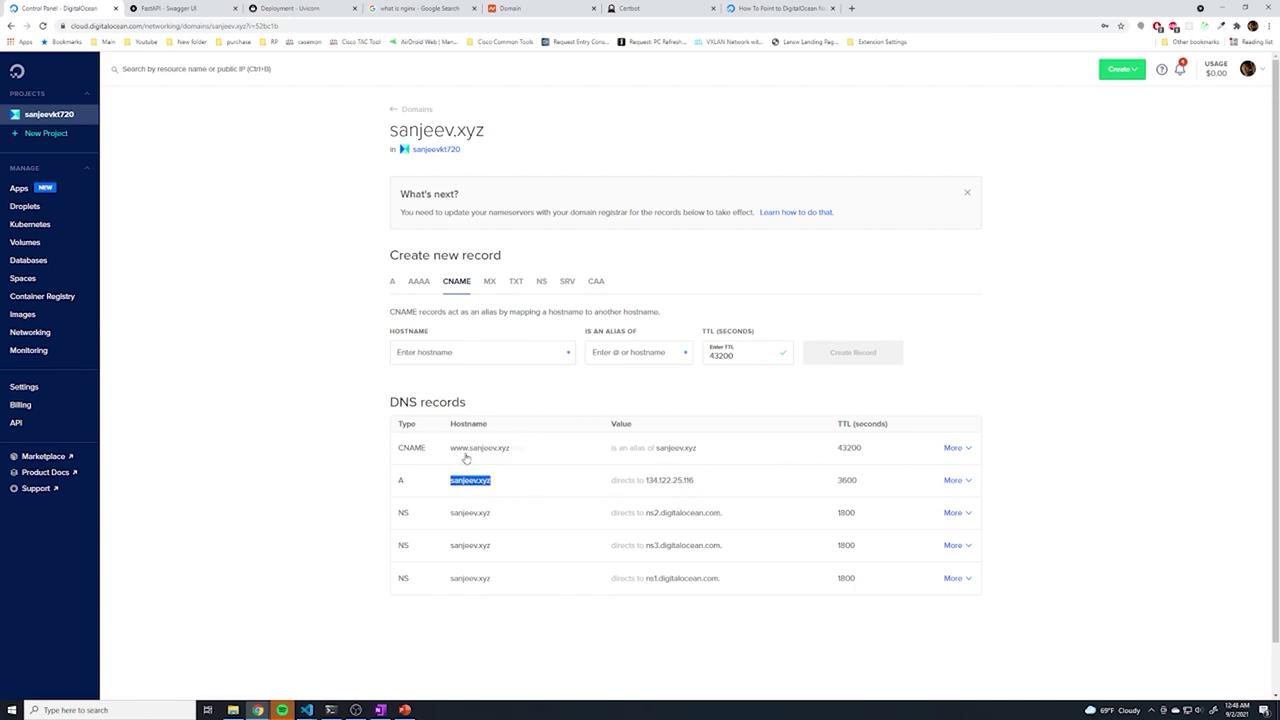
In the DigitalOcean dashboard, navigate to Manage DNS and add your domain (for example,
sanjeev.xyz). Create:- An A record (with
@) pointing to your droplet’s IP. - A CNAME record for
wwwpointing to@.
- An A record (with

9. Securing Your Site with HTTPS (SSL)
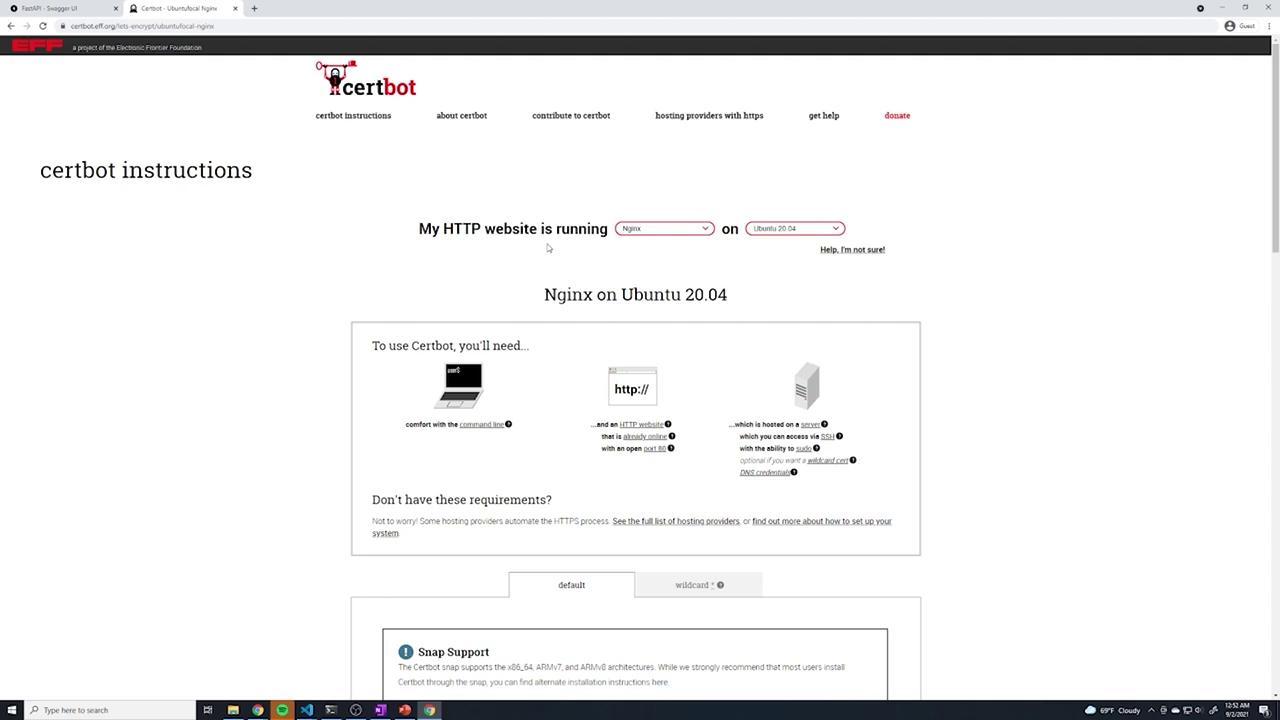
Use Certbot from Let’s Encrypt to secure your site with HTTPS at no additional cost.-
Install Certbot via Snap:
-
Run Certbot with the Nginx plugin:
-
Follow the interactive prompts:
- Enter your email address.
- Agree to the Terms of Service.
- Decide if you want to share your email with the EFF.
- Provide the domain names (e.g.,
sanjeev.xyzandwww.sanjeev.xyz) for the certificate.
10. Configuring the Firewall with UFW
Configure UFW (Uncomplicated Firewall) to allow only essential traffic:-
Check the current UFW status:
-
Allow HTTP, HTTPS, and SSH traffic:
-
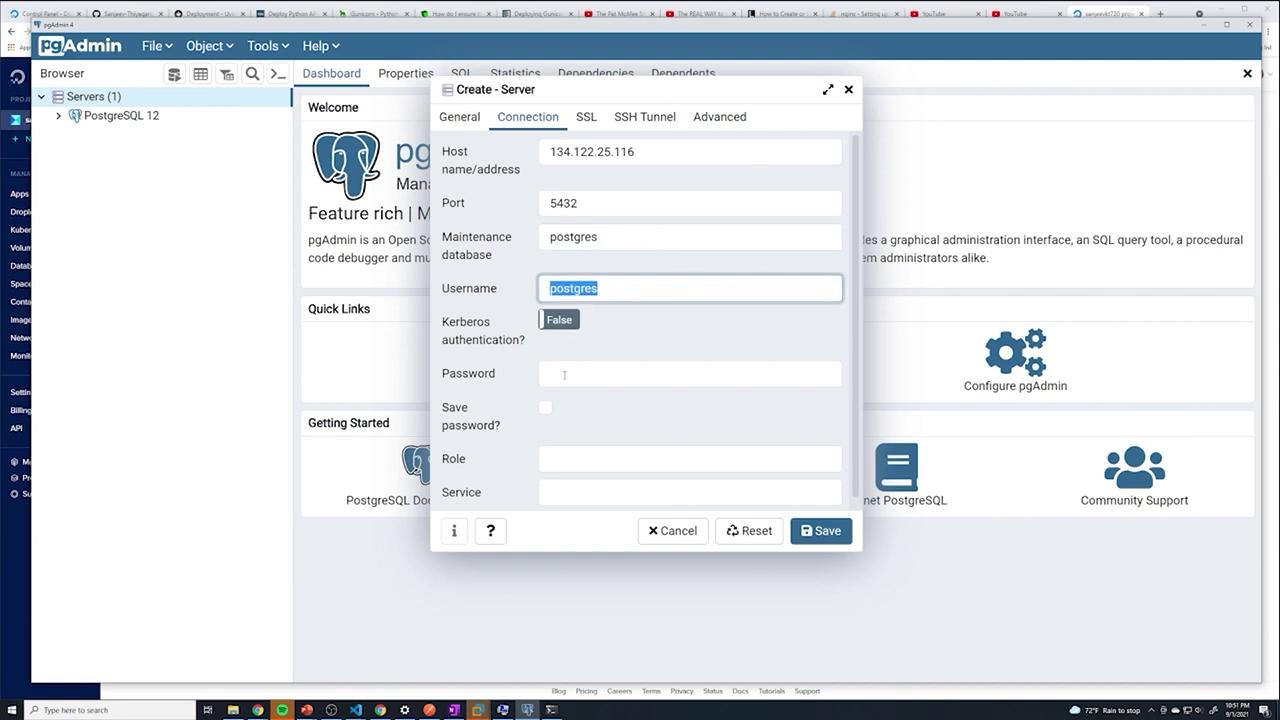
Optionally, if remote access to PostgreSQL is required, allow port 5432:
-
Enable UFW:
11. Deploying Code Changes
When updating your application, push the changes to your Git repository and then pull them on the server. On your local machine, make changes and push them:-
Navigate to your application source directory:
-
Pull the latest changes:
-
Restart the API service to apply the changes:
12. Summary
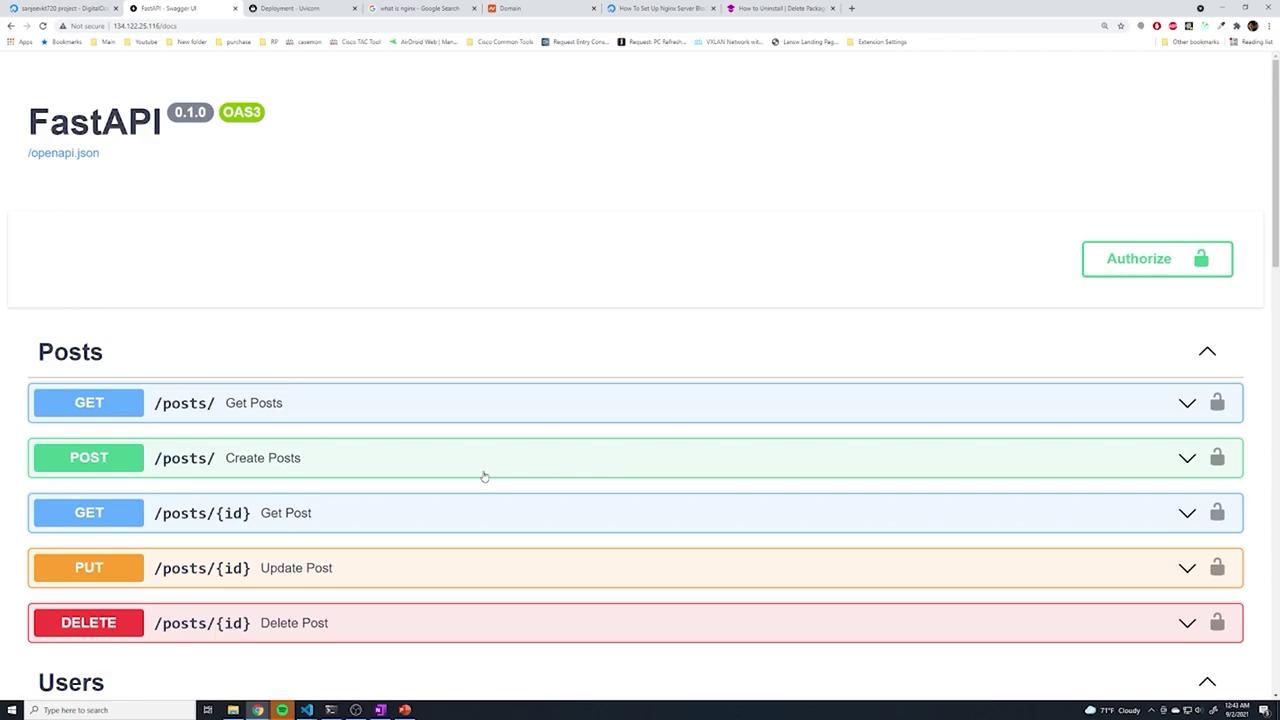
Your FastAPI deployment is now fully configured and running:- Your Ubuntu server is updated and ready.
- Python, Virtualenv, and PostgreSQL are installed and configured.
- The FastAPI application runs on Gunicorn, managed by systemd for automatic restarts.
- Nginx functions as a reverse proxy and is secured with a Let’s Encrypt SSL certificate.
- UFW ensures only necessary ports (HTTP, HTTPS, SSH, etc.) are exposed.
- Code updates can be deployed using Git followed by a service restart.
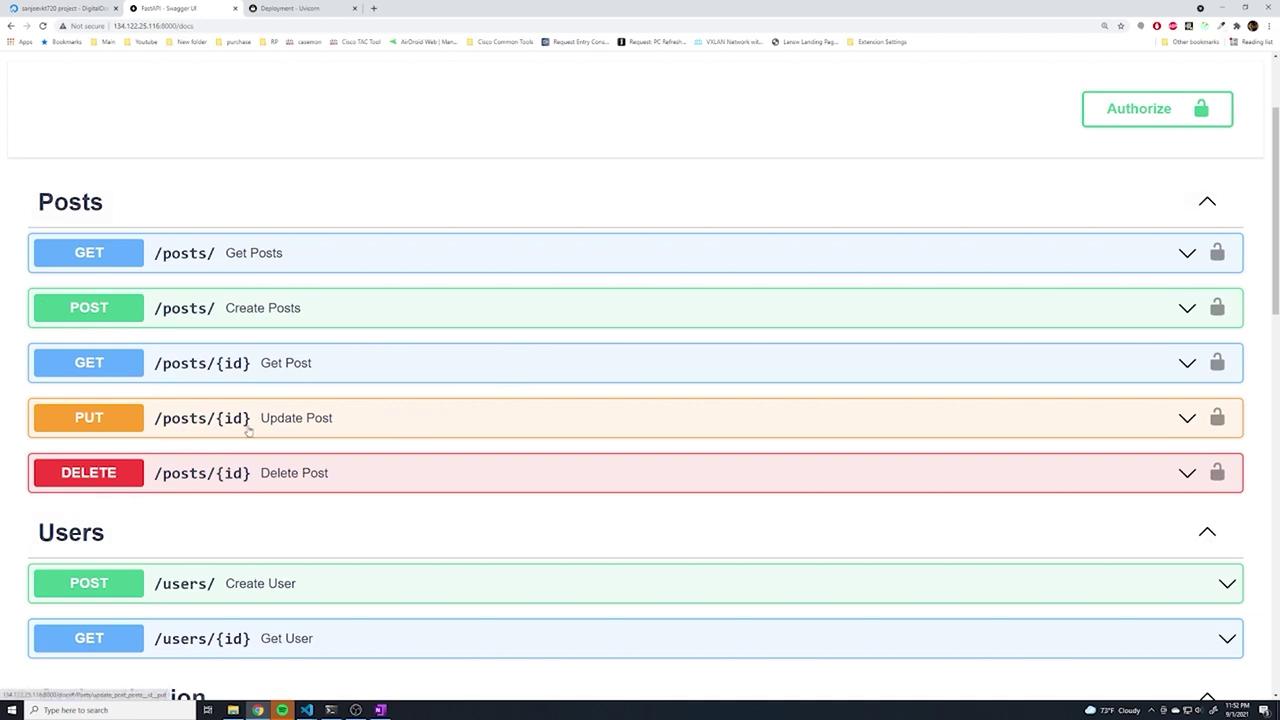
By following these comprehensive steps, you have successfully deployed your FastAPI application using an Ubuntu VM, DigitalOcean Droplets, Gunicorn, Nginx, and Let’s Encrypt SSL. In upcoming guides, we will explore how to automate code updates via a CI/CD pipeline to further streamline your deployment process. Happy deploying!