Using Repository Secrets
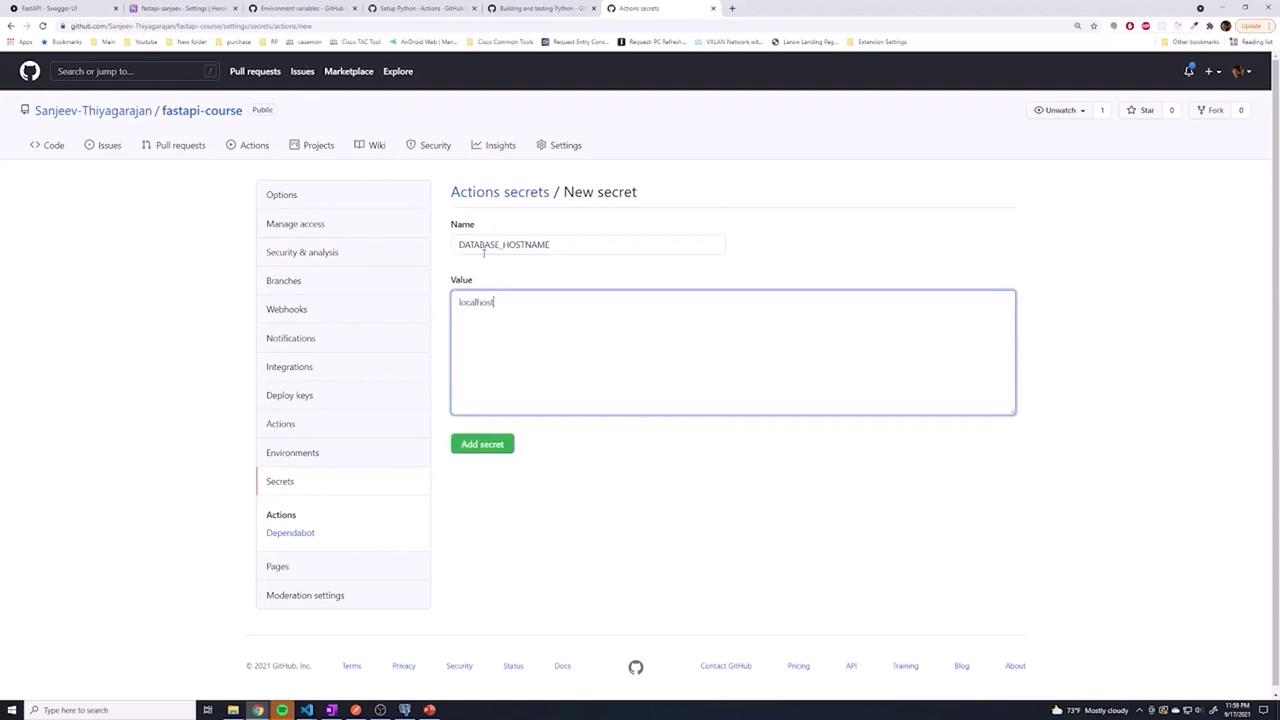
To protect sensitive data, navigate to your repository’s Settings and locate the Secrets section. There, you can define repository secrets that are accessible across all branches. For example, you might create a secret namedDATABASE_HOSTNAME with a value such as localhost.
${{ secrets.DATABASE_HOSTNAME }} instructs the GitHub Actions runner to securely retrieve the secret without exposing its value in the workflow file or job logs.
Using Environment-Specific Secrets
While repository secrets offer global coverage for your workflows, GitHub also supports environment secrets for more granular control. This distinction allows you to set up separate groups of secrets for different deployment environments (such as testing, development, or production). To configure an environment secret:- Open your repository’s Settings and select Environments.
- Create a new environment (for example, name it
testing). - Add your secrets to the environment, ensuring the key names match your workflow variables for consistency.
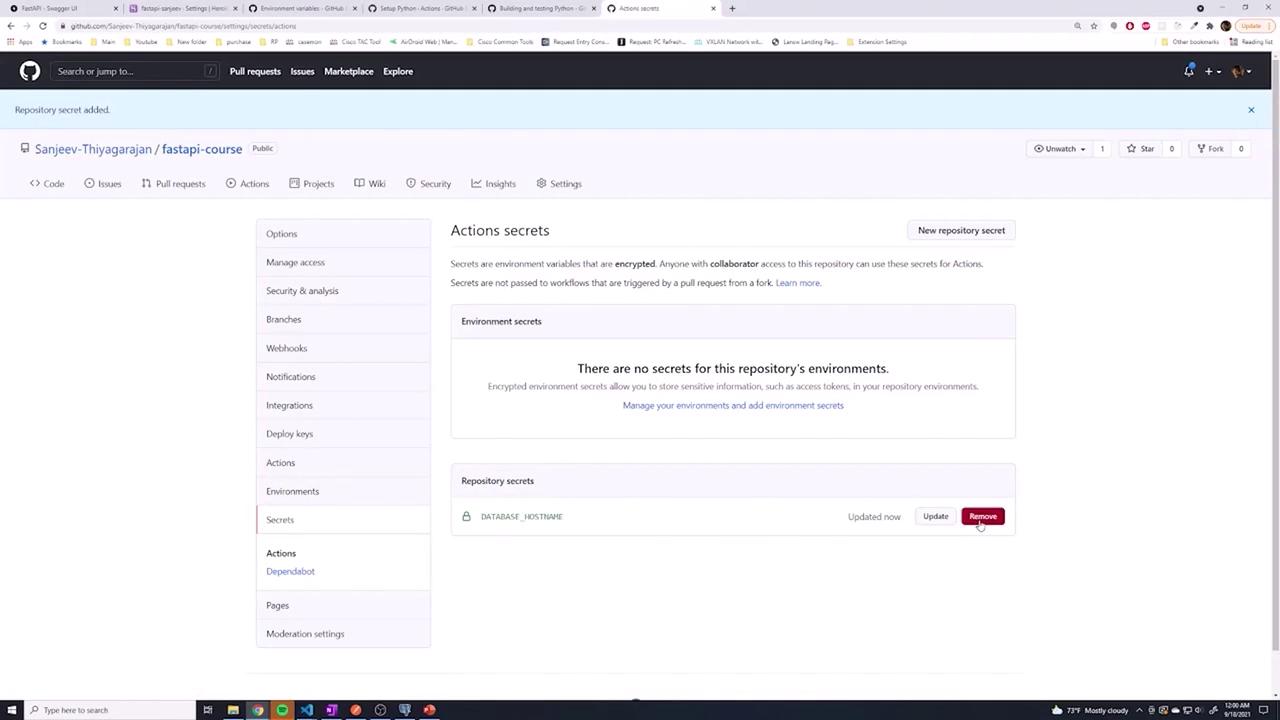
If a secret exists in both the repository and environment scopes with the same name, check the GitHub documentation to understand the precedence rules.
Committing Your Workflow Changes
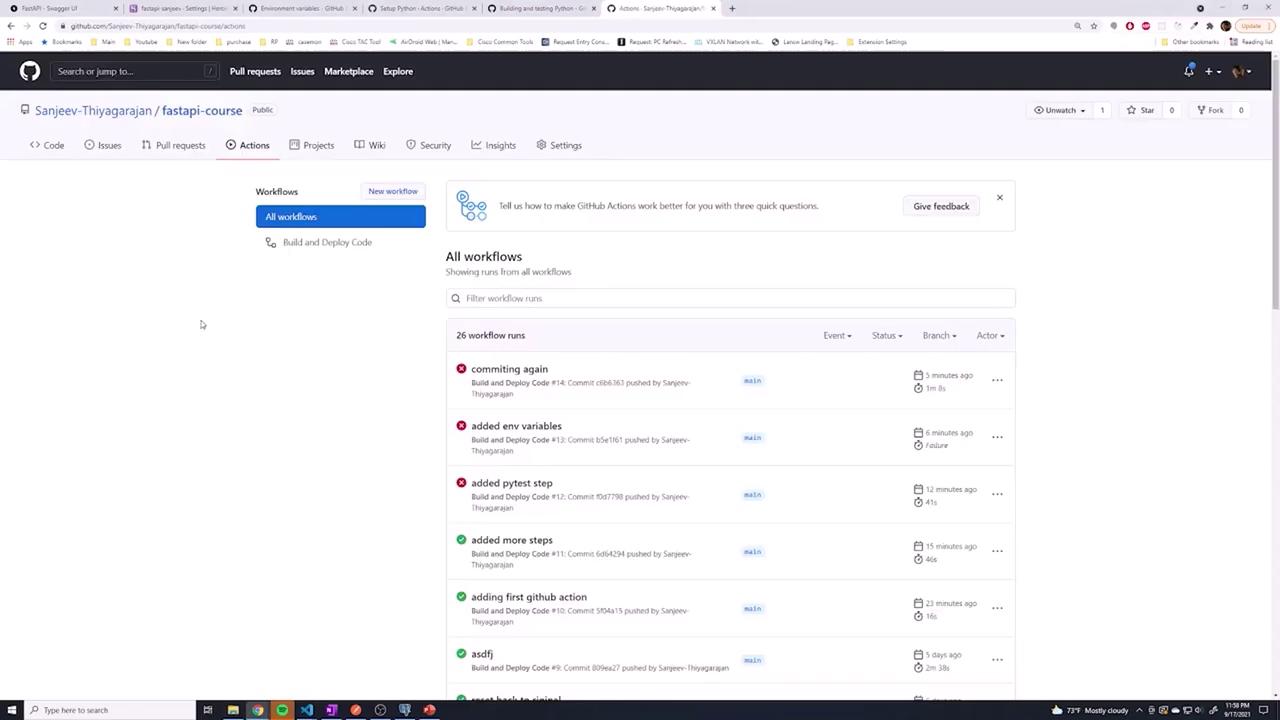
After updating the workflow file, remember to commit your changes and push them to the repository:Troubleshooting Workflow Errors
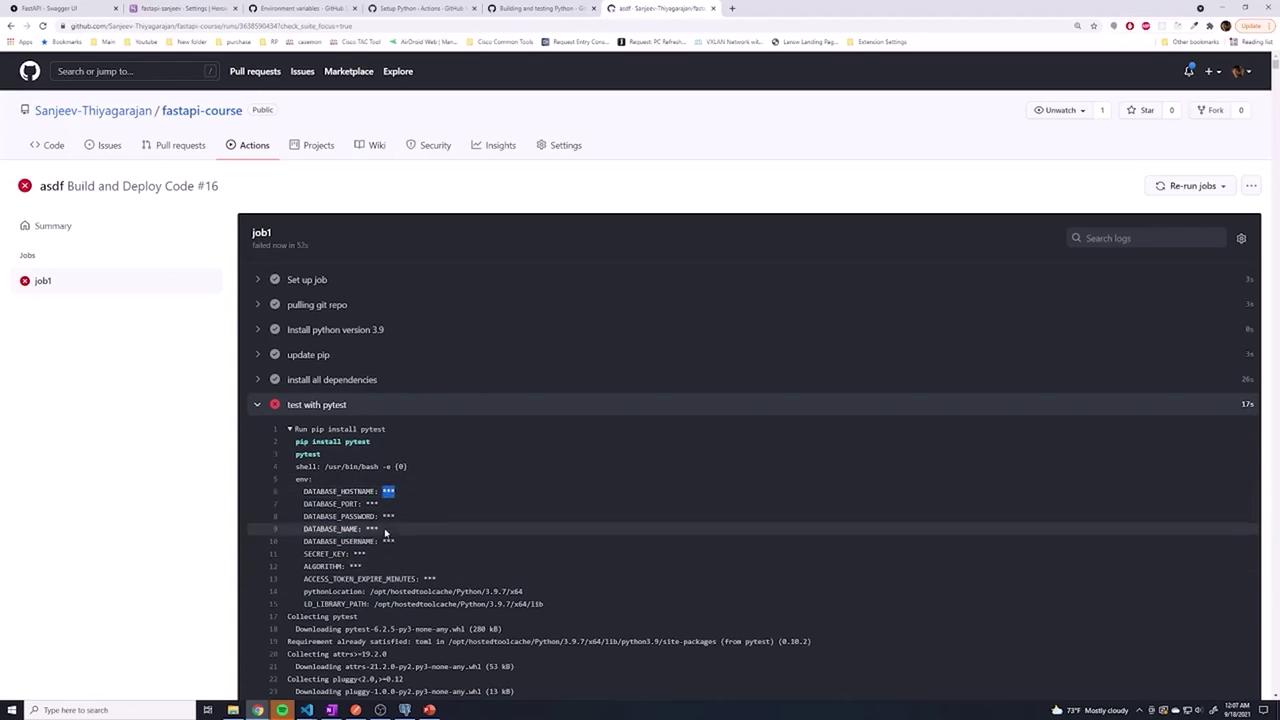
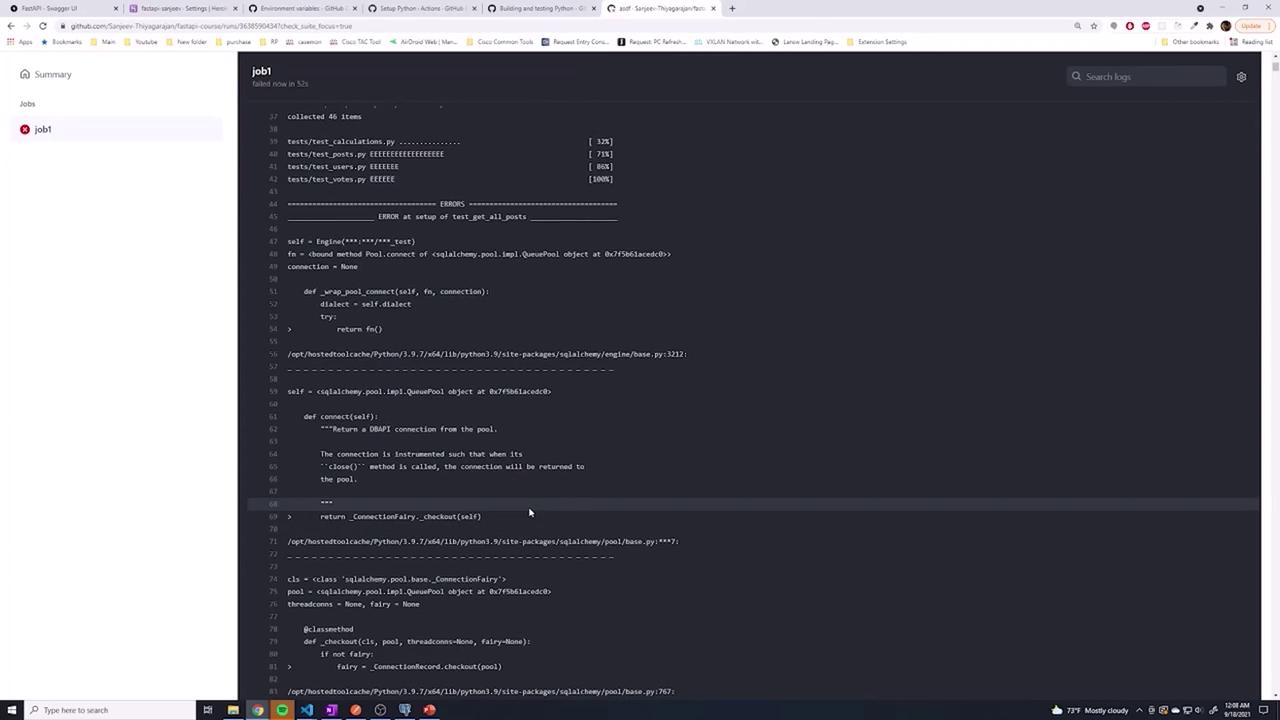
After pushing your changes, you might encounter errors in your GitHub Actions job. For example, an error like “unrecognized name, database_port” suggests that one of the environment variables was referenced without using the requiredsecrets. prefix. The screenshot below highlights such an error:
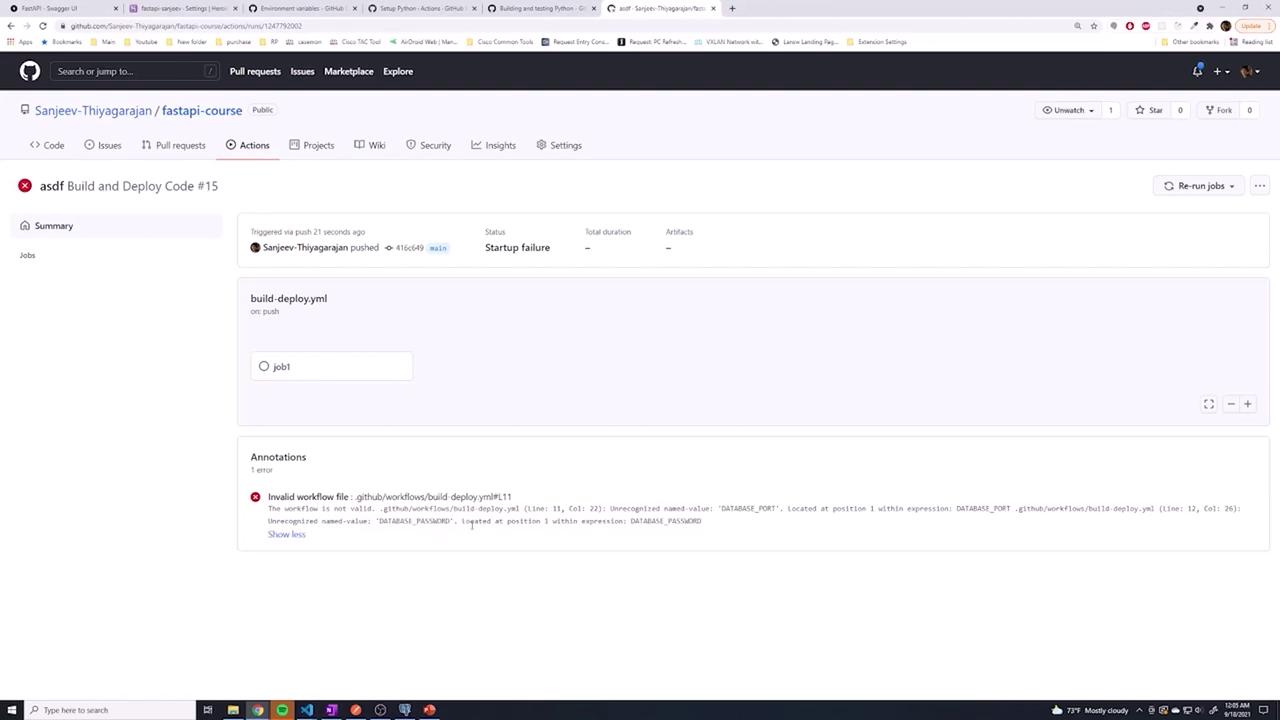
${{ secrets.VARIABLE_NAME }}. Here is the corrected job configuration: