

Step 1: Download PostgreSQL for macOS
Start by searching for PostgreSQL using your favorite search engine. The top result should lead you to the official PostgreSQL website. Once there, navigate to the Downloads section where you’ll find a list of supported platforms. For macOS users, click on the macOS installer option. When you click the macOS installer, you will see multiple available versions: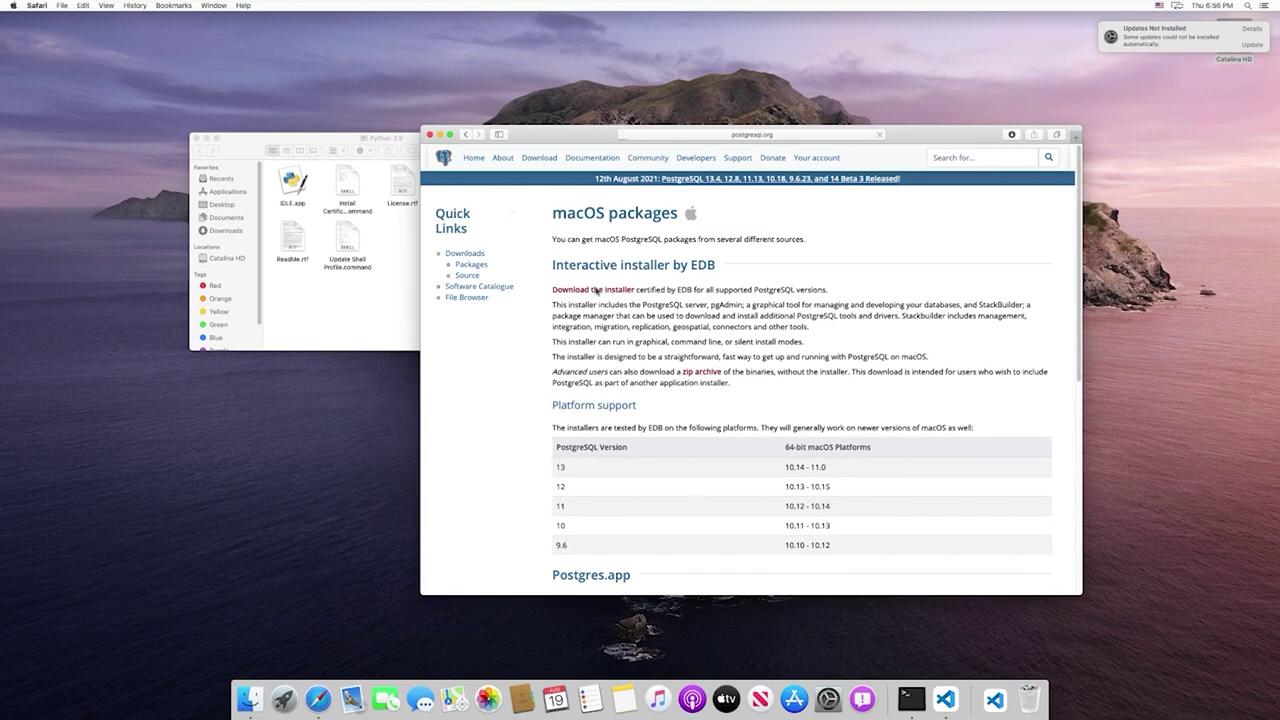
Step 2: Install PostgreSQL on Your Mac
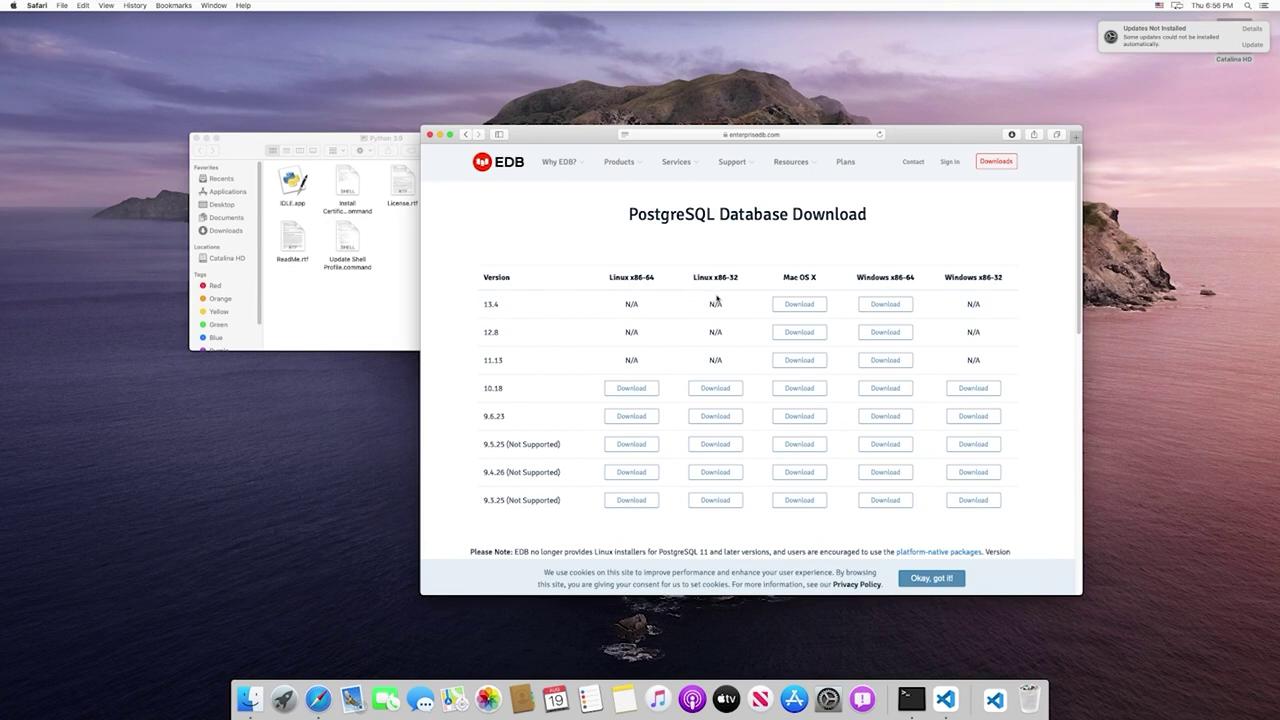
After downloading the installer, locate and open the DMG file to start the installation process. If prompted with a security warning, click “Open” and enter your administrator password when requested. The installer window will appear with an option to click “Next.” You should retain the default installation directory. The installer provides four different components by default:- PostgreSQL Server: The core database engine that you need to run your database.
- pgAdmin: A Graphical User Interface (GUI) tool for managing your PostgreSQL databases. For ease of management, it is recommended to install this component.
- Stack Builder: An optional tool designed to install additional extensions to enhance PostgreSQL functionality. You may uncheck this option if not required.
- Command Line Tools: Tools for managing PostgreSQL via the terminal. Although this article primarily focuses on the GUI, installing these tools can be beneficial for advanced configuration and future use.
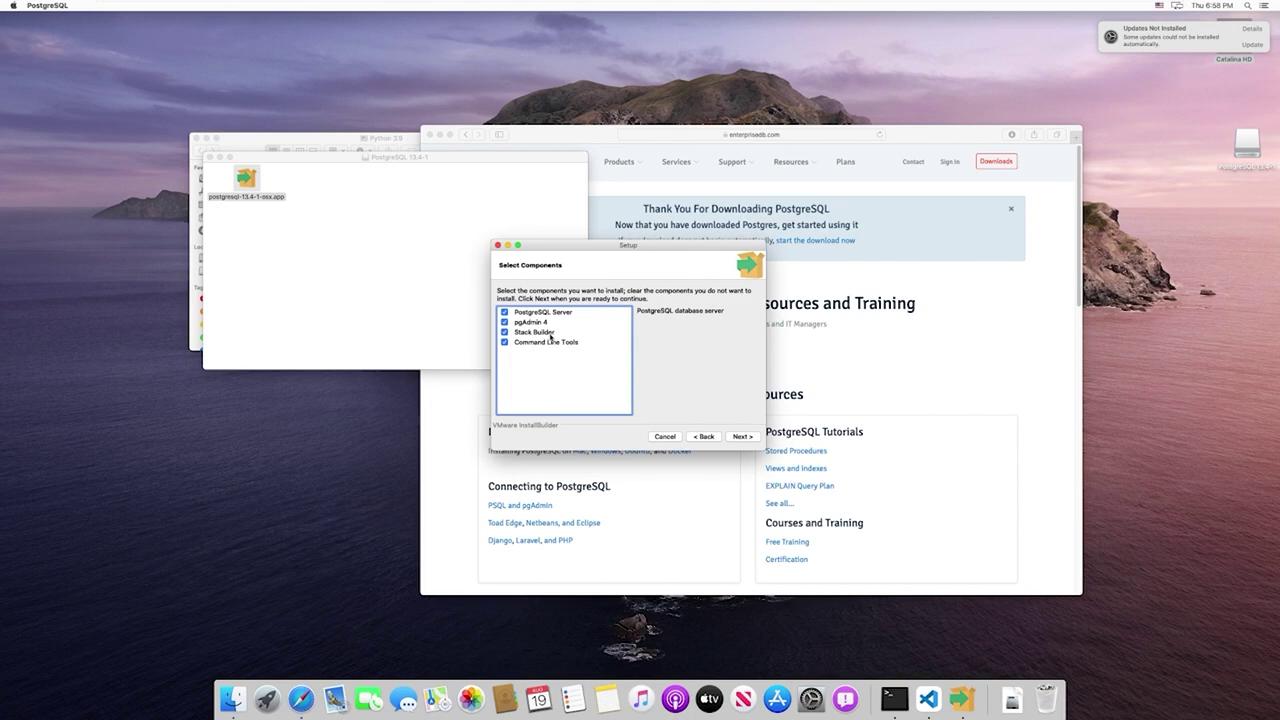
If you plan to work extensively with PostgreSQL commands, consider installing the Command Line Tools along with pgAdmin for additional flexibility.
Step 3: Configure PostgreSQL
Proceed with the installation by choosing a default data directory and setting up a password for your PostgreSQL instance. This password functions similarly to a root password and is necessary for administrative access to your database.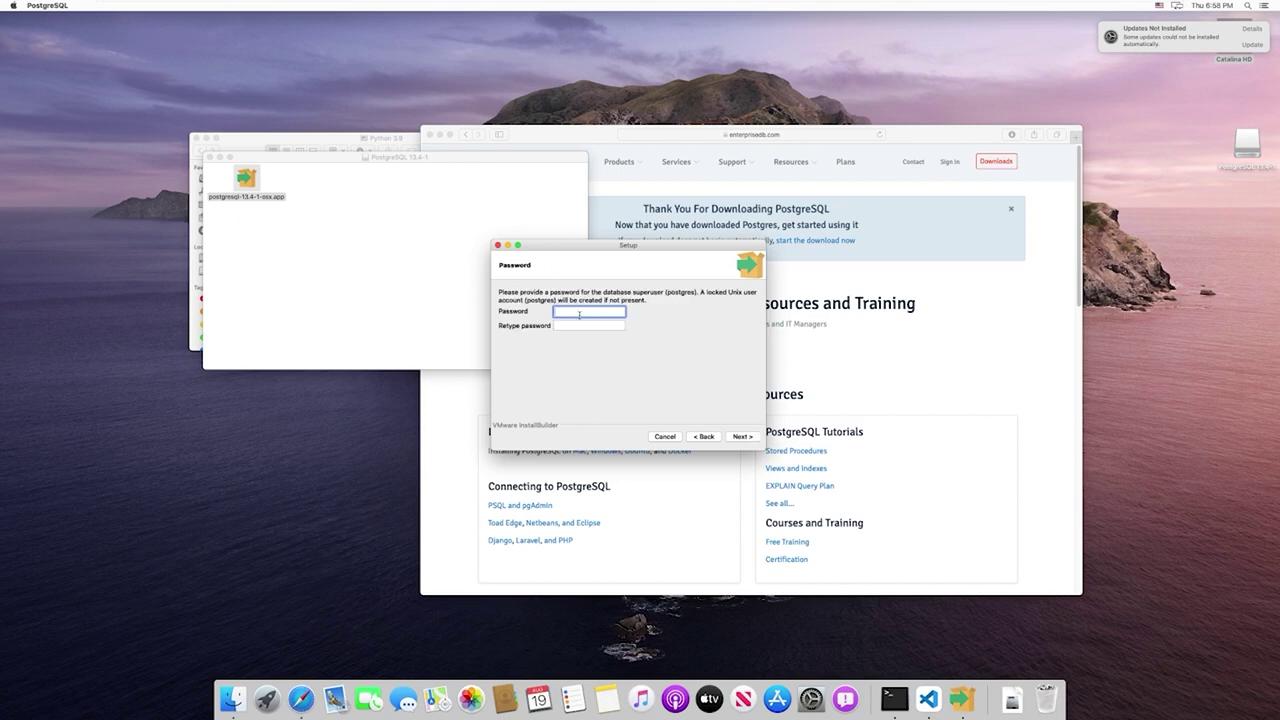
Step 4: Launch and Manage PostgreSQL with pgAdmin
To manage your database, launch pgAdmin—a powerful GUI tool for interacting with PostgreSQL. Use the macOS search feature to locate and open “pgAdmin.” This tool will be your primary interface for managing PostgreSQL throughout this guide.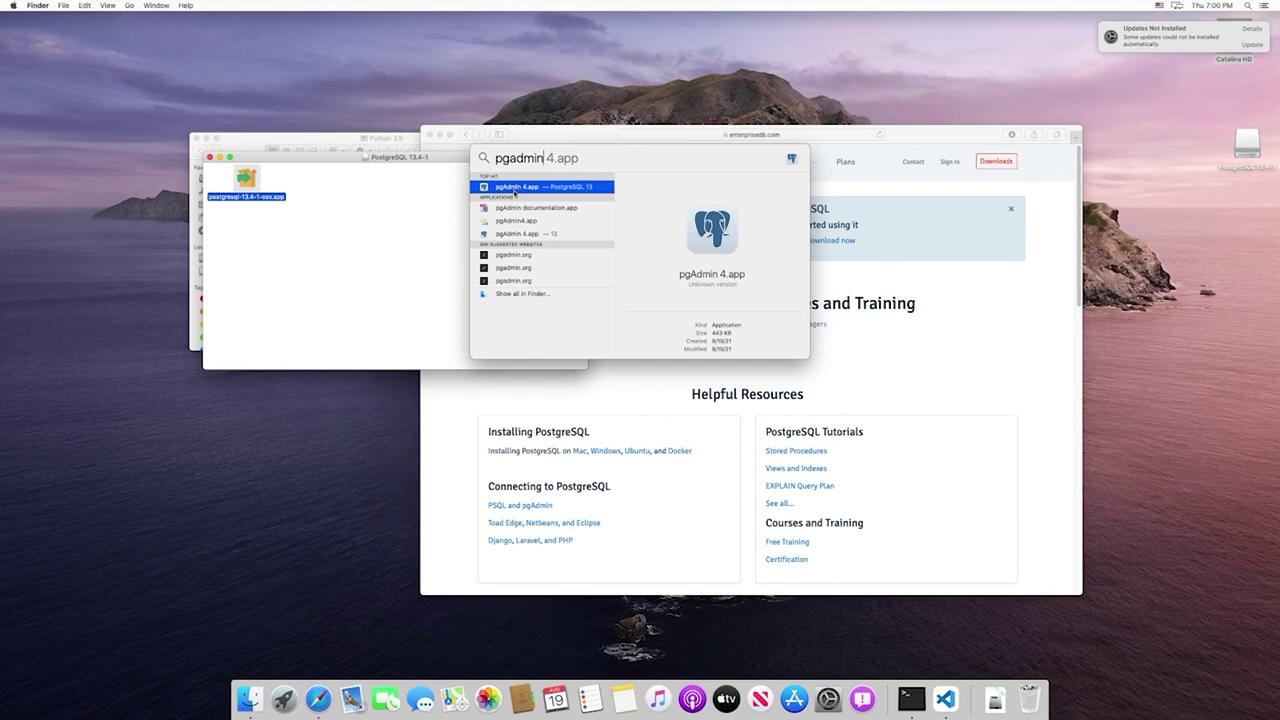
This guide has covered the PostgreSQL installation process. In the next sections, we will explore how to perform basic database management tasks using pgAdmin.