

- A running local Kubernetes cluster (Minikube).
- cert-manager installed to manage TLS for admission webhooks.
- KServe controller and CRDs installed and verified.
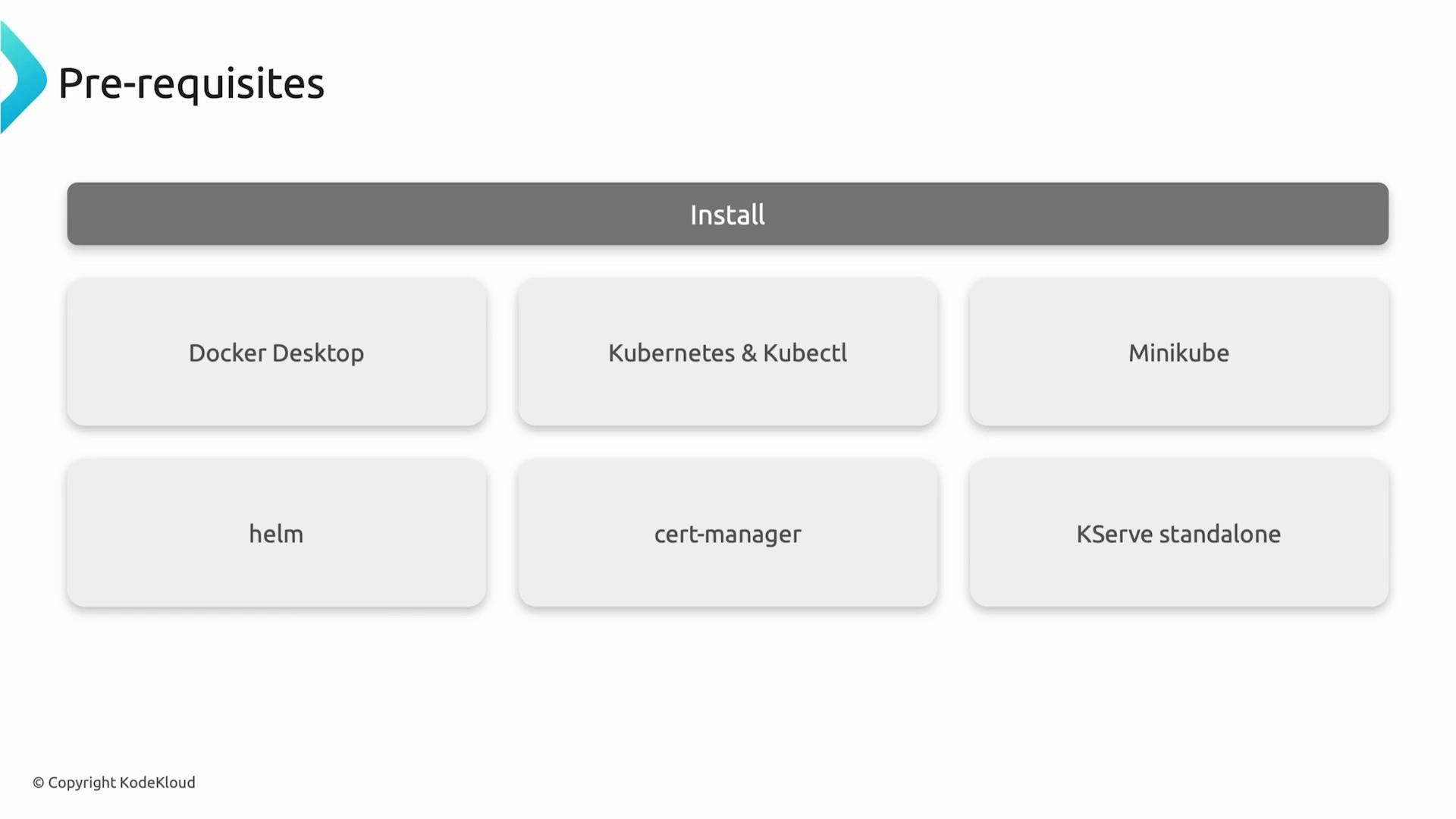
- Docker Desktop — container runtime for Minikube (or docker.io on Linux)
- kubectl — Kubernetes CLI
- Minikube — local Kubernetes cluster
- Helm — package manager for Kubernetes
- cert-manager — TLS certificate automation for admission webhooks
- KServe — model serving CRDs and controller
Prerequisites (detailed)
Step 1 — Install & Start Docker
Docker provides the container runtime used by Minikube when the Docker driver is selected. macOS & Windows:- Install Docker Desktop from the Docker website and ensure it is running.
Step 2 — Install kubectl
kubectl is required to interact with your cluster and verify resources. macOS:Step 3 — Start Minikube
Start Minikube with Docker as the driver and allocate enough resources for inference workloads. The example below uses 4 CPUs, 6 GB of RAM, and 25 GB disk:Allocate adequate CPU, memory, and disk when running inference workloads locally. If you encounter resource pressure, increase CPU and memory or scale down model resource requests.
Step 4 — Install Helm
Helm simplifies installing KServe and its dependencies. macOS:Step 5 — Install cert-manager
KServe uses Kubernetes admission webhooks that require TLS certificates. cert-manager automates certificate issuance and rotation. Install cert-manager via the upstream manifest:cert-manager namespace:
Running state before proceeding.
If cert-manager pods do not become
Running within a few minutes, check pod logs (kubectl logs -n cert-manager <pod>) and ensure your Minikube VM has sufficient resources and network access to pull images.Step 6 — Install KServe (CRDs + Controller)
KServe extends Kubernetes with CRDs such asInferenceService, ServingRuntime, and ClusterServingRuntime. Install KServe using the Helm chart from the GitHub Container Registry.
Create the kserve namespace (Helm will create it if missing) and install the chart. This example sets the controller deployment mode to Standard and uses version v0.16.0 of the chart:
kserve namespace:
Running state. If pods are crashing or in CrashLoopBackOff, inspect logs:
Final verification — Confirm KServe CRDs
Ensure the KServe CRDs are registered in the Kubernetes API. On macOS / Linux:InferenceService) are available, and your KServe installation is ready.
Next steps
Once KServe is installed and verified:- Create an
InferenceServicemanifest to deploy a model. - Explore
ServingRuntimeorClusterServingRuntimeif you need custom runtimes or GPU support. - Use
kubectl describeandkubectl logsto debug InferenceService resources and pods.
kubectl get inferenceservice -Akubectl describe inferenceservice <name> -n <namespace>kubectl logs -l serving.kserve.io/controller -n kserve
Links and References
- KServe GitHub (charts)
- KServe Documentation
- Minikube documentation
- cert-manager Releases
- Helm Documentation
- Docker Desktop