

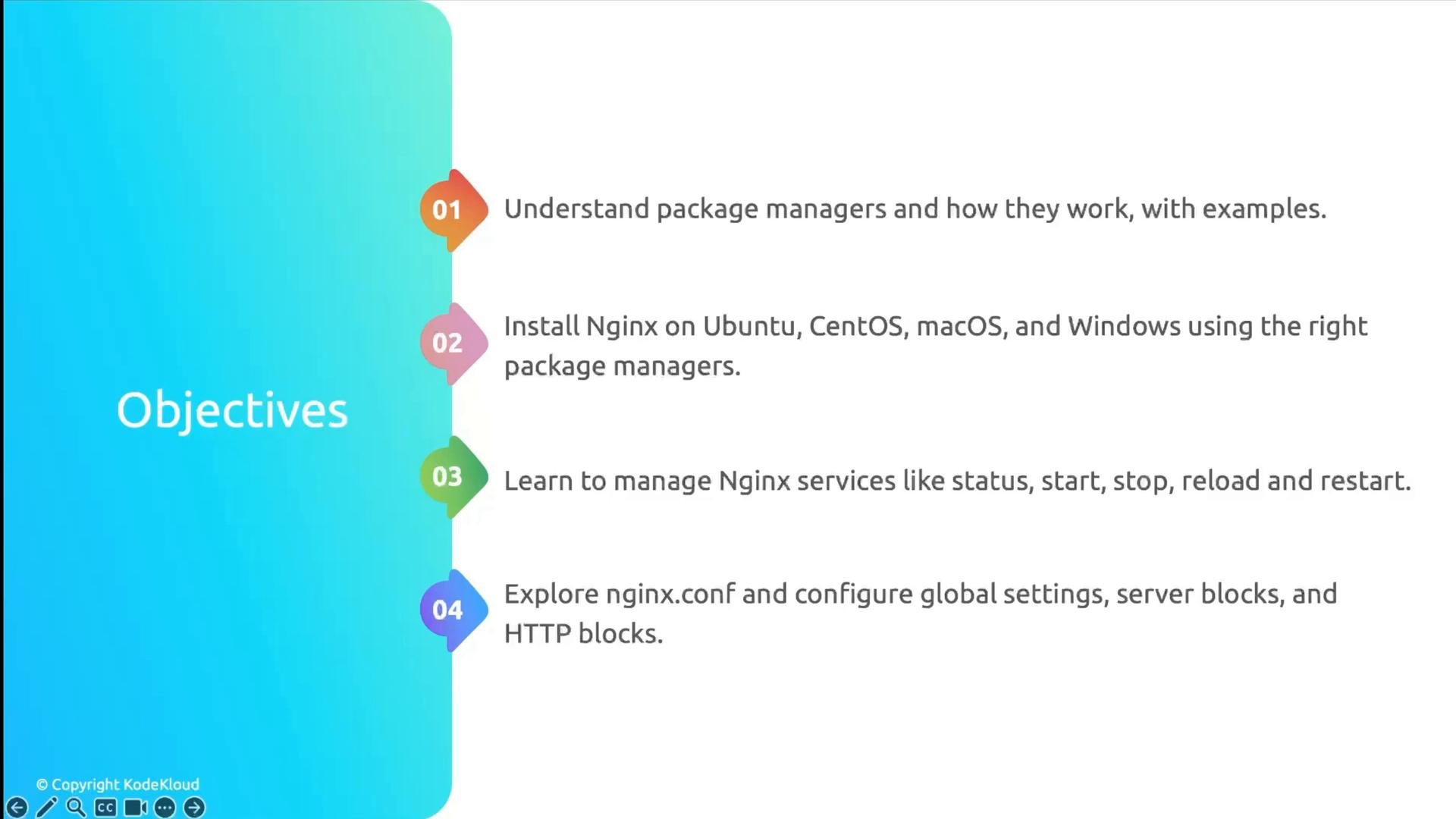
- What package managers are and how they differ across platforms
- Installing Nginx on Ubuntu, CentOS/RHEL, macOS, and Windows
- Managing the Nginx service (status, start, stop, restart, reload)
- The structure of
nginx.confand the common include patterns (sites-available/sites-enabled) - Creating server blocks (virtual hosts) to host static content
- Allowing HTTP/HTTPS through UFW (or platform equivalents)
Package managers — quick overview
Package managers are tools that simplify installing, upgrading, configuring, and removing software by handling repositories, dependency resolution, and binary distribution. Common examples:
These commands are a starting point — some distributions may require enabling repositories (e.g., EPEL for older CentOS versions) or following distro-specific install notes.
Installing Nginx — examples by OS
Ubuntu / Debian (APT)Managing the Nginx service
Use the native service manager for your OS. Common commands:
Always test configuration before reload:
Nginx configuration layout (nginx.conf, server blocks, and includes)
Nginx uses a hierarchical configuration system with global directives, theevents block, the http block, and inside http one or more server blocks that contain location blocks. Debian-style layouts commonly separate sites into sites-available and sites-enabled and use include directives to load them.
Example minimal nginx.conf skeleton:
include /etc/nginx/conf.d/*.conf;for packaged configssites-available+sites-enabledwheresites-enabledcontains symlinks to active configs- Use
nginx -tto validate config syntax andsystemctl reload nginxto apply changes without dropping connections
Host a simple static website (server block / virtual host)
- Create the site directory and a simple index file (example for Ubuntu/Debian):
-
Create a server block file (e.g.,
/etc/nginx/sites-available/example.com) and add the server block shown earlier. - Enable the site (Debian/Ubuntu):
- Verify by visiting
http://<SERVER_IP>/orhttp://example.comif DNS points to your server.
- HTTP — port 80
- HTTPS — port 443 (requires TLS certificate; consider Let’s Encrypt for free certs)
Firewall (UFW example)
On Ubuntu systems using UFW:When managing services or editing system configuration you will typically need elevated privileges (for example, using
sudo). If you are working on a remote server, be careful when changing firewall rules or SSH configuration so you don’t lock yourself out.Summary and next steps
- Use your OS package manager to install Nginx and learn the service manager commands for start/stop/reload.
- Use
nginx -tto test changes andsystemctl reload nginx(or the OS equivalent) to apply them safely. - Structure sites with separate server blocks and leverage
sites-available/sites-enabledon Debian-style systems. - Open the appropriate firewall ports and obtain TLS certificates for HTTPS.
- Nginx Documentation
- Ubuntu Server Guide
- systemd — managing services
- UFW — Uncomplicated Firewall
- Homebrew
- Chocolatey | winget