

nginx.conf), how server blocks (virtual hosts) are structured, and practical operational tips for testing and reloading configurations.
Let’s dive into nginx.conf, the main configuration file typically located at /etc/nginx/nginx.conf on most Linux distributions. The file is organized into a few top-level sections:
- Global settings — directives that affect the entire NGINX process (user, worker processes, PID file, etc.).
eventsblock — controls connection handling and the event model.httpblock — top-level container for HTTP-related configuration (server blocks, compression, logging, MIME types, timeouts).serverblocks — virtual hosts that define how NGINX should respond to requests for specific domains or IPs.
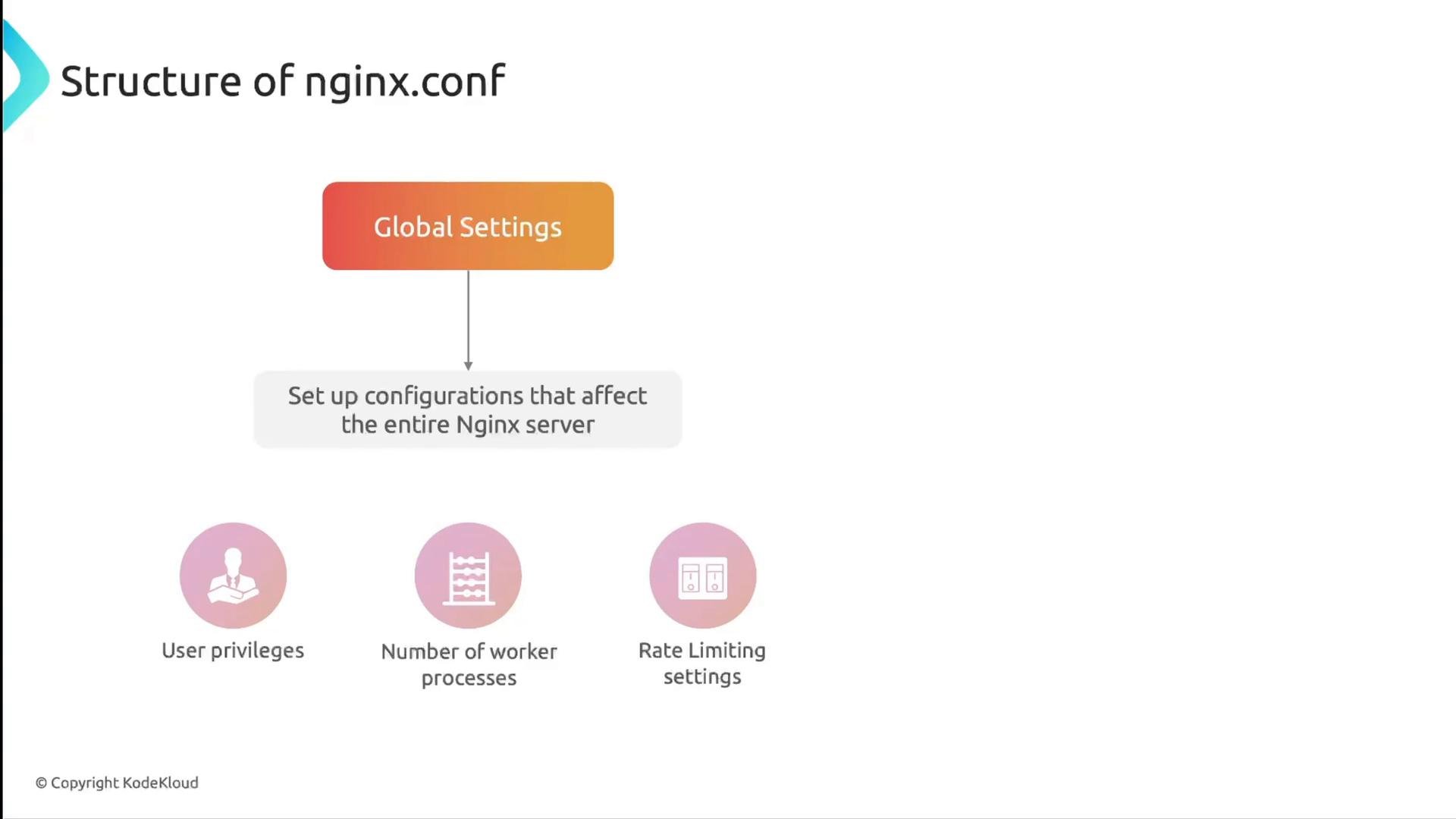
Global settings
Global directives typically appear at the top ofnginx.conf. Example:
user— the system user NGINX worker processes run as (e.g.,www-dataon Debian/Ubuntu ornginxon CentOS/RHEL).worker_processes— number of worker processes. Useautoto let NGINX select based on CPU cores.pid— path to the master process PID file used for signaling (reloads, stops).
Events block
Theevents block configures connection handling and should align with worker_processes. The theoretical maximum simultaneous connections is approximately worker_processes * worker_connections.
worker_processes is 4 and worker_connections is 1024, the theoretical maximum is 4 * 1024 = 4096 simultaneous connections.
HTTP block
Thehttp block contains settings for logging, compression, timeouts, MIME types, and includes for server blocks. It pulls together shared directives used across virtual hosts.
include directives are how nginx.conf pulls in server block files and configuration snippets. This modular approach keeps the main config clean and allows per-site or per-feature configs.
Server blocks (virtual hosts)
Server blocks are NGINX’s virtual host mechanism. They tell NGINX how to handle requests for particular domains, IPs, and ports. You can host multiple sites on one server by defining multiple server blocks.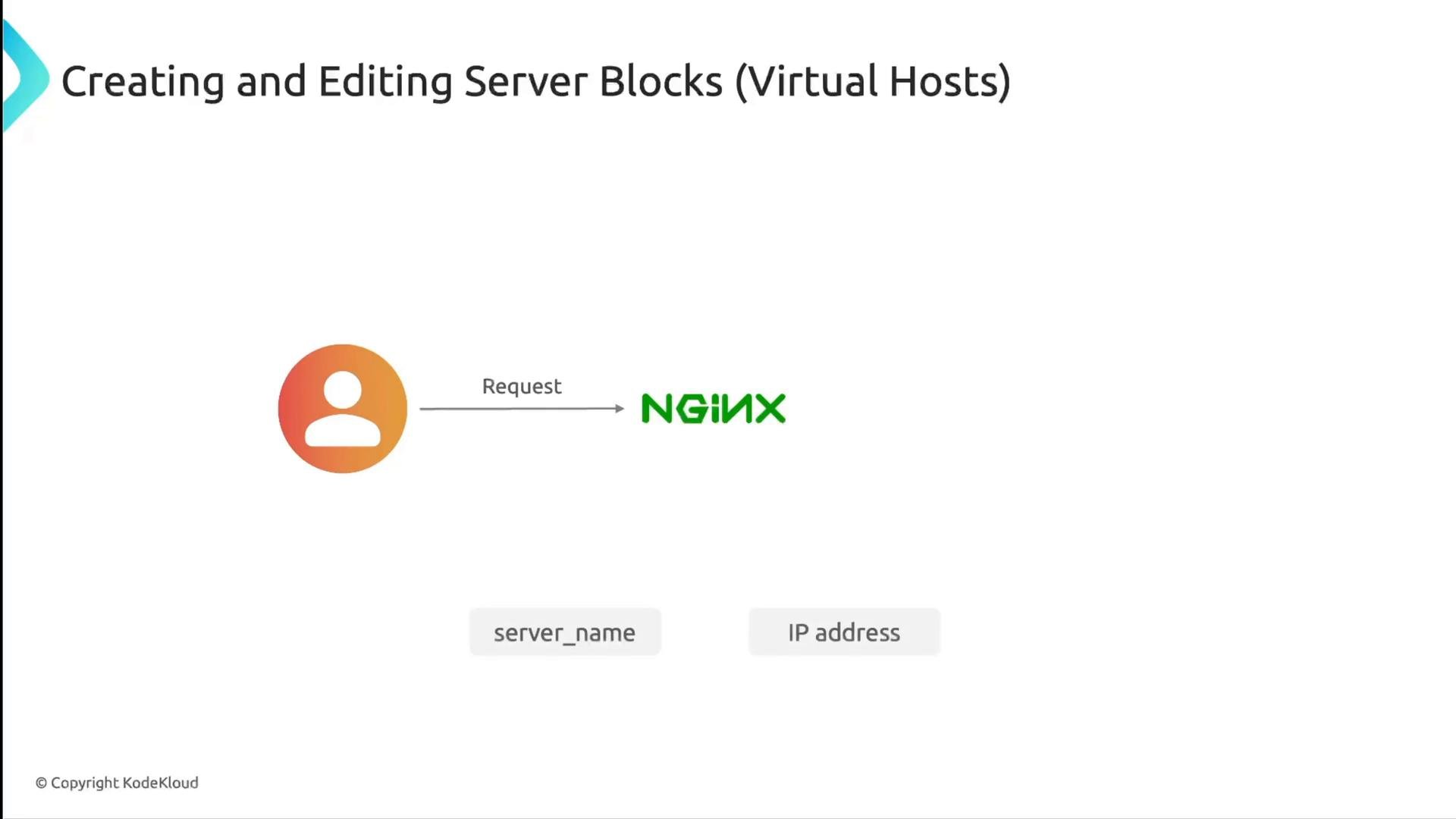
listen— IP and/or port to listen on (commonly80for HTTP and443for HTTPS).server_name— domain(s) or hostnames this block responds to (used to match incomingHostheaders).root— directory from which files are served for this server block.index— default index file(s) for directory requests.location /— location block for the site root.try_files $uri $uri/ =404;checks the filesystem and returns404if no match.
try_files:
$uriand$uri/are built-in variables representing the requested path and the path treated as a directory.- The
=404fallback instructs NGINX to return an HTTP 404 status if a file or directory isn’t found.
NGINX modules
NGINX functionality is implemented via modules (core, HTTP, stream, etc.). Each module exposes directives you can use in configuration files. Refer to the official module documentation when adding features like caching, rewriting, proxying, or load balancing.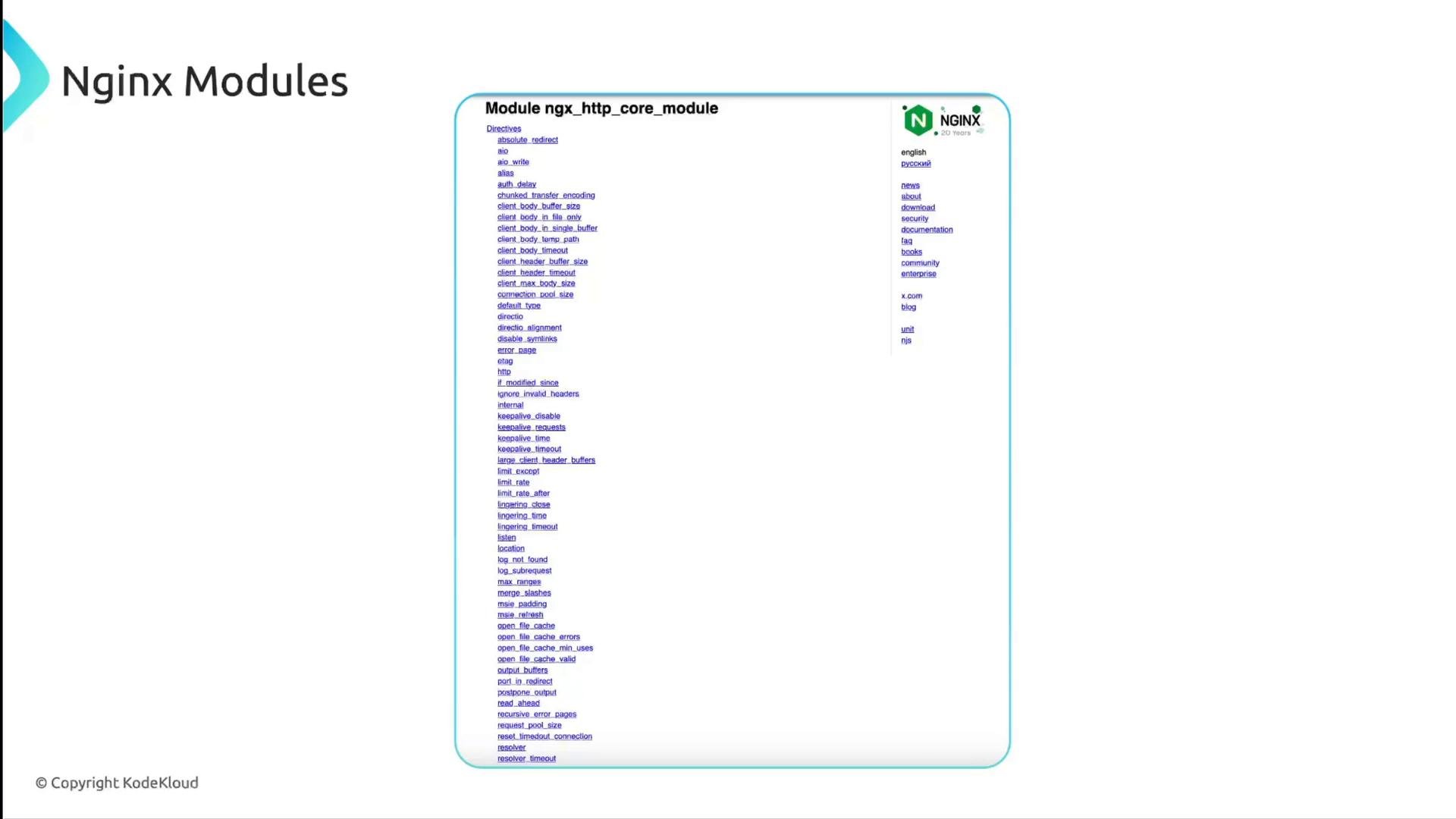
Directory structure and important files
Common paths (Debian/Ubuntu layout shown):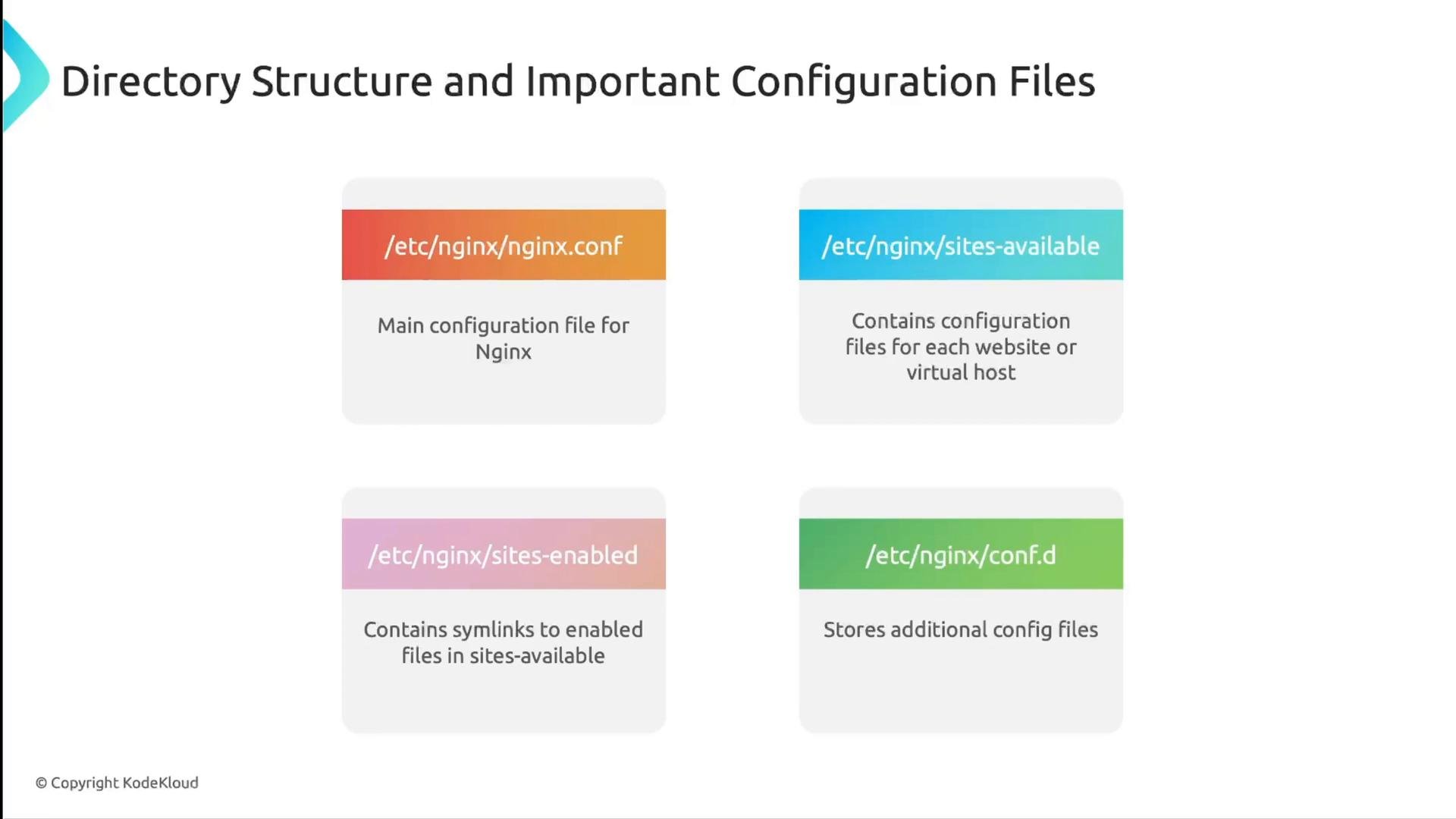
- Place site configs in
sites-available/and enable them by creating a symlink insites-enabled/(this pattern mirrors Apache’sa2ensiteworkflow). - Use
conf.d/for smaller reusable fragments or service-specific configuration (e.g., load balancing, SSL snippets). - Verify your website document root (e.g.,
/var/www/) and permissions when troubleshooting file serving issues.
Essential NGINX commands
Below are the most common NGINX commands for checking version, testing configuration, and sending signals to the master process.
Examples:
Test configuration syntax:
- Edit or add config files (e.g., create a site in
/etc/nginx/sites-available). - Test configuration:
- If the test passes, reload NGINX to apply changes without dropping connections:
Reload vs restart
reload(recommended) tells NGINX to re-open files and apply config changes without stopping the master process — less disruptive to active connections.restartstops and then starts the service; it can briefly interrupt active connections.
Always run
sudo nginx -t (or sudo nginx -T when you need the full merged configuration) before reloading NGINX. This prevents applying invalid configurations that would break the web server.Common diagnostic commands
- Check service status:
- Follow logs in real time:
nginx -T to produce the full merged configuration when you need to share or debug the exact configuration NGINX is using (after includes and merges). This is especially useful when support teams ask for a complete configuration dump.
Summary
nginx.confis organized into Global settings,events,http, andserverblocks.- Use
sites-availableandsites-enabledto manage virtual hosts; useconf.d/for reusable fragments. - Test changes with
nginx -t(ornginx -Tfor full config) before reloading. - Prefer
reloadto apply configuration changes without downtime. - Check
/var/log/nginx/for access and error logs when troubleshooting.
Links and references
- Official NGINX documentation: https://nginx.org/en/docs/
- NGINX configuration guide: https://nginx.org/en/docs/beginners_guide.html
- Kubernetes Basics (if deploying behind Kubernetes Ingress controllers)