All right — let’s talk about HTTPS, why it matters, and how it works. HTTPS (HTTP over TLS) encrypts the connection between a user’s browser and a web server. That encryption prevents eavesdroppers from reading or tampering with data in transit and is a baseline requirement for modern websites — for privacy, security, and search ranking. Why HTTPS matters
  • Security: On untrusted networks (coffee shops, airports), sensitive data such as passwords, session cookies, and payment information can be intercepted unless the connection is protected by TLS.
  • Trust & authenticity: TLS certificates let browsers verify that a website is the site it claims to be, preventing simple impersonation attacks.
  • SEO & user experience: Search engines and browsers favor HTTPS-enabled sites; some browser features require secure contexts.
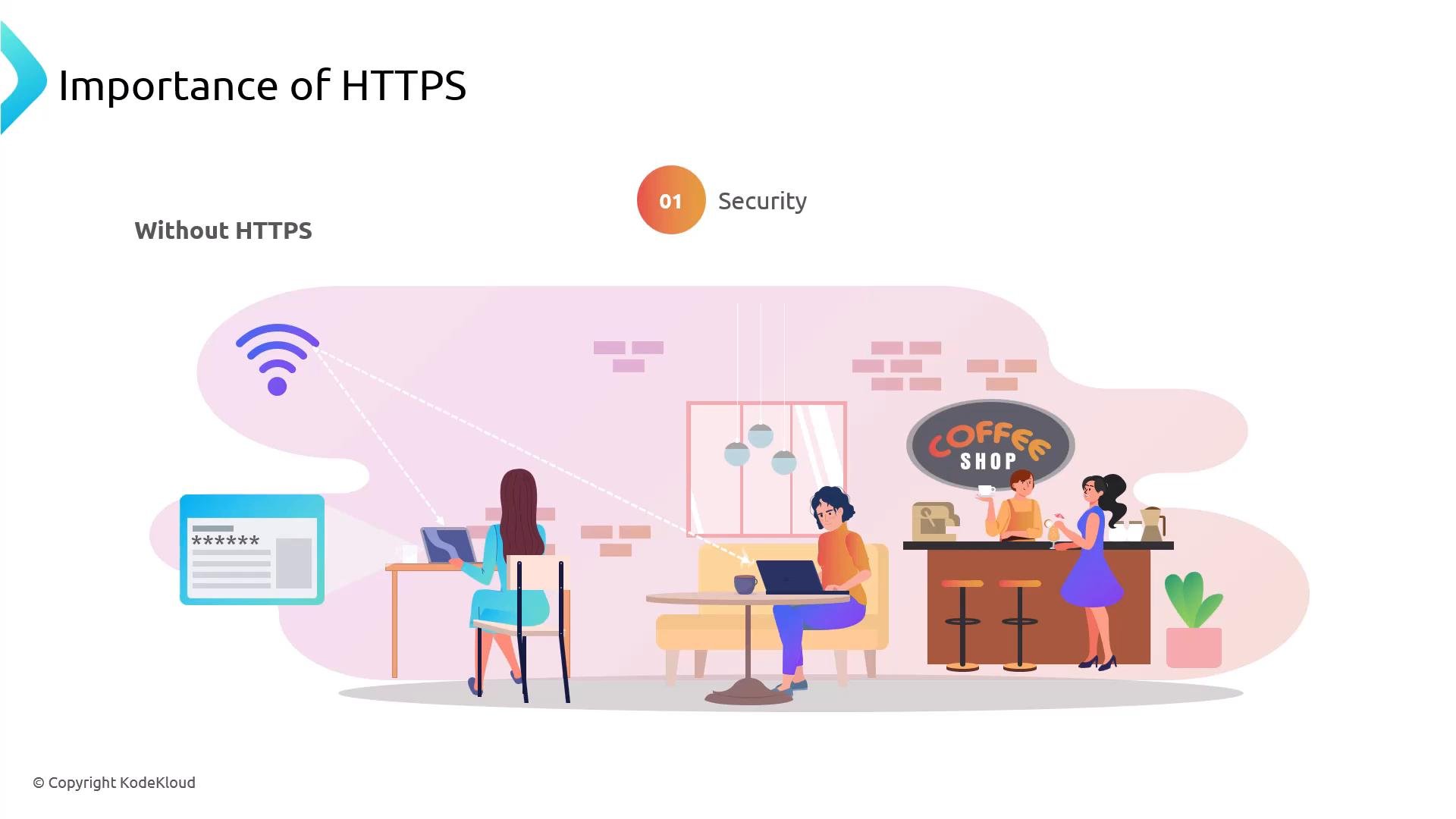
An illustration titled "Importance of HTTPS" showing people in a coffee shop using laptops and public Wi‑Fi, with dotted lines indicating unsecured connections and a password/login box labeled "Without HTTPS."
Without HTTPS, traffic is sent in plaintext and can be read or modified by attackers. With HTTPS, traffic is encrypted, so intercepted bytes are useless without the proper keys.
A presentation slide titled "Importance of HTTPS" with a "02 SEO Benefits" heading. It shows a stylized browser window displaying the URL "https://mydomain.com/" and colored lines representing webpage content.
SSL and TLS
  • SSL (Secure Sockets Layer) is the legacy protocol. TLS (Transport Layer Security) is its modern replacement.
  • Today, when people say “SSL certificate,” they usually mean an X.509 certificate used with TLS.
  • TLS provides confidentiality, integrity, and server authentication between the browser and the web server.
A presentation slide titled "SSL and TLS" showing two blue rounded boxes labeled "Secure Sockets Layer (SSL)" and "Transport Layer Security (TLS)". The slide has a minimal white background and a small "© Copyright KodeKloud" note.
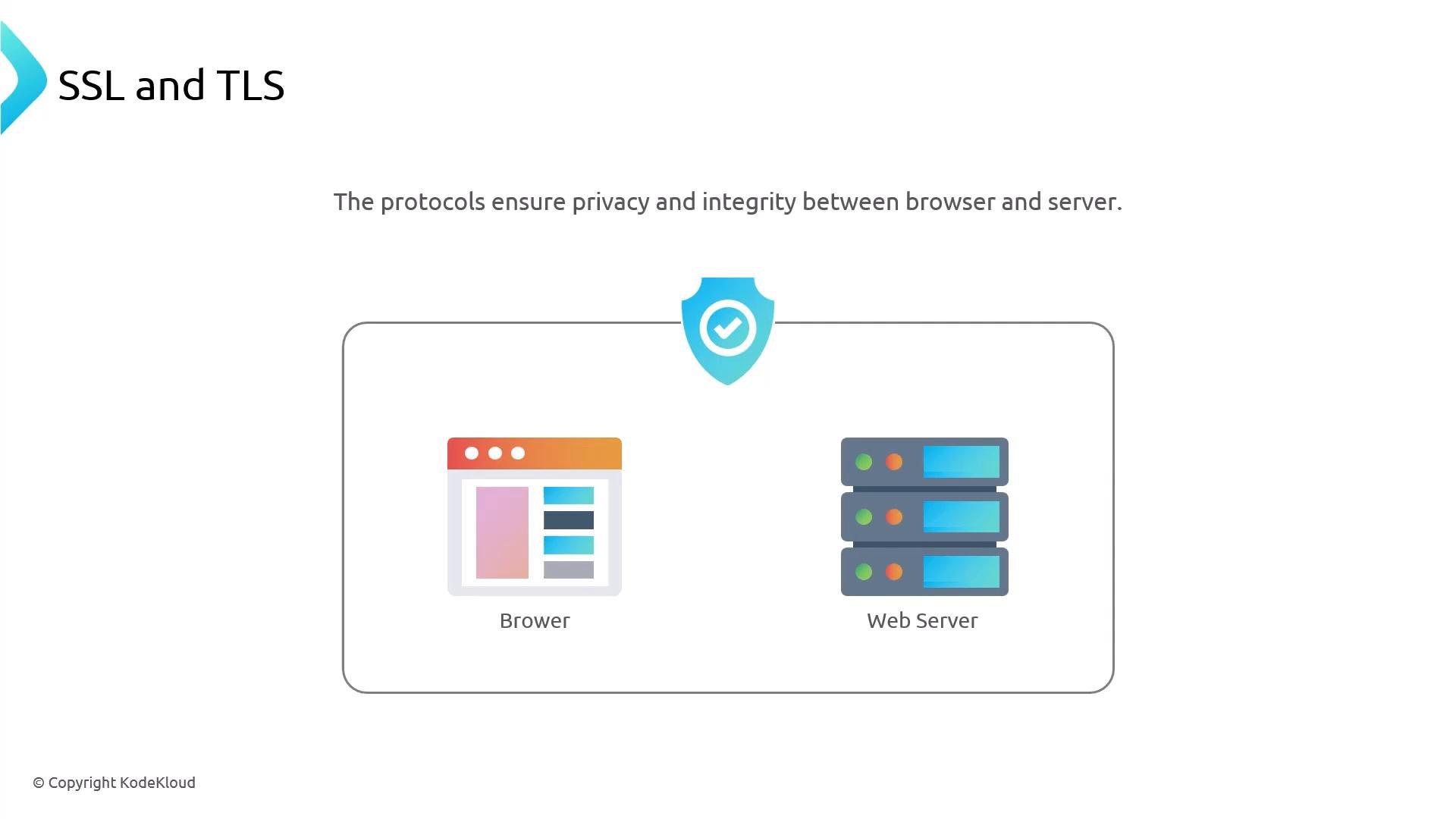
A slide titled "SSL and TLS" explaining that the protocols ensure privacy and integrity between a browser and a web server. The illustration shows a browser icon and a stack of servers connected and protected by a shield with a checkmark.
How the TLS handshake works (high level) A TLS handshake establishes a secure channel before sensitive data (e.g., payment details) is submitted. Simplified flow:
  1. The browser connects to the website and requests a secure session (this is automatic when visiting an HTTPS URL).
  2. The server sends a TLS certificate — a digitally signed document containing the server’s public key and identity information. The browser validates the certificate chain up to a trusted Certificate Authority (CA).
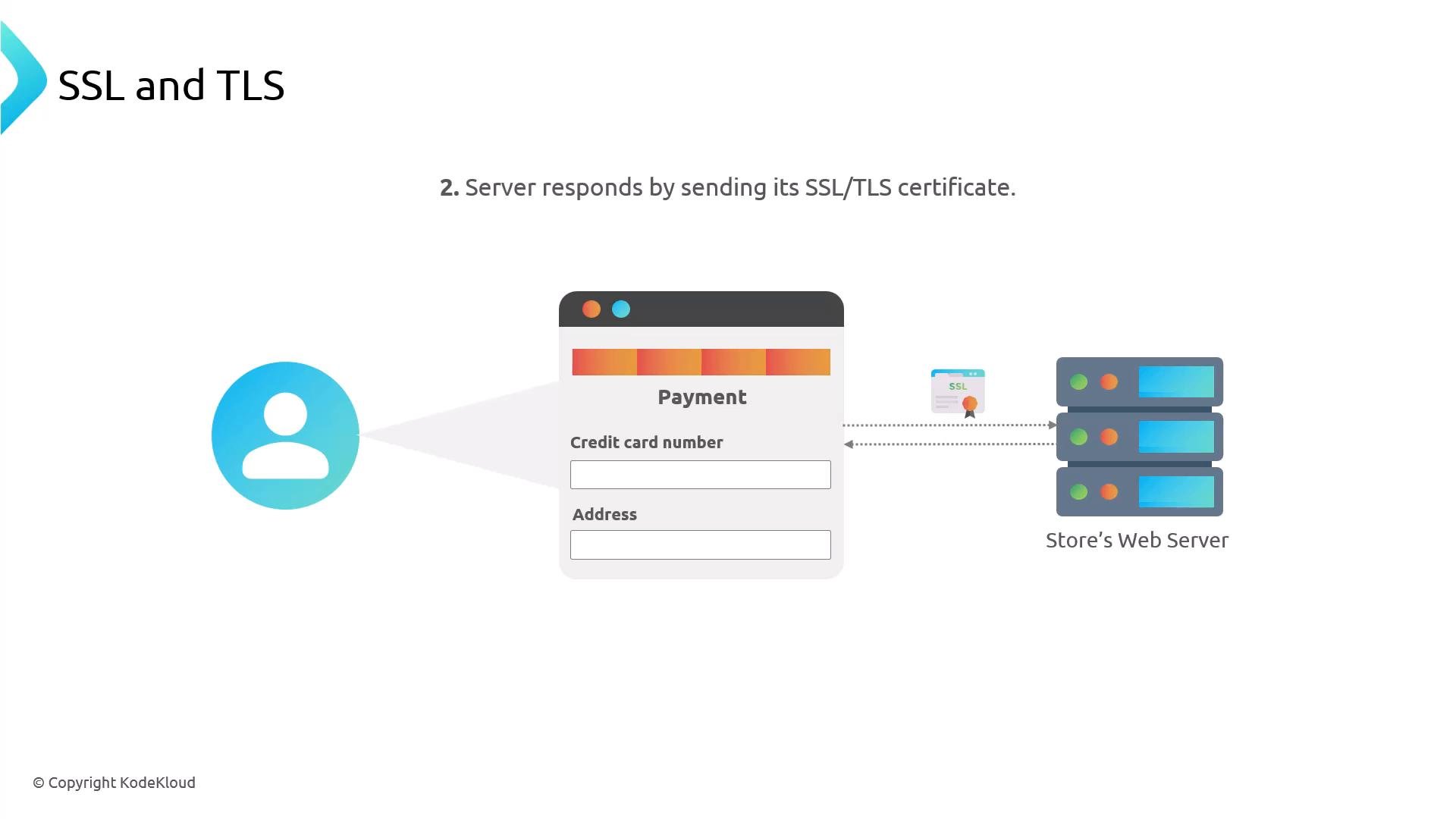
A simple diagram showing step 2 of an SSL/TLS exchange: the store's web server sends its SSL/TLS certificate to the user's payment form. It depicts a user icon on the left, a payment form in the center, and server racks labeled "Store's Web Server" on the right.
  1. If the certificate checks out, the browser and server perform a key exchange (often using ephemeral keys) to agree on a symmetric session key.
  2. The agreed symmetric key encrypts the rest of the session (fast and efficient for bulk data).
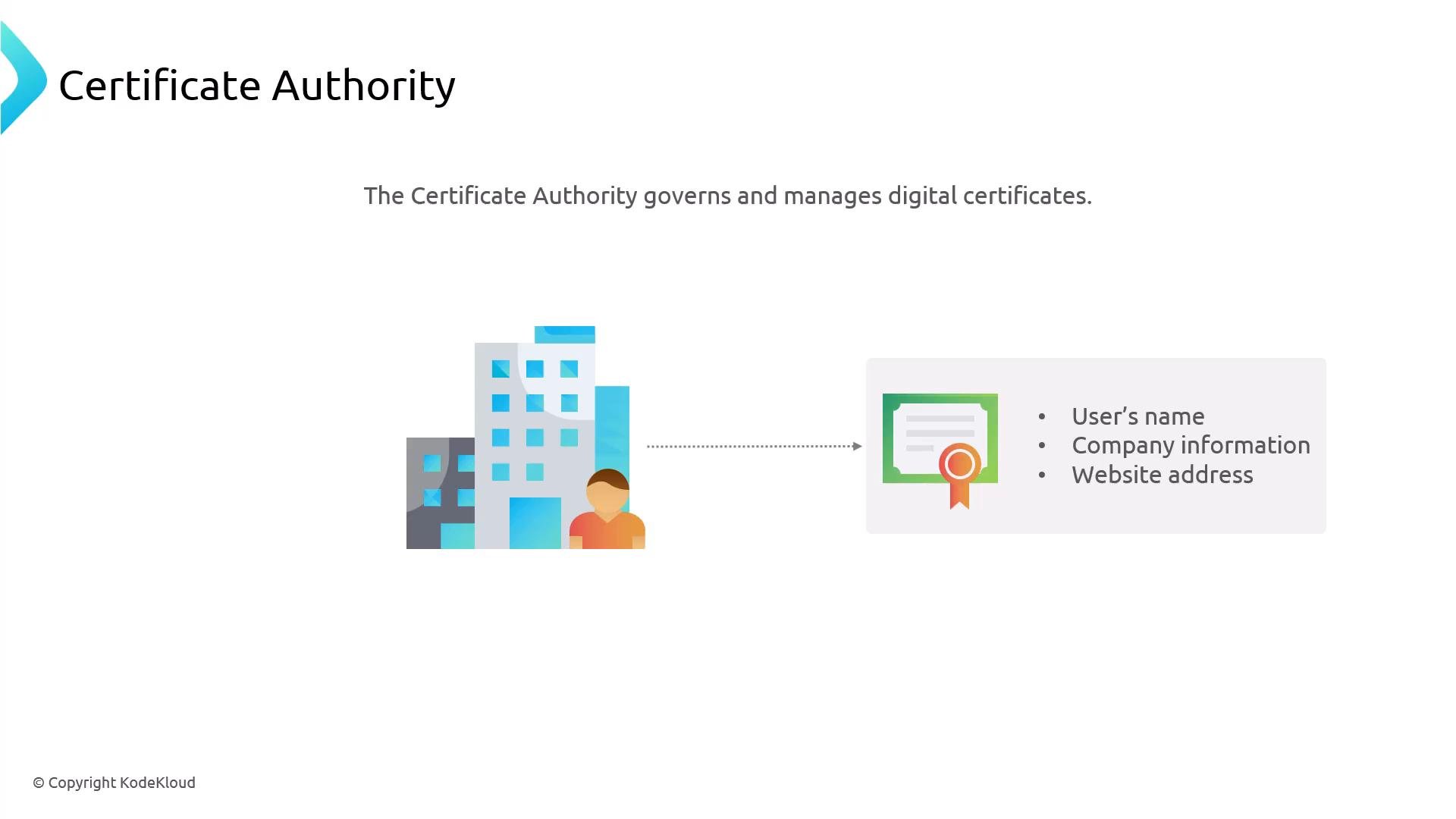
What is a Certificate Authority (CA)? A CA is a trusted third party that verifies identity and signs TLS certificates. Certificates typically include domain names and organization details to help browsers verify server identity.
A presentation slide titled "Certificate Authority" stating that it governs and manages digital certificates. It shows an illustration of a company/person pointing to a certificate with bullets for user's name, company information, and website address.
The TLS certificate acts like an online ID card — it confirms that https://onlinestore.com is actually the site it claims to be and not an imposter.
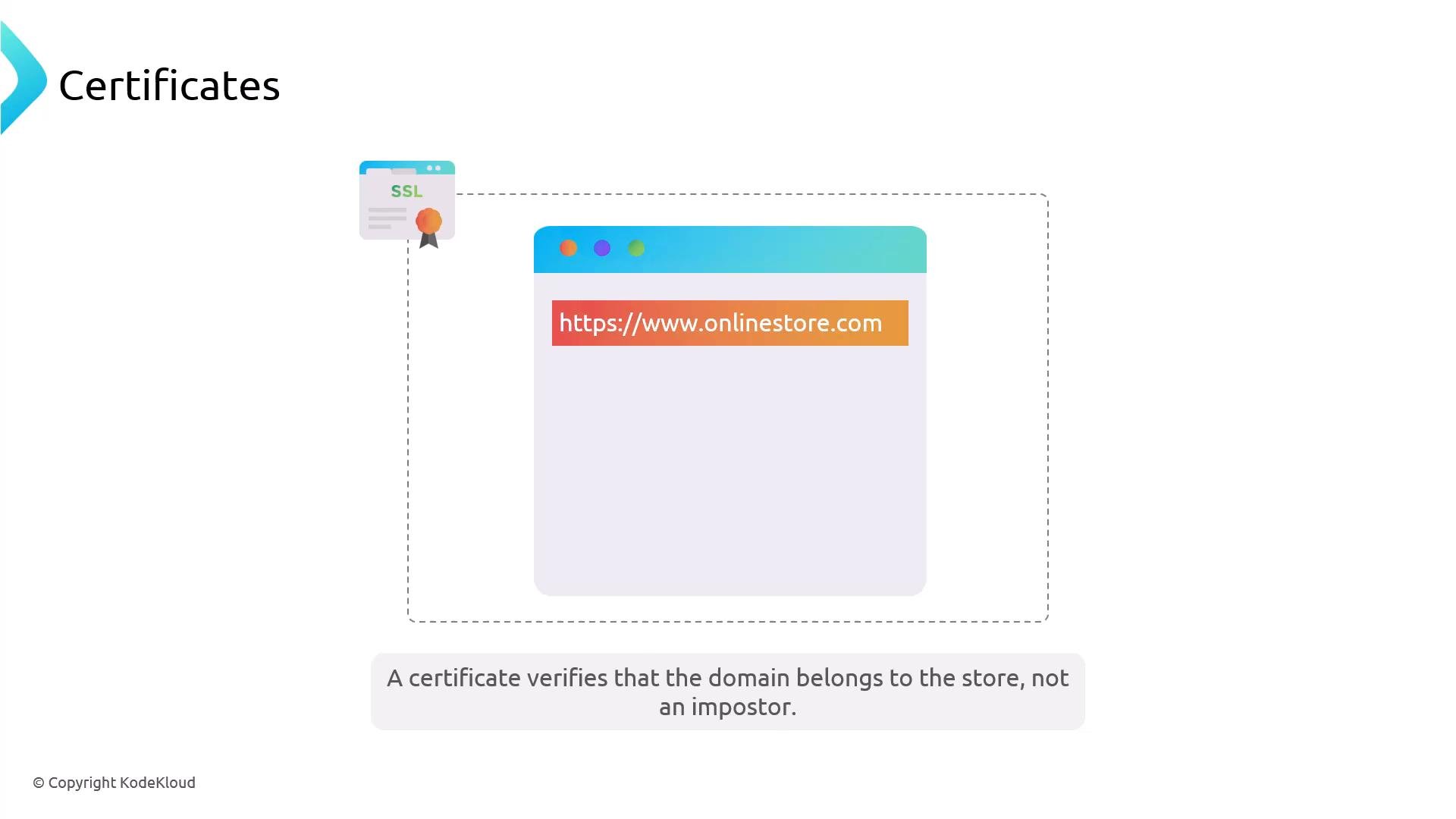
A slide titled "Certificates" showing a stylized browser window with a highlighted https://www.onlinestore.com address and an SSL certificate icon. It visually represents an SSL/TLS certificate verifying the site's authenticity.
Asymmetric encryption: public and private keys TLS uses asymmetric cryptography to authenticate the server and establish a shared symmetric key:
  • The server publishes a public key (in the certificate).
  • The server keeps the corresponding private key secret.
  • Asymmetric operations authenticate and perform key exchange; the resulting symmetric session key encrypts bulk data for the session.
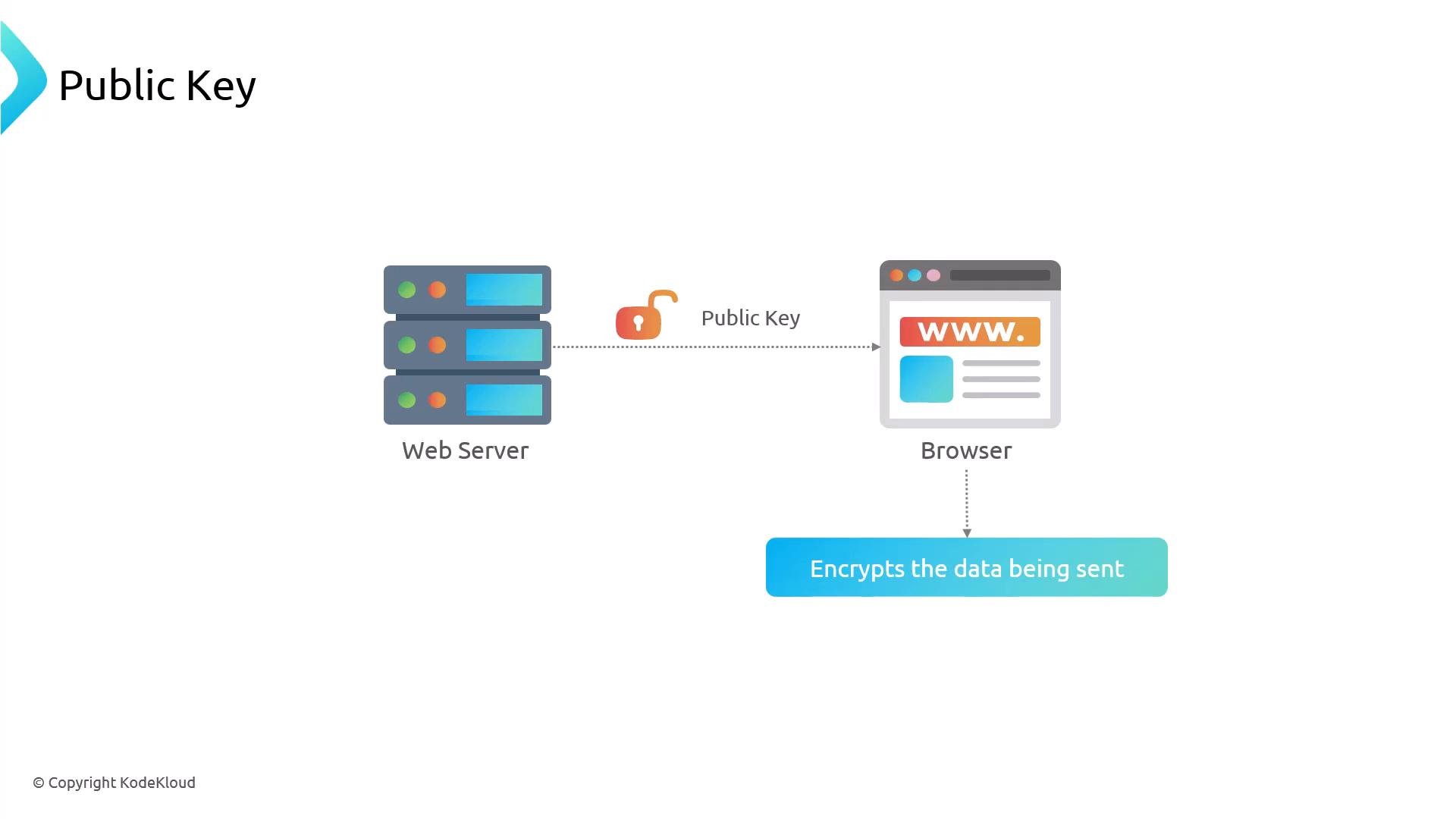
A simple diagram showing a web server handing a public key (illustrated by an open padlock) to a browser. The browser then uses that key to encrypt the data being sent.
The private key must remain secure on the server. Modern TLS setups often use ephemeral (short-lived) keys for forward secrecy so a compromised long-term key cannot decrypt past sessions.
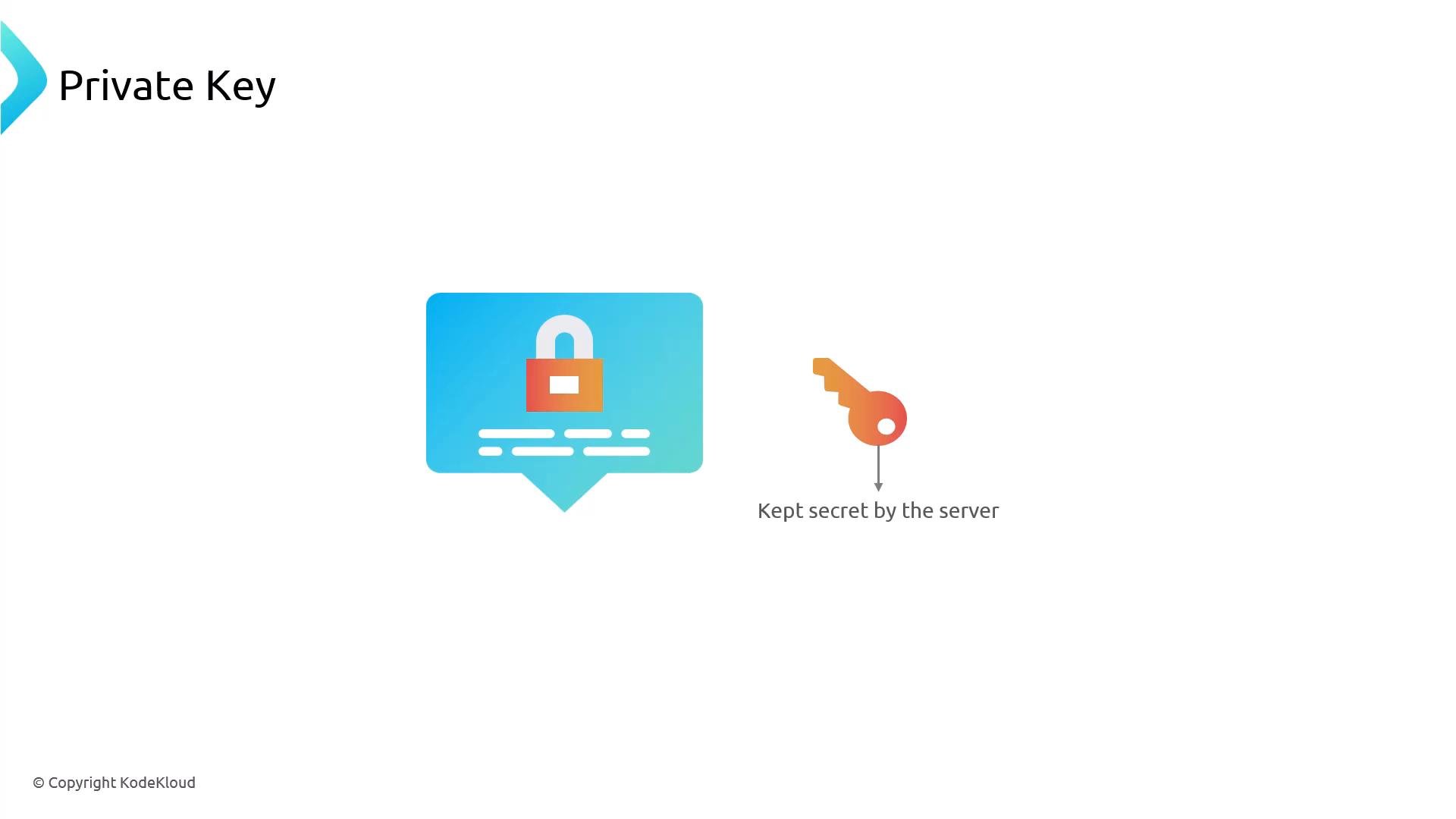
A slide titled "Private Key" showing a padlock icon inside a speech-bubble-like box and a separate key icon labeled "Kept secret by the server." The image illustrates that the private key is stored secretly on the server.
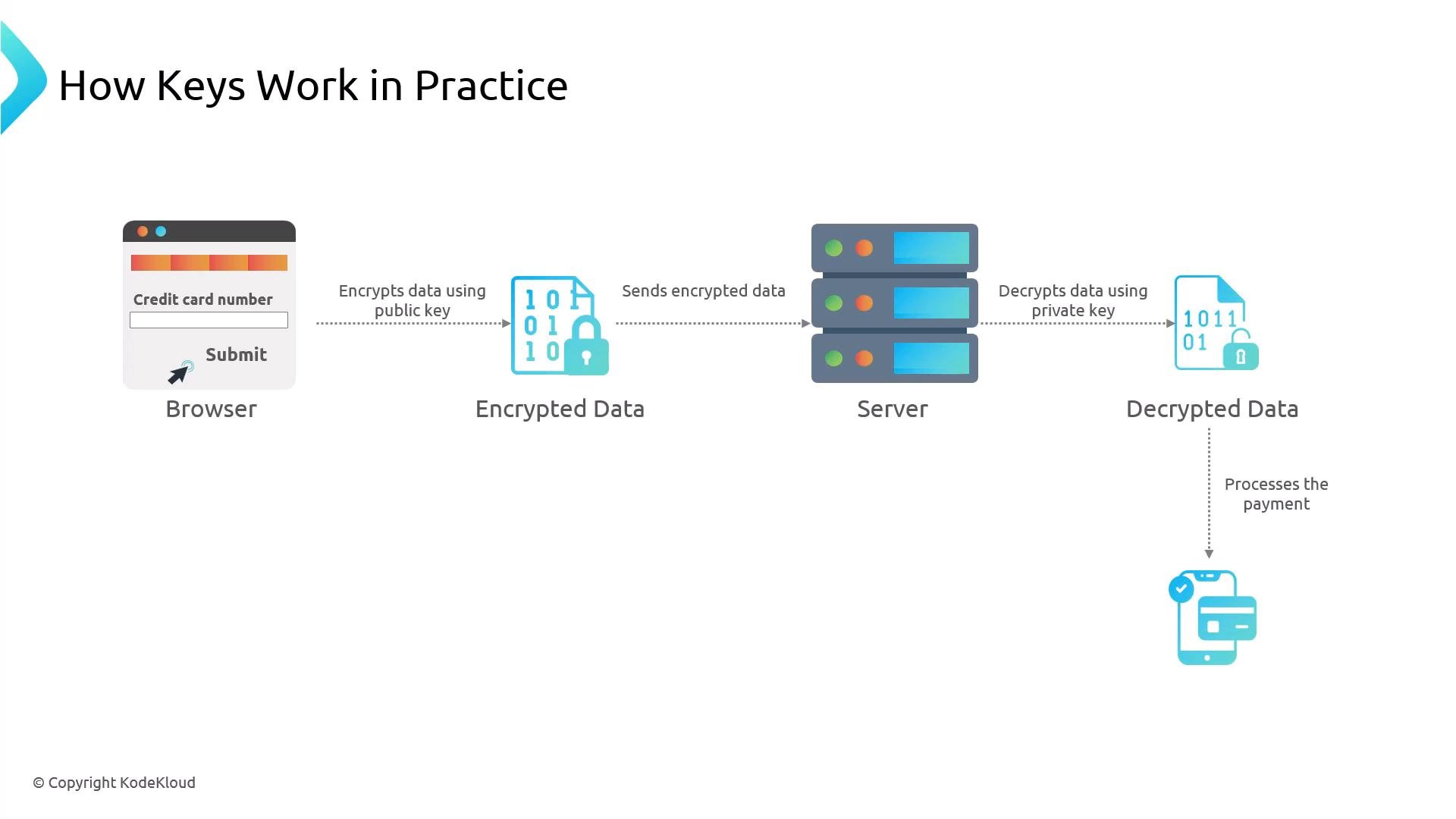
Putting it together When you submit a credit card number, the browser and server encrypt the data with the symmetric session key negotiated during the handshake. The server decrypts and processes the payment securely. Asymmetric keys are only used initially for authentication and key agreement.
A diagram titled "How Keys Work in Practice" showing a browser form submitting a credit card number that gets encrypted, sent to a server, and decrypted with a private key. The decrypted data is then used to process the payment.
Certificate Authorities (examples) Many commercial CAs exist; Let’s Encrypt is the most popular free CA and is widely automated and trusted by browsers.
A presentation slide showing the Let's Encrypt logo. It notes Let's Encrypt offers free TLS certificates (under the heading "Several reputable Certificate Authorities include:").
Table — Common CAs and when to use them Obtaining certificates Certbot (Let’s Encrypt)
  • Certbot is a widely used tool to request and renew Let’s Encrypt certificates.
  • On Debian/Ubuntu, install certbot and request certificates as shown.
Example: obtain a certificate using the standalone plugin (Certbot runs a temporary web server for the HTTP-01 challenge):
Requirements for that command:
  • You own the domain(s).
  • DNS A records point to the server’s public IP where certbot runs.
  • Port 80 is reachable from the internet for the HTTP challenge.
mkcert (local development / testing)
  • For local development, use mkcert to generate locally trusted certs. These are convenient for testing but are not valid on the public internet.
  • Do not deploy mkcert-generated certificates to production.
mkcert produces locally-trusted certificates for development only. Do not use mkcert-generated certificates in production.
Example mkcert workflow:
Sample mkcert output:
Reference the generated cert and key in your server config when testing locally. Nginx server block example Once you have certificate and key files available on the server, a minimal Nginx server block for HTTPS looks like:
Security hardening (recommended for production)
  • Enforce TLS 1.2+ (prefer TLS 1.3 where supported).
  • Use modern cipher suites and enable forward secrecy.
  • Enable HSTS (Strict-Transport-Security) so browsers always use HTTPS.
  • Consider OCSP stapling and certificate pinning only if you understand the operational tradeoffs.
  • Automate certificate renewal (Certbot can install hooks to reload Nginx after renewal).
Summary
  • HTTPS (TLS) encrypts traffic between browsers and servers, protecting confidentiality and integrity.
  • TLS replaced SSL; certificates issued by trusted CAs enable browsers to verify site identity.
  • Let’s Encrypt + Certbot is a standard, automated way to obtain public TLS certificates.
  • Use mkcert for local development only.
  • Configure your web server (Nginx example above) with the certificate and key, and apply production-grade TLS hardening.
Next steps
  • Try obtaining a Let’s Encrypt certificate in a lab and configure Nginx to serve your site with HTTPS.
  • Use tools like SSL Labs (https://www.ssllabs.com/ssltest/) to scan your TLS configuration and improve your score.

Watch Video