

- Redirect all HTTP traffic to HTTPS using a 301 redirect.
- Generate locally trusted test certificates with mkcert (for local/testing).
- Terminate TLS at NGINX and optionally proxy traffic to backend Apache servers over HTTPS (end-to-end TLS).
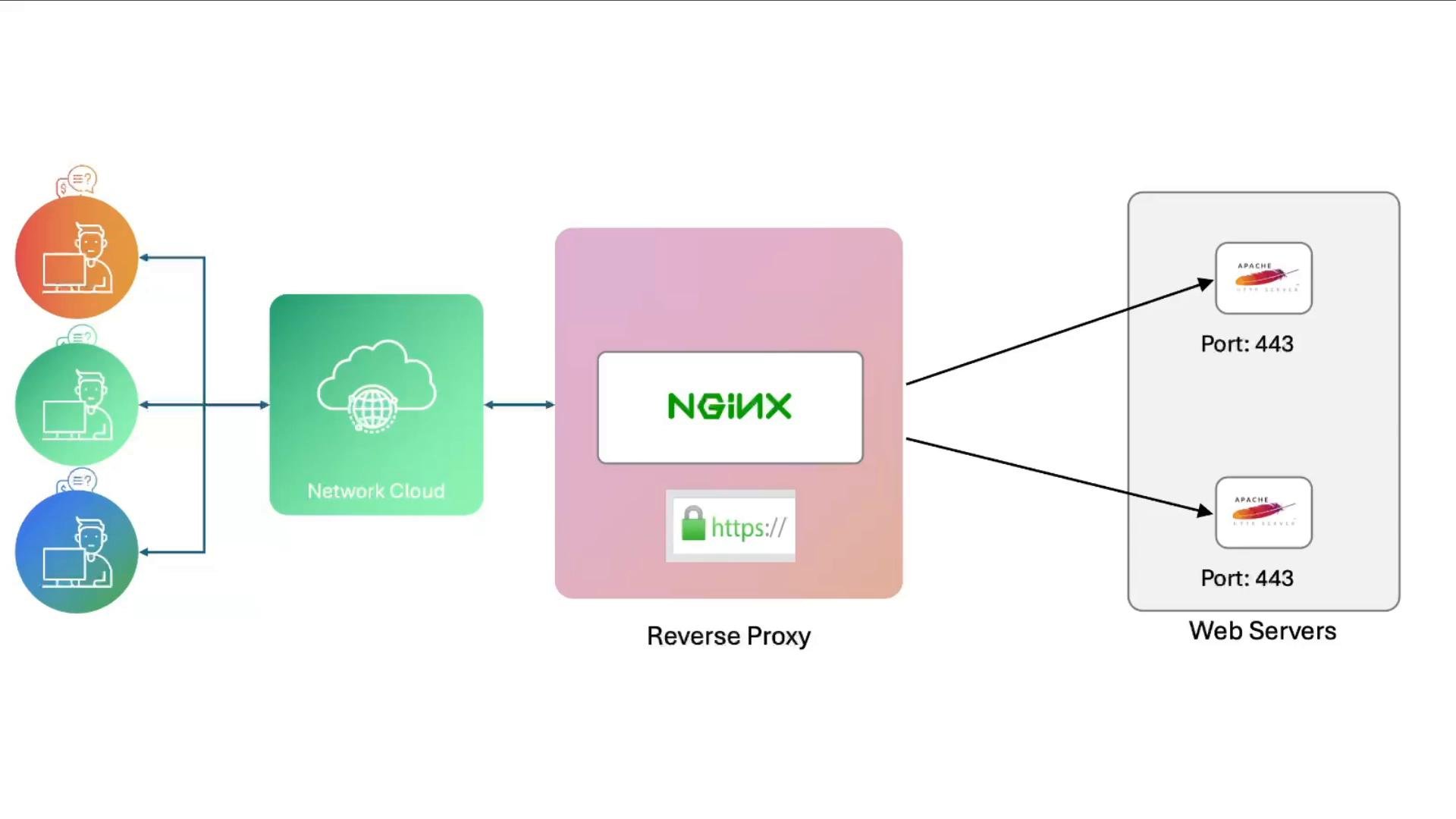
Prerequisites and quick checklist
- NGINX installed on the front-end host.
- Apache (or another web server) on backend hosts if proxying.
- Root or sudo access to manage firewall, certificates, and NGINX config.
- Public DNS and IP for production certificate issuance; mkcert is only for development.
1. Prepare firewall and confirm services
Make sure the NGINX host allows SSH and HTTP, then add HTTPS (443/tcp).
2. Enable the HTTPS site configuration
Remove the previous HTTP-only site and enable a new HTTPS site configuration./etc/nginx/sites-available/example-https and ensure it contains two key server blocks:
- An HTTP server listening on port 80 that issues a
301redirect to the HTTPS URL. - An HTTPS server listening on
443 sslthat references the certificate and key paths.
example-https configuration:
3. Generate test certificates with mkcert (development)
If certificates referenced by the config do not exist yet, NGINX will fail when validating them after you enable the site. For development, use mkcert to create locally trusted certs. In production, use a trusted CA (e.g., Let’s Encrypt via Certbot). Create the certificate files under/etc/ssl/certs:
https://example.com will serve the site over HTTPS using the test certificate.
For production, obtain publicly trusted certificates via an ACME client like Certbot with Let’s Encrypt. That requires public DNS and a reachable IP for your domain.
4. Reverse proxy to HTTPS backends (upstream over 443)
To keep encryption between NGINX and backend servers, configure an upstream that points to backend IPs on port 443 and useproxy_pass https://... from the front-end.
Full example with upstream and proxy_pass:
proxy_pass https://example;instructs NGINX to use HTTPS for upstream connections.- Forwarding proxy headers (Host, X-Real-IP, X-Forwarded-For, X-Forwarded-Proto) helps backends know the original request details.
- For upstreams using hostnames (not IP), enable SNI so NGINX sends the expected server name:
- For self-signed backend certs, configure
proxy_ssl_trusted_certificateand related directives for proper validation. Usingproxy_ssl_verify offis discouraged in production.
5. Example backend (Apache) TLS configuration
Each Apache backend must accept TLS on port 443. Example Apache virtual host:6. Verify backend load balancing and served responses
A simple way to confirm requests are distributed to each backend is to change the HTML on each node so it reveals the hostname or an identifier (e.g., NODE01, NODE02). Example edit to/var/www/html/index.html on node01:
https://example.com multiple times should show different responses depending on backend selection.
7. Open ports on backends
Ensure backend servers allow HTTPS so NGINX can connect to them:Remember to open port
443 on any backend NGINX will proxy to — otherwise the front-end cannot establish HTTPS connections to them.8. Final test: reload NGINX and browse
After updating configurations and placing certificates, test and reload NGINX:https://example.com. NGINX will:
- Redirect HTTP to HTTPS using a
301. - Terminate TLS at the front-end (using your certificate).
- Optionally proxy requests to upstream Apache backends over HTTPS.
Summary and best practices
- Always redirect port 80 to HTTPS using a
301to encourage secure client connections. - Use
mkcertfor local or development certificates. For production, use a publicly trusted CA like Let’s Encrypt or a commercial CA, typically via an ACME client such as Certbot. - To proxy to backends over TLS, use
proxy_pass https://upstream;and configure upstream targets on port443. - Forward proxy headers so backends receive original request metadata.
- Manage certificate validation for upstream servers—prefer proper CA-signed certs or configure
proxy_ssl_trusted_certificaterather than disabling verification. - Ensure firewalls on both front-end and back-end hosts allow required ports (notably
443).