

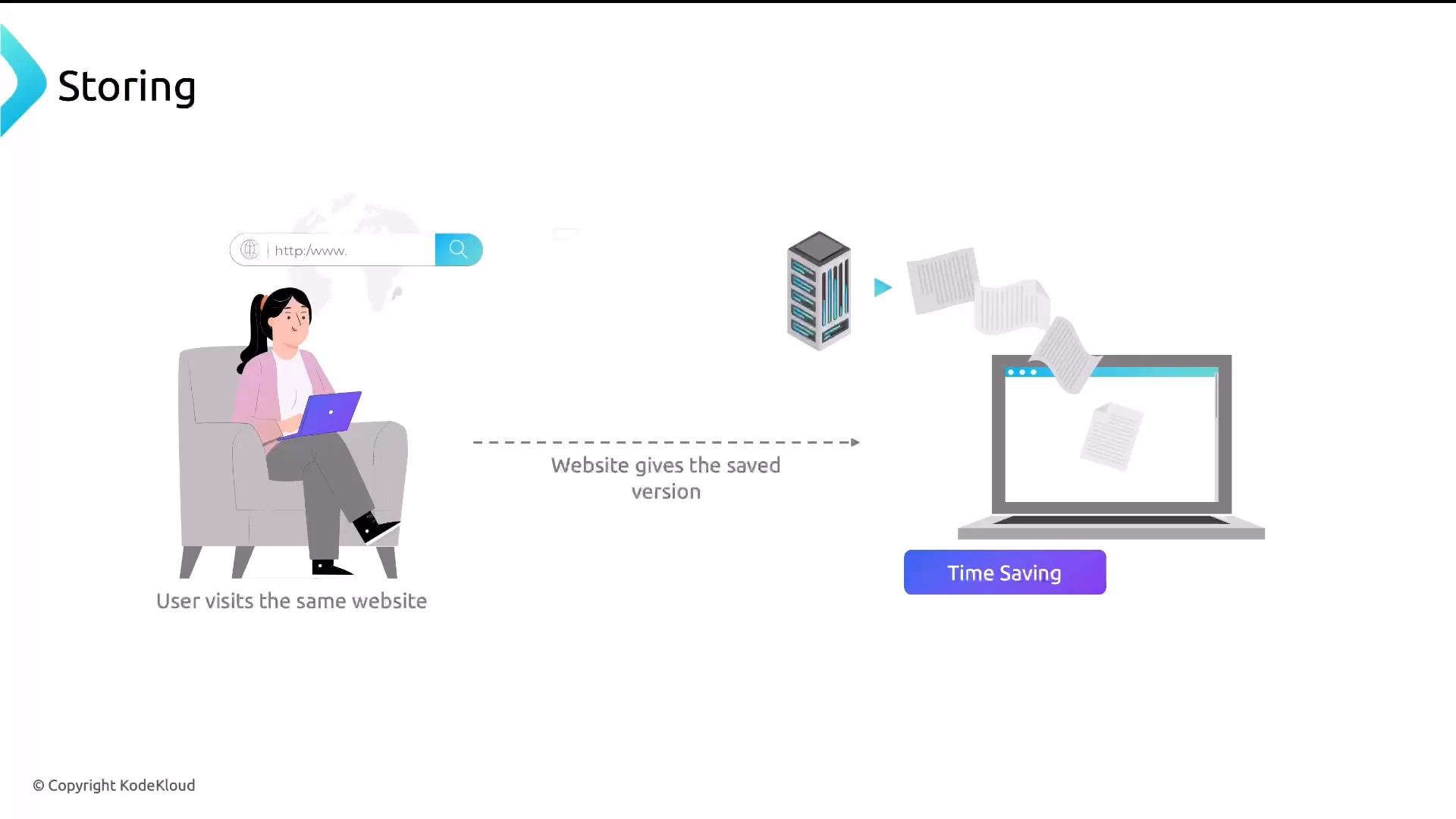
- Server = coffee shop counter
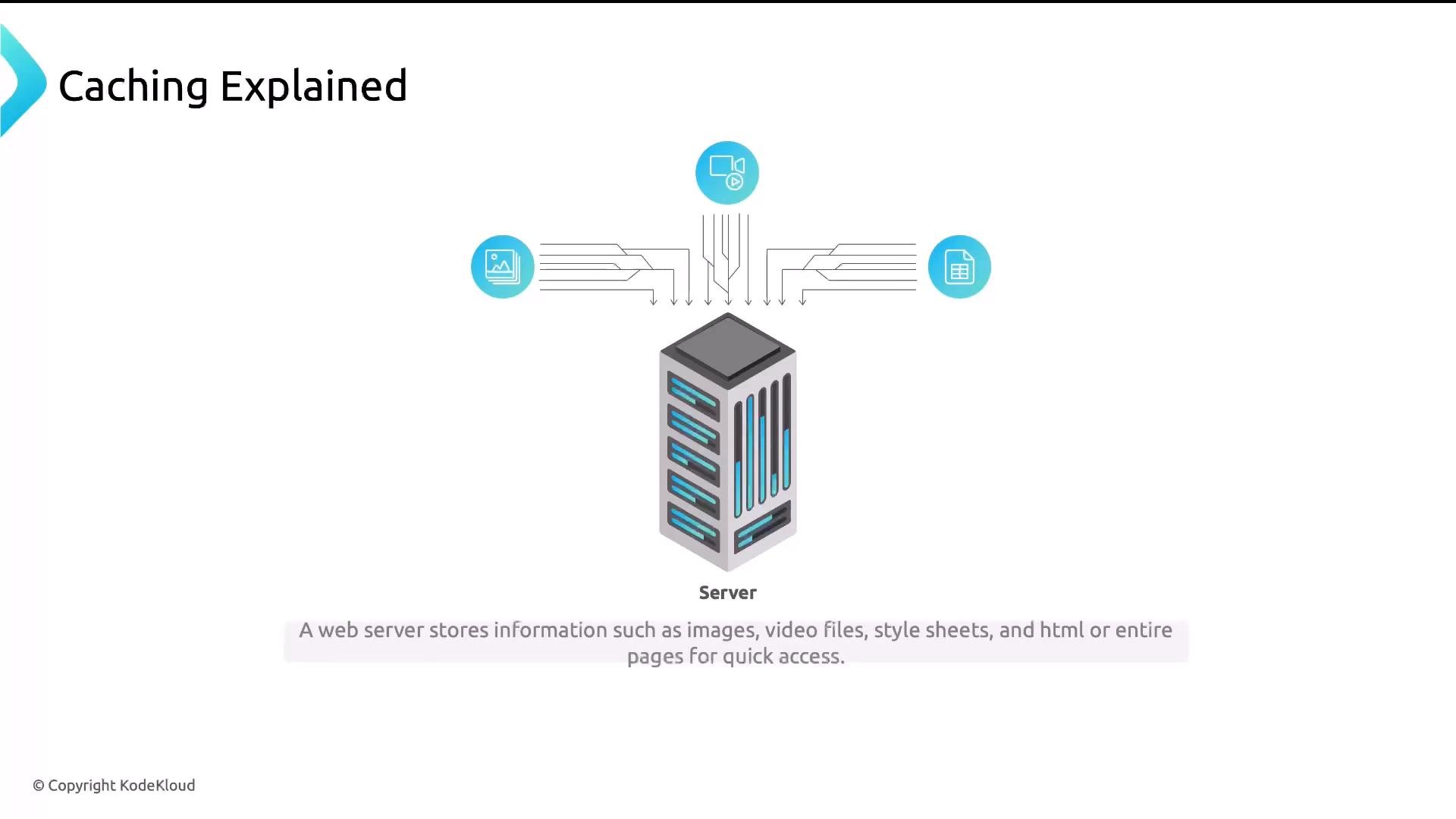
- Data (images, HTML, CSS) = your coffee and cookie
- User = you
proxy_cache family of directives. Below is a consolidated example showing the common directives placed in the http block, followed by a matching server block that uses that cache:
proxy_cache_path (disk store and cache zone)
proxy_cache_path creates the on-disk cache store and a shared memory zone for metadata. Common options:
To clear the cache: stop NGINX (or ensure no writes), remove or rename the cache directory, then restart NGINX. NGINX will recreate the cache. Always check file permissions so the NGINX worker can write to the cache path.
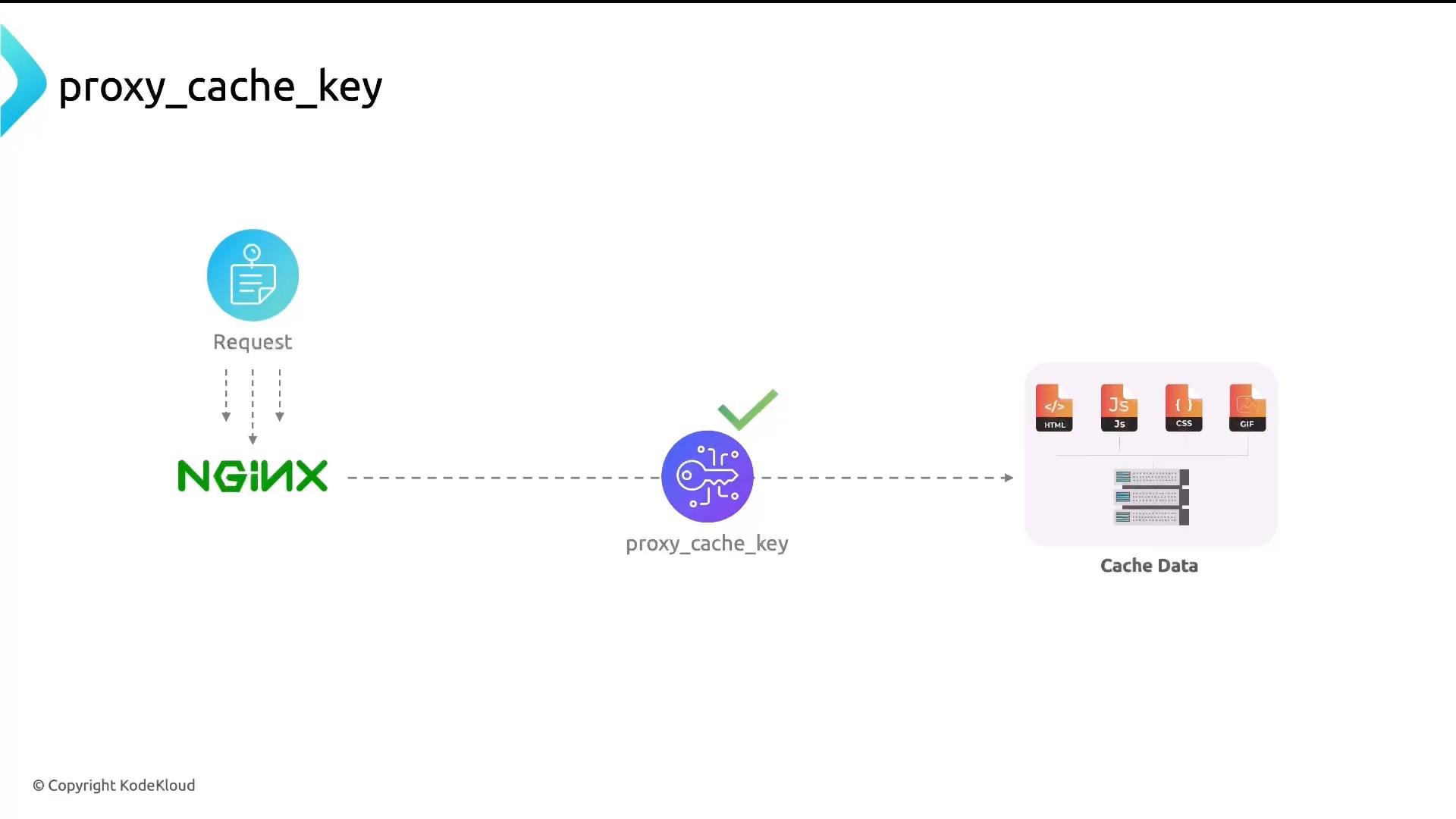
proxy_cache_key (how requests map to cached entries)
proxy_cache_key controls the cache key NGINX uses to match requests to cached responses. A typical key combines protocol, method, host, and request URI:
$scheme—httporhttps$request_method—GET,POST, etc.$host— Host header (e.g.,www.example.com)$request_uri— Path + query string (e.g.,/images/img.png?size=large)
proxy_cache_valid (how long to keep cached responses)
proxy_cache_valid sets TTLs (time-to-live) per HTTP status code. You can specify multiple lines:
- In this example, 200 and 301 responses are cached for 10 minutes.
- 404 responses are cached for 1 minute (useful to avoid repeat hits for missing resources).
Enabling caching in server/location blocks
Inside aserver or location block, enable caching with the proxy_cache directive. Use add_header to expose a debug header that shows cache status to clients:
$upstream_cache_status values:
proxy_cache_bypass (conditional bypass)
proxy_cache_bypass allows you to skip the cache based on variables (for example, when clients send cache-control headers):
proxy_cache_bypass sparingly. Overuse defeats caching and increases backend load.
Avoid enabling
proxy_cache_bypass for static assets (images, CSS, JS). Overuse of bypass conditions can negate caching benefits and increase backend traffic.How to confirm caching is working
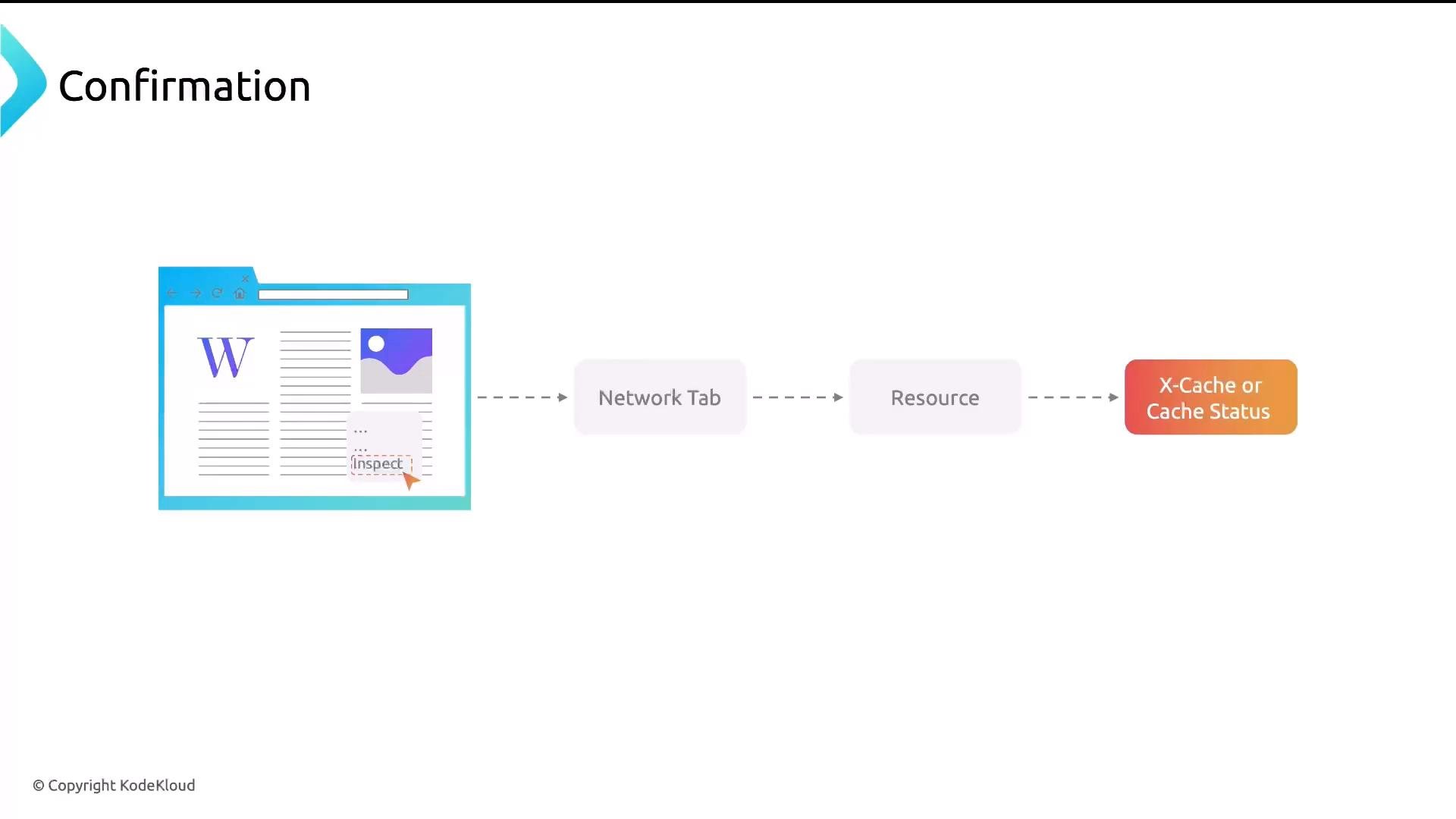
- Browser: open DevTools → Network tab → inspect a resource’s response headers for
X-Proxy-Cache,X-Cache,Cache-Status, orAge. - Logs: include
$upstream_cache_statusin your access log to track hits vs misses. - Use curl to inspect headers:
curl -I https://example.com/pathand look forX-Proxy-CacheorAge.
X-Proxy-Cache: HIT indicates the response was served from NGINX’s cache rather than the backend.
Quick checklist for production caching
- Choose a cache path with sufficient disk and correct permissions.
- Allocate an appropriate
keys_zonesize for your traffic. - Use
levelsto prevent filesystem performance issues. - Set conservative
proxy_cache_validTTLs for dynamic content. - Expose debug headers only in non-sensitive environments or remember to remove/secure them later.
- Monitor cache hit ratio via logs and metrics.