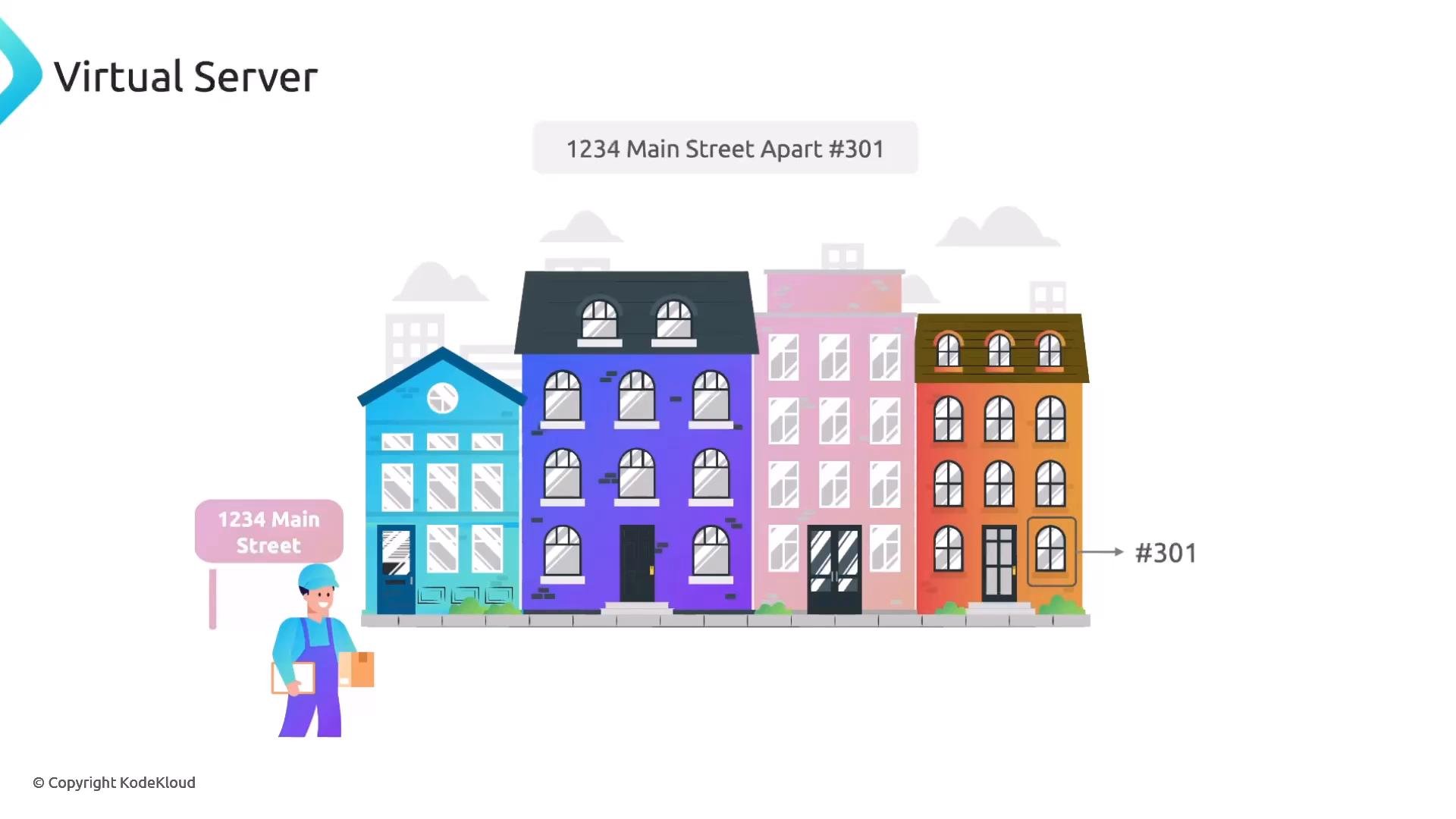
In this lesson we’ll cover virtual servers in NGINX and how a single physical NGINX instance can host multiple websites (virtual servers / server blocks). You’ll learn the core directives, why virtual servers are useful, and recommended file organization for managing sites safely. Imagine you live in an apartment building: your address is 1234 Main Street, apartment 301. The courier first goes to the building (the physical server) and then to apartment 301 (the virtual server / site). This mapping is how NGINX routes requests — one IP/port handles many hostnames.
An illustrated streetscape showing colorful row houses labeled "1234 Main Street" with a delivery worker holding a package and an arrow marking apartment "#301."
Key concept: a virtual server (server block) tells NGINX which Host header(s) it should accept and how to serve or proxy those requests. Server blocks are isolated by configuration but share the same NGINX process and network ports.
A slide titled "Virtual Server" with a short explanation that a virtual server in Nginx allows one physical server to host multiple websites.
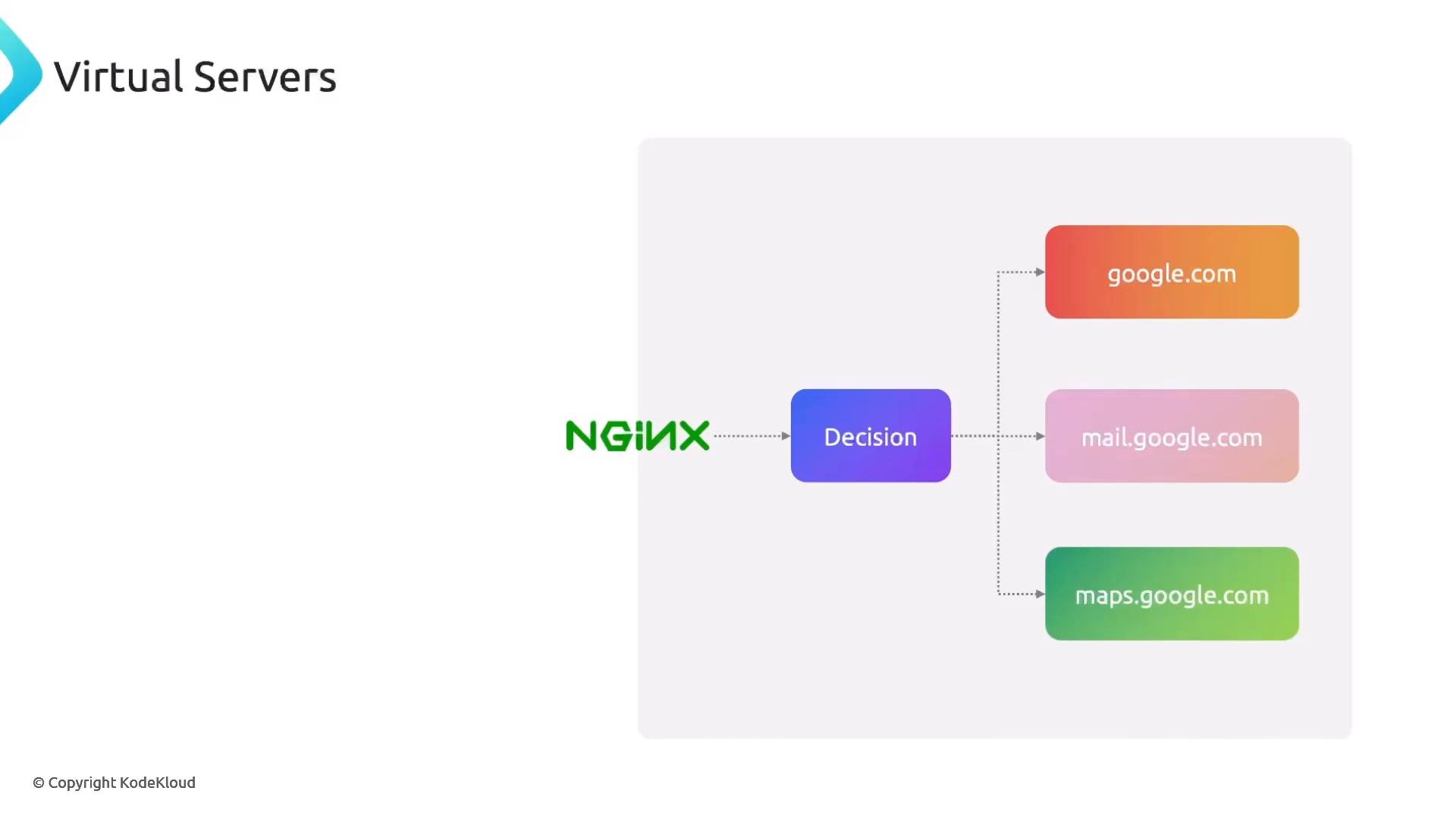
Routing by Host header allows NGINX to act like a decision point that forwards traffic to different sites or backends. For example, a single NGINX could direct requests for google.com, mail.google.com, and maps.google.com to different backends or content roots based on the Host header.
A slide titled "Virtual Servers" showing an NGINX icon sending traffic to a "Decision" box. The decision node branches to three virtual servers labeled google.com, mail.google.com, and maps.google.com.
Why use virtual servers?
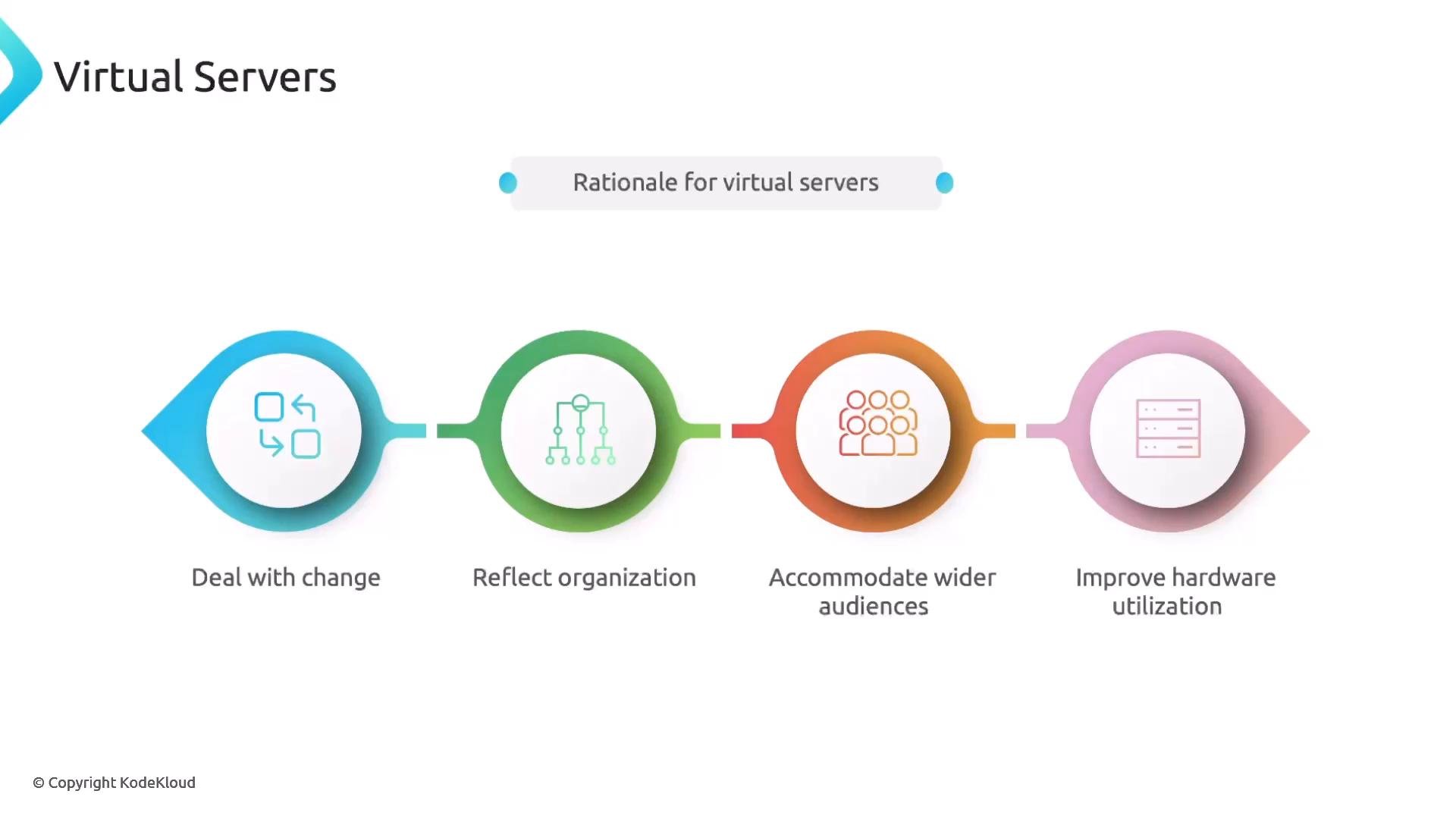
An infographic titled "Virtual Servers" showing a central header "Rationale for virtual servers" and four connected colored icons labeled: Deal with change, Reflect organization, Accommodate wider audiences, and Improve hardware utilization. Each icon has a simple line illustration above its caption.
  • Cost savings: fewer machines to run multiple sites.
  • Centralized management: one NGINX instance handles routing and SSL termination.
  • Better hardware utilization: run many low-traffic sites on the same host.
  • Isolation by config: each site has its own server block file so you can change one site without touching others.
Basic server block example
Directive quick reference Notes about hostnames and IPs
  • server_name accepts domain names, wildcards (e.g., *.example.com), and IP addresses. In practice you usually create DNS A/AAAA records pointing your hostname to the server IP.
  • Browsers assume port 80 for HTTP and 443 for HTTPS. Using non-standard ports (e.g., :8080) requires users to include the port in the URL and is less user-friendly.
Serving a site on a non-standard port (example)
Common pattern: run an application on an unprivileged port (8080, 3000, etc.) and use NGINX on ports 80/443 as a reverse proxy. That way users don’t need to specify ports or deal with unencrypted connections. Use the proxy_pass directive inside a location block when proxying to backends. Configuration organization and best practice
  • You can put multiple server blocks in a single file, but it’s best to keep each virtual server in its own file (for example, within /etc/nginx/sites-enabled/ or /etc/nginx/conf.d/ depending on your distribution).
  • Separating site configs keeps changes localized, simplifies automation, and reduces the risk of accidental changes to unrelated sites.
  • Always test configuration changes before reloading NGINX.
Keep each site’s configuration in its own file (e.g., /etc/nginx/sites-enabled/honda.cars.com) so you can safely edit or remove one site without impacting the others.
Example: two separate site files / etc/nginx/sites-enabled/honda.cars.com
/ etc/nginx/sites-enabled/toyota.cars.com
Always validate and reload NGINX safely
Before reloading NGINX after changes, run nginx -t to test configuration syntax. If the test passes, reload with sudo systemctl reload nginx (or nginx -s reload). A failed nginx -t prevents a reload and keeps the running configuration intact.
Further reading and references Next steps
  • Try creating two simple sites on a VM: add DNS or /etc/hosts entries, create site files under /etc/nginx/sites-enabled/, run nginx -t, and reload NGINX. Test accessing both sites by hostname to see how NGINX chooses the correct server block.

Watch Video