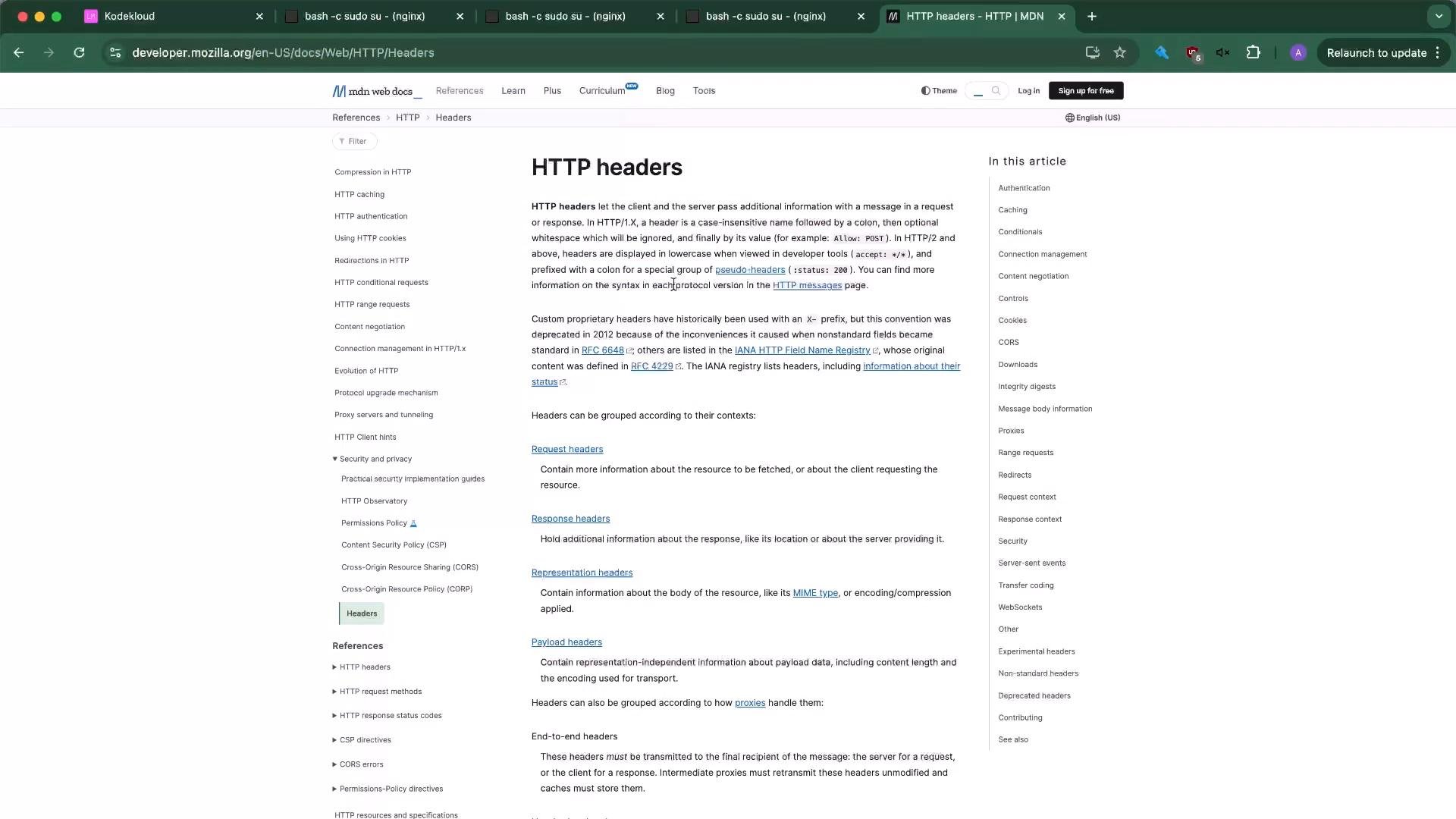
- Measure transfers with compression disabled.
- Artificially enlarge JPEGs on the backends so differences are visible.
- Enable gzip in Nginx, reload, and re-measure.
- Verify results in the browser devtools and via curl.
Images (JPEG/PNG/WebP, etc.) are generally already compressed. Proxy compression is most effective for text-based assets (HTML, CSS, JS, JSON, XML). This demo deliberately enlarges JPEGs to 20 MB so the gzip effect is clearly visible.
Step 1 — Enlarge JPEGs on the backend
Make the images large enough to produce measurable transfer times. Commands (run on each backend serving the site, e.g., node01 and node02):Step 2 — Monitor backend access logs
While you load the site from the browser, watch the Apache access log to confirm requests reach the backend:Step 3 — Inspect the site without compression
Open your browser developer tools (Network tab) and load the page. You should see transfers matching the enlarged file size (~20 MB). Example: the devtools Network panel showing GET requests, statuses and transfer sizes: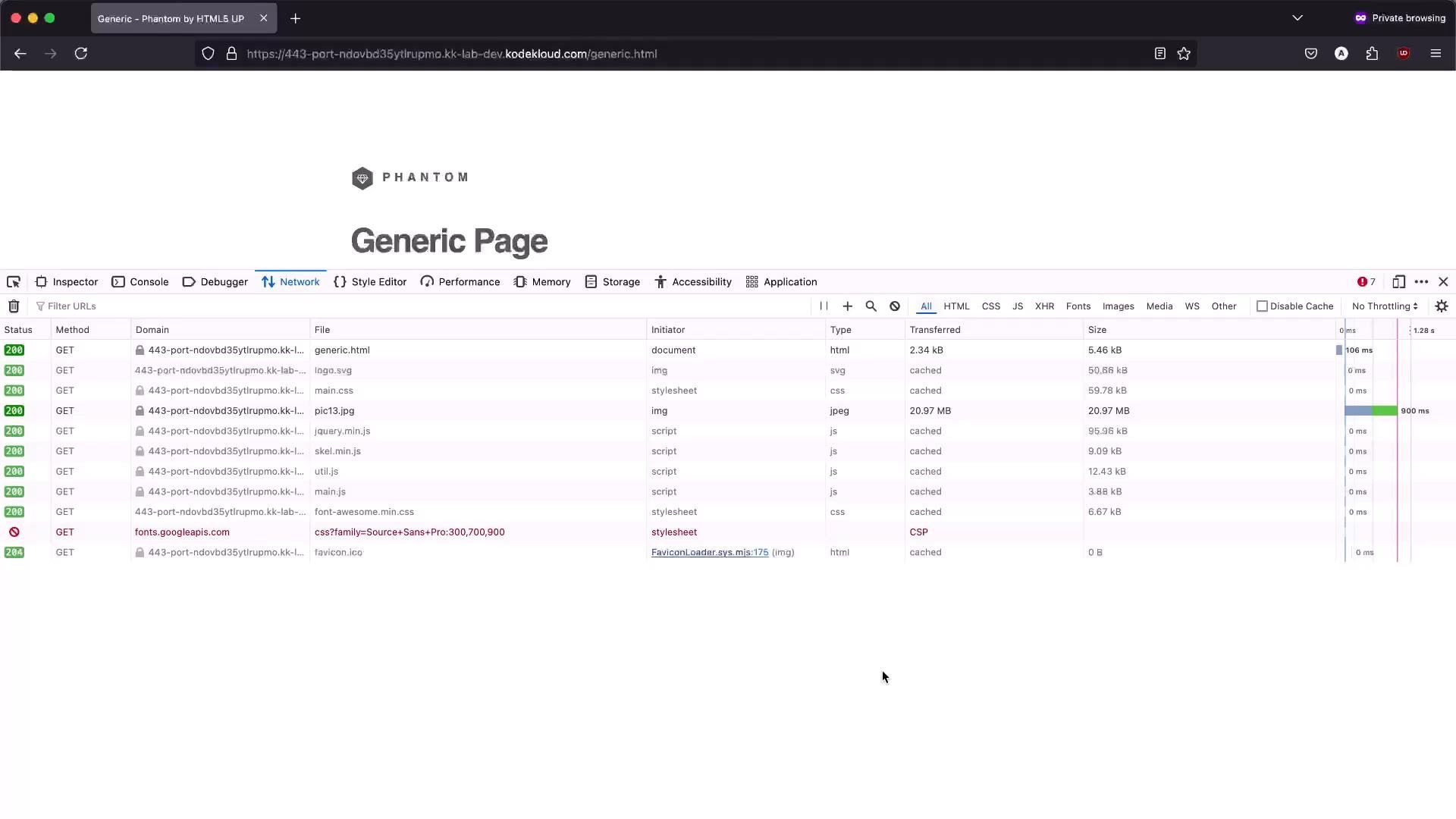
- There is no
Content-Encodingheader. Content-Lengthequals the full (enlarged) file size.
Step 4 — Enable gzip in Nginx
Edit your global Nginx configuration (e.g.,nginx.conf) or the http { ... } section and add gzip directives. Key settings:
Do not enable gzip for image formats in production unless you know the files are not already compressed. Compressing already-compressed binary formats usually wastes CPU with little size benefit. This demo includes
image/jpeg only to show the effect with artificially enlarged images.Step 5 — Verify compression from the browser and CLI
- Open a new private/incognito window to avoid cached responses.
- Reload the page and inspect the Network panel. Compressed responses show
Content-Encoding: gzipand a smaller “Transferred” size. Load times for large assets typically drop from seconds to milliseconds.
Content-Encoding: gzip and Vary: Accept-Encoding):
Step 6 — Example minimal server block used in the demo
This example shows a minimal HTTPS server block with a proxied upstream. Headers, cache and rate limiting are included where relevant for the demo:Step 7 — Example consolidated global nginx.conf snippets
A compact example showing recommended global settings (including gzip) used during this demo:References
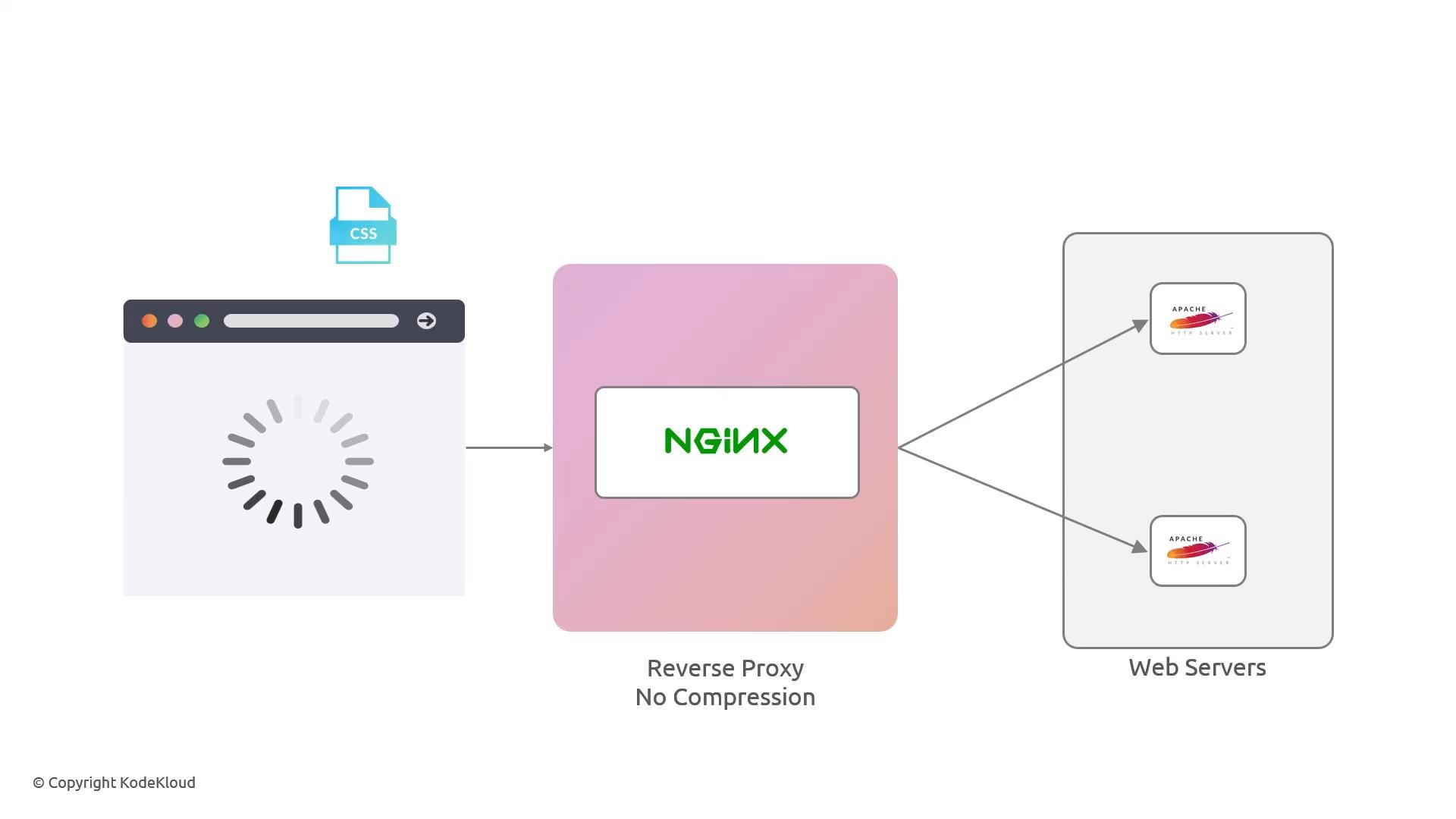
For more detail on HTTP headers and which ones to add for security and caching, see MDN’s HTTP headers documentation: