

https://www.kodekloud.com) publicly accessible, but require a username and password for https://www.kodekloud.com/admin.
Common use cases:
- Admin panels
- Feature-flagged pages during development (e.g.,
https://www.kodekloud.com/feature-xyz) - Exclusive or premium content
- Internal-only resources (VPN/intranet)
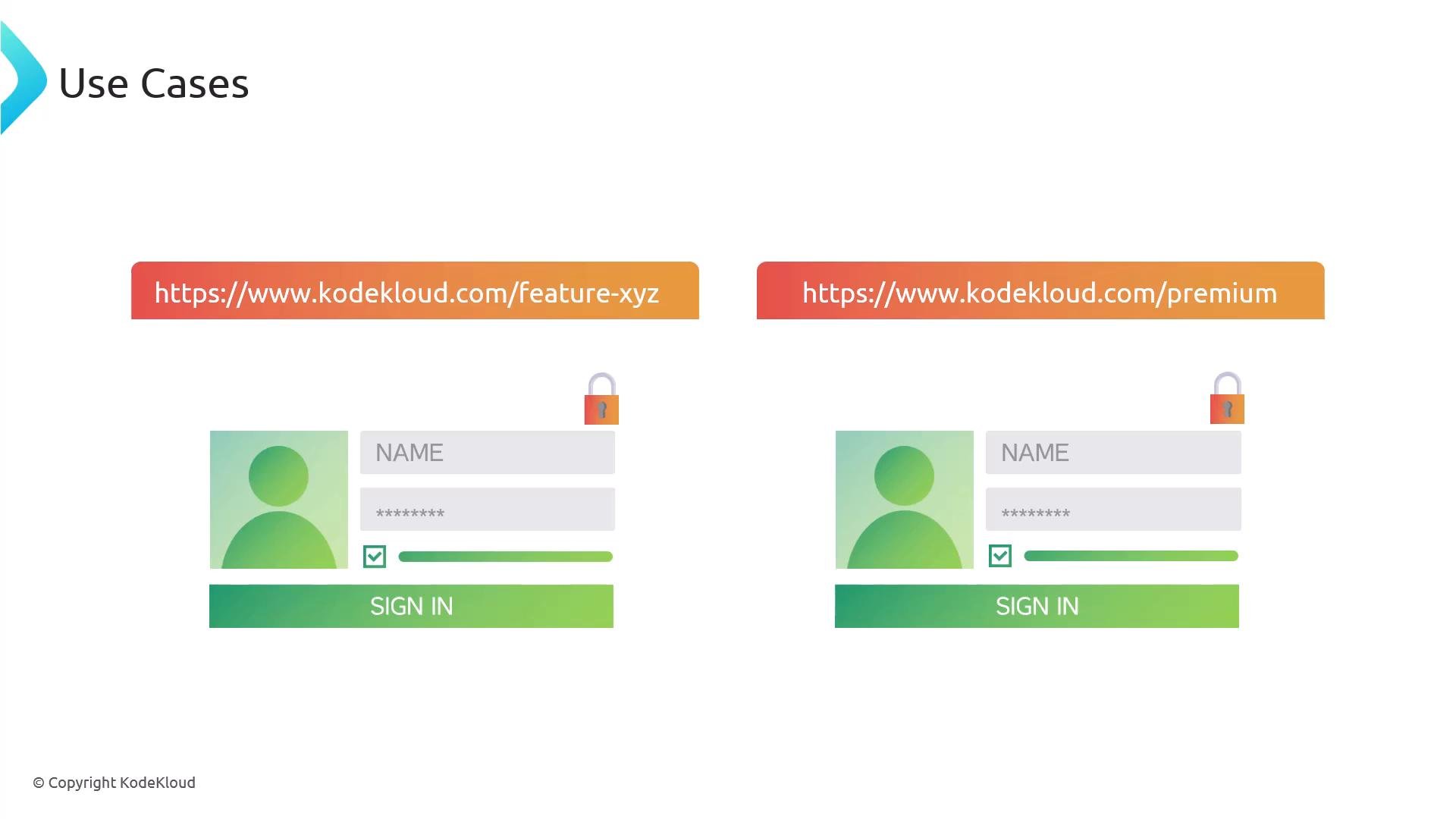
Use NGINX basic auth primarily for internal or limited-audience protection. For public-facing sites, prefer application-level authentication (OAuth, SSO, etc.) because the browser-native prompt is not user-friendly or brandable.
How it works (high level)
- Create a password file (commonly named
.htpasswd) containingusername:hashed-passwordentries. - Configure an NGINX
locationorserverblock withauth_basicandauth_basic_user_filepointing to that file. - Test the configuration and reload NGINX. Browsers will show a native username/password prompt for protected paths.
Prerequisites
- Root/sudo access to the server running NGINX.
- NGINX installed and running.
- Either the
htpasswdutility (fromapache2-utils) or OpenSSL available for generating password hashes.
Generating the password file (.htpasswd)
You can create.htpasswd with one of two common approaches.
Option A — Using the htpasswd utility (recommended)
- Install the utility (example for Ubuntu/Debian):
- Create the
.htpasswdfile and add the first user (-ccreates/truncates the file):
- Add another user (do NOT use
-cagain, or it will overwrite the file):
username:hash format used by htpasswd.
- Create the file and add the first user (use
>to create/truncate):
- Append another user:
Quick reference: common commands
Configuring NGINX to require authentication
Addauth_basic and auth_basic_user_file inside the location (or server) block for the path you want to protect. The auth_basic string is displayed in the browser prompt (for example, “Restricted Content”).
Example NGINX server block:
Testing the protected endpoint
Visit the protected path in a browser (for example,http://example.com/admin). The browser will display the native authentication dialog asking for username and password.
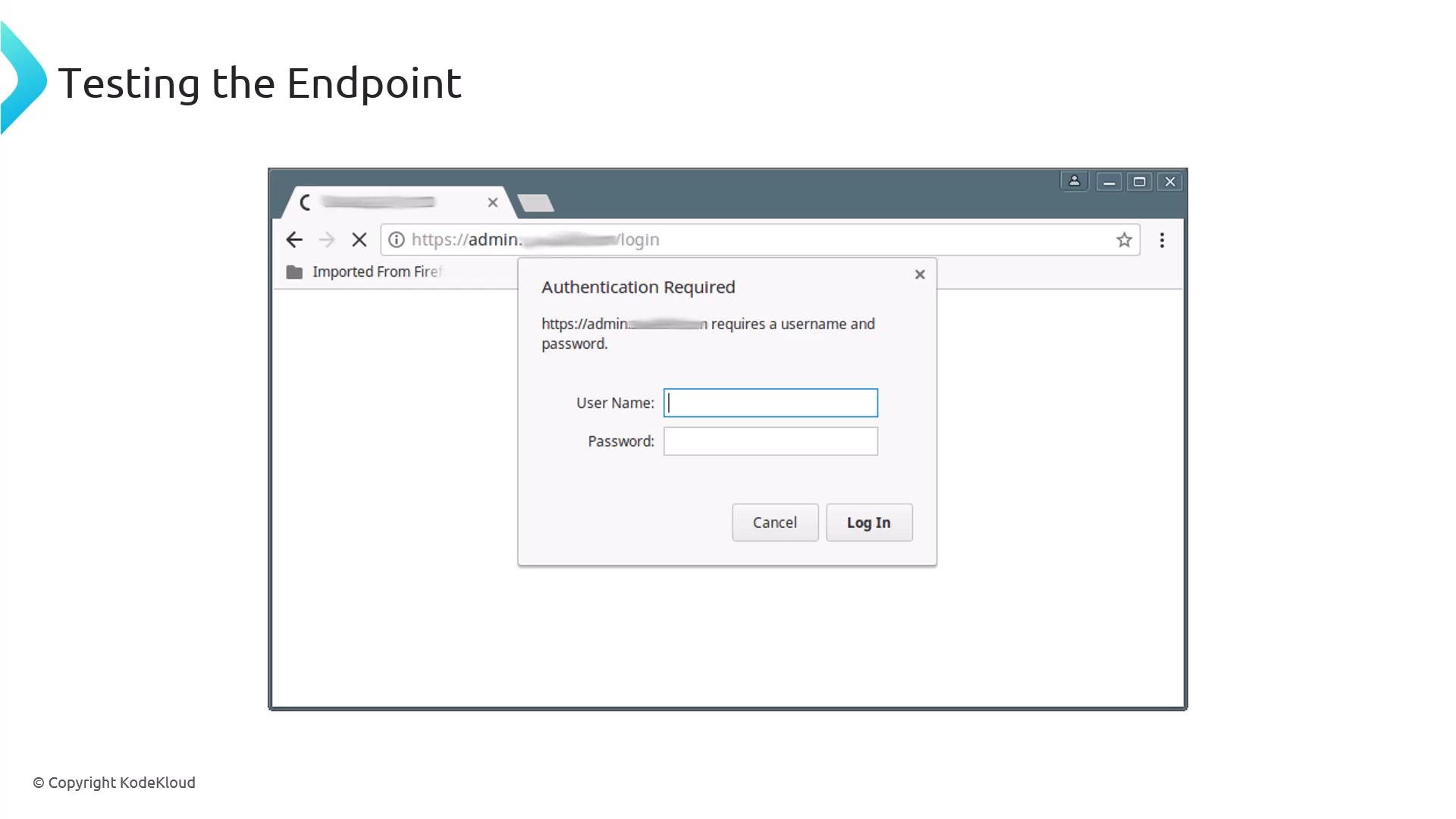
The browser’s authentication dialog is not customizable. For public-facing or branded login experiences, use an application-level authentication solution (OAuth, SSO, etc.). Basic auth is best suited for internal, temporary, or limited-audience protection.
Security and operational tips
- Use HTTPS to protect credentials in transit. Basic auth sends credentials in a base64-encoded form; without TLS they can be intercepted.
- Store
.htpasswdoutside web root and restrict file permissions (readable only by the NGINX user). - For more advanced access control, combine NGINX auth with IP allow/deny rules, client certificates, or application-level auth.
- Rotate passwords and audit
.htpasswdaccess as part of your security policy. - Consider centralized secret stores (e.g., HashiCorp Vault) for production-grade credential management.
References and further reading
- NGINX auth_basic documentation
- htpasswd (Apache) documentation
- OpenSSL
- OAuth
- Single sign-on (SSO) overview
.htpasswd files and protected paths.